Sponsored content. Zeniteq received compensation for this placement.
What if your productivity problem isn't that you're missing the right app, but that you've installed five apps that all promise to do the same job? Most lists of the stack ten overlapping tools together, leaving you to move tasks between them, copy notes twice, and wonder which dashboard you're supposed to trust each morning.
Like this article (0 likes)
Save article
best productivity apps
This guide works differently. Each tool below is grouped by the specific job it solves, whether that's capturing tasks fast, storing knowledge you can find again, coordinating a team, scheduling around meetings, or protecting focus time. You'll also get the weakness stated plainly for each one, because knowing what a tool is bad at matters as much as knowing its feature list.
Expect practical use cases, real limitations, and no encouragement to adopt everything. Read the category that matches your current bottleneck, pick one tool for that job, and skip the rest until you have a second, distinct problem. The closing framework will then help you assemble a lean toolkit, usually two to four apps, instead of a crowded home screen that creates its own maintenance work.
1. Awesome Tools
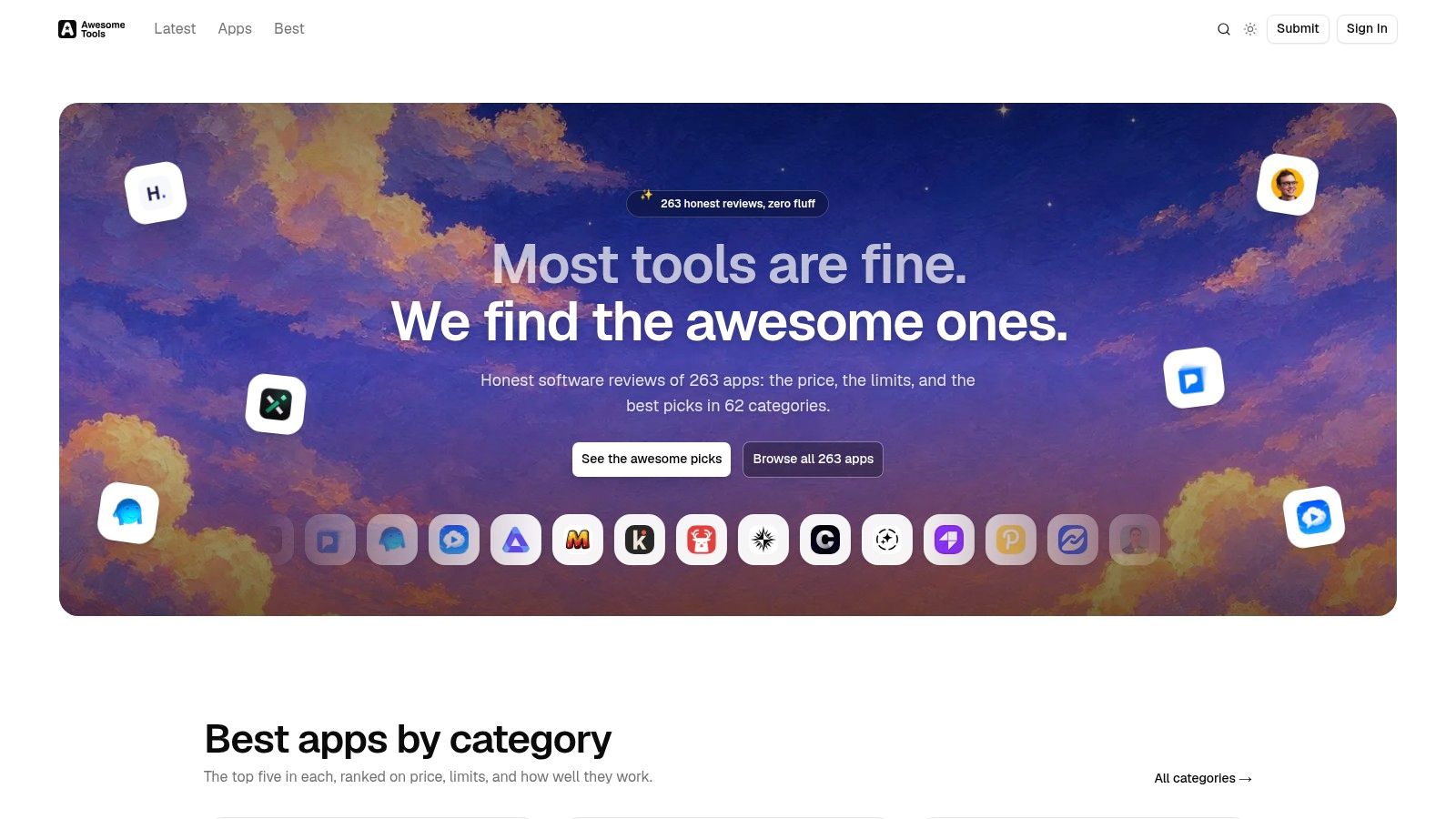
Choosing between apps is itself a productivity problem. Vendor pages highlight features and bury limits, which is why a comparison directory belongs in this list before any individual tool. best apps by category on Awesome Tools gives you ranked guides across 62 categories and 260+ hands-on software reviews, so you can narrow a shortlist by job instead of opening twenty tabs.
Each review covers real pricing tiers, hidden usage limits, pros, cons, and direct alternatives. That structure is useful when two tools look identical on their homepages but differ on export limits, guest seats, or what becomes paywalled after a trial. The category guides rank by price to value, real limits, and workflow fit, covering Productivity alongside AI Tools, Developer Tools, SEO Tools, CRM, and Design Tools.
Where It Fits Your Decision
Approved tools carry dynamic badges showing verified Ahrefs Domain Rating or monthly organic traffic, which helps you judge whether a newer product has traction before you migrate your notes or tasks into it. If you build software yourself, there's also a public JSON Agent Submission API and paid launch options, but for buyers the value is simpler. It's a filter.
Use it when you're comparing the next ten apps, or tools not listed here, and want the trade-offs in one place. Don't treat any ranking as a substitute for a trial with your own files, team size, and integrations. I recommend shortlisting two candidates there, then testing both on one real project for a week.
2. Todoist
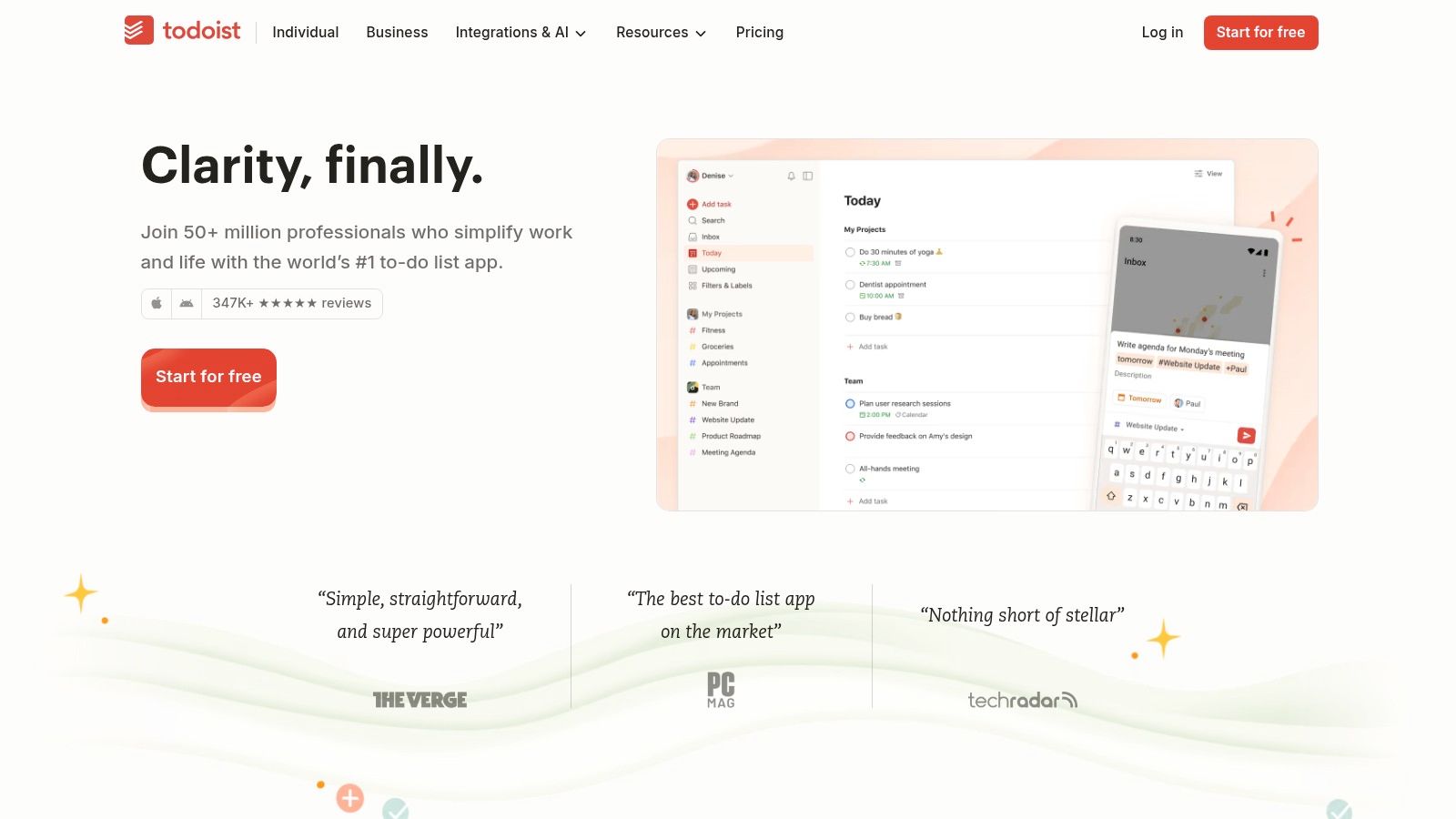
Job: capturing tasks before you forget them.Todoist gets commitments out of your head and into projects, subtasks, labels, and filters without asking you to learn a project management system first. Type a task in plain language, add a due date in the same line, and move on.
Its list and board views, reminders, and recurring tasks cover daily work well, and the web, desktop, and mobile apps keep the same list within reach everywhere. Shared projects handle lightweight team coordination, say a small group tracking launch errands or client follow-ups, without assigned workflows getting complicated.
Quick capture: Natural language dates mean you don't stop to pick from calendars and menus.
Filters that earn their keep: Labels let you cut a long list down to calls, errands, or work due today.
Free plan: You can test the core workflow before paying for higher limits.
What it's not good at is complex dependencies, resource planning, or portfolio reporting. If task B can't start until task A finishes across three teams, you need Asana or ClickUp. Advanced features also sit behind a paid plan. For personal tasks and simple shared lists, though, it's the tool I recommend starting with.
3. Notion
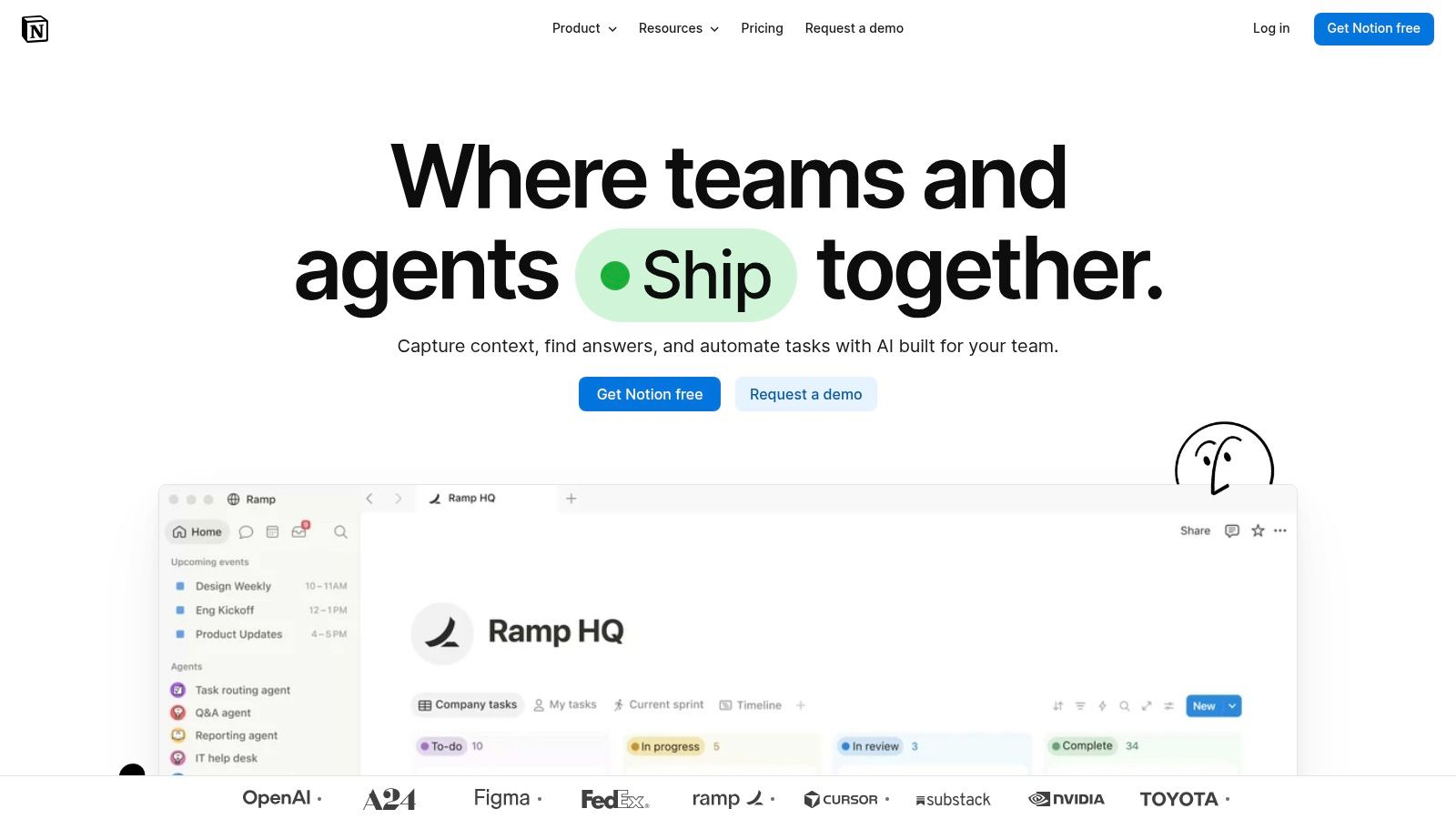
Say your team keeps meeting notes in one app, project trackers in a spreadsheet, and onboarding docs in a shared drive nobody searches. Notion solves that specific mess. It's a customizable workspace where pages combine text, checklists, tables, and embedded content, and databases can show the same information in multiple views.
That flexibility makes it strong as a searchable internal knowledge base. A team can keep a wiki, a content calendar, and lightweight project tracking in one shared workspace, with external guests where needed. Plan dependent AI features and integrations extend it further.
The Trade-Off You Accept
A blank, flexible workspace doesn't organize itself. Someone has to design the structure, name things consistently, and archive stale pages.
Setup and upkeep take substantial effort, and teams that skip that work end up with nested pages nobody can find. Access controls and project management depth may not meet every team's needs either, and some AI capabilities are limited or plan dependent.
Pick Notion if scattered knowledge is your bottleneck and you'll maintain it. Don't pick it as a quick to-do list. Todoist captures tasks faster, and that speed matters every single day.
4. ClickUp
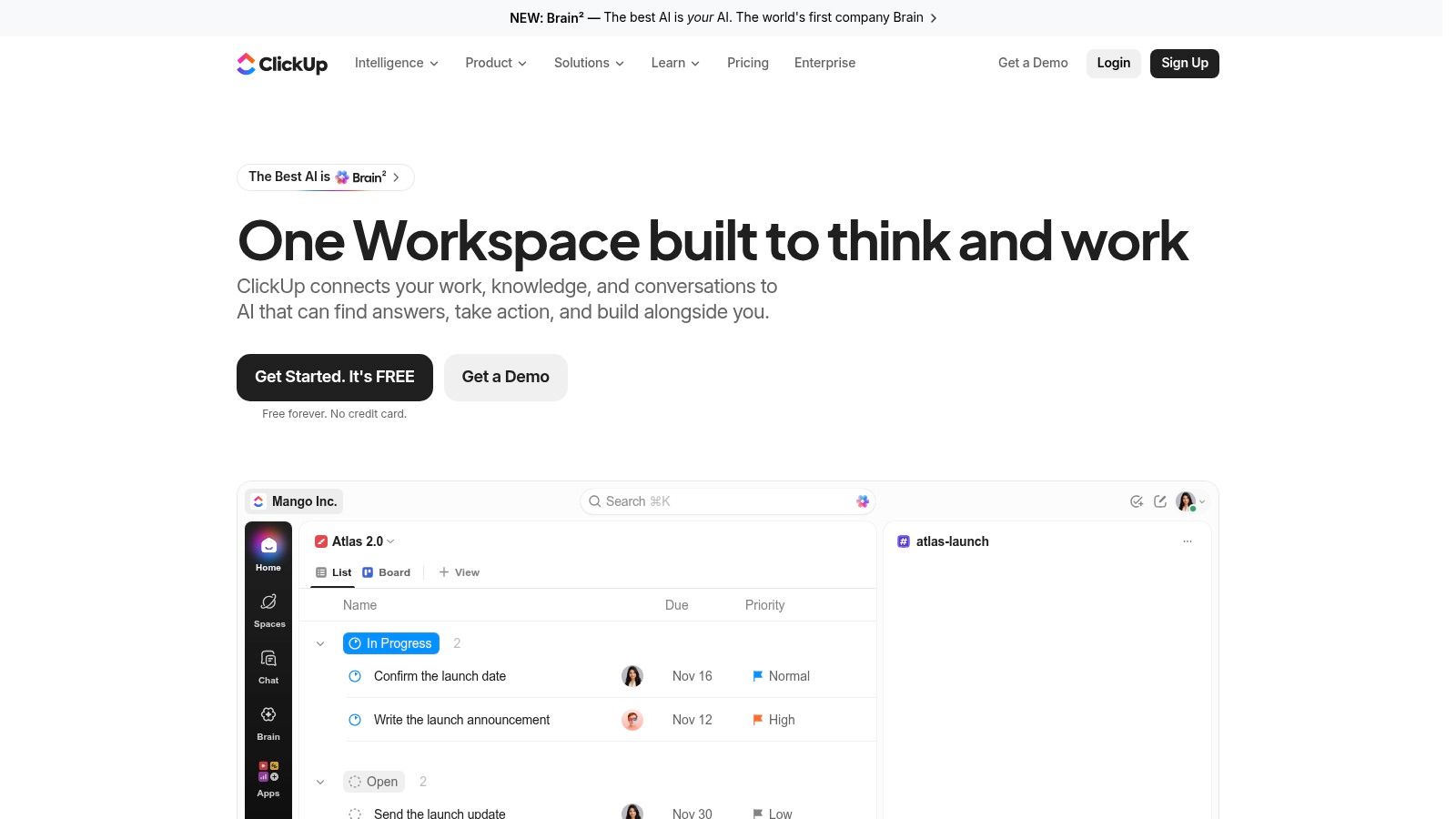
ClickUp takes the opposite approach to a narrow tool. It puts tasks, collaborative Docs, dashboards, goals, time tracking, and automations in one workspace, with list, board, calendar, and Gantt views for the same underlying work. For a team paying for four separate apps that don't talk to each other, consolidation is the appeal.
Different teams can view shared projects the way they think. Operations can watch a dashboard, product can plan on a board, and leadership can check goals without asking for status updates. The free tier lets you test the core workspace before committing.
Breadth in one product: Fewer subscriptions and fewer places for work to hide.
Flexible views: The same project works as a list, board, calendar, or Gantt chart.
Automations and time tracking: Built in rather than bolted on through separate tools.
The cost is complexity. Feature breadth and configuration options can overwhelm a small team, and using many features requires consistent workspace administration. Check plan limits and AI usage terms before you build workflows around features that may be add-ons.
I recommend ClickUp for teams deliberately replacing several tools. If you only need a task list, it's more system than job.
5. Asana
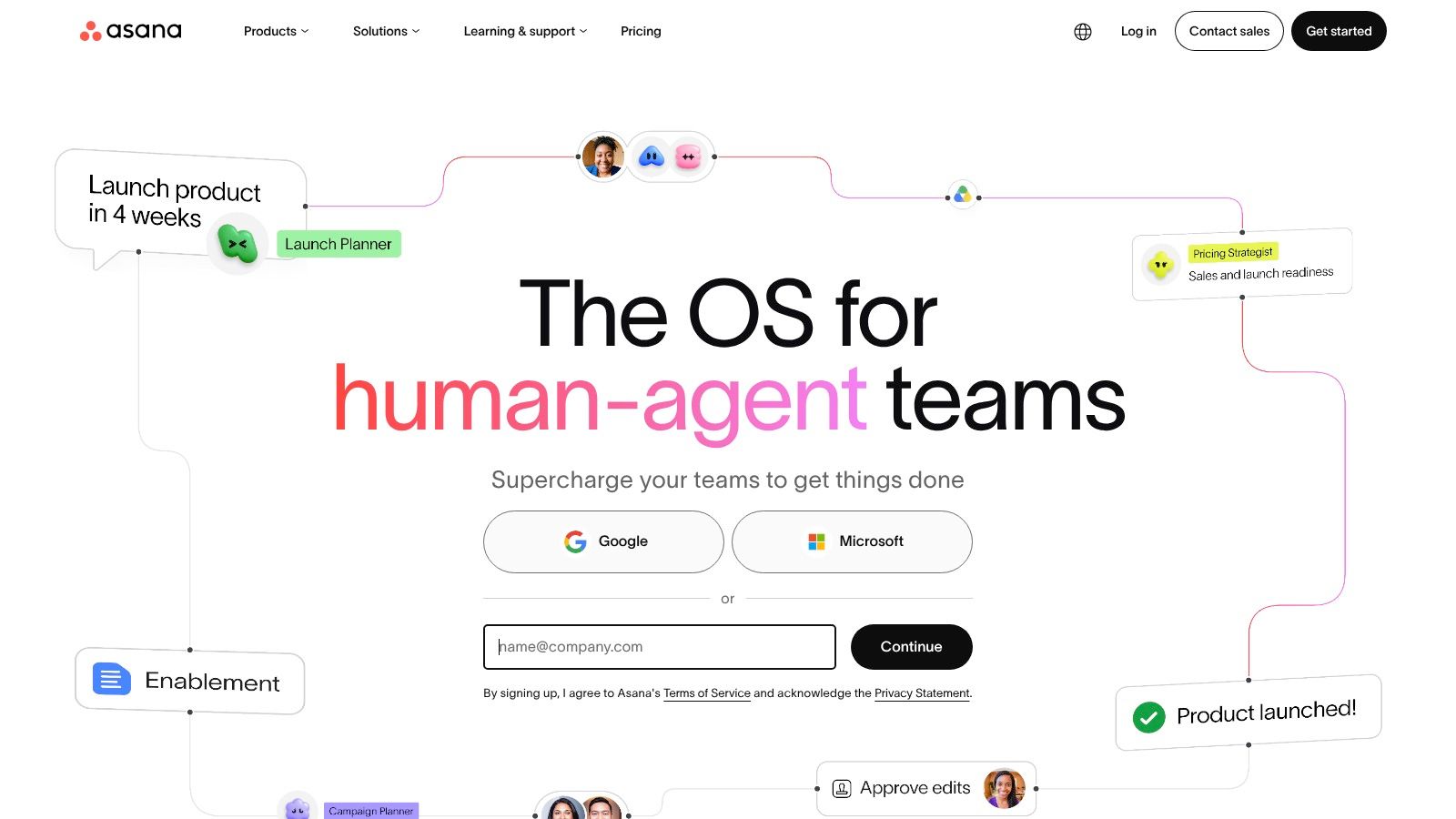
Job: making ownership visible across a team.Asana is built around tasks, projects, assignees, and due dates, so anyone can answer who owns this, when is it due, and what's blocking it. Dependencies and reporting dashboards extend that visibility across multiple projects.
Timeline and Gantt views on paid plans help when work is sequenced, say a product launch where design, copy, and engineering hand off to each other. Integrations with Slack, Google Drive, and Zoom keep those handoffs connected to where conversations and files already live.
Where It Falls Short
Asana doesn't offer a one-user paid plan, which makes it a poor fit for a solo user who just wants a better to-do list. It also provides more structure than an individual needs, and teams should compare plan features and limits carefully for customized workflows, since the view or automation you want may sit in a higher tier.
Choose Asana when dropped handoffs and unclear ownership are costing you time. Choose Todoist or Trello when the work is yours alone. That distinction, shared accountability versus personal capture, is the whole decision here.
6. Trello
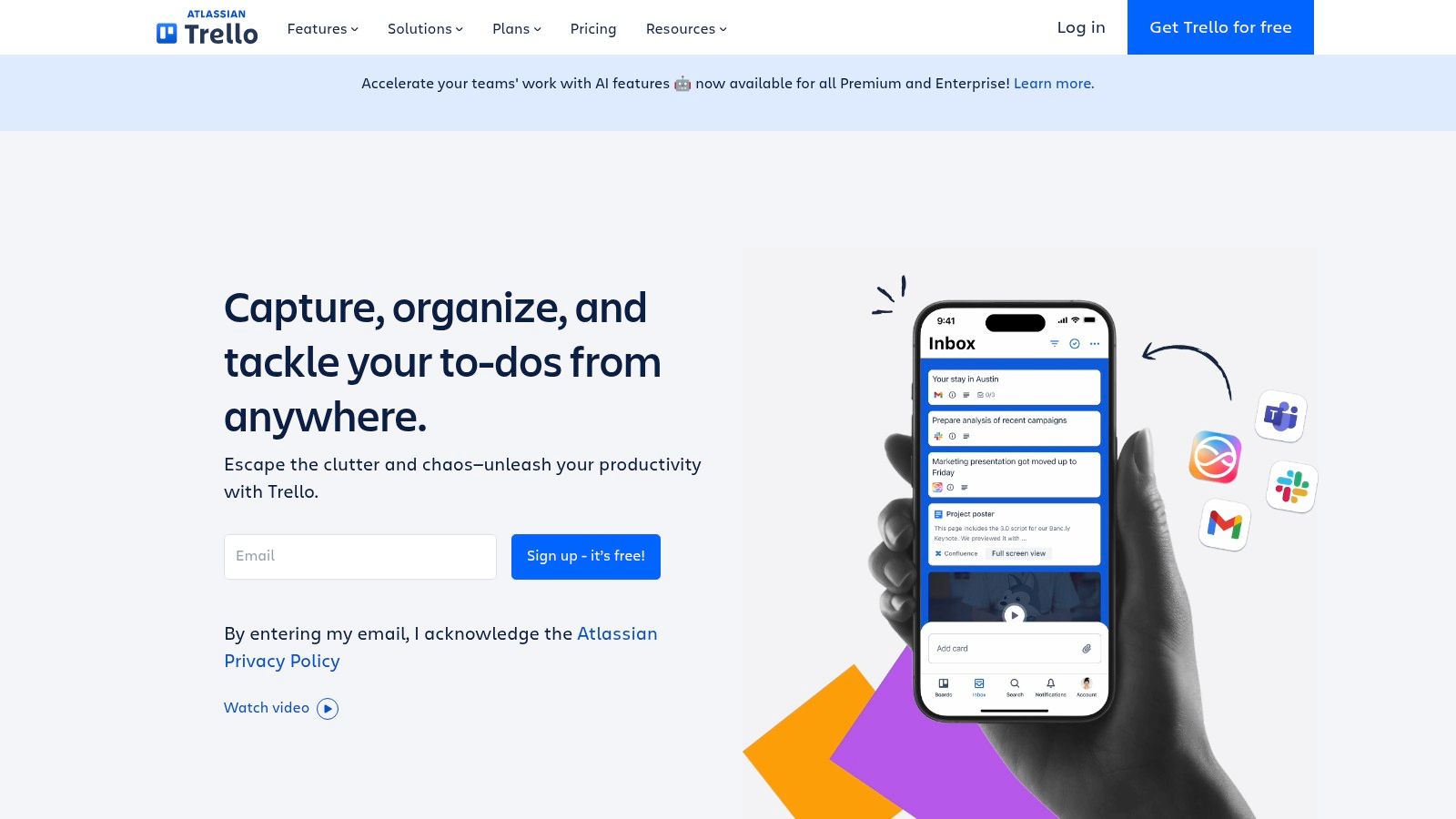
Some work is easiest to understand when you can see it move. Trello organizes projects as Kanban boards, lists, and cards, typically flowing from To Do to In Progress to Done. You drag a card forward as work advances, and the board shows the state of the project at a glance.
Cards carry assignees, due dates, and checklists, and Power-Ups add integrations. Paid plans add timeline, table, calendar, and dashboard views. The model suits editorial pipelines, hiring stages, support queues, and household projects equally well because there's almost nothing to learn.
Board and card model: New teammates understand it in minutes, with no training session.
Free plan: Small workspaces can run real projects without paying.
Works beyond work: Personal planning and basic team processes fit the same format.
Large or interdependent projects outgrow it. Boards don't show dependencies or portfolio reporting well, and a card format isn't ideal for every kind of work, especially long documents or detailed resource planning. Some useful views and controls are also paid features.
If your process has clear stages and few handoffs, Trello is enough. If stages branch and block each other, move to Asana or ClickUp instead.
7. Evernote
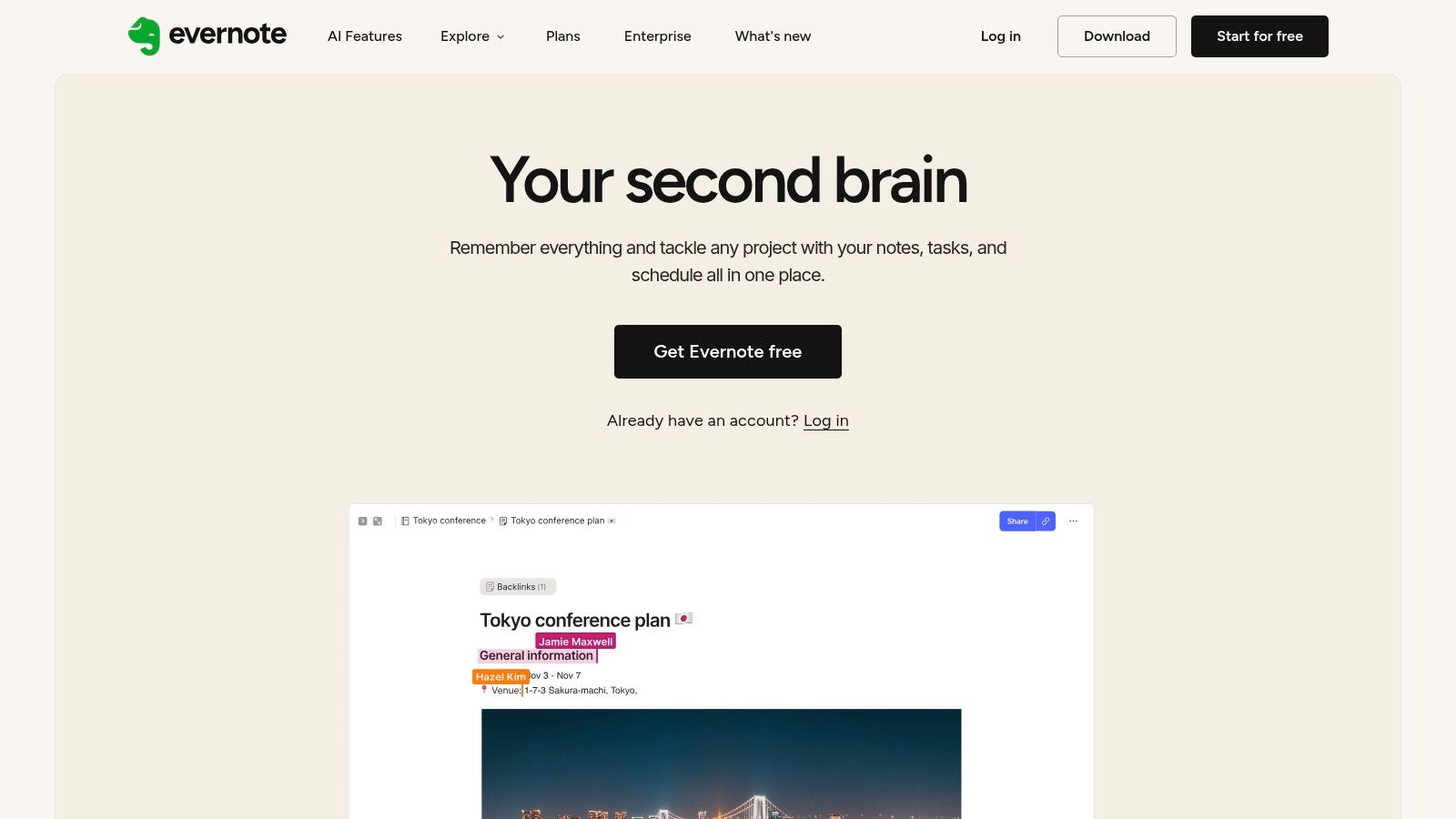
Job: building a personal reference library you can search later.Evernote collects notes, notebooks, and attachments in one archive, designed for people who save research, meeting notes, receipts, and documents and need to retrieve the right piece months afterward.
That capture and retrieval focus separates it from workspace tools. You're not building a team wiki or a project tracker here. You're filing material so future you can find it, with AI features available on listed paid plans and higher tiers supporting unlimited notes, notebooks, attachments, and synced devices.
Check the Plan Limits First
The Starter plan caps notes, notebooks, attachments, and devices, so verify those numbers against how much you save before committing. The Advanced tier may cost more than makes sense if you only need basic notes, and a free notes app would cover you.
Teams should also compare its collaboration features against broader workspace tools like Notion, since shared editing and structured databases aren't Evernote's center of gravity.
I recommend it for individuals with a substantial, growing archive of reference material. If your notes are mostly short and disposable, you're paying for storage and search capacity you'll never use.
8. Obsidian
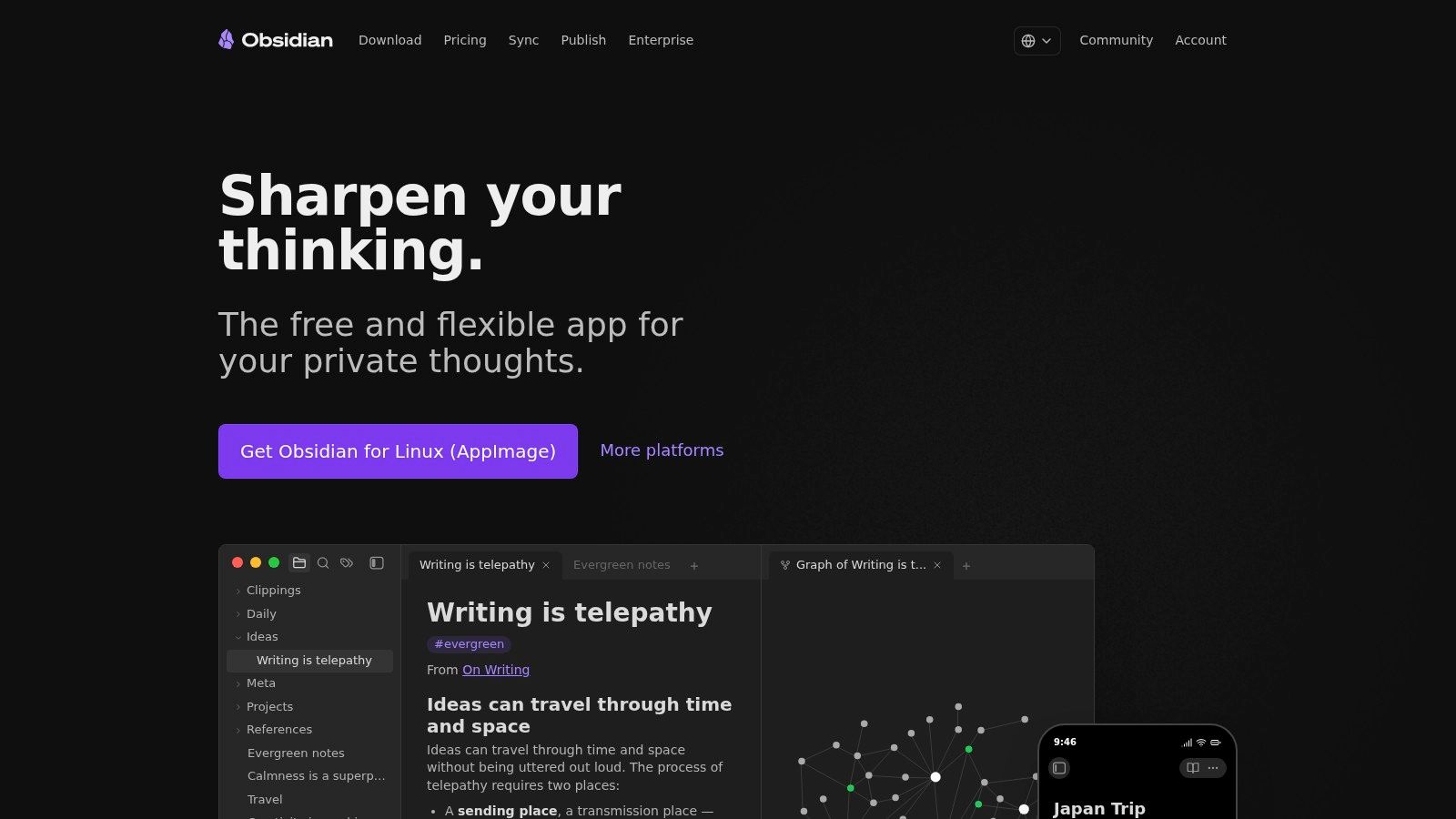
Obsidian stores your notes as local Markdown files that you link together into a personal knowledge base, with a graph view showing how ideas connect. Because the files live on your device in an open format, they remain readable outside the app, which makes exit risk unusually low for a notes tool.
Researchers, writers, and students who keep notes for years benefit most. You can link a book summary to a project idea to a meeting note, then follow that thread later. Community plugins and themes let you customize heavily, and the core app is free without requiring an account.
Practical rule: If keeping your notes readable in ten years matters more than sharing them today, local files beat a hosted workspace.
The weaknesses follow from that design. Shared team workflows aren't its strength, Sync is a separate paid service unless you arrange your own method, and plugin rich setups take time to organize and maintain. Optional Publish exists, but this isn't a ready-made team wiki.
Pick Obsidian for a private, long-lived knowledge base you control. Pick Notion when the knowledge belongs to a team and needs shared editing, permissions, and guests.
9. Reclaim.ai
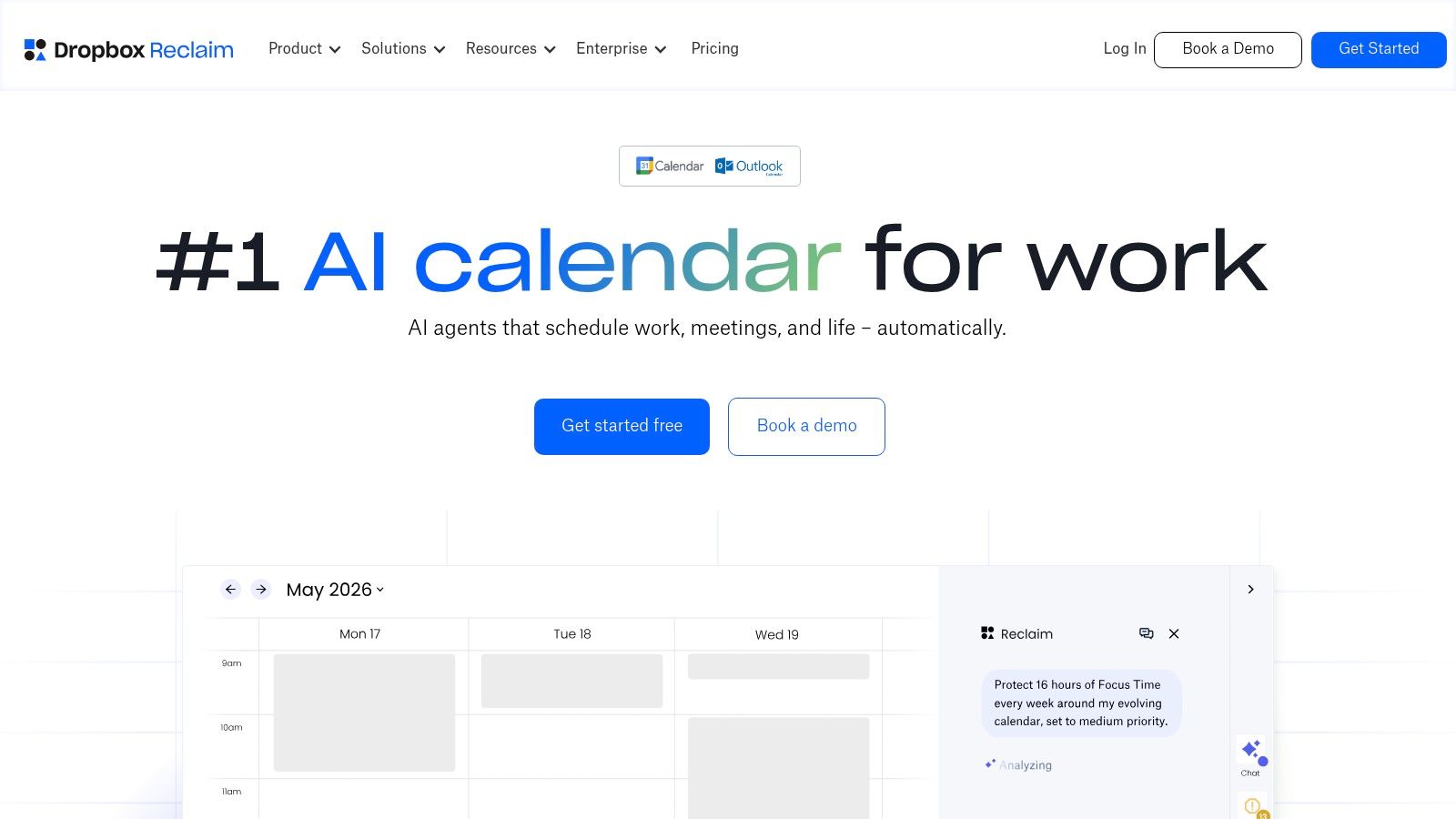
A task list tells you what exists. It doesn't tell you when any of it happens. Reclaim.ai works with your calendar to automatically find time for tasks, focus sessions, habits, breaks, and meetings, then reschedules those blocks as new meetings land.
That makes it the scheduling layer in this list. You define priorities, recurring habits, and buffer time, and Reclaim defends space for them around existing events. Smart meeting scheduling and availability links reduce the back and forth of booking calls, and the free Lite plan lets individuals try the workflow.
Priorities become calendar time: Focus work stops depending on willpower and empty afternoons.
Automatic rescheduling: Blocks move when meetings move, instead of disappearing.
Habits and buffers: Recurring commitments get protected alongside project tasks.
The value depends entirely on using a connected calendar and accepting automated scheduling. If you dislike software moving events on your calendar, you'll fight it. The free plan also limits scheduling range, calendar sync, and integrations, and team features vary by paid tier.
It's a strong addition on top of a task manager, not a replacement for one.
10. Google Workspace
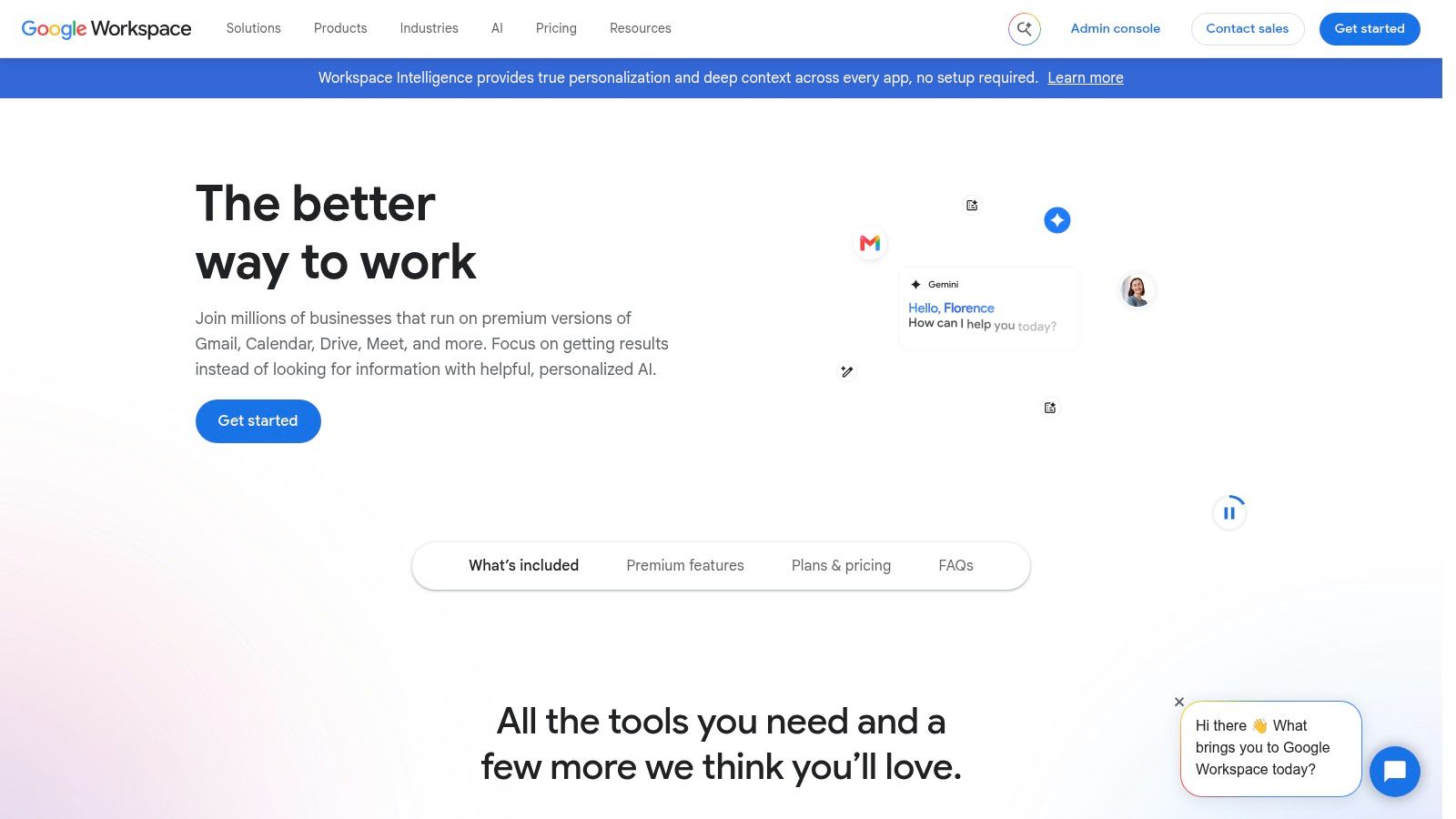
For many teams, the productivity suite is the foundation everything else plugs into. Google Workspace combines Gmail, Calendar, Drive, Docs, Sheets, and Meet, so email, files, documents, and meetings share one account and one set of permissions. Google Tasks connects to Gmail and Calendar for simple task capture inside that flow.
Ecosystem position matters here. The Torii October 2025 adoption index places collaboration and work-suite applications at 55% of organizations represented, ranking Google Workspace fourth and Microsoft 365 fifth among its 20 most-used SaaS applications. Broad adoption means integrations, familiar interfaces for new hires, and fewer compatibility surprises with clients.
The Limits of a Suite
Workspace is a subscription suite, not a standalone personal productivity app, and per-user costs add up as teams grow. Storage amounts and administrative features vary by plan. Google Tasks, meanwhile, is simple compared with dedicated project tools, fine for personal reminders, weak for dependencies and reporting.
Treat Workspace as your base layer for communication and documents. Then add one task or scheduling tool on top rather than expecting the suite to do every job well.
11. Slack
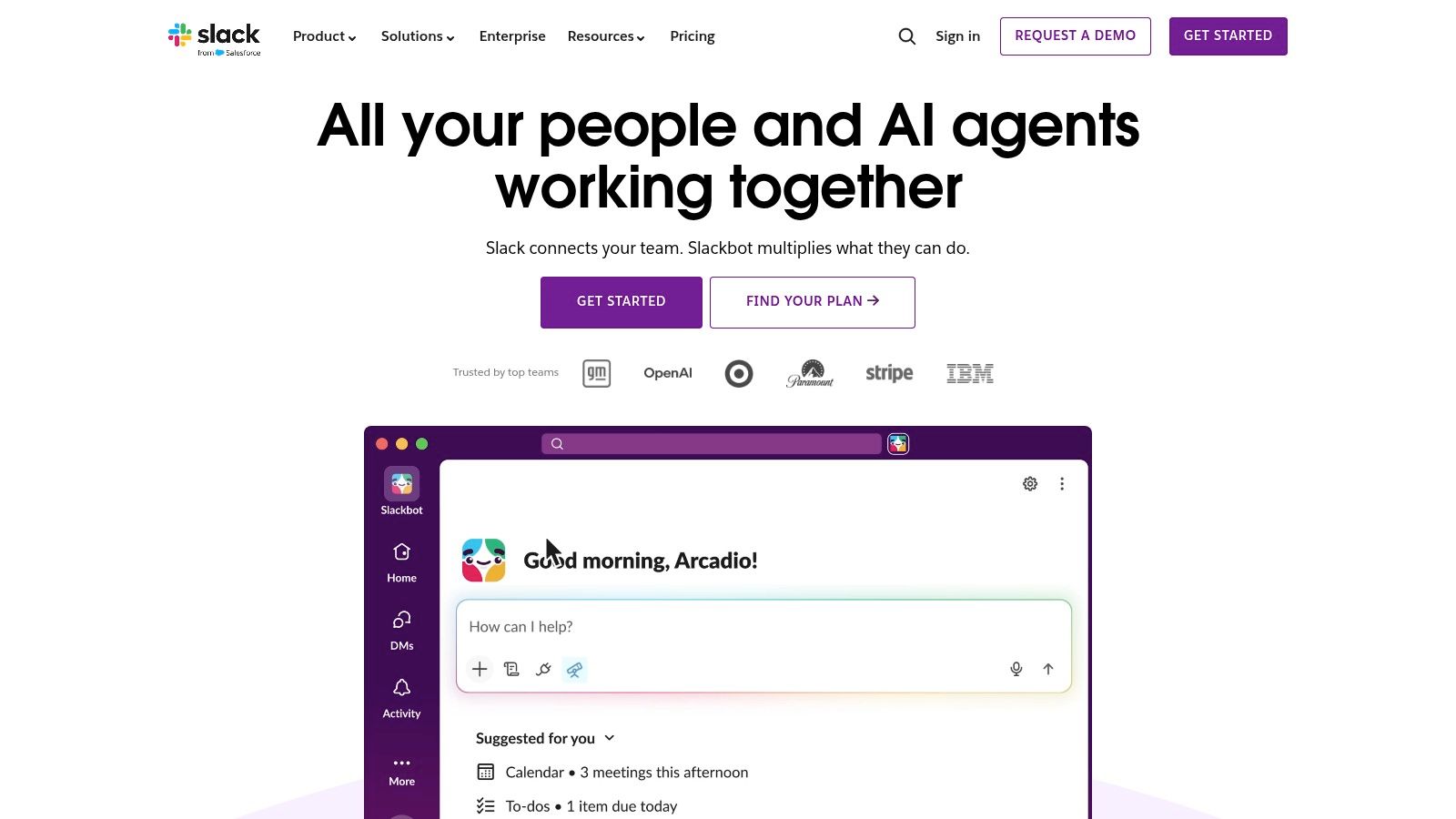
Job: organizing team conversations by topic instead of burying them in email threads.Slack runs on channels and direct messages, connects to a wide range of workplace tools, and adds huddles, canvases, and lists on paid plans. Paid plans also include AI conversation summaries, which help when you return to a busy channel after a day of meetings.
The integrations are the draw. Slack plugs into the rest of your stack so alerts, approvals, and file links land where the team already talks. That reach makes it easy to treat chat as the center of work. Resist that. Slack is a communication layer, and it does not manage tasks, dependencies, or reporting. Decisions made in chat scroll away. Task ownership still belongs in Asana, Todoist, or Trello, with a link back to the thread.
Messaging also interrupts by default. Mute low-value channels, keep channels tied to a purpose, and move resolved decisions into the tool that owns the work. Use Slack for incident rooms, client threads, and quick calls, not for your archive.
Free-plan message and file history is limited, so do not treat chat as a permanent record. Store outcomes where they can be found later.
Best productivity apps at a glance
Read the limitation column first. Each row maps to one workflow job, so two apps from the same row usually duplicate work.
Category
Best for
Key limitation
Free plan
Software discovery directory
Comparing reviewed tools and category rankings
Not a productivity app; free product listings have eligibility requirements
Free listings for qualifying products; featured placements are paid
Task management
Everyday personal and lightweight team to-dos
Limited for complex dependencies and project reporting
Core workflow available
Workspace and knowledge management
Combining documents, databases, and team knowledge
Flexible setup takes time to build and maintain
Free for personal use; paid plans add team permissions and admin controls
Work management
Teams consolidating tasks, documents, dashboards, and reporting
Broad feature set can require significant setup
Free tier available to assess core features
Project management
Teams coordinating ownership, deadlines, and project progress
May be more structure than individuals need
Free tier for small teams; paid plans add timelines and reporting
Visual project management
Small projects and simple board-based workflows
Less suited to complex projects and dependencies
Supports small workspaces
Note taking and archiving
Organizing and retrieving personal notes and reference material
Starter plan limits notes, attachments, and devices
Plan limits apply
Local note taking
Personal knowledge bases using Markdown files
Team collaboration and built-in sync are limited
Core app is free
AI calendar scheduling
Scheduling tasks and focus time around meetings
Requires a connected calendar and acceptance of automated scheduling
Lite plan available with limits
Business productivity suite
Teams using connected email, documents, calendars, and meetings
Per-user subscription costs can grow with team size
Paid per-user plans; no free business tier
Team communication
Organizing conversations by channel and integrating workplace tools
Not a replacement for dedicated project management
Message and file history are limited
How to Choose One Tool Per Job and Stop There
Start by naming your primary bottleneck in one sentence. Tasks slip through the cracks. Notes exist but nobody can find them. Handoffs fail because ownership is unclear. Your calendar fills with meetings and focus work never gets scheduled. Each of those problems points to exactly one category above, and you should solve that one first.
Pick one strong tool for that job and use it for a few weeks before adding anything. Then add at most one app per additional workflow layer. A lean, complete setup might be Todoist for task capture, Reclaim.ai for scheduling those tasks into real time, running on top of Google Workspace for documents and email, with Slack for team discussion. That's four tools, each doing a different job, none duplicating another.
Don't stack overlapping tools from the same category. Two task managers means two lists to maintain and neither one complete, and migrating later costs more than any feature gain. Before you commit, check exit risk too, whether you can export tasks, notes, attachments, and history in usable formats if pricing changes. Accessibility deserves the same practical test, since the Applause 2025 digital accessibility report found 83.9% of 1,570 professionals considered digital accessibility a company priority or important, yet 67.8% lacked sufficient internal expertise and resources for ongoing accessibility testing. Try keyboard-only navigation and captions yourself rather than trusting a badge, because automated tools catch only part of the problem.
Measure whether the tool stuck. The Applause 2025 State of Digital Quality accessibility report notes 23.4% of surveyed organizations reported having no metrics for monitoring accessibility programs, and the same blind spot hits productivity rollouts. Count weekly active use against the people who were supposed to adopt it, and look for recurring use over at least three consecutive months before expanding licenses or standardizing workflows around it.
If you want to evaluate AI-powered tools in more depth, our AI tools directory lists 98 AI tools and lets you compare pricing, features, and reader ratings across the whole catalogue. There's a Submit a tool option if you build something worth listing.
Browse the directory, pick the one tool that matches your bottleneck today, and subscribe to our free daily AI briefing, sent at 7 AM in your timezone with links to read more, so you can keep up with new tools without monitoring launches yourself.