According to McKinsey’s latest State of AI report, 88% of organizations now use AI in at least one business function. Marketing and sales are also among the areas where companies are actively applying generative AI.
You can see it everywhere now. Open social media or browse ecommerce platforms, and many campaign ads, product demos, and UGC-style videos are either AI-generated or AI-assisted.
You cannot really blame marketers or business owners. AI is faster, cheaper, and gives them more room to test ideas without booking a full shoot or hiring a full production team.
The bigger question now is how businesses can actually use these AI video tools in a practical way.
In this guide, I’ll show you an easy way to transform your images into talking AI avatars. I’ll also share a platform you can use and a few ways to create avatar videos for product demos, UGC content, ecommerce, and more.
Where to create an AI avatar?
There are currently hundreds of platforms that offer the ability to create custom avatars with AI. They all differ in terms of features and capabilities, but one that I personally recommend is AI Studios.
AI Studios is an AI video creation platform from DeepBrain AI that lets you create avatar videos without needing a camera crew, actor, or full editing setup. You can choose from more than 2,000 ready-made AI avatars, or create your own custom avatar by uploading a short video recording.
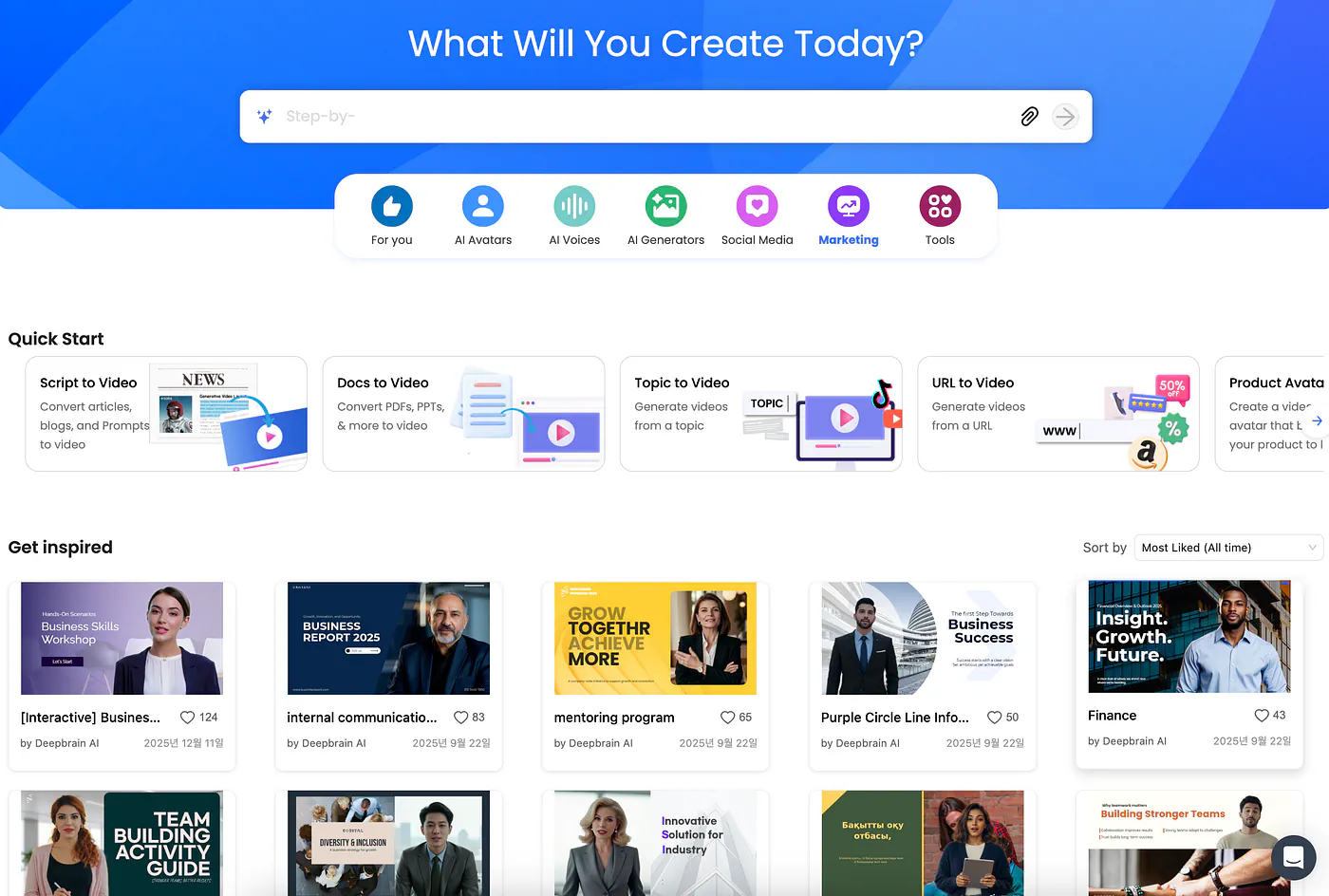
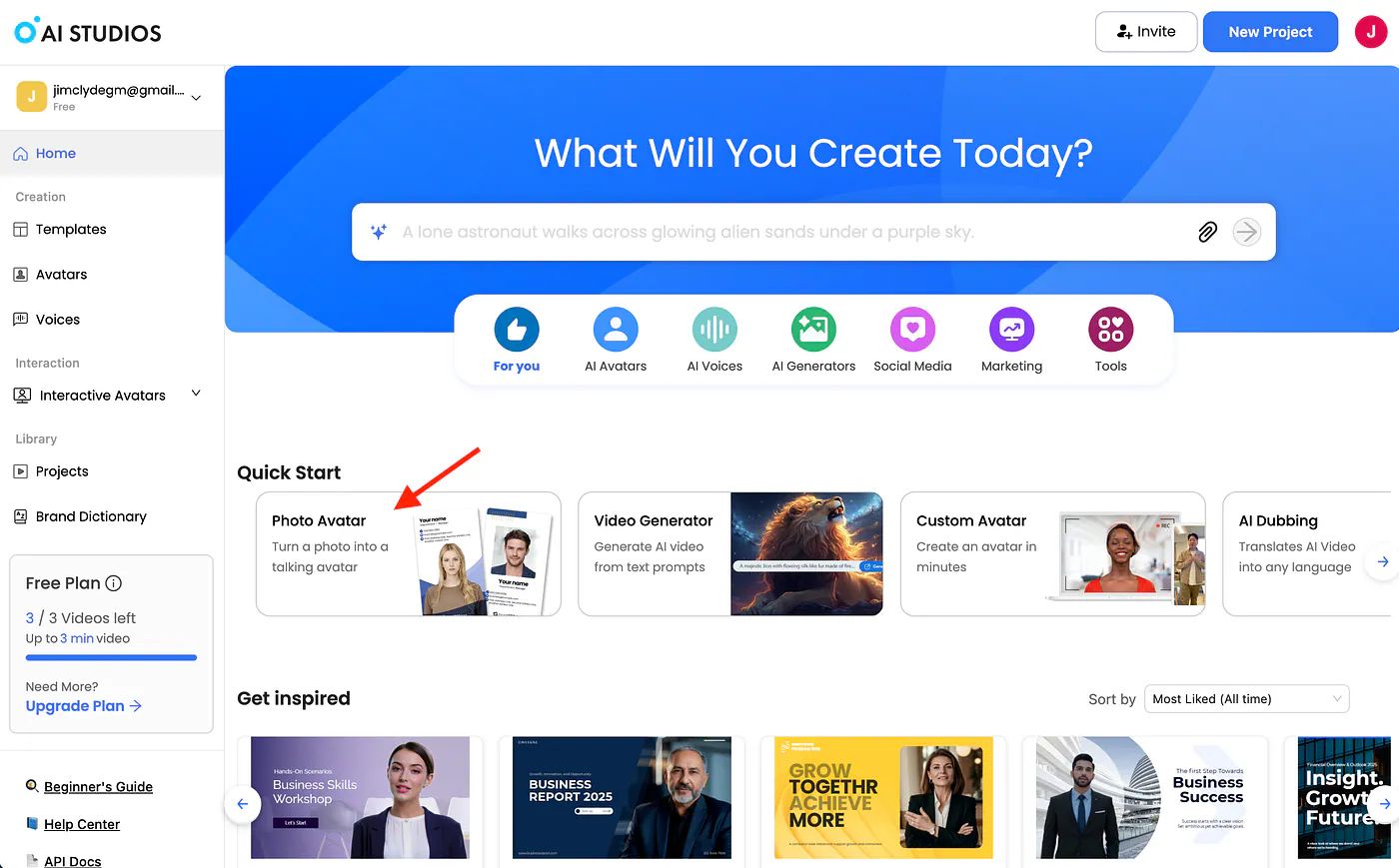
AI Studios video generation dashboard. Image by Jim Clyde Monge
It also supports AI voices, voice cloning, translation, dubbing, and avatar videos in over 150 languages, which makes it useful if you want to create content for different markets without recording the same video again and again.
In the next sections of the article, I will show you various ways you can take advantage of these AI avatars in improving your business workflows through automation.
I will also share the prompts I used so you can replicate them if you want to. Let’s get started.
Create a custom avatar
One of the most interesting features in AI Studios is the ability to create a custom avatar. You basically just need an image or a video of a character, then feed it into the system. The end result is a customizable AI avatar that you can use to create explainer videos, product demos, UGC videos, and other types of business content.
The possibilities are really wide with this tool. You can create a digital presenter for your brand, build a reusable spokesperson for product videos, or even turn a simple portrait into a talking avatar for social media content. Let me show you how it works.
First, head over to the AI Studios dashboard and click on the Photo Avatar link. This will take you to the avatar creation page, where you can upload the image you want to use as the base for your avatar.
AI Studios Photo Avatar tool. Image by Jim Clyde Monge
As an example, let’s use the portrait below as the input image. Upload it, then click the Generate button. Keep in mind that AI Studios has security layers that block attempts to upload images of celebrities or known personalities.
This is a good thing because avatar tools can easily be abused if there are no safety checks in place.
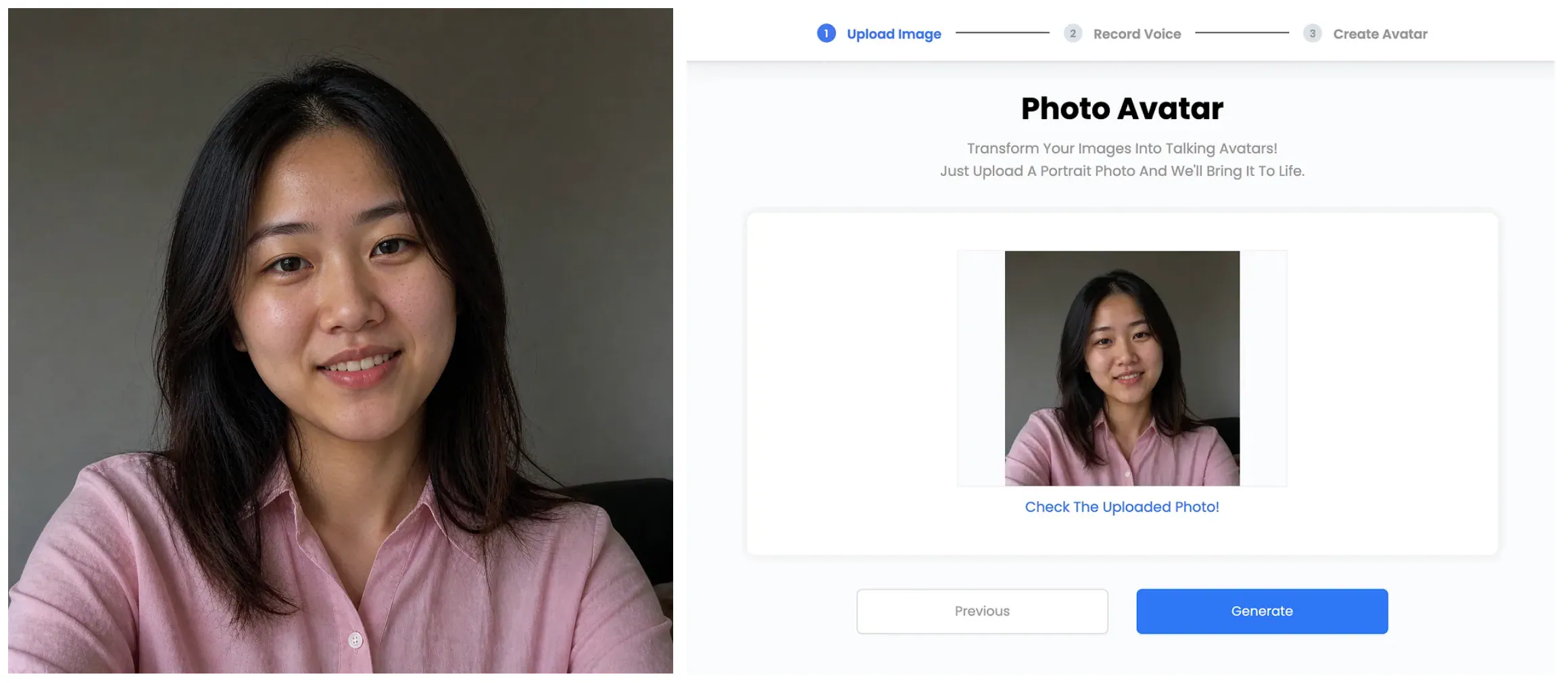
AI Studios Photo Avatar tool example. Image by Jim Clyde Monge
Follow the rest of the instructions to create the custom avatar. You basically need to choose the target aspect ratio and select a custom voice for the avatar. There is also an option to either use your own voice recording or choose from a set of pre-made voices.
If you do not want to go through the hoops and loops of building a custom avatar from scratch, you can simply choose from the template list. AI Studios has over 2,000 AI avatars to choose from.
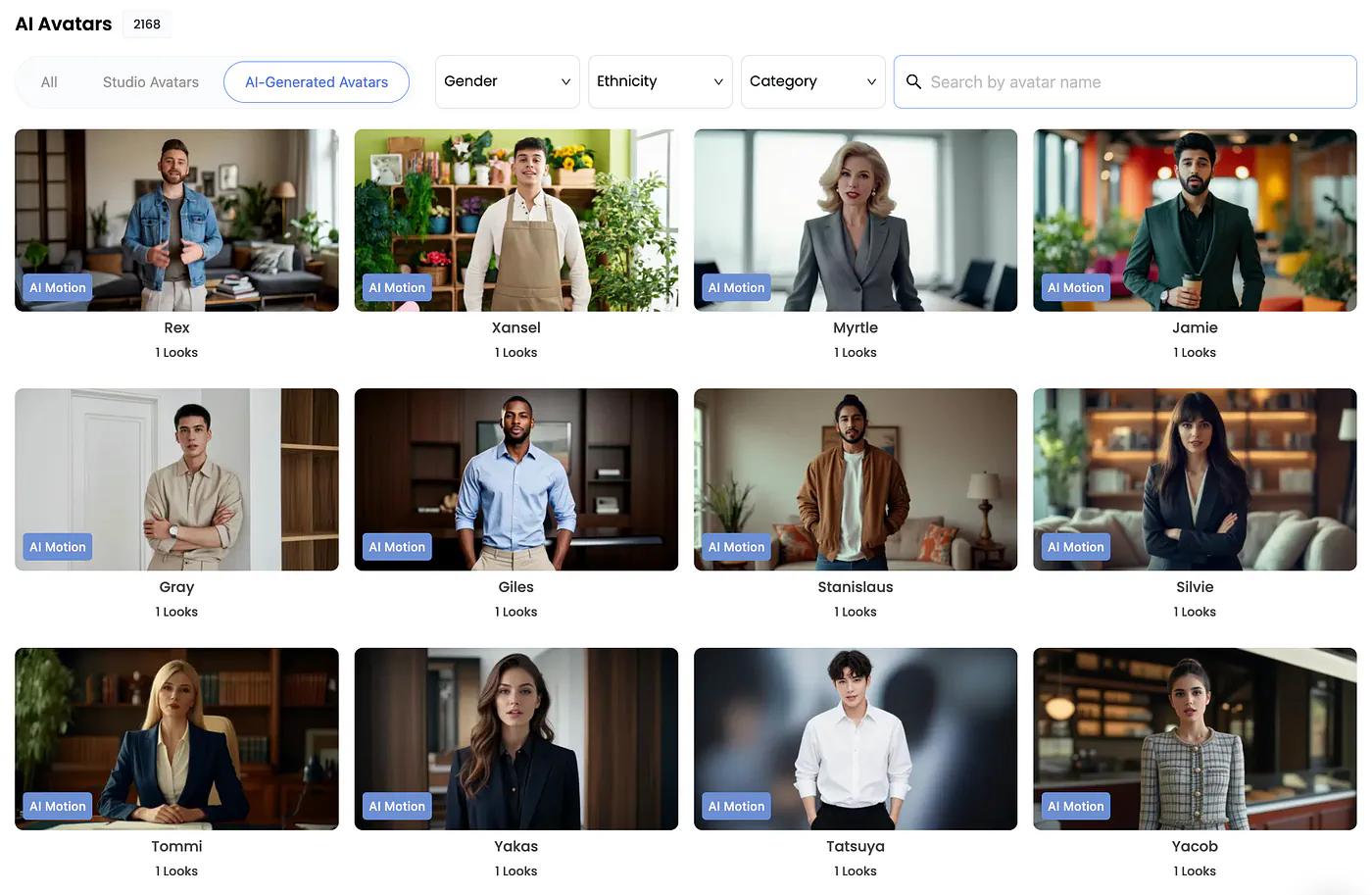
AI Studios model templates. Image by Jim Clyde Monge
This is by far the largest set of avatar templates I have seen in the market. What makes it even more interesting is that they used real people with different genders, ages, ethnicities, and careers, so you get a wide variety of options depending on the kind of video you want to create.
Once the custom avatar is successfully created, you will be taken to the video editor dashboard. From here, you can now make the avatar talk by simply adding a script.
For our first video, let’s make her talk with a basic self-introduction. I’m going to name her Ava, and here’s the script for the self-intro:
Script: Hi, I’m Ava.
I help brands create simple, clear, and engaging content that feels real. I’m passionate about storytelling, creative ideas, and making every message easy to understand.
I’m excited to connect, learn, and work with people who care about good communication.
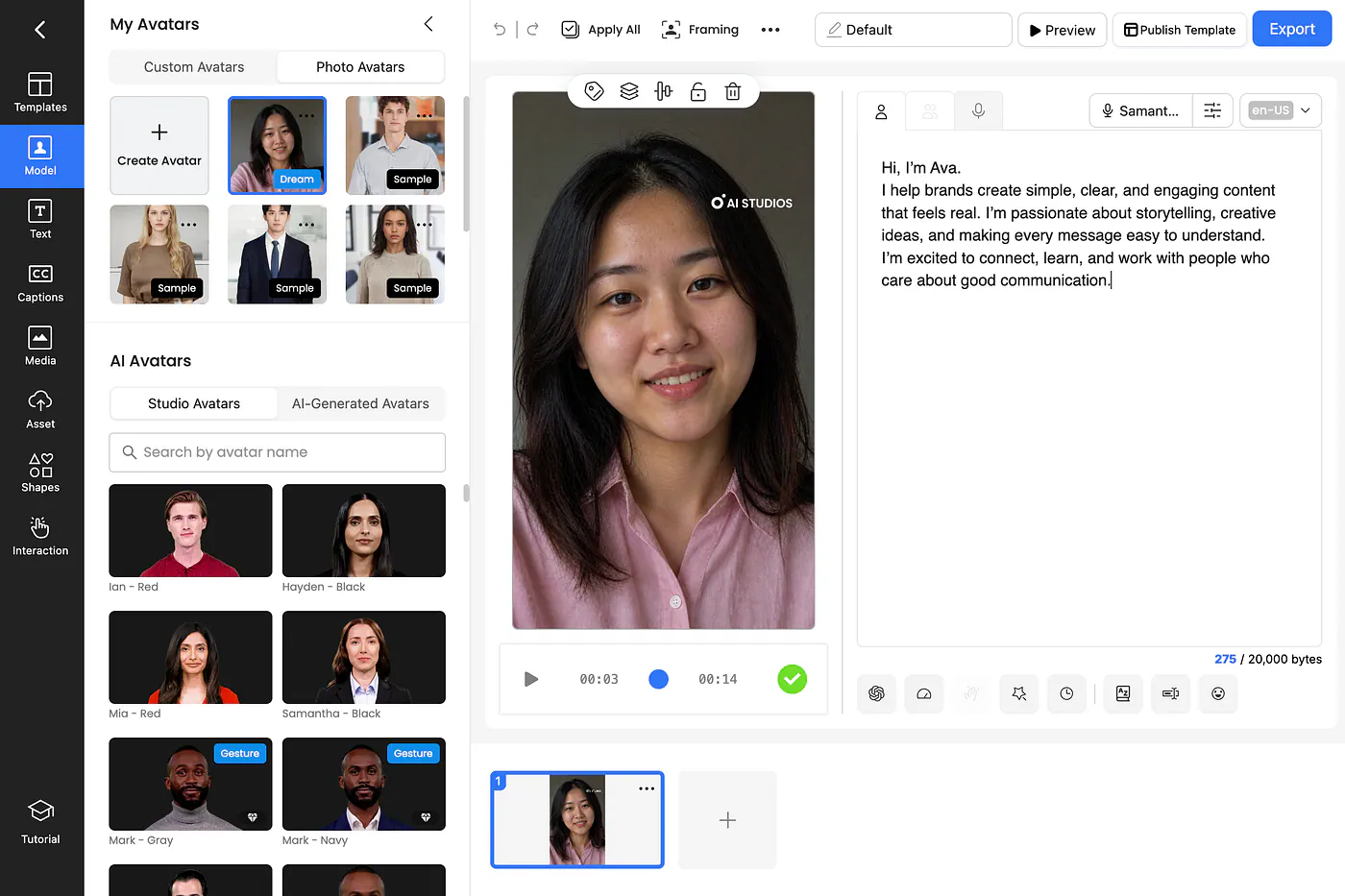
AI Studios talking video example. Image by Jim Clyde Monge
Click the Preview button to check how the audio sounds. You can still tweak it before exporting the final video. This is what the final video looks like:
Loading this video connects to Vimeo, which receives device and connection data and may use cookies or similar storage.
AI Studios talking video example. Image by Jim Clyde Monge
The audio sounds realistic, and it matches the avatar’s look really well. The only part that still feels a bit off is the lip syncing. It does not perfectly match the words being spoken, so you can still notice that the mouth movement is slightly behind or not fully aligned in some parts.
That said, this is also an area AI Studios is continuously improving. Avatar video generation is still moving fast, and lip sync quality is one of those details that usually gets better with model updates, rendering improvements, and more refined voice-to-mouth alignment.
Let’s do another example.
Creating a UGC video for products
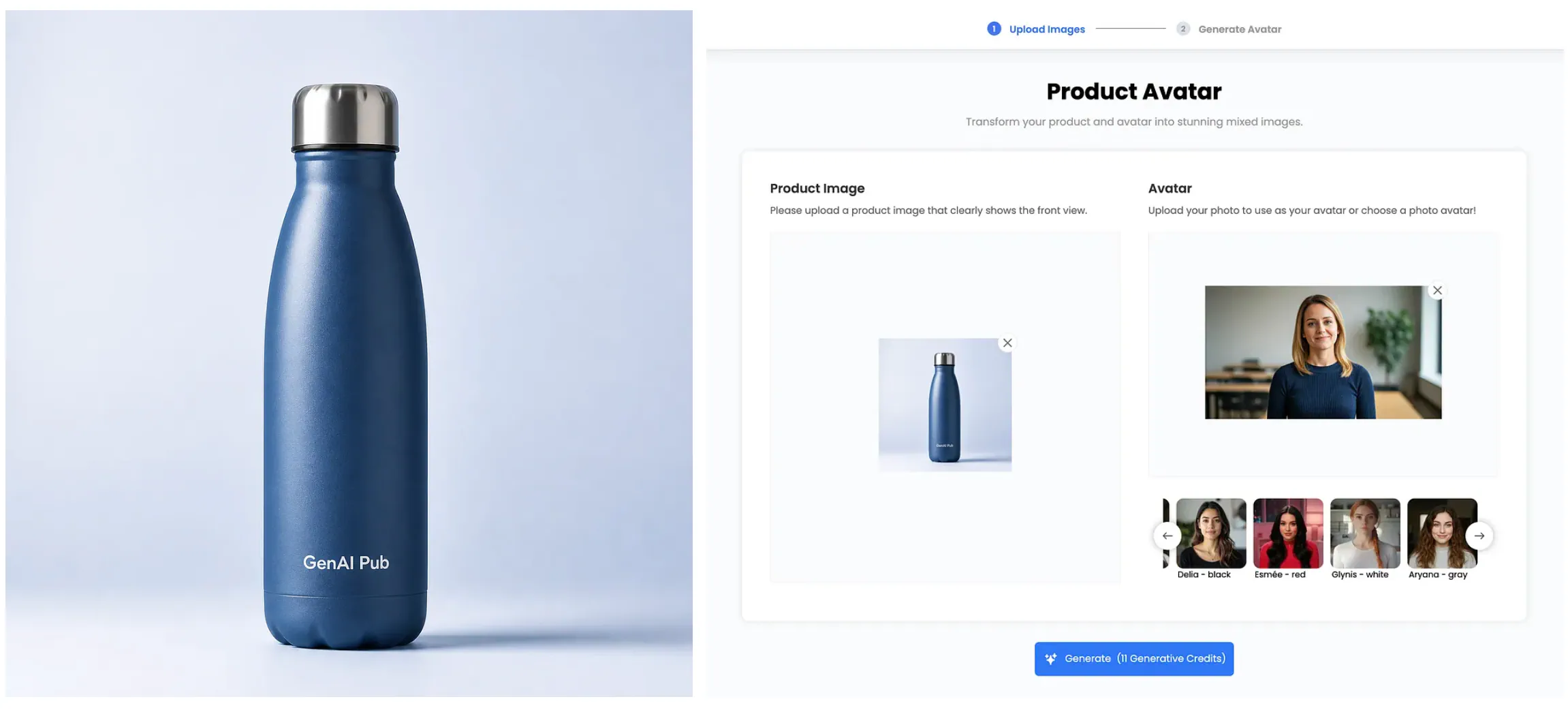
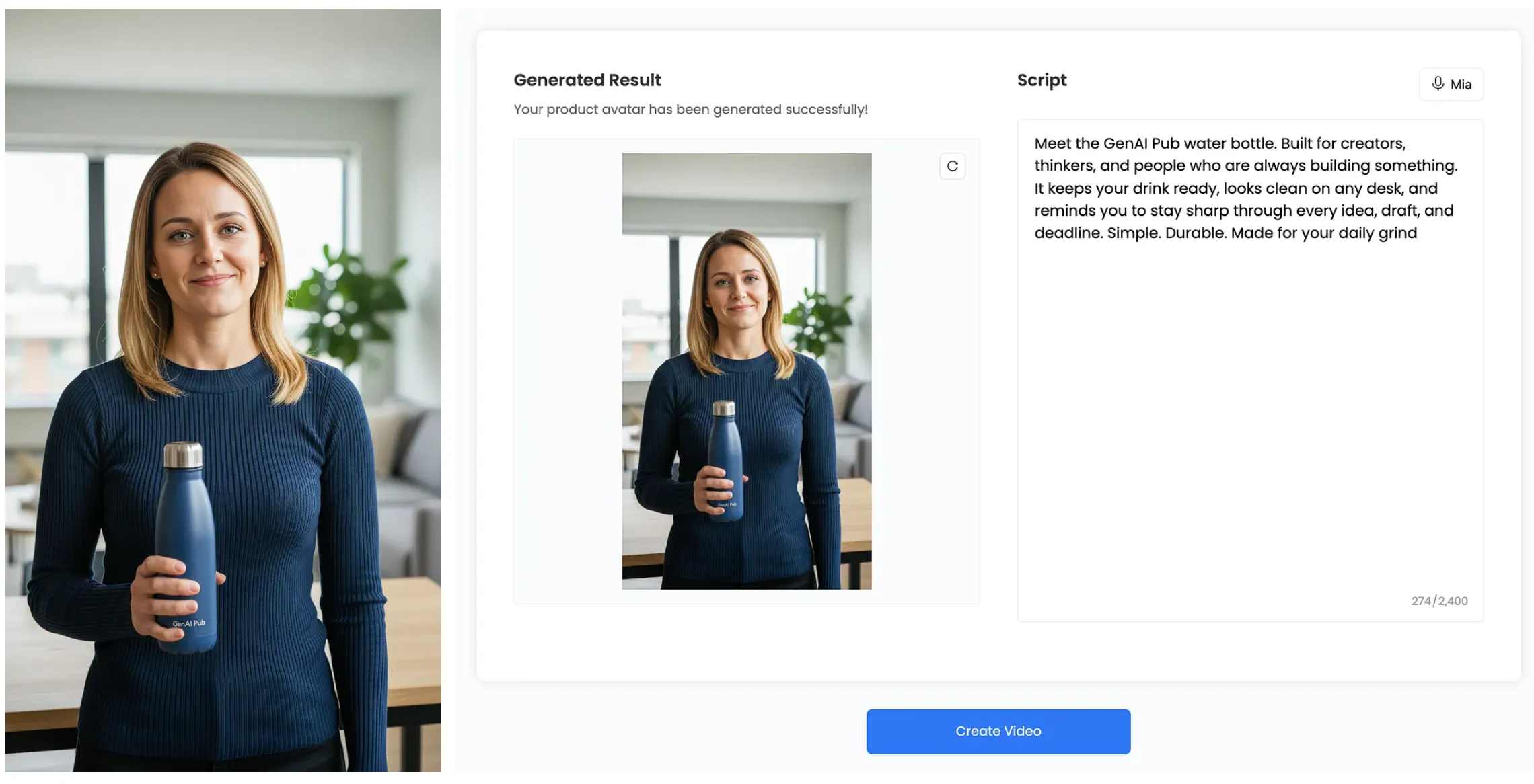
In this example, I will show you how you can create product campaigns or UGC-style videos with nothing but a single photo of the product you want to promote.
Suppose I want to create a user-generated content style video of a girl using the water bottle and telling the world why it is such a cool product. Open the Product Avatar tool, select an avatar from the template section, then upload the product image.