
As a developer working on various projects for different clients, I have always needed to make sure my pitch decks and progress presentations are perfect. A strong presentation builds trust and communicates ideas faster than a written brief ever could.
Before AI tools became widely available, I created all of my slide decks manually. Planning the structure, writing the copy, arranging the layout, and dragging and dropping shapes and texts.
It’s how we all do it for years, but even simple presentations can consume hours that should be spent on actual product work.
That’s why I started integrating AI into my workflow gradually. First for writing content, then for generating images and illustrations. Now it can help create full presentation decks in minutes.
One tool I always use is Plus AI.
I am surprised that a lot of people are not using it inside Google Slides. For anyone who already lives inside the Google ecosystem, it is one of the most practical ways to speed up presentation creation without disrupting how you already work.
In this guide, I want to walk through what Plus AI is, how it works, and why it has become one of my go-to tools for building slide decks.
What is Plus AI
Plus AI is an add-in for Google Slides that helps automate presentation creation using AI. Instead of forcing you onto a completely separate platform, it works within a tool many people already know.
Press enter or click to view image in full size
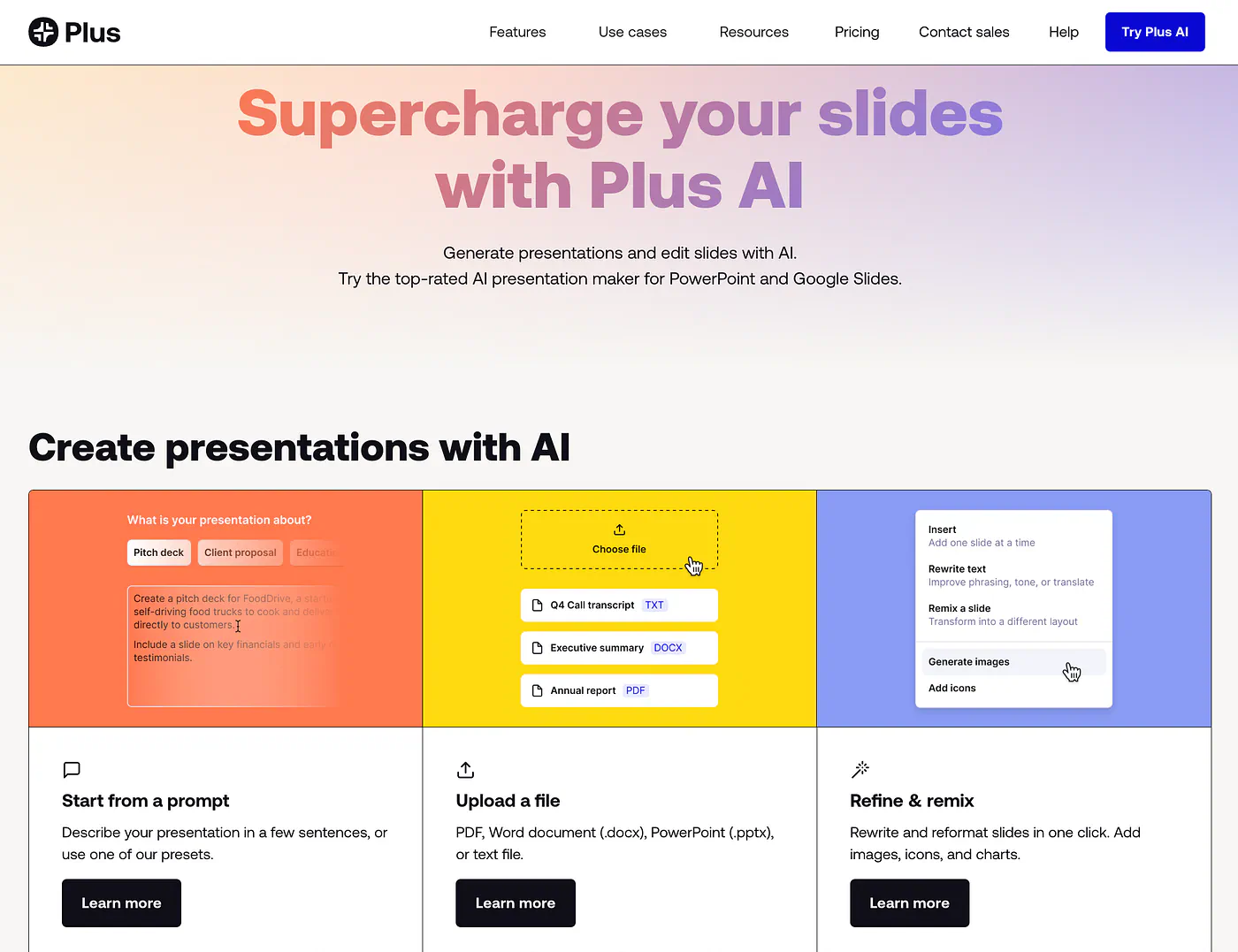
Plus AI landing page. Image by Jim Clyde Monge
The experience feels familiar from the beginning, so there is very little friction when adding it to your process.
You install it from the Google Workspace Marketplace, and once it’s installed, it shows up as a sidebar in Google Slides.
Press enter or click to view image in full size
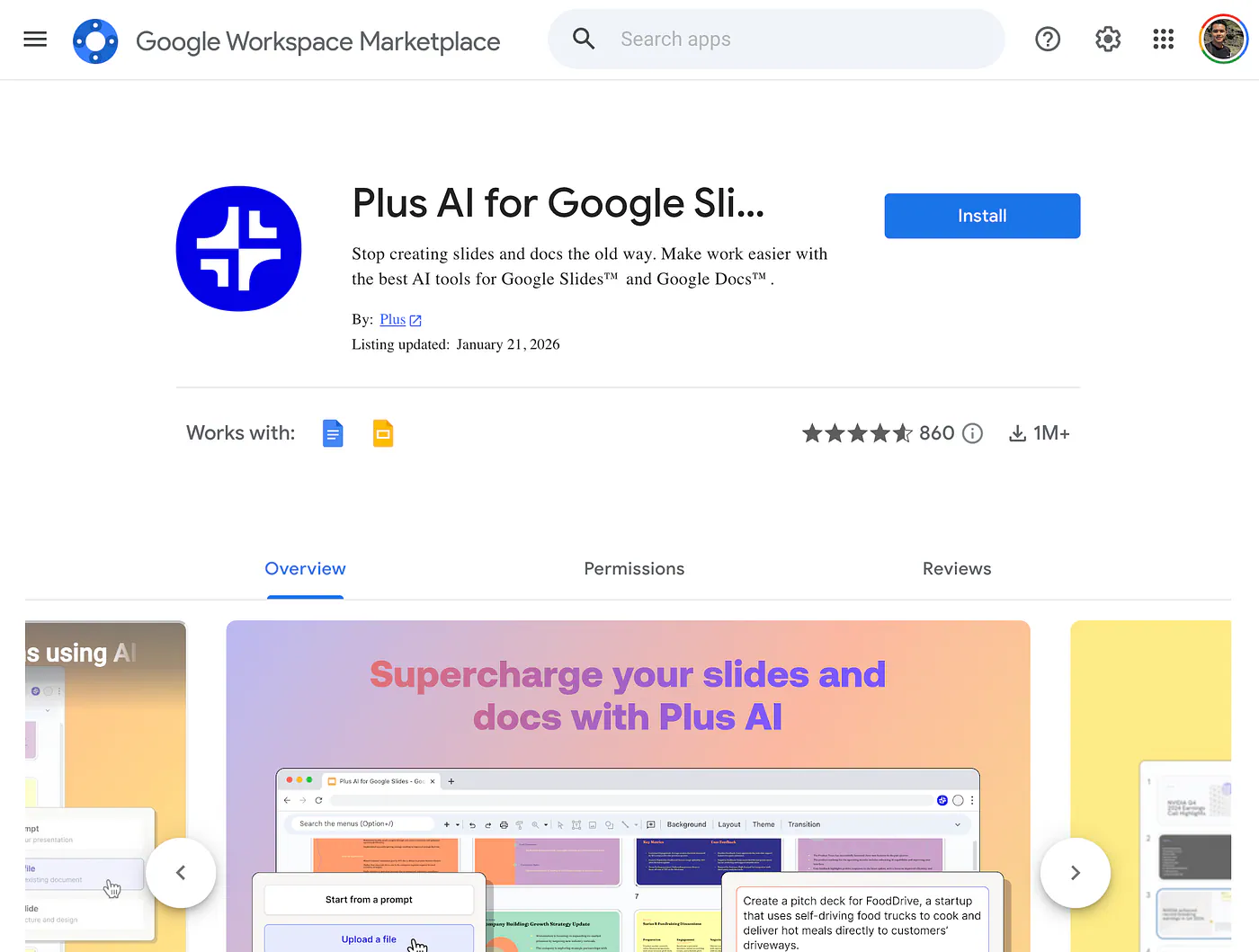
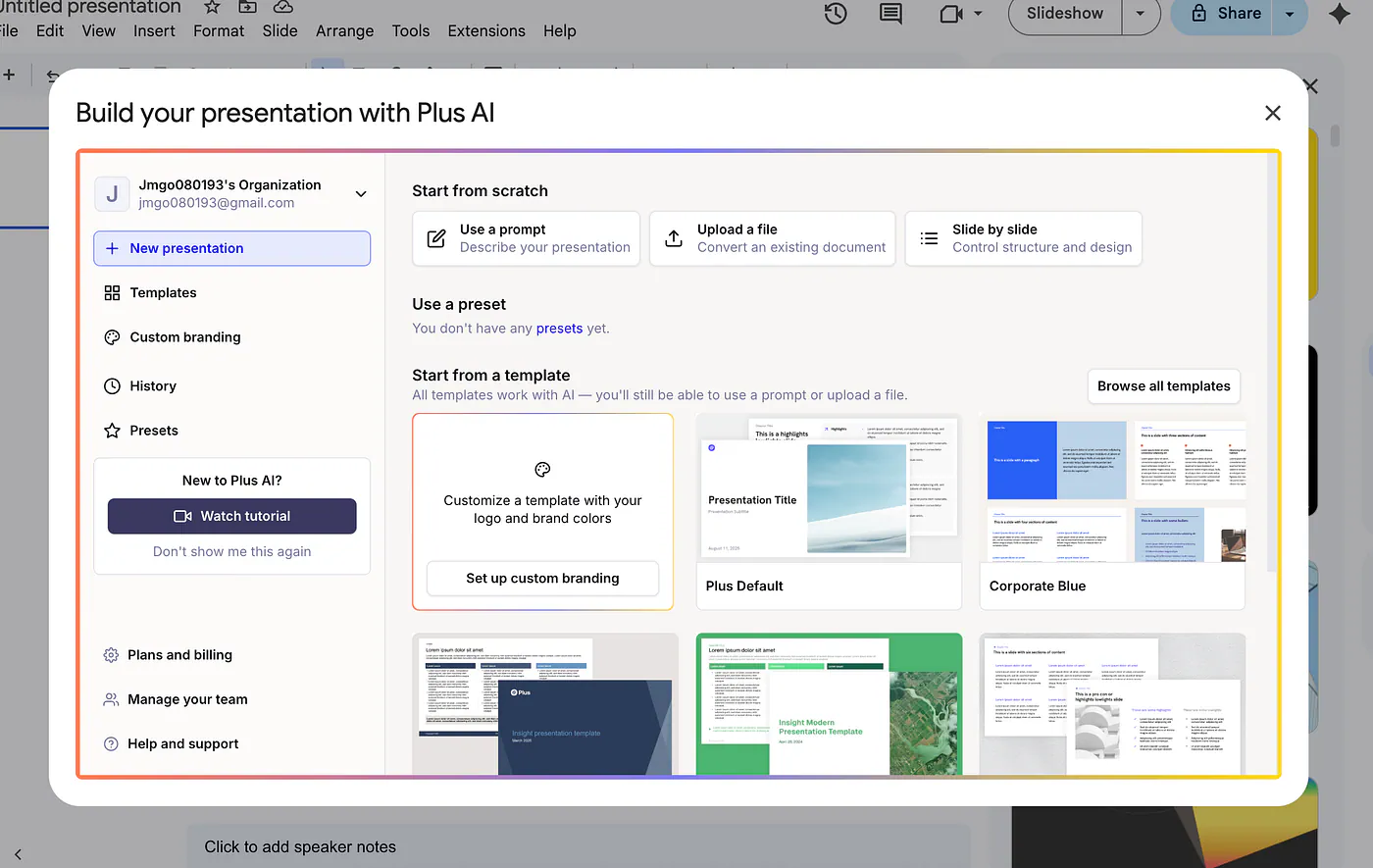
Plus AI on Google Workspace Marketplace
You can also open it from the Extensions menu by selecting Plus AI for Google Slides. So you don’t really have to leave your editor just to start building or editing a presentation.
Press enter or click to view image in full size
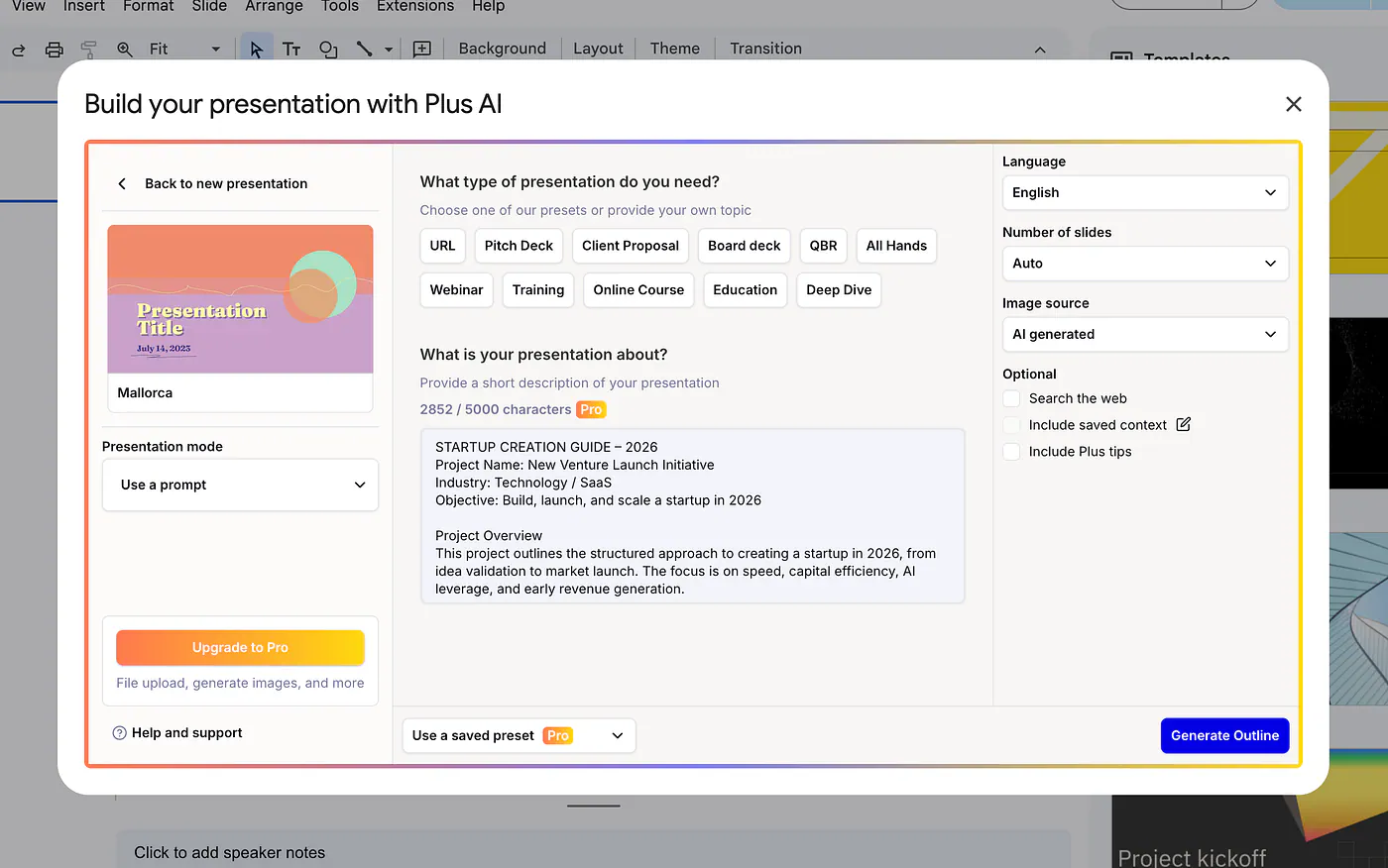
Generating slides with Plus AI. Image by Jim Clyde Monge
The generation process is simple. You get a few options to start, but the core idea is easy to grasp. You begin with a text prompt describing the kind of presentation you want. I wanted something professional, so I selected the Corporate Blue template. For one of my tests, I used this prompt:
You can upload a document or use a text prompt as an input. Here’s an example using a prompt:
Press enter or click to view image in full size
Generating slides with Plus AI. Image by Jim Clyde Monge
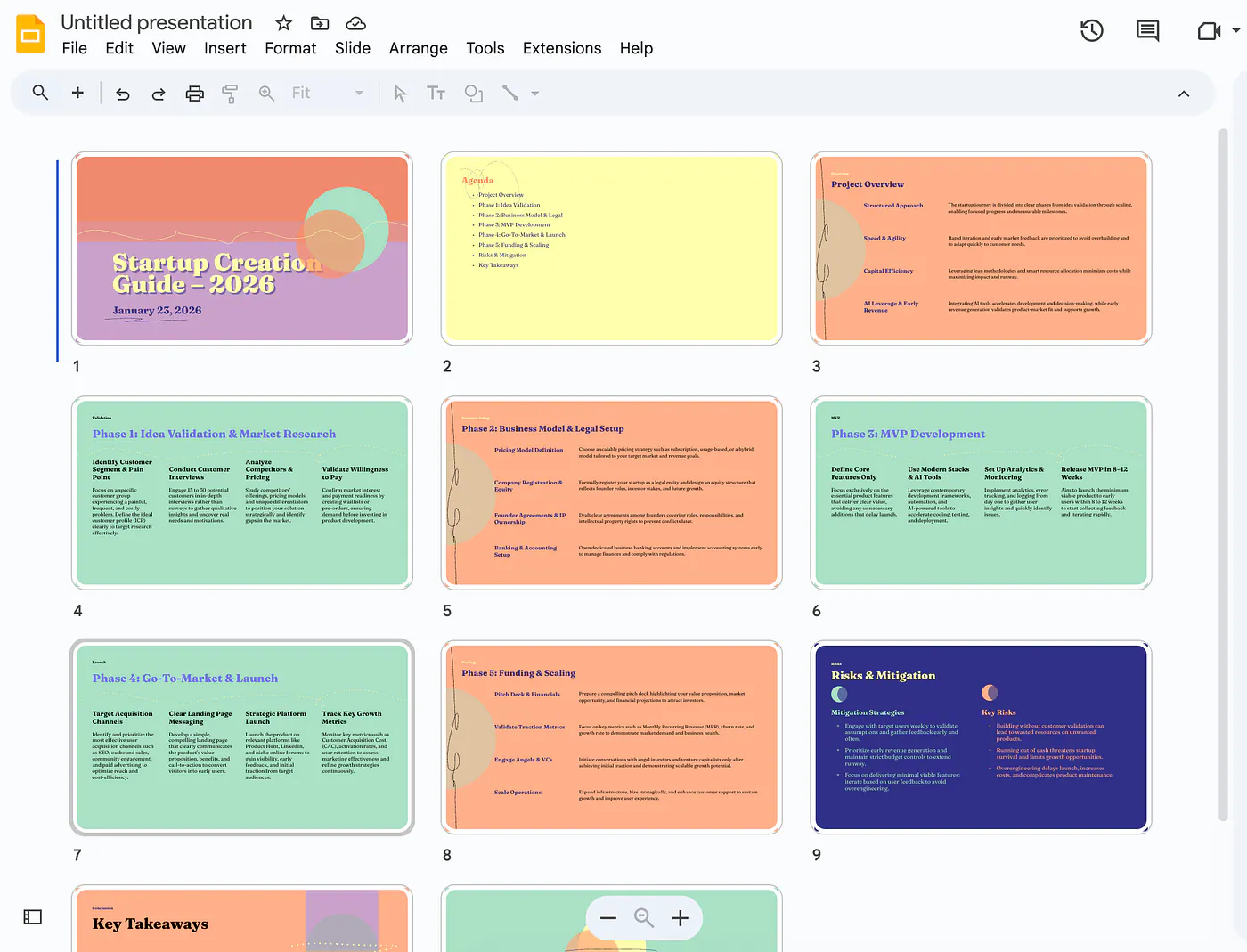
The end result is a multi-slide presentation file that looks something like this:
Press enter or click to view image in full size

Sample generated slides with Plus AI. Image by Jim Clyde Monge
If you want to automatically swap themes, revise texts, or reorganize layouts on each slide, there’s a “Remix” feature that instantly transforms them according to your prompt.
It effectively acts as an on-demand designer sitting right inside your slide editor, ensuring your decks always look good without you having to manually align every pixel.
How it changed my productivity
Before using Plus AI, making presentations always felt more tiring than it should have been.
Even when I already knew what I wanted to say, turning it into a decent deck still took a lot of work. Structure, wording, layout, flow. Everything had to be figured out at the same time.
A lot of it was not even hard. Just tedious.
What changed for me is the starting point. Instead of opening a blank presentation and building everything from scratch, I can start with a prompt and get something usable right away. That alone saves time.
I do not spend as much energy thinking about the first few slides or the overall flow. I get a draft, look at what works, then start editing. That feels much easier than forcing a structure out of nothing.
It also helps when I am switching between client work and my own projects.
The longer I stay inside slide-making mode, the more it interrupts everything else I need to do. With Plus AI, I can usually get a first version done faster, clean it up, and move on.
I also overthink less now. When I used to make decks manually, I would waste time rearranging sections or rewriting lines over and over. Having a first pass already there makes it easier to react and improve instead of second-guessing every decision.
Why should you care
I think this matters if you regularly have to explain ideas to other people.
That includes developers, founders, marketers, or really anyone who has to pitch, present progress, or summarize work. A messy deck can make a good idea feel weaker than it actually is.
For me, the main value is simple. It saves time.
I like tools that remove repetitive work without forcing me to completely change how I already work. I have tried other AI presentation tools too, including Kimi Slides, GenSpark, and Gamma.
Some of them are good. But I still do not like the experience of jumping between separate apps just to finish one deck. That kind of workflow always feels disconnected to me.
Plus AI works better for me because it stays inside Google Slides. I can do everything in one place, which makes the whole process feel less annoying.
Another small thing is that it has a free trial, so trying it does not feel like a big commitment. You can test it on a real presentation and see if it actually fits your workflow.
That said, this is just my own preference.
Different tools will work better for different people depending on the type of presentation, the design style you want, and how much control you need. For my workflow, this one just feels more practical.
Plus AI offers a week of free usage. Try it on a sample deck and see if it works for you.
Sources
- Plus AIplusai.com
- Jim Clyde Mongemedium.com
- Google Workspace Marketplaceworkspace.google.com
