Sponsored content. External links in this article are marked as sponsored.
AI Summary
Topview has launched T1, its first AI video generation model, positioning it as a cheaper alternative to Seedance 2.5 for cinematic video creation.
According to Topview's own launch comparison, T1 costs $6.60 versus $17.55 for Seedance 2.5 at 1080p for a 30-second clip — a claimed 62% savings. T1 supports text-to-video, image-to-video, and an Omni Reference mode accepting up to 30 images, 10 videos, and 10 audio clips per request. A Black Friday promotion offers a two-year Ultra plan for $1,200, or $40 per month.
I've been writing about AI video models for a while, and I almost always recommend Seedance 2.5 to my readers. For me, it’s still the most capable model I’ve used. It follows detailed prompts, the footage looks realistic, and the scene usually makes sense all the way through.
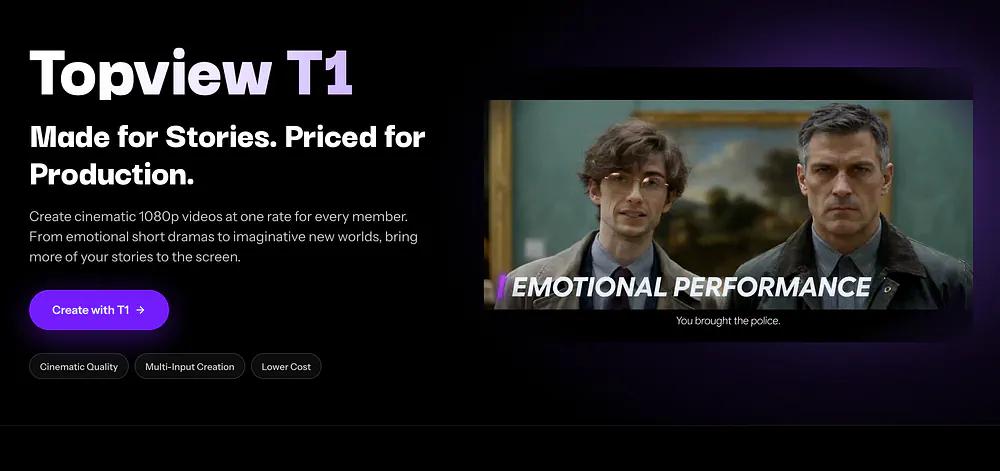
Topview recently dropped its own video model called Topview T1, and it’s going after Seedance 2.5. T1 can generate cinematic 1080p videos with sound, and a 30-second clip costs less than half as much in the company’s launch comparison.
They are also offering up to six months of Ultra free for Black Friday. The two-year plan gets you 30 months for $1,200, which comes out to $40 a month.
The one-year plan gets you 14 months for $600. The longer you lock in, the more you save.
I’ve played with T1 over the past couple of days, and I can see why content creators and even developers might want to switch for some of their video work.
In this guide, I will share where I think T1 can replace Seedance, how to make a video with it, and who I think will get the most out of it.
Let’s get started.
What’s new in the Topview T1 video model?
T1 is Topview’s first video generation model.
You can give it a prompt, start from a still image, or use images, videos, and audio together in Omni Reference mode.
For a scene with a recurring character, for example, you could give T1 a close-up of their face and a wider shot that shows their outfit. Add a separate image for the location so the model has something to work with when the camera pulls back.
Here’s a summary of the key features:
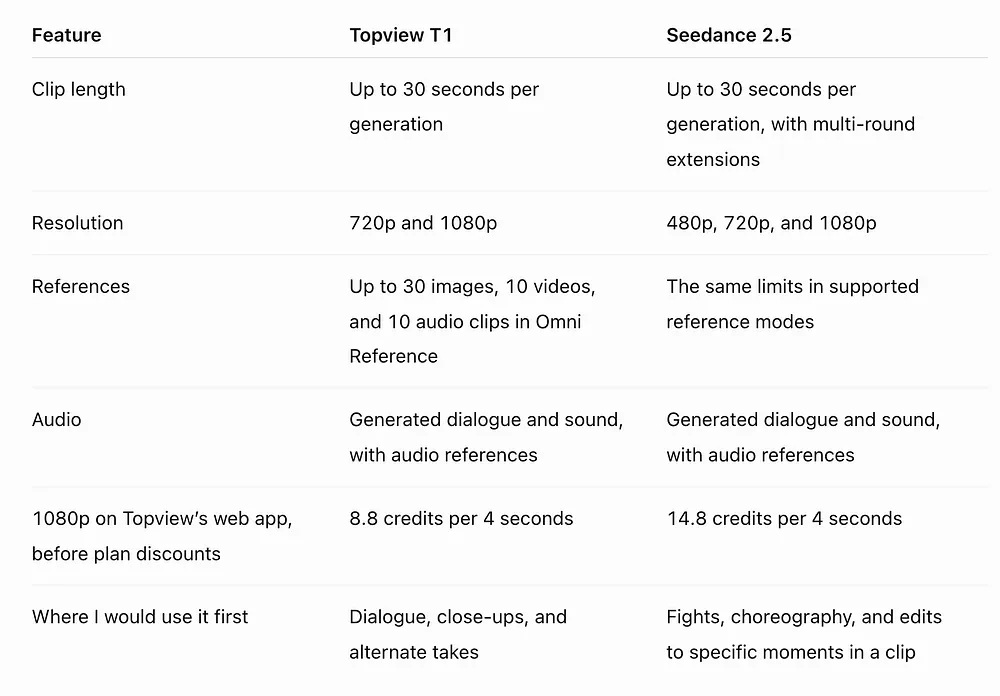
720p and 1080p output. You can use 720p to try out an idea before spending credits on a 1080p take.
Up to 30 seconds per generation. You can fit several shots or a short conversation into one clip. The API accepts durations from 4 to 30 seconds, or you can let the model pick.
Text-to-video and image-to-video. Start from a written prompt or use an image as your opening frame. The image-to-video API also accepts an optional last frame to guide where the shot ends.
Up to 50 references in one API request. The limit in Omni Reference is 30 images, 10 videos, and 10 audio clips.
Generated sound and multilingual dialogue. Topview also lists subtitle support for multiple languages. You can turn audio off in the API if you plan to add it in the edit.
For a product reveal, I would start from an image I already like, then use a second image to show where I want the camera to end up. The image-to-video API follows the first image’s aspect ratio, so I would crop the still for vertical video before uploading it.
For a character I need to show from several angles, I would use a reference image and describe the opening shot in the prompt.
Seedance 2.5 goes down to 480p, which is handy when you’re checking the timing of a scene. I would set both models to 1080p when comparing what it costs to generate footage for the final edit.
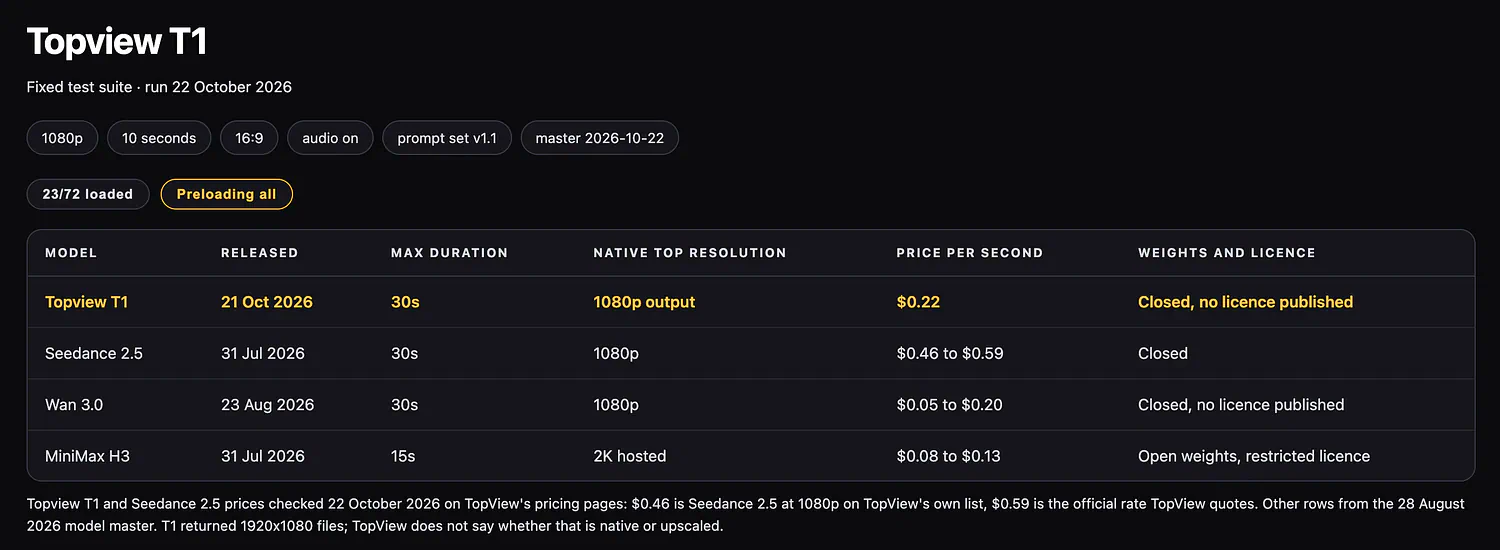
Topview’s launch comparison puts T1 at $6.60 and Seedance 2.5 at $17.55, both for 30 seconds at 1080p. That’s where the 62% cheaper price comes from.
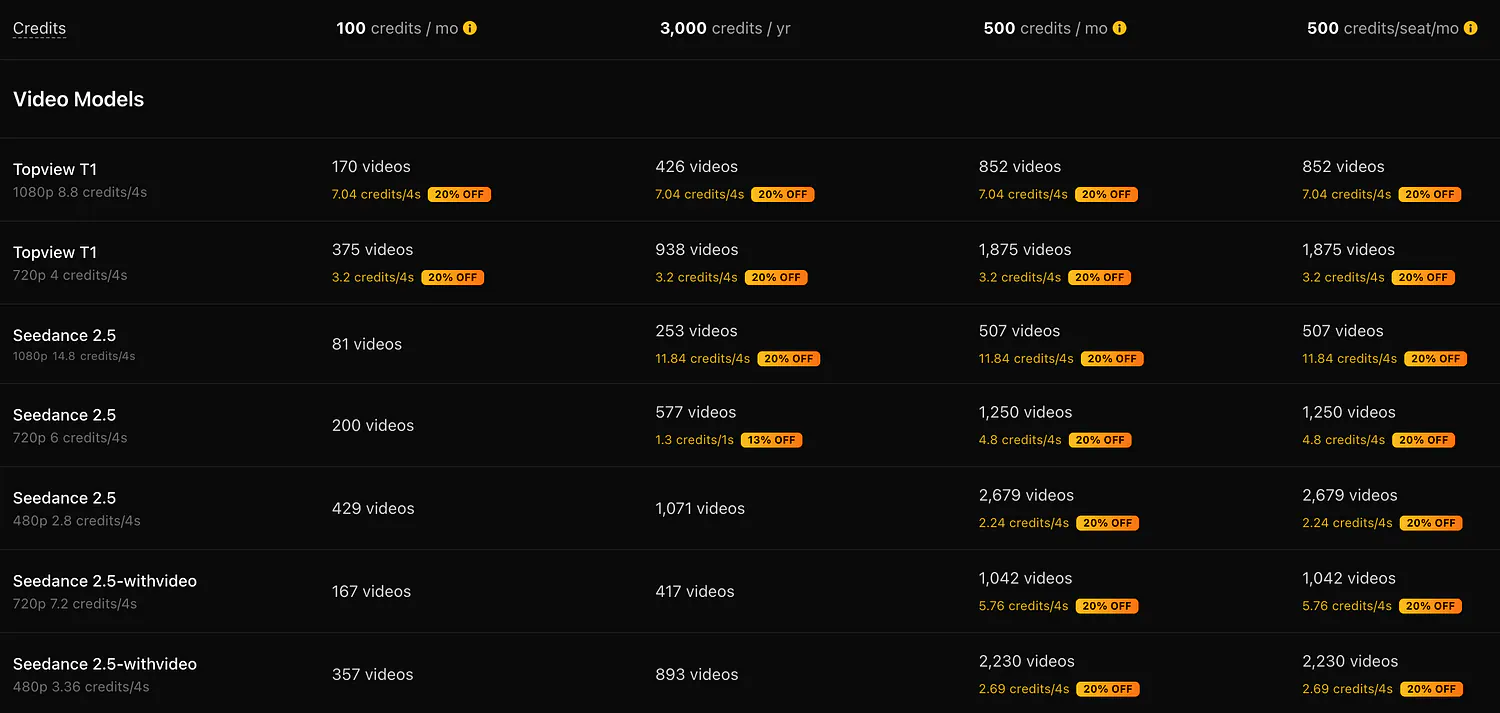
On Topview’s web credit table, the rates before plan discounts work out to 2.2 credits per second for T1 and 3.7 for Seedance. That puts T1 at about 41% fewer credits when you compare the two inside Topview.
Your plan can change the difference. Steve from Grandpa Does AI reported rates that worked out to 66 credits for 30 seconds of T1 footage and 88.8 credits for Seedance 2.5 on his Ultra account in October.
At 720p, the published web rates are 1 credit per second for T1 and 1.5 for Seedance 2.5 before plan discounts. Topview also lists 30 days of unlimited 720p generations on both models with its Ultra annual plan, though those jobs may take longer to start.
At the listed 1080p rates, I could try the same ten-second shot three times on T1 for 66 credits. Two tries on Seedance would cost 74.
For the diner scene below, I would use that third attempt to see how the exchange plays with a longer pause before the woman answers.
Where I would still use Seedance 2.5
I’ve been using Seedance 2.5 for a couple of months, and I still trust it more when the prompt has a lot of movement.
Take a fight where one person ducks, another throws a kick, and the camera moves around both of them. If somebody lands facing the wrong way, the next shot may stop making sense.
Check out the examples I showed in the article below:
AI Samson also preferred Seedance for complex combat, while T1 did well in his quieter scenes. For two people sitting across a table and talking, I’m comfortable starting with T1.
I would try editing that part before paying to regenerate the whole thing. Check that your provider offers those controls.
How to make a video with T1 on Topview
For this demo, let’s make a 10-second diner scene.
There are two characters, a line for each of them, and a short pause at the end. I based the setup on AI Samson’s diner test so you can see how the model handled a similar scene.
Go to Topview T1, click Create with T1, and sign in when prompted.
Choose Text to Video. You can also use Image to Video to start from a still or Multi Reference to bring in existing assets.
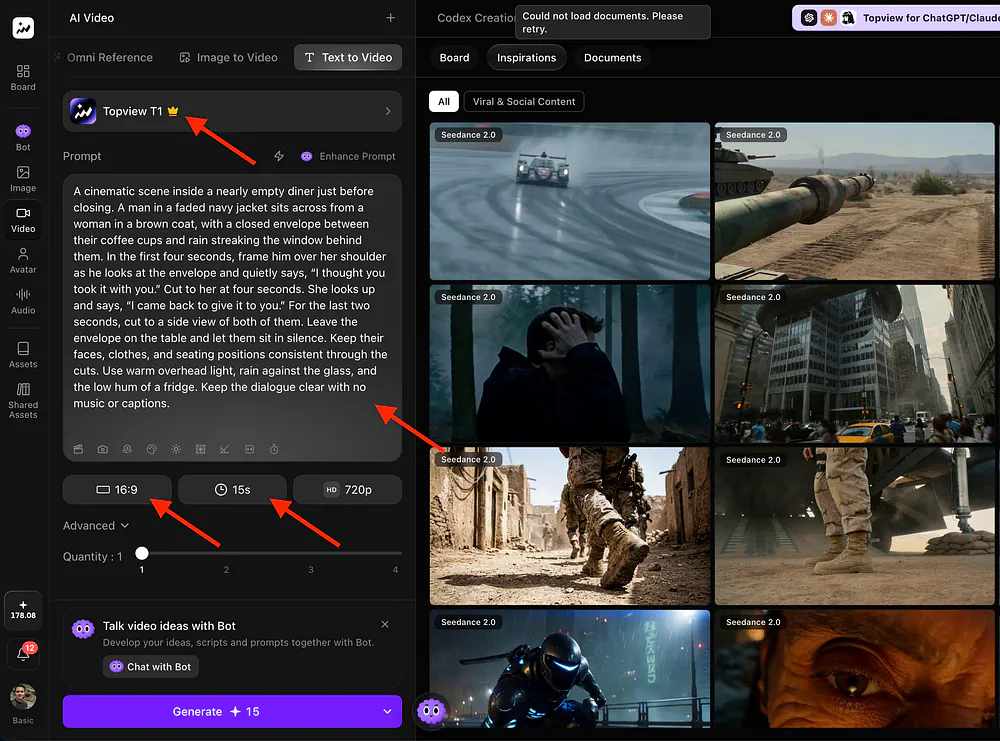
Paste the prompt below and set the duration to 15 or 30 seconds, the aspect ratio to 16:9, and the resolution to 720p. Keep audio on if you see the toggle. Both models support
Check the credit estimate and click Generate. At 2.2 credits per second, the clip comes to 22 credits before any further plan discount.
Play it with sound, check that each line goes to the right person, and download the take you want.
Here’s what the video generation dashboard looks like:
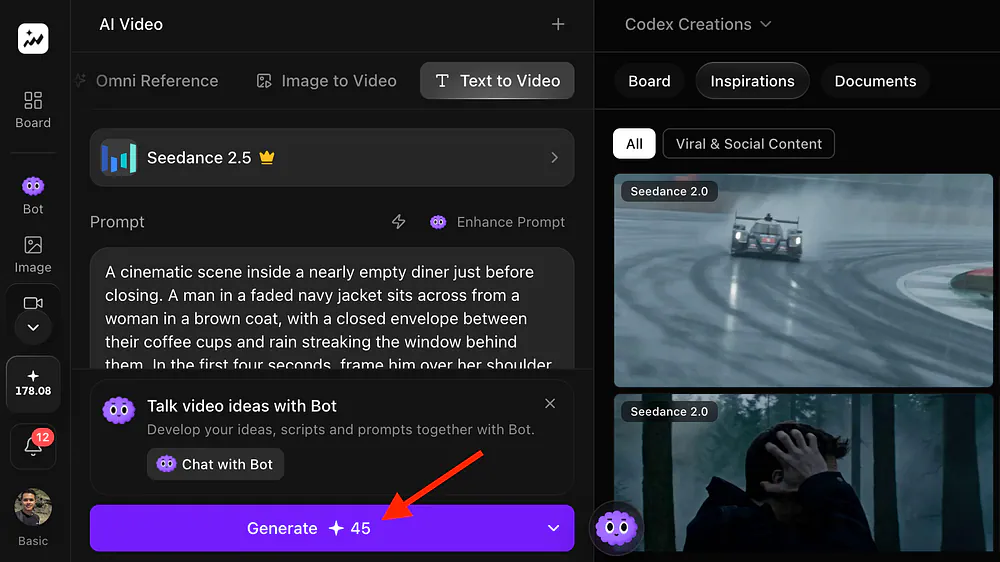
I switched to the Seedream 2.5 model and noticed that the required credits jumped from 15 to 45. That’s a huge difference!
I put the camera directions next to the dialogue in the prompt. When you tell the model to cut to the woman at four seconds, that’s also a good place to give her the line she’s supposed to say.
I like to leave a second or two of silence at the end. You can trim it in the edit or hold it a little longer if the reaction is good.
Example prompt
A cinematic scene inside a nearly empty diner just before closing. A man in a faded navy jacket sits across from a woman in a brown coat, with a closed envelope between their coffee cups and rain streaking the window behind them. In the first four seconds, frame him over her shoulder as he looks at the envelope and quietly says, “I thought you took it with you.” Cut to her at four seconds. She looks up and says, “I came back to give it to you.” For the last two seconds, cut to a side view of both of them. Leave the envelope on the table and let them sit in silence. Keep their faces, clothes, and seating positions consistent through the cuts. Use warm overhead light, rain against the glass, and the low hum of a fridge. Keep the dialogue clear with no music or captions.
Loading this video connects to Vimeo, which receives device and connection data and may use cookies or similar storage.
It looks more natural to me, and the background is probably my favorite part of the whole shot. Look at the water running down the diner window. It moves the way rain actually does on glass, and that little detail makes the diner feel like a real place.
I also prefer T1’s close-up of the woman. Her expression comes through better in that shot, which helps sell the emotion of the scene. The one thing I wish T1 had done better is the tear. It looks a little off as it rolls down her face, and with the camera that close, it’s hard to miss.
The Seedance 2.5 clip is a lot darker.
It makes the whole conversation feel gloomier, which works for a sad scene like this. I also like how much detail Seedance puts into both people and the diner around them.
Both clips followed the prompt and captured the emotion I was going for. Seedance looks a tiny bit better to me in terms of detail and overall realism, even though I prefer the lighting and the close-up in T1.
Given how much more Seedance costs, I would go with T1 for this scene. I already like the take, and the lower price gives me room to try another one if I want a different delivery.
Who is T1 made for?
I can see T1 being useful when you’re making new videos every week or need several takes before you settle on one.
It’s also an option for small teams that have most of an edit finished and need a few seconds of extra footage.
Short-drama creators. If you’re making a vertical series with the same cast, keep a set of reference images for the characters and locations. You can reuse them for new episodes and try a few deliveries of an important line before picking the one that works.
Small shops and product video creators. Start with a product photo and generate footage you’re missing, like a bag sitting on a café chair. When someone picks it up, watch what happens to the strap and zipper. I would use the real product photo for the final frame if the logo has to be exact.
Filmmakers and animators. Turn a storyboard frame into a rough clip and drop it into the edit. You can see how long to hold on a character’s face before cutting away, which is hard to judge from a still.
Developers building video tools. Use the hosted T1 API to offer video generation from a prompt, an image, or a set of references. Topview returns a task ID, so someone can keep working while your app checks for the finished clip. Generated files are retained for 60 days, so save the ones that belong to a project.
The web app and API have separate prices.
At the API rates listed when I checked, ten seconds of 1080p footage without a reference video worked out to about $4.27 for T1 and $4.83 for Seedance 2.5 on Topview Platform.
The Seedance estimate assumes 16:9 at 24 fps.
Adding a reference video changes the T1 rate, and the API bills for input and output video seconds. Image and audio references add no billable seconds. The API also treats reference audio as guidance, so I would add the original track in the edit if I needed to keep it exactly as recorded.
For a video app, I would show the quote before someone hits Generate, then show what the job actually cost when it’s done.
A ten-second render guided by another ten-second video can be billed for twenty seconds of footage at the with-video rate. It would be easy to miss that if the only price you show is next to the output duration.
Final Thoughts
After testing both models and comparing what you get for the price, I would recommend trying T1 first. It gives you up to 30 seconds of 1080p video with sound, and you can bring your own references. I liked the lighting and the close-up in the diner scene enough that I would use the T1 clip in an edit.
What I really like about the lower price is that I can try another take just to hear how a line sounds with a different delivery. I can see the appeal for developers, too.
Giving someone two versions to pick from gets easier when each render costs less, though the actual savings depend on your plan or API rate and how many tries it takes to get a clip you can use.
I’m glad Topview built its own model and made it this affordable. I’ve recommended Seedance for months and still use it, but after seeing what T1 did with the diner scene, I would be happy to use it for more of my videos.