Sponsored content. External links in this article are marked as sponsored.
AI Summary
Plus AI and Gamma offer distinct approaches to AI-driven presentation creation. Plus AI functions as a native Google Slides and PowerPoint add-on, utilizing Open XML rendering to ensure fully editable, corporate-ready files that integrate directly into existing workflows. Conversely, Gamma operates as a standalone web application using flexible, block-based cards that auto-resize content. While Gamma excels at rapid, visually dynamic generation and multi-format exports, Plus AI provides superior control over slide structure and professional formatting. Choosing between them depends on whether you prioritize seamless native integration or a fast, flexible, and design-forward web interface.
As a dev and solopreneur, I make presentations regularly for client updates, content strategy pitches, and monthly growth reports. These reports usually start as a messy Google Doc and end up in Google Slides or PowerPoint. Before all these AI tools came out and became popular, I often did things manually.
Today, AI presentation generators like Plus AI and Gamma App make my life easier. I just dump the data or link, and the agent takes care of all the heavy lifting.
But which tool is better?
In this article, I’ll explain how each tool works, what it’s like to use them day to day, and which one I’d recommend for different kinds of work.
Let’s get started.
Plus AI vs Gamma: What’s the Difference?
The biggest difference is where each tool lives.
Plus AI is an add-on that runs inside PowerPoint and Google Slides. You open a regular deck, click the Plus AI panel on the side, and it builds or edits slides right there in your file.
You don’t need to keep on switching tabs when working with a presentation. This is perhaps the biggest reason why you should pick it. The dashboard is already familiar, so there is almost no learning curve at all.
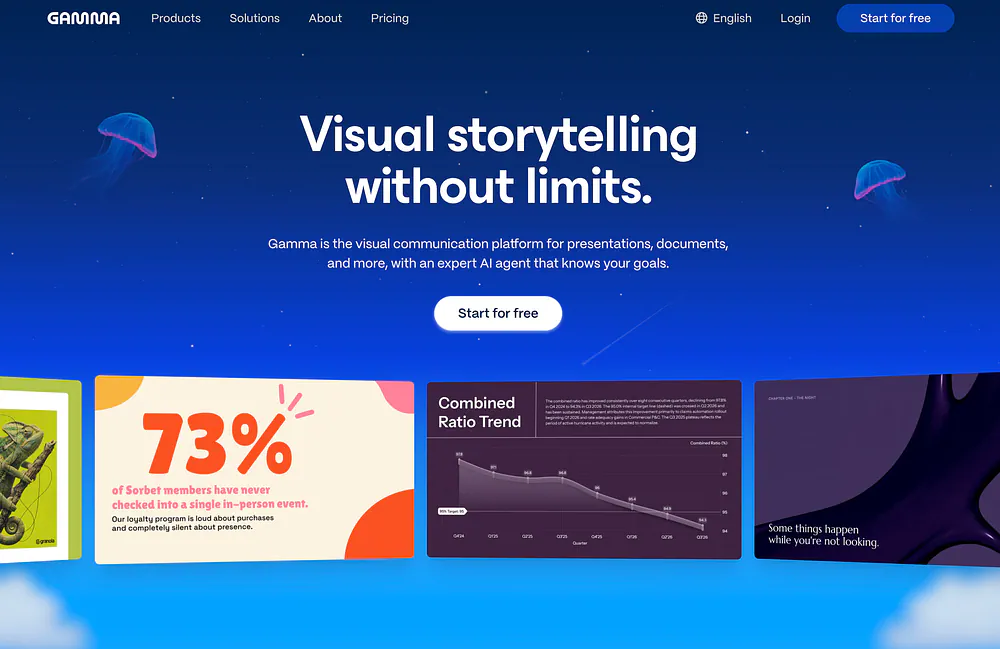
Gamma is its own web app. You create, edit, and present everything inside the Gamma website, then share a link or export to PowerPoint, PDF, or Google Slides when you need a file.
So, choose Plus AI if your team works in PowerPoint or Google Slides and needs decks that stay fully editable in those apps.
You can switch to Gamma if you prefer a more ChatGPT-style interface and you want the output to be in HTML format.
Plus AI: Features and Highlights
Plus AI was built by a team of former management consultants, designers, and engineers, and you can tell. The whole tool is designed around the way people already make work presentations.
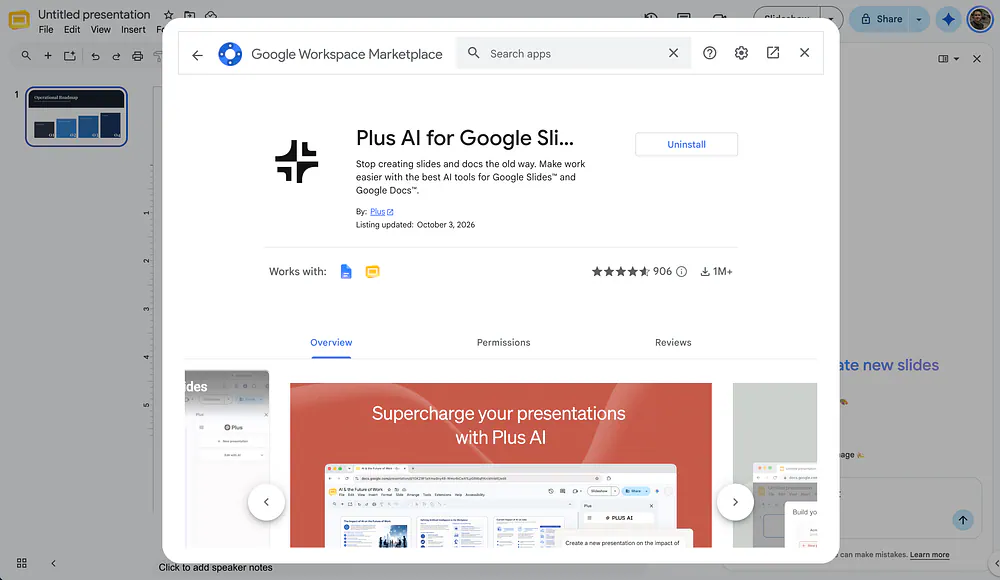
You can install it by adding it as an add-on in Google Slides.
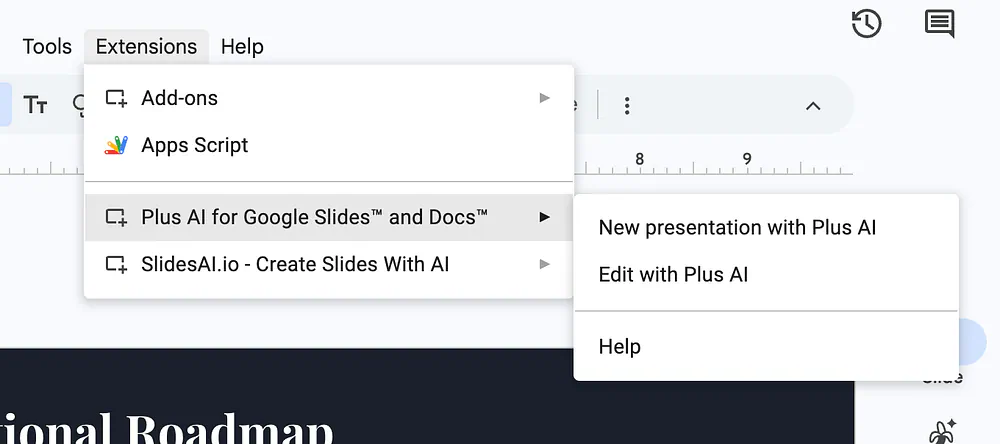
After you install the add-on, a side panel opens next to your slides. When you create a new presentation, just open the Extensions tab, then under the Plus AI for Google Slides menu, select New presentation with Plus AI.
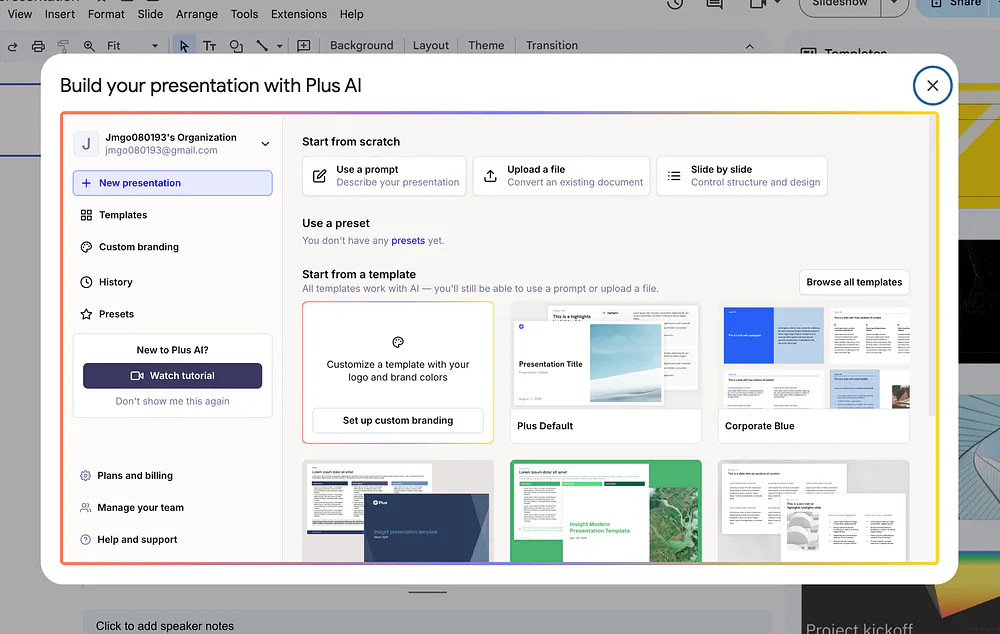
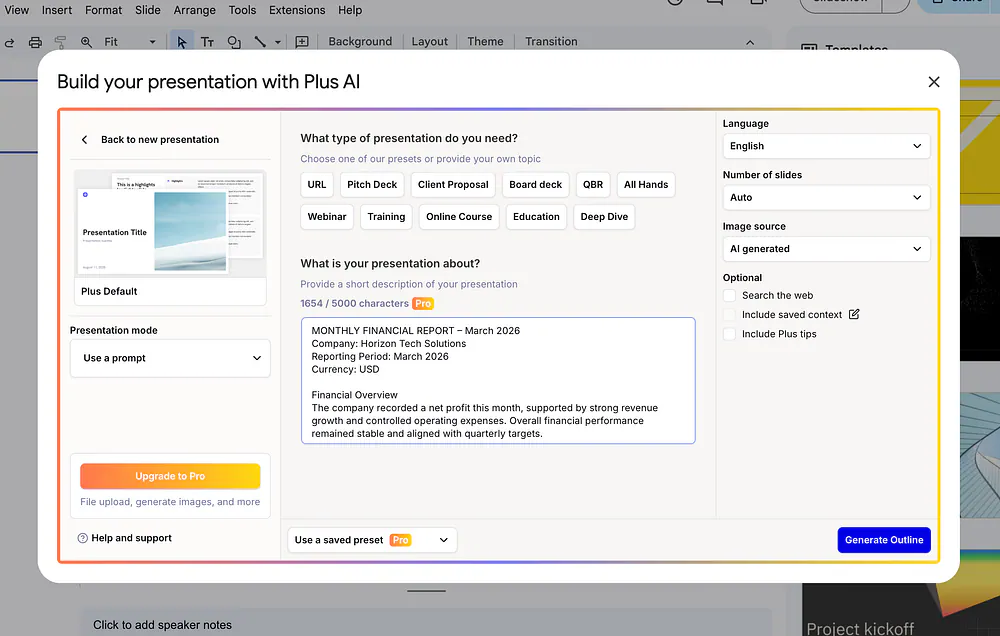
In the presentation generator dashboard, you will see a bunch of parameters. You can start from scratch or choose from templates.
For example, you could ask for a presentation of a monthly financial report. Click on the “use a prompt” button to add the financial data. You can also upload a document if it’s in PDF or Doc format.
Here’s the full prompt:
MONTHLY FINANCIAL REPORT – March 2026
Company: Horizon Tech Solutions
Reporting Period: March 2026
Currency: USD
Financial Overview
The company recorded a net profit this month, supported by strong revenue growth and controlled operating expenses. Overall financial performance remained stable and aligned with quarterly targets.
Income Summary
Total revenue for the month was $1,480,000, representing an 11% increase compared to the previous month. Cost of goods sold totaled $620,000, resulting in a gross profit of $860,000 and a gross margin of 58%.
Operating Expenses
Operating expenses amounted to $610,000.
Key expense drivers included employee salaries, cloud infrastructure costs, and marketing spend tied to customer acquisition campaigns.
Net Result
After operating expenses, the company achieved an operating income of $250,000.
Taxes and miscellaneous expenses totaled $70,000, leading to a net income of $180,000 for the month.
Cash Flow
Operating cash flow remained positive at $210,000.
Capital expenditures were limited to routine software and hardware upgrades, ensuring healthy cash reserves.
Balance Sheet Highlights
 • Cash and cash equivalents: $2.3M
 • Accounts receivable: $420,000
 • Total assets: $4.8M
 • Total liabilities: $2.1M
Key Financial Insights
 • Profit margins improved due to better cost control
 • Marketing spend showed a positive return on investment
 • Cash position remains strong, supporting near-term growth initiatives
Outlook for Next Month
Revenue is expected to grow moderately, with expenses remaining stable. Focus will remain on maintaining profitability while supporting strategic investments.
Adjust some parameters to customize the output. You can change the length, the design of the template, and the writing tone. Click on the generate button and wait for the final deck to be displayed.
Here’s what the sample output looks like:
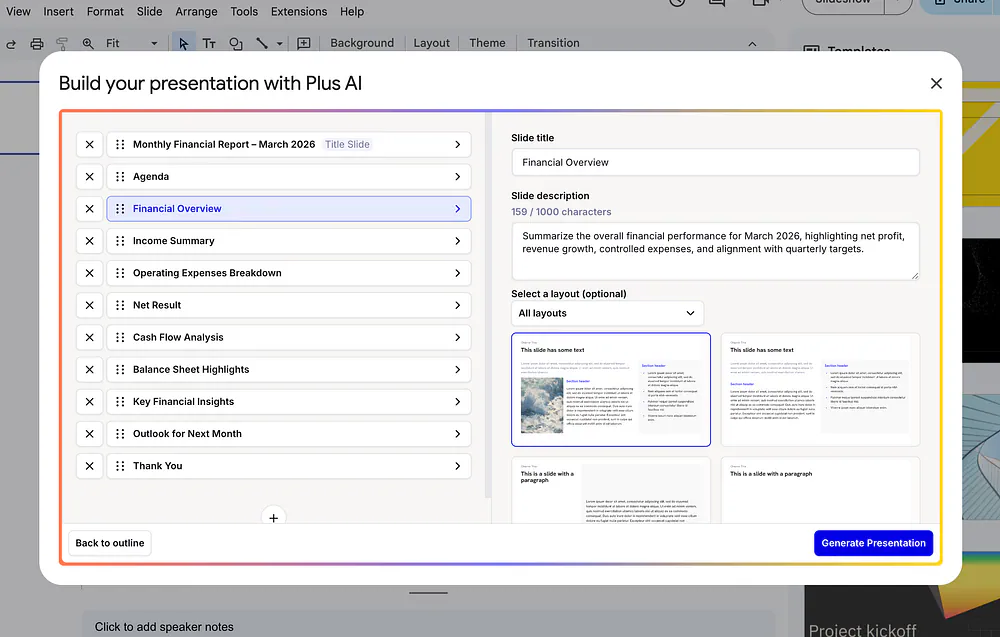
Plus AI presentation outline example. Image by Jim Clyde Monge
Before it generates the final slides it creates an outline for you. This is a crucial step because it allows you to see the structure of the presentation. You can edit the headers and rearrange the flow to make sure it tells the right story. Once you approve the outline the AI builds the slides right on your existing canvas.
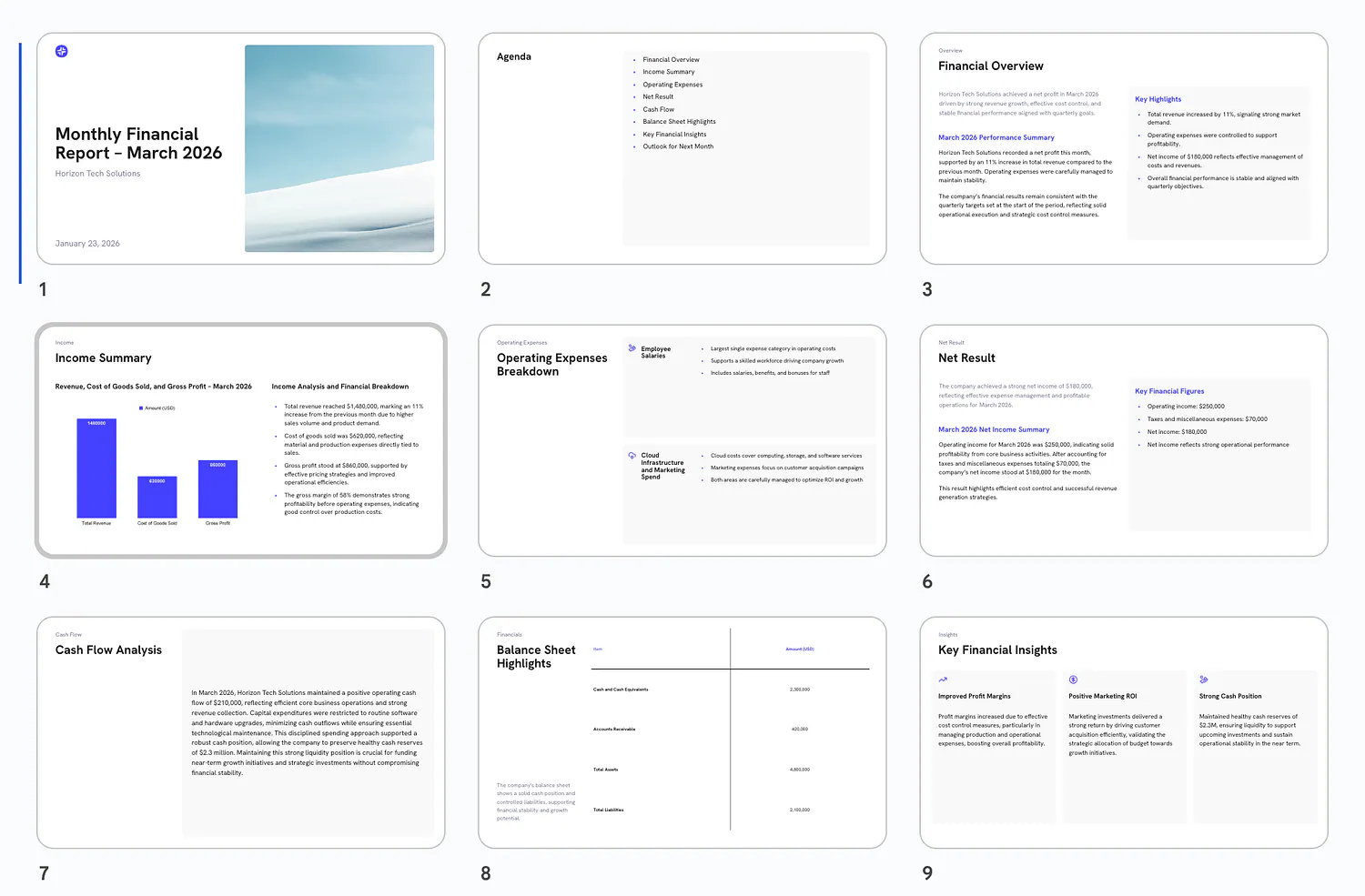
Here’s what the final slides look like:
Because Plus AI works natively inside Google Slides and PowerPoint the final output is just a standard presentation file. Every text box and image is fully editable. You can share the file with a colleague and they can edit it even if they do not have Plus AI installed.
Plus builds its own PPTX files with an in-house Open XML renderer, so when you open the deck in PowerPoint, nothing looks broken or flattened into an image.
On the Team plan, you can add your logo, colors, and fonts. Enterprise customers can go further and import their company’s actual slide masters, so the AI builds slides using the same templates the design team already approved.
Gamma: Features and Highlights
Gamma takes a different approach. Instead of classic slides, it builds presentations out of cards, which work like flexible slides that stretch to fit their content. Gamma says people have used it to create more than 250 million presentations, websites, social posts, and documents.
Getting started takes about a minute. You type a prompt, paste an outline, or upload a Word doc, PDF, or Google Doc. Then you pick a theme, and Gamma writes the copy, chooses layouts, and adds images automatically.
The editor feels more like Notion than PowerPoint. You add content in blocks, drag them around, and ask the built-in AI assistant to rewrite a card, change its layout, or generate a new image. Switching the whole deck to a different theme takes one click.
When you’re done, you can present straight from Gamma, share a live link, or export to PowerPoint, PDF, PNG, or Google Slides. Gamma can also turn the same content into a website, a document, or social media graphics, which Plus AI doesn’t try to do.
Higher plans add custom branding, detailed analytics on who viewed your deck, custom domains, and API access.
Plus AI vs Gamma
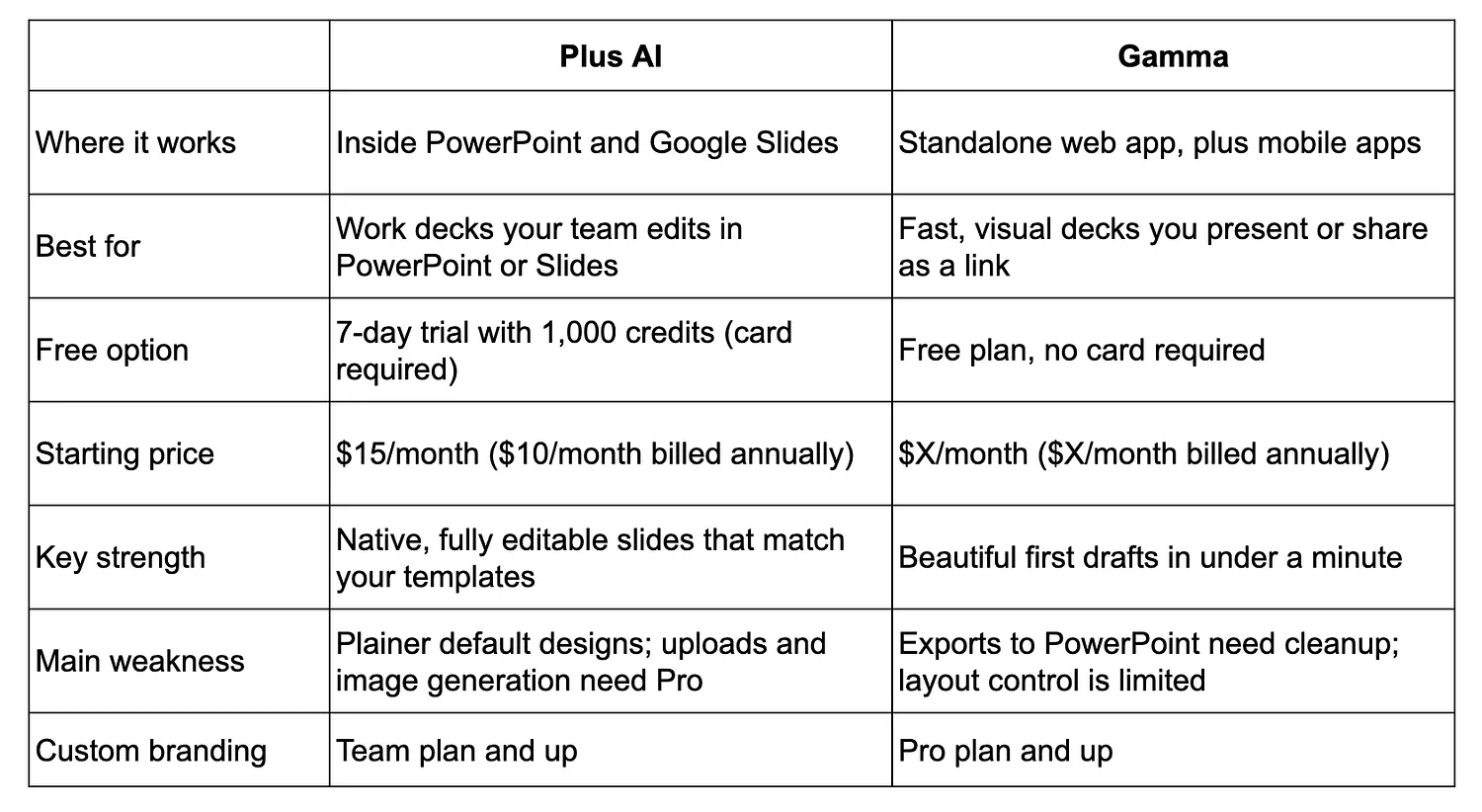
Here’s a quick comparison of the two platforms:
Feature lists only tell you so much. What matters in practice is how each tool feels when you’re actually building a deck under a deadline.
Generating a Deck From a Prompt
Gamma is the faster of the two. You type a prompt, pick a theme, and in under a minute you have a full deck with photos, icons, and a different layout on almost every card.
The first time I tried it, I was honestly impressed by how finished it looked.
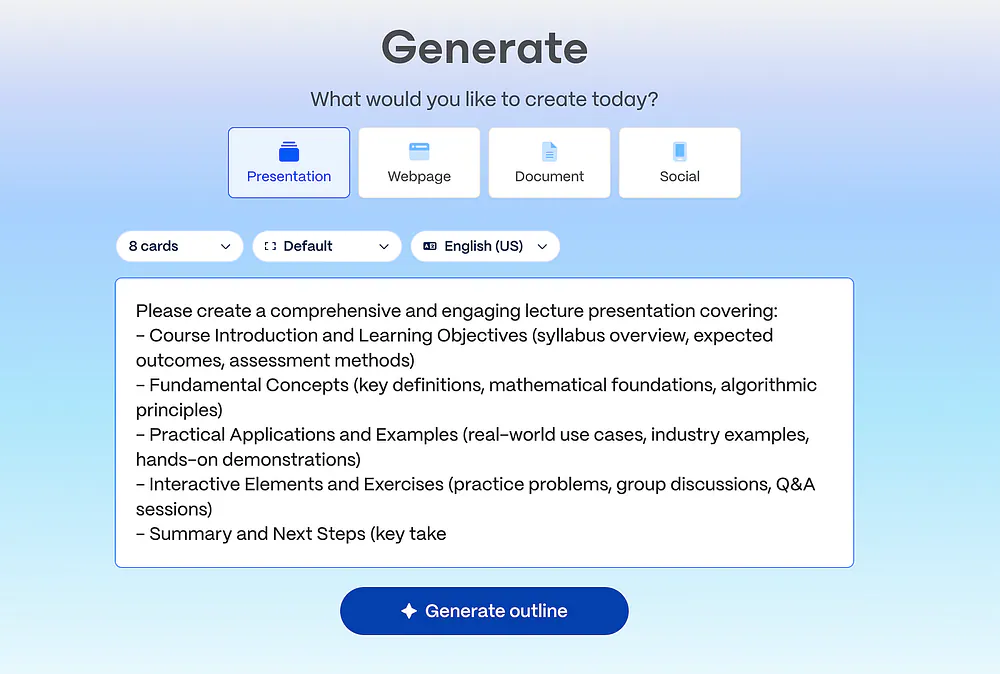
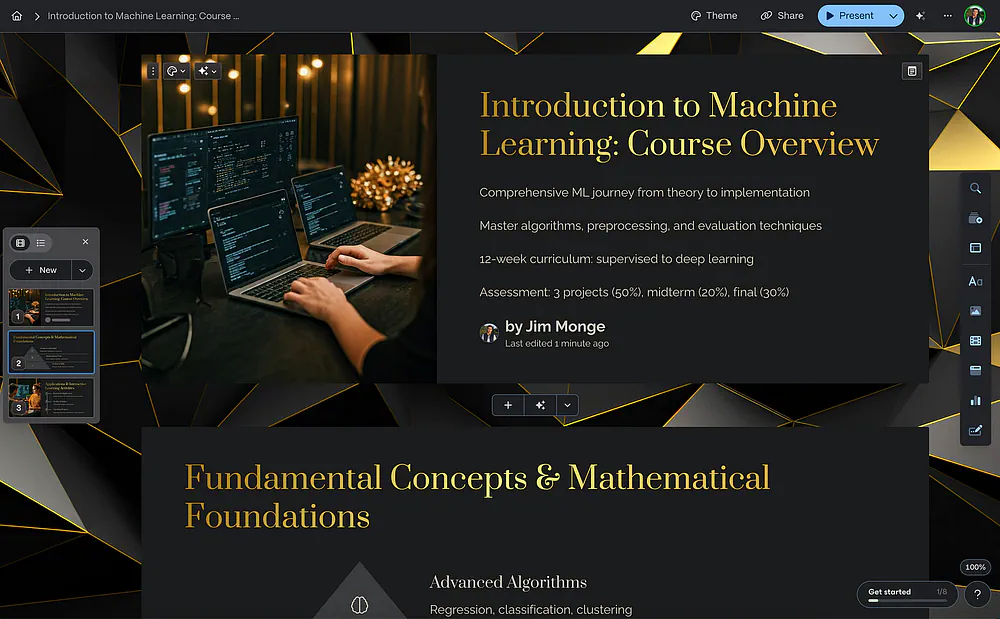
Here’s an example:
The AI generates content in fluid blocks that auto-resize to fit the text. You don’t have to worry about font sizes or text overflowing a box because the “Smart Slides” handle all of that for you.
The catch is the writing. Gamma tends to be wordy, and since cards stretch to fit their content, it doesn’t force itself to cut anything. Some cards end up with two or three paragraphs where a real slide would have a headline and a few short lines.
It can also fill gaps with numbers you never gave it, so you have to read every card before you present.
Plus AI takes a bit longer, usually a minute or two. Before building anything, it shows you an outline of every slide, and you can reorder, rename, or delete slides at that stage. I like this step a lot, because it’s much easier to fix the structure of a deck before the slides exist.
The finished deck looks more corporate. Plus uses its own designer templates with consistent fonts, tidy spacing, and icons next to the bullet points. The slides are tighter than Gamma’s, with short headlines and three or four points each. They can feel a little plain, especially if you don’t turn on image generation.
Editing After the First Draft
No AI tool gives you a perfect deck on the first try, so editing is where you’ll spend most of your time.
Plus AI’s Remix and Rewrite tools are the best part of the product for me. You select one slide, pick a new layout, and Plus rebuilds it in a few seconds while leaving the rest of your deck alone.
If a slide is just a wall of text, Remix can turn it into a timeline or a set of columns with icons, and Rewrite can tighten the wording without touching the layout.
Gamma’s AI assistant is more flexible. You can ask it for almost anything in plain English, like “make this more concise” or “turn this into a timeline,” and it usually gets it right. Changing the look of the entire deck with one click is also something PowerPoint can’t match.
Where Gamma gets frustrating is fine control. Its block-based editor doesn’t let you drag elements anywhere you want the way PowerPoint does. If you want to nudge one icon slightly to the left or shrink a single image, you’ll often end up trying different layout presets until one is close enough.
Plus AI vs Gamma: Feature-by-Feature Comparison
Design Quality
First impressions count, especially if you’re presenting to clients or investors.
Plus AI: The designer templates are clean and professional, with consistent fonts and spacing. They look like something a consulting firm would use. They’re also a little safe, and without images, some slides feel plain.
Gamma: Gamma’s themes are modern and bold, and it adds images and varied layouts without being asked. Most people would look at a Gamma deck and assume a designer made it.
Winner: Gamma. Its first drafts look noticeably better with no extra effort from you.
Editability and File Compatibility
This category decides what happens after the AI is done, when you or your coworkers need to keep working on the deck.
Plus AI: Everything is native to PowerPoint and Google Slides. Charts are real charts, text boxes are real text boxes, and your deck works with any template or add-on you already use.
Gamma: You can export to PowerPoint and Google Slides, but the export is a conversion from Gamma’s card format. Text boxes can shift, fonts can get replaced, and long cards sometimes split in odd places. It’s fine if you present from Gamma, but it adds cleanup if your team works in PowerPoint.
Winner: Plus AI. If your deck needs to live in PowerPoint or Google Slides, working inside the file itself saves a lot of fixing later.
AI Editing Tools
Generating a deck is only half the job. Most of my time goes into fixing slides after the first draft.
Plus AI: Remix and Rewrite are fast and precise. You pick exactly which slide or text to change, and Plus leaves the rest alone. Custom instructions and saved presets (on the Team plan) also help if you make similar decks every week.
Gamma: The AI assistant handles almost any request in plain English, and changing the entire theme takes one click. Fine control over positioning is harder, though.
Winner: Tie. Plus AI is better for precise edits, and Gamma is better for big changes across the whole deck.
Branding and Templates
If you work for a company with brand guidelines, this might be the most important category for you.
Plus AI: The Team plan lets you set your logo, colors, and fonts. On Enterprise, Plus can build slides directly from your company’s own slide masters and asset libraries.
Gamma: Pro users can create a custom branded theme with their colors, fonts, and logo. It works well for Gamma decks, but it’s a Gamma theme, separate from your company’s official PowerPoint template.
Winner: Plus AI. Being able to use your company’s real templates saves a lot of back-and-forth with the design team.
How to Make Your Choice
Overall, I’d pick Plus AI for most work presentations, because most work decks end up in PowerPoint or Google Slides anyway. Gamma is the better choice when looks and speed matter most and you control how the deck gets presented.
Plus AI Is Better For:
Consultants and agencies: Client decks need to open cleanly in PowerPoint and match the client’s template.
Corporate teams: The deck gets passed between several people who all edit it in Google Slides or PowerPoint.
Data-heavy updates: You need charts your team can click into and update next quarter.
Gamma Is Better For:
Founders and freelancers: You want a sharp pitch or proposal fast, and you’re fine sharing it as a link.
Content creators and educators: You want the same material as slides, a web page, and social posts.
Occasional users: You make a few decks a month and want a free or low-cost option.
Final Thoughts
Alright, I’ve just laid out the differences between Plus AI and Gamma and shared the key points you should know when choosing between the two.
I’ve been using both tools for over a year now, so you can trust me in this review.
For my own personal projects and client work, I prefer Plus AI. I’ve always been a PPT and Google Slides user since I was in college, so having an agent built into these platforms is a huge help and time saver for me.
Its Remix and Rewrite tools let me fix one slide without touching the rest, and I never have to rebuild a deck after exporting it.
In times when I need graphic heavy presentations, I switch to Gamma. The agentic interface also helps me easily perform deep research and link to some sort of database when dealing with reports.
If you’re deciding between them, think about three things.
First, where will the deck live after you’re done: in PowerPoint and Google Slides, or as a shared link?
Second, how much do you care about the first draft looking polished versus being easy to edit?
Third, how often will you use it? If it’s just a few decks a month, Gamma’s free plan might be all you need.
It’s also worth saying how much these tools have changed the way I work. A year ago, turning a 10-page report into a clean deck took me hours of work. Now I can get a really good output in a few minutes and spend my time on the parts that actually need a human, like the story and the numbers.
What do you think? Have you tried Plus AI or Gamma, or do you use a different AI presentation tool?