When you search for “anime AI generator” on Google, SeaArt and PixAI are two of the top results. Both platforms have free daily credits, mobile apps, a thriving community, and a large number of custom image models.
I’ve used both for a while now, and the more I use them, the more I notice how different they are. SeaArt tries to do everything. It has images, videos, AI chat characters, face swaps, and dance effects, and anime is just one of many styles you can pick. PixAI focuses only on anime, and it has its own anime model called Tsubaki.3.
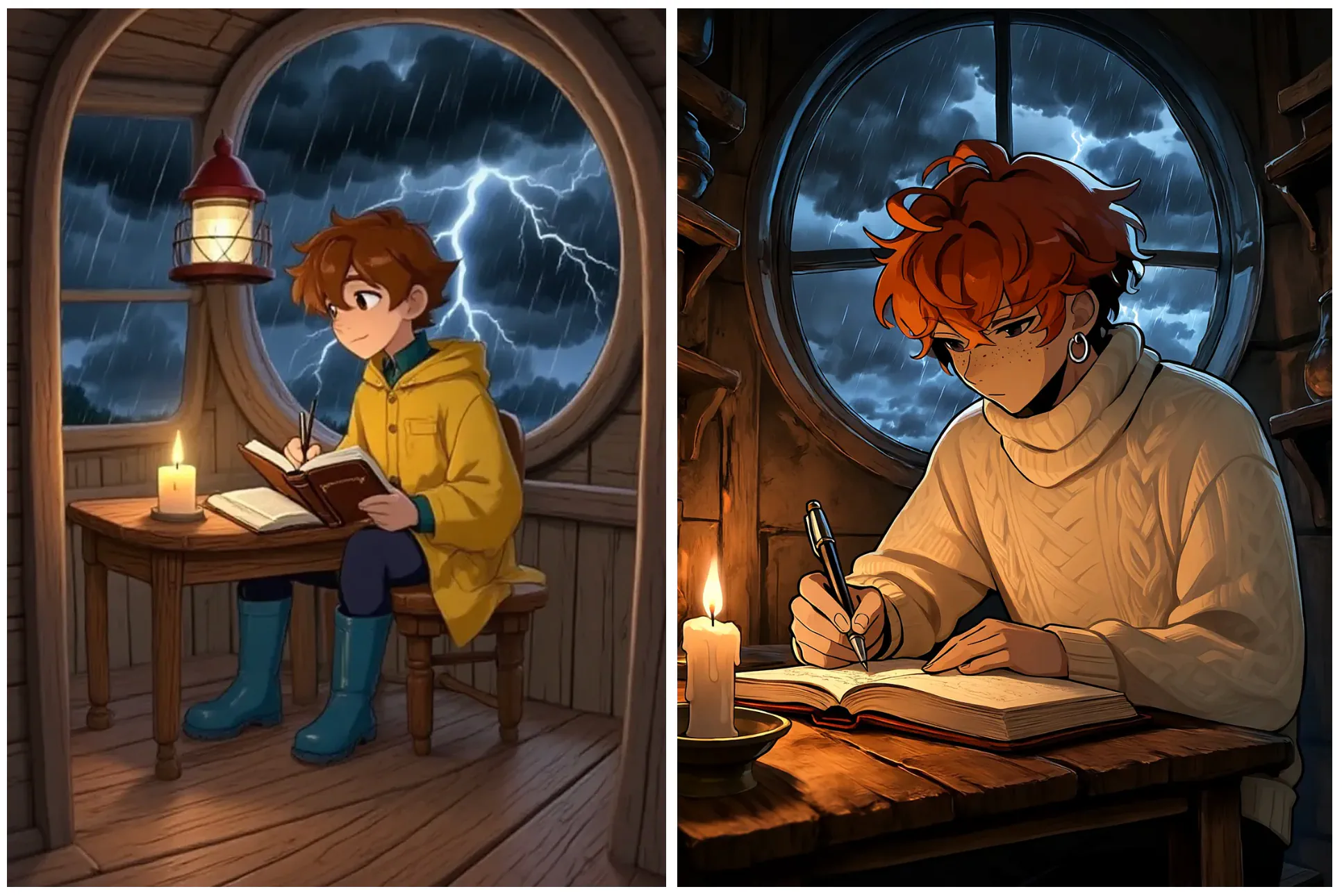
To see which one actually does a better job with anime, I ran two tests on both platforms. First, I created an original character from a detailed description. Then, I put that same character in a completely new scene.
In this post, I’ll show you the results, what each platform got right and wrong, and which one I’d recommend for anime art.
SeaArt vs PixAI: What’s the Difference?
The biggest difference is what each platform is built for.
SeaArt is like a big shopping mall of AI models. It gives you access to image models from other companies, like GPT Image 2.5, Seedream, Nano Banana, and Flux, plus video models like Veo, Kling, and Seedance. You’ll also find community-made anime models, but they sit next to all those other tools.
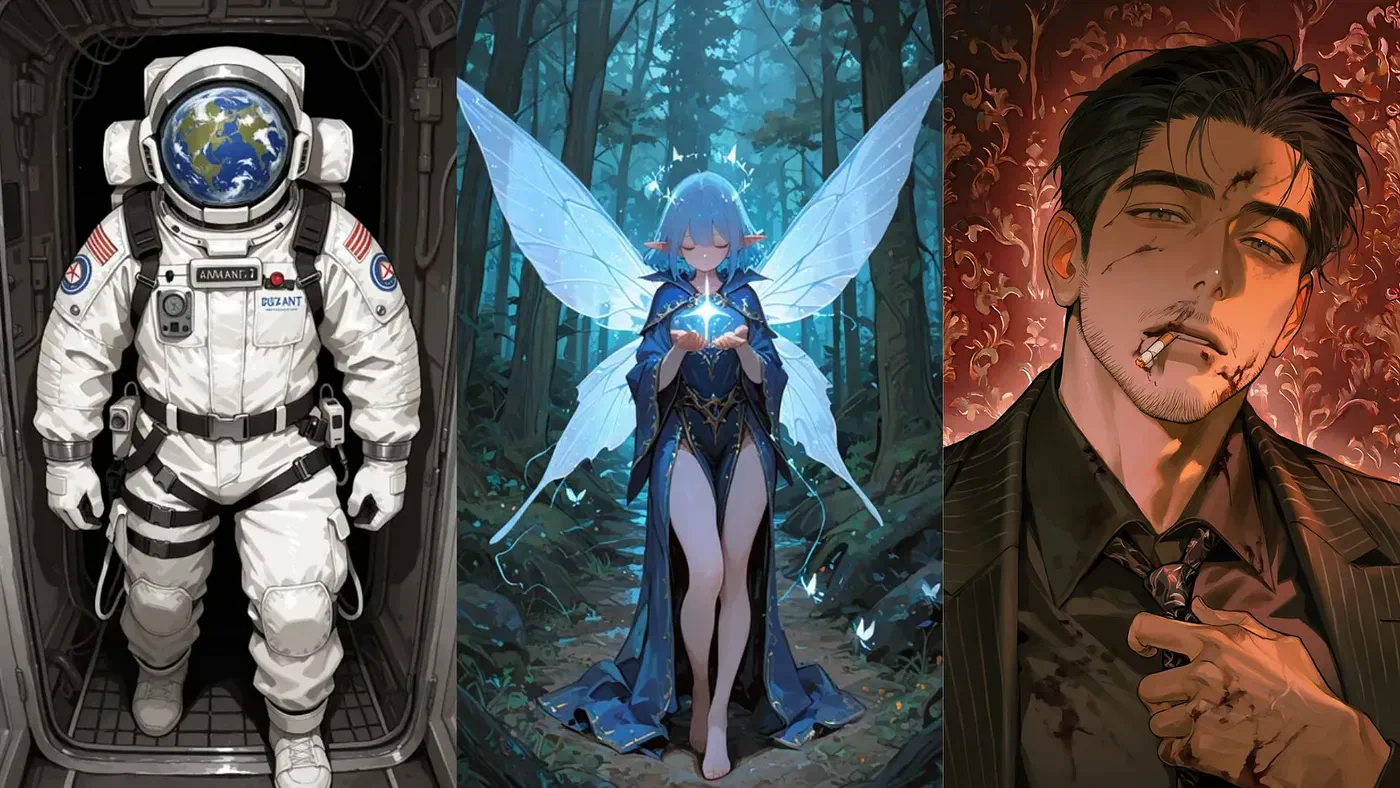
PixAI is built just for anime. Its main model, Tsubaki.3, was trained by PixAI on anime art, and everything on the site, from the 1.8 million community models and LoRAs to the editing tools, is made for anime and illustration.
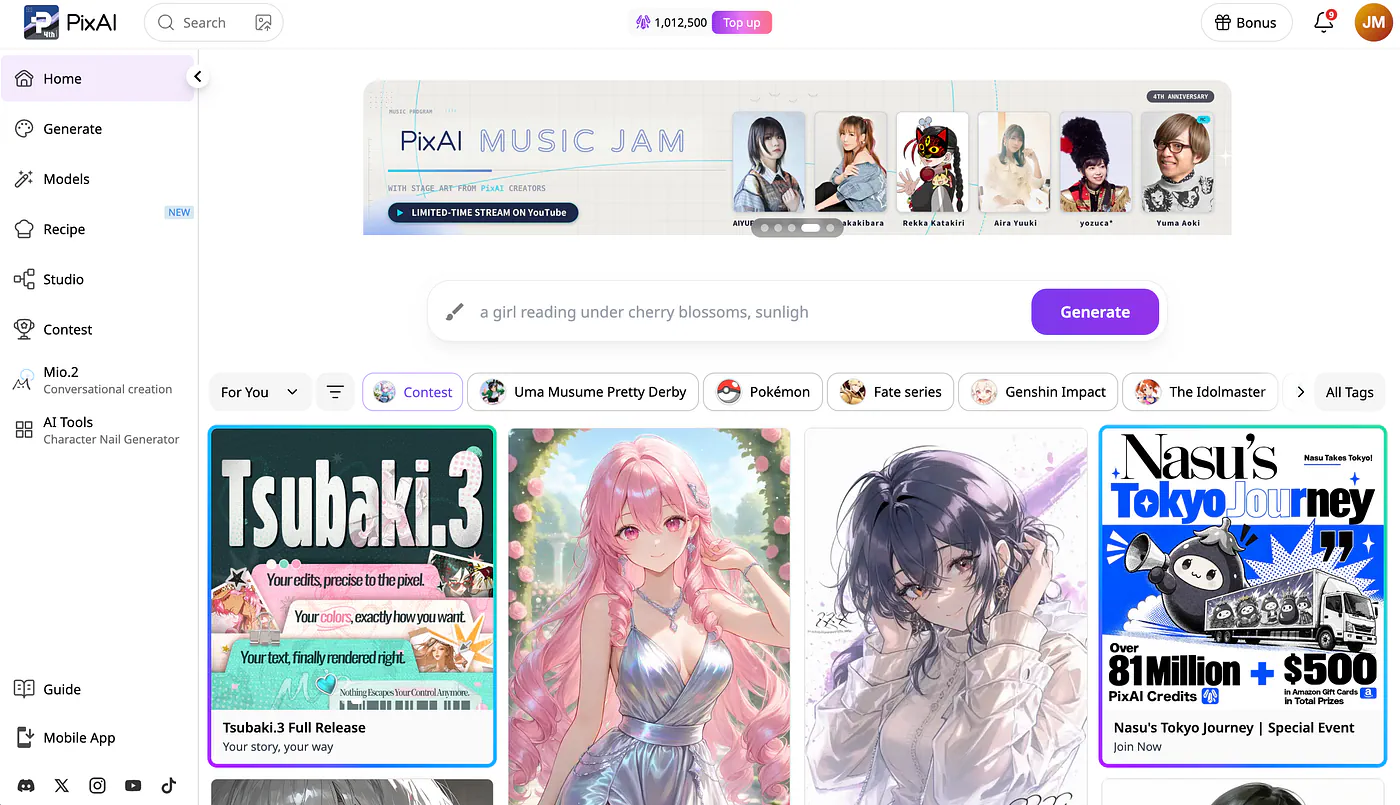
In my experience, that focus makes a big difference.
When I open PixAI, every tool I see is something I’d actually use for anime. When I open SeaArt, I usually have to scroll past photo filters and face swap templates before I find what I need.
If you make lots of different content, like realistic photos and videos, SeaArt gives you more to play with. But if anime is your main thing, PixAI is the one built for you.
What SeaArt Offers
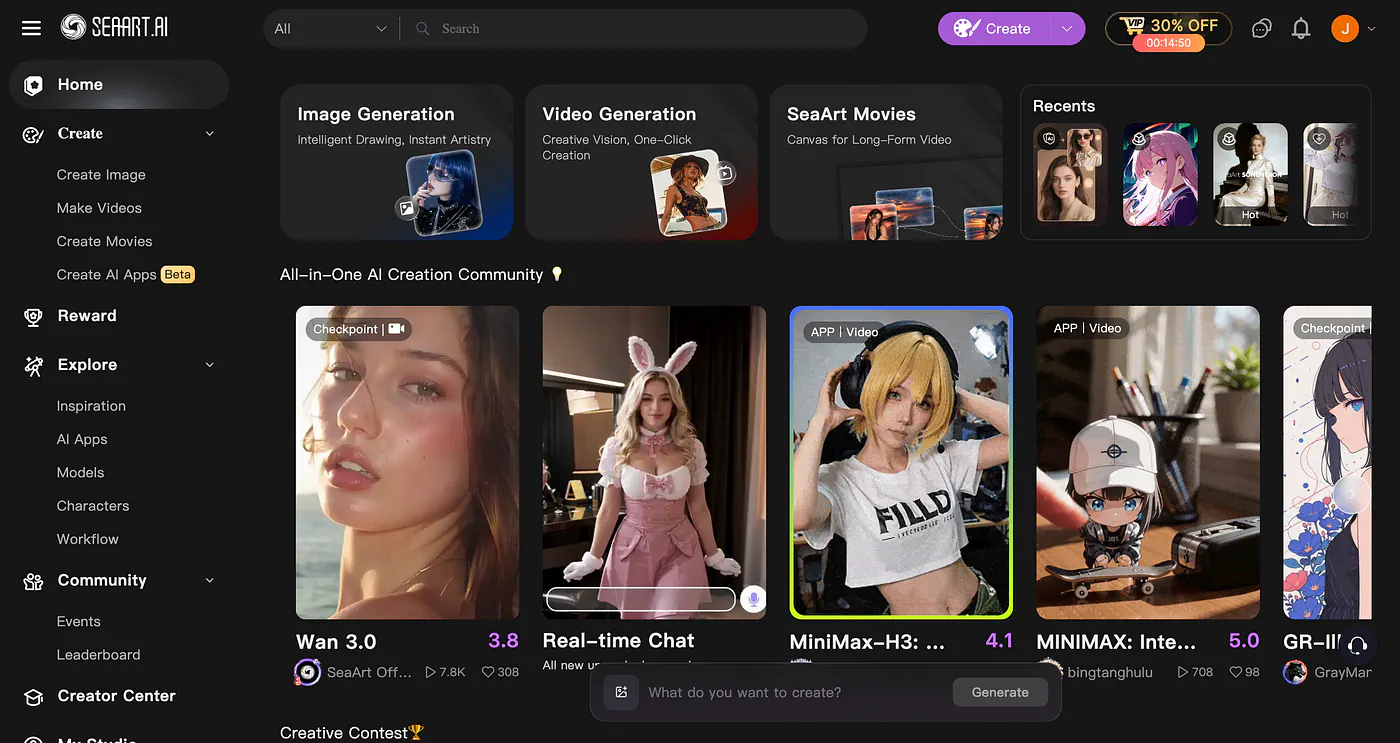
SeaArt is built to cover almost every kind of AI content, and its menu shows it. You can generate images and videos, upscale images, remove backgrounds, erase objects, add lip sync to a video, and chat with AI characters.
This is what the image generator dashboard looks like:
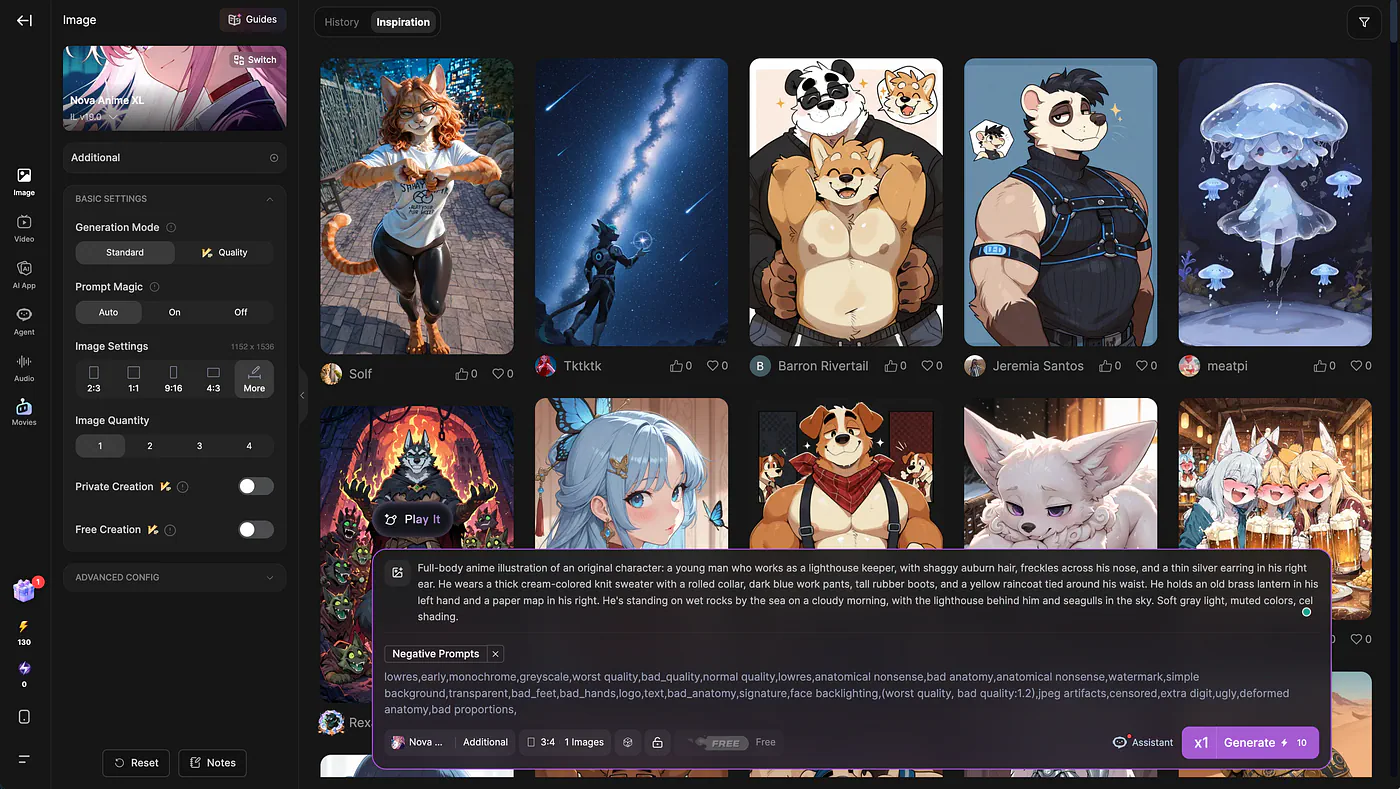
A big part of SeaArt is its templates, which it calls apps.
These are one-click effects made by other users, like “Turn Me Into a Game,” “Bullet Time Effect,” or a K-pop “Ending Fairy” video. You upload a photo, press a button, and get the effect without writing a prompt.
SeaArt also has an iOS and Android app, a public gallery where people share their work and prompts, and a CLI and MCP connection for developers who want to plug it into their own tools.
My main issue with SeaArt is that it feels a bit crowded. Anime is just one part of a site that also pushes photo filters, face swaps, and realistic videos. Finding a good anime model takes some digging.
How PixAI and Tsubaki.3 Work
PixAI is different. It sticks to anime, and you can tell from the moment you open the site. It runs in the browser and on iOS and Android, and you get free credits every day.
Its main model, Tsubaki.3, can do two things: make images from text, and edit images you already have. According to PixAI’s technical report, the team started with about 500 million anime images and filtered them down to 50 million. Each image was labeled with both tags and plain English descriptions. That’s why you can write prompts in normal sentences instead of long lists of tags.
Here’s what you can do with it:
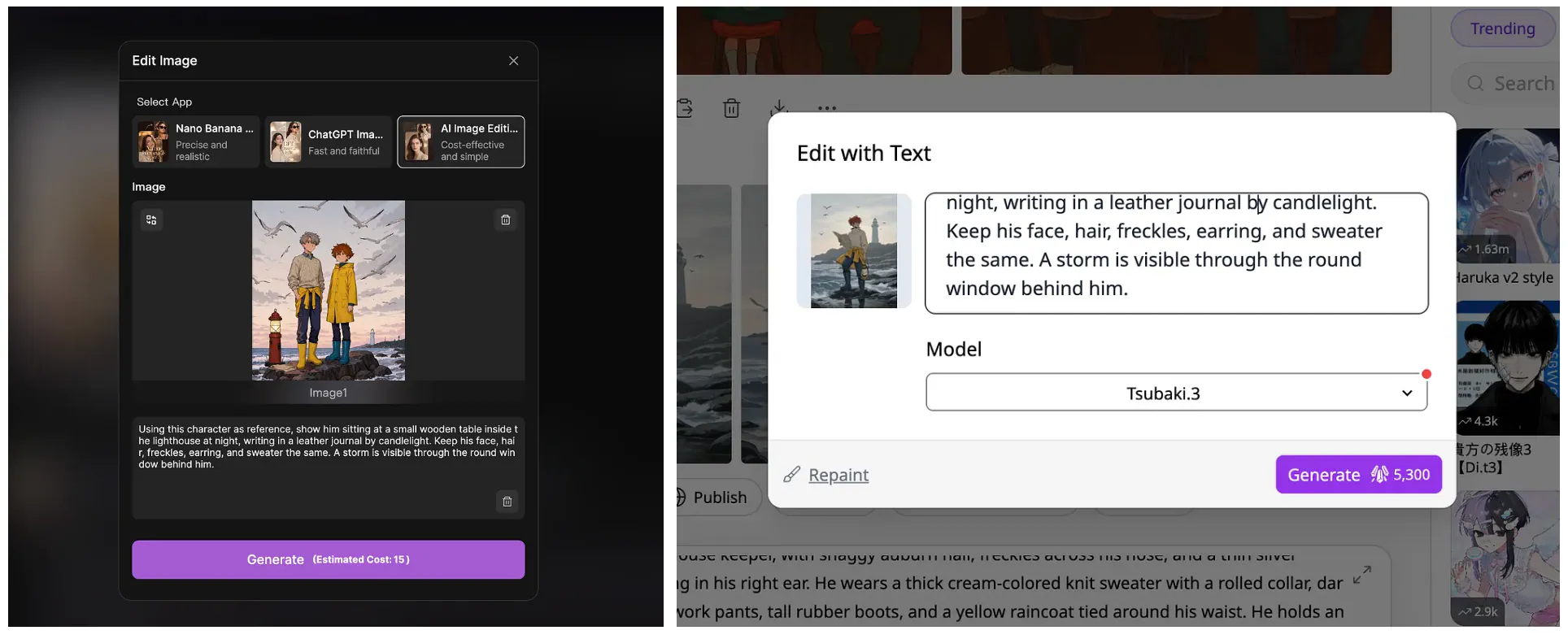
- Reuse a character: Upload a character and call it @image1 in your prompt to put them in a new scene.
- Edit by typing: Type “change her jacket to black,” and only the jacket changes.
- Make manga pages: Ask for a multi-panel page with speech bubbles, and it lays everything out in one image.
- Animate: Turn an image into a short clip with Tsubaki Video.
I also like that PixAI is honest about the model’s weaknesses. In its report, it says Tsubaki.3 recognizes named art styles only about 60% of the time, and the art style can change a little after several rounds of edits.
PixAI and SeaArt Features Compared
SeaArt and PixAI both have free credits, mobile apps, and community galleries. The real differences come down to which models you get and how well they handle anime.
Here’s a quick comparison.
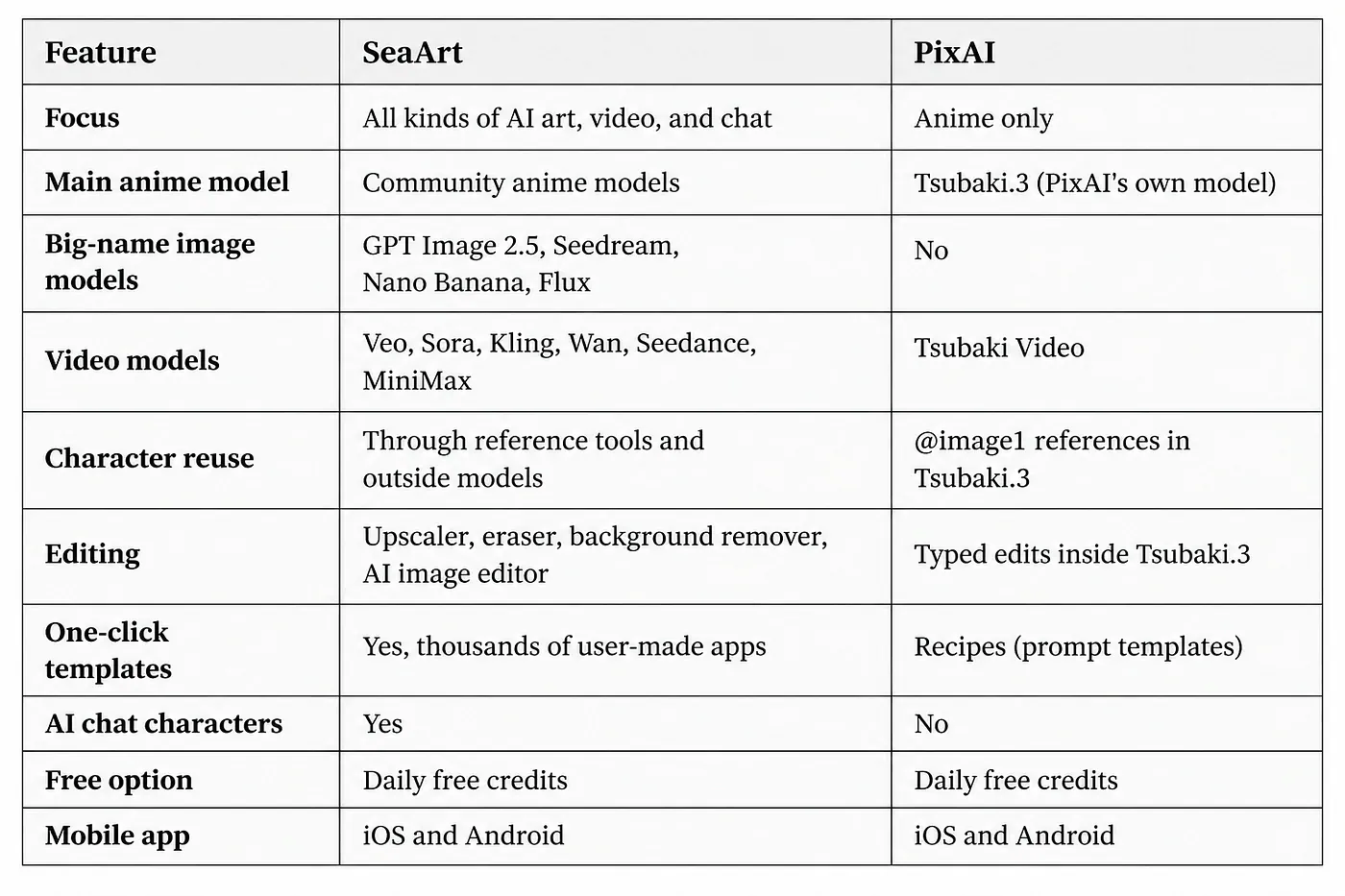
If you want one site for all kinds of content, SeaArt covers more ground. But if you mostly make anime and want a model that really understands anime prompts, PixAI is the better fit.
Now let’s see how they do with the same prompts.
Testing Both With the Same Prompts
On SeaArt, I used Nova Anime XL, one of the most popular anime models on the site, with default settings. On PixAI, I used Tsubaki.3 with default settings. I ran each prompt four times on both platforms and compared all the results.
Test 1: Original Character Design
First, I wanted to see which model reads a detailed character description best.
Prompt: Full-body anime illustration of an original character: a young man who works as a lighthouse keeper, with shaggy auburn hair, freckles across his nose, and a thin silver earring in his right ear. He wears a thick cream-colored knit sweater with a rolled collar, dark blue work pants, tall rubber boots, and a yellow raincoat tied around his waist. He holds an old brass lantern in his left hand and a paper map in his right. He’s standing on wet rocks by the sea on a cloudy morning, with the lighthouse behind him and seagulls in the sky. Soft gray light, muted colors, cel shading.
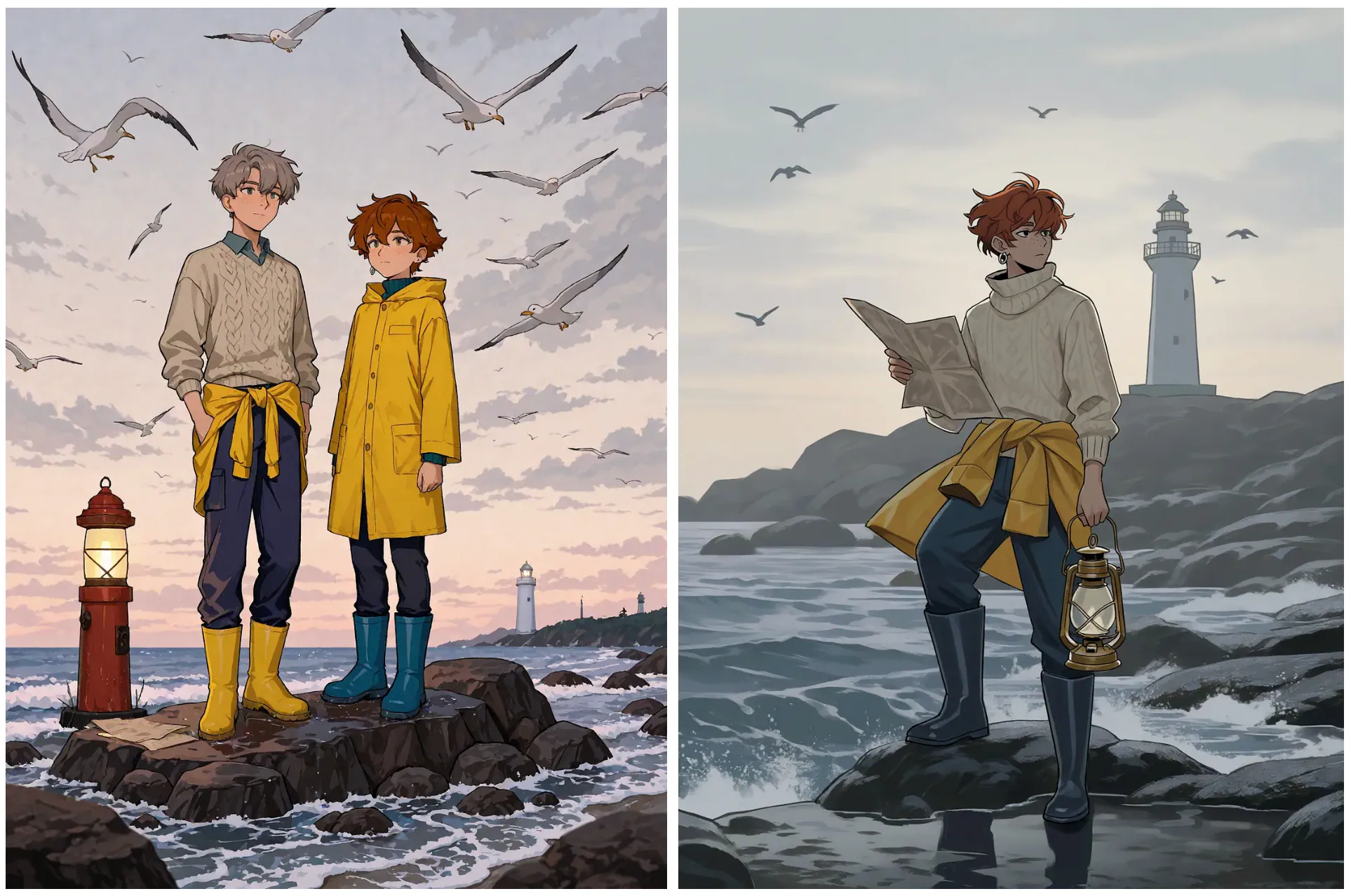
First of all, I don’t understand why SeaArt put two characters in the image. I only asked for one. The character on SeaArt’s side also isn’t holding the brass lantern, which was one of the main details in my prompt. PixAI got both of these right.