For the past few years, I’ve been experimenting with how software gets built when you have coding agents doing the heavy lifting.
I come from a developer background, and like most people who build software products for a living, I’ve watched the tooling change fast. What started as autocomplete and code suggestions has become something much more capable: agents that can reason through a task, scaffold features, refactor large sections of a codebase, debug issues, and even help ship full-stack apps with surprising speed.
Over the last three years of what people now call vibe coding, I’ve tried a bunch of tools and workflows. Most of them fall into three buckets:
- IDEs (Integrated Development Environments)
- Coding agents inside the CLI
- Desktop apps
Of course, all of these tools have their own pros and cons.
IDE vs CLI vs desktop app
IDEs like Antigravity, Cursor, or Kiro are all forks of VS Code. They offer a familiar environment for developers and an easy-to-use UI for beginners.
But the tradeoff is speed.
Because of all the UI components loaded at once, latency can become noticeable. Speed matters a lot to me, so when IDEs lag or crash, I get really frustrated.
Another thing is having to switch between the prompt field and the terminal. I find that part a bit cumbersome, and I often get confused between the two.
Press enter or click to view image in full size
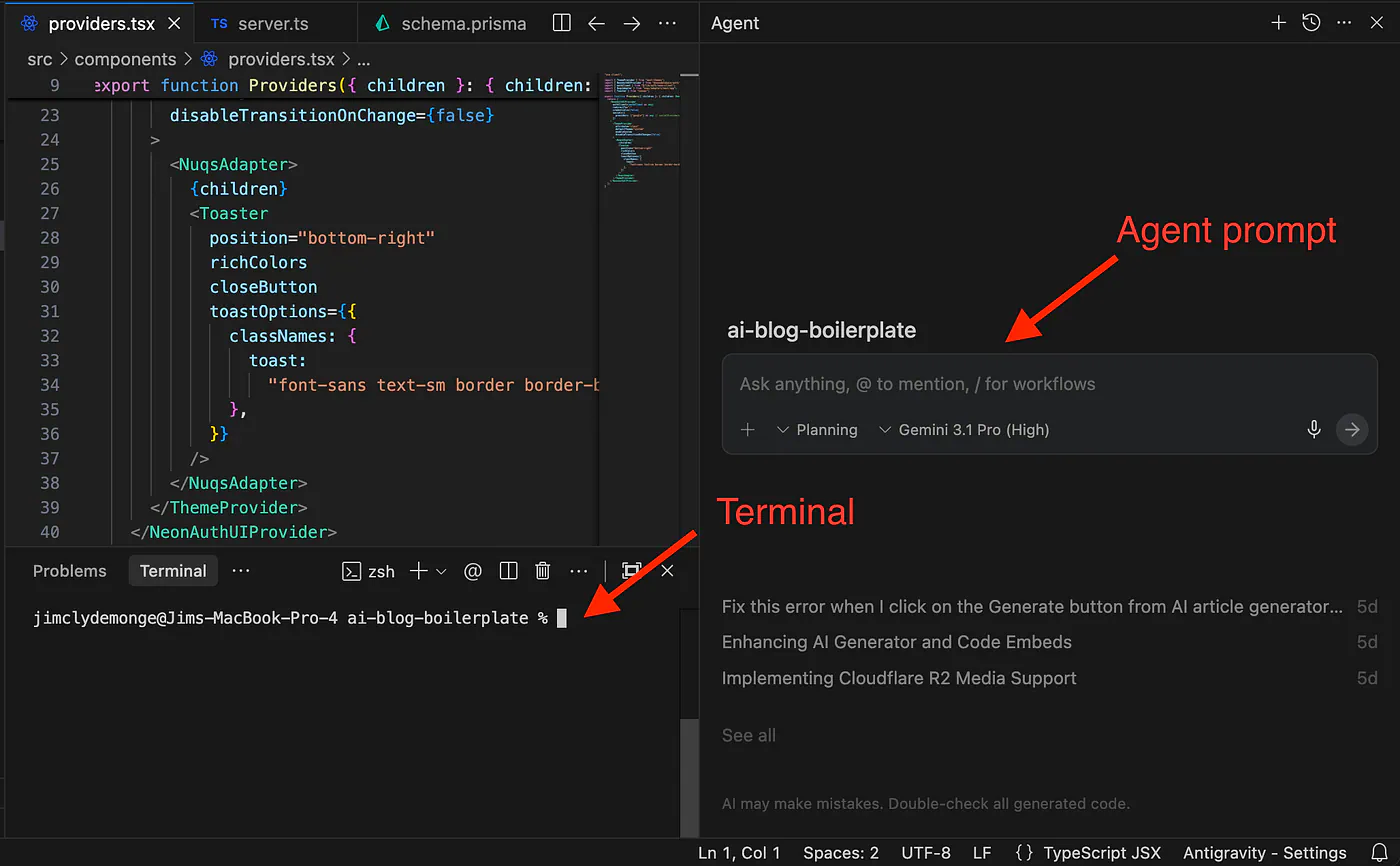
Agent prompt and Terminal inside Antigravity. Image by Jim Clyde Monge
Then there is the terminal.
Hardcore devs will always prefer using the terminal. You can run commands quickly, and you don’t suffer as much from latency. It’s fast, flexible, and feels natural once you’re used to it.
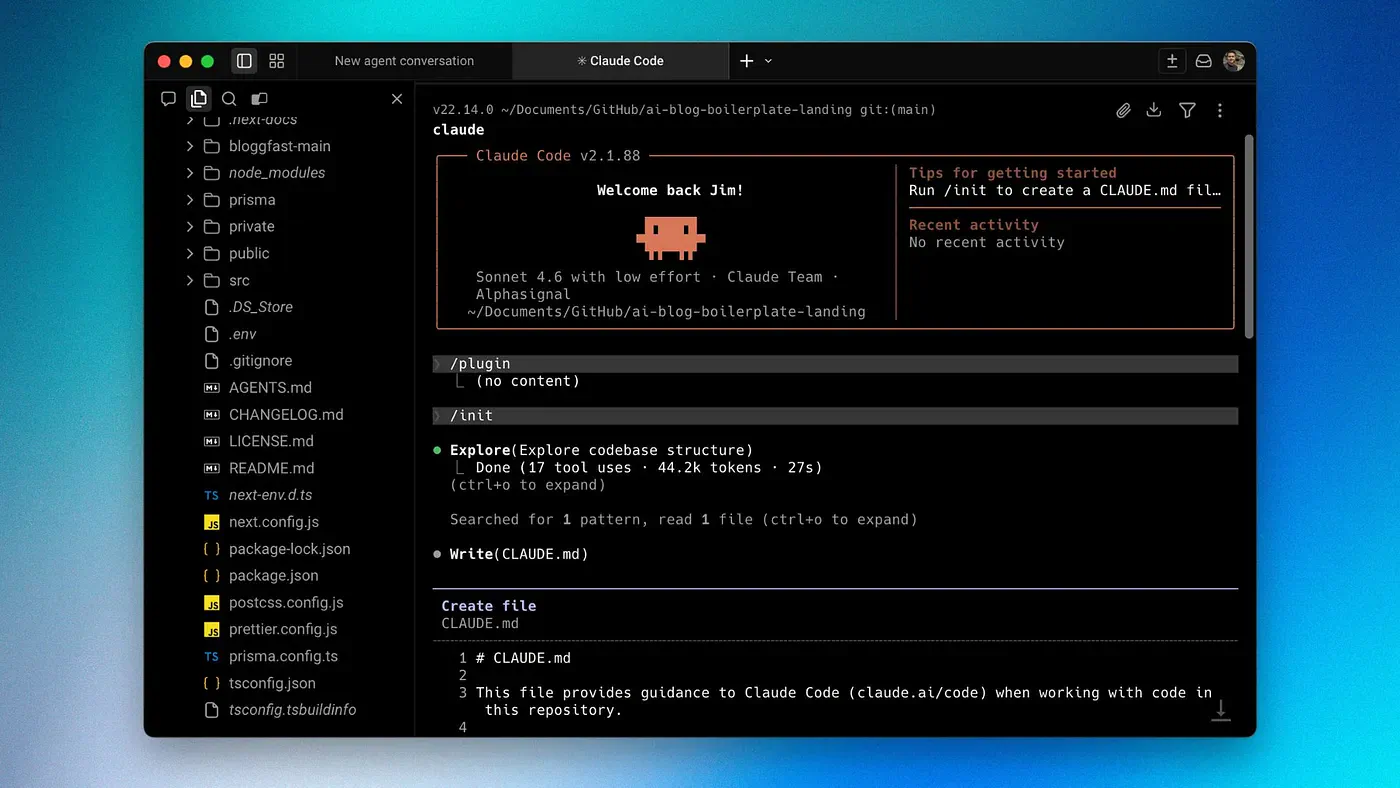
Before Warp, I was running Claude Code in a plain CLI on Mac. Fast, flexible, and useful to me as a developer.
Press enter or click to view image in full size
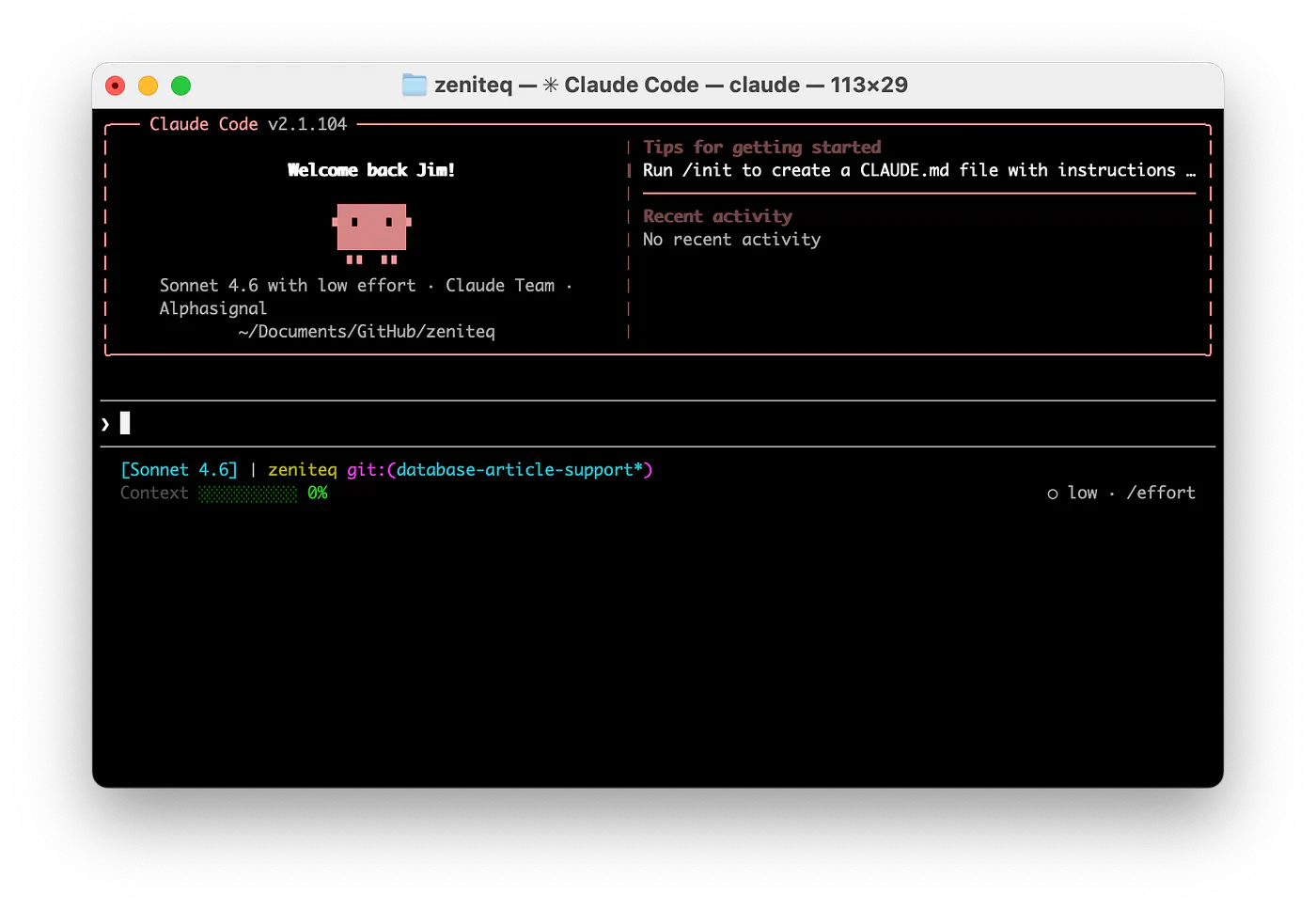
Claude Code running in CLI. Image by Jim Clyde Monge
But a few things kept bugging me:
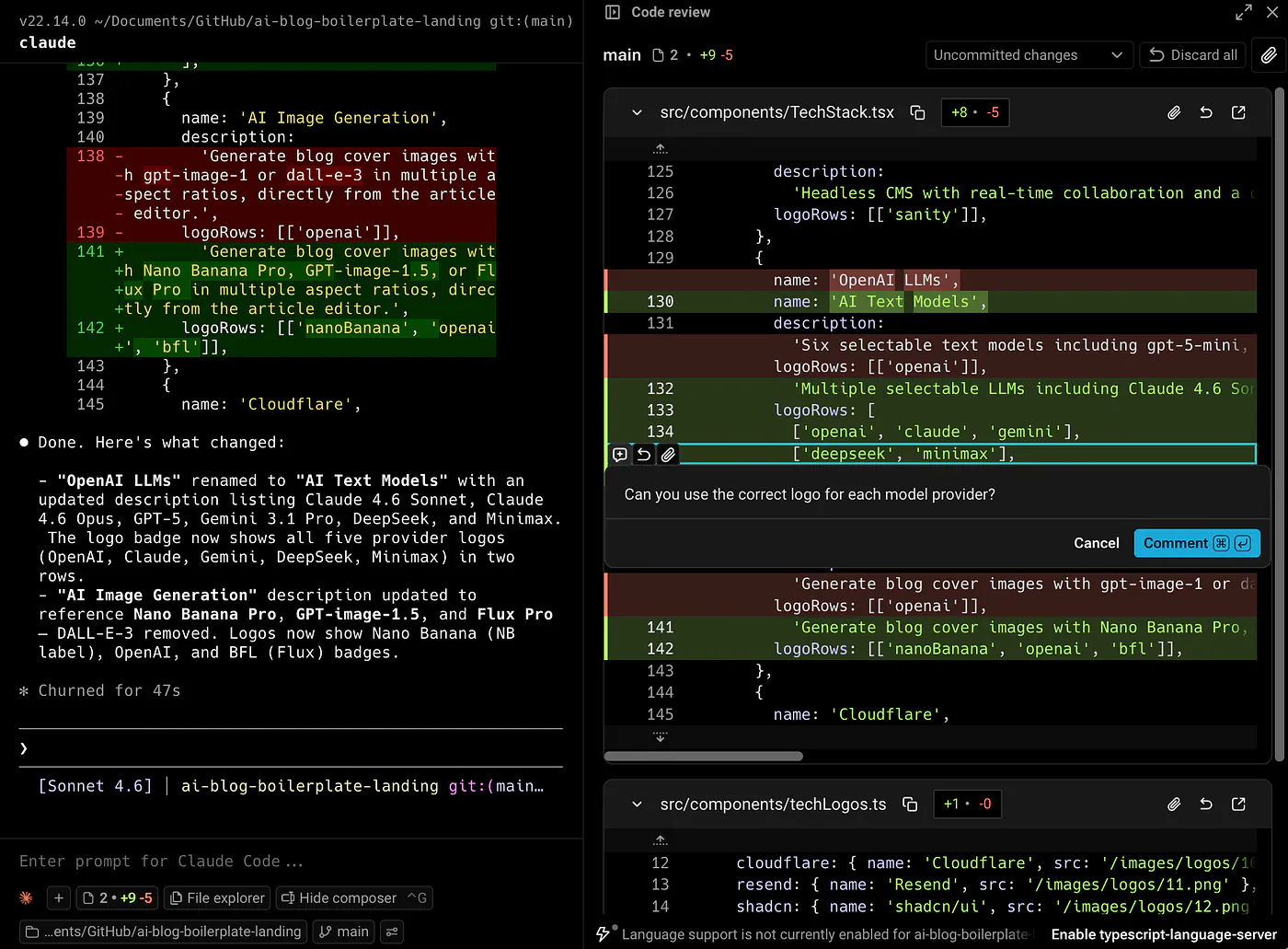
- If I wanted to check the source code, I’d have to open a separate IDE to look at what changed.
- Organizing multiple instances of coding agents across multiple open terminals was messy without tabs.
- There were no notifications when an agent was thinking, out of tokens, or done working.
As the project gets bigger, code review, task monitoring, and managing multiple agents get painful.
The desktop app is the option I enjoy least. OpenAI’s Codex and Anthropic’s Claude desktop app are two of the most popular right now.
Too simple and too slow for how I work. For beginners, it’s probably fine because you don’t have to deal with technical stuff like commands. All you really need to worry about is writing a good prompt and letting the AI handle most of the work.
But here’s the thing: you don’t have to pick between these environments.
There’s another agentic coding tool called Warp that gives me the speed and lightness of the CLI and the ease of use of a more visual tool.
Let me walk through how I use Claude Code with it.
Why I switched to Warp
Warp is an agentic development environment, born out of the terminal. I tried it about a year ago and liked it immediately.
What hooked me right away was that it didn’t feel like a bloated IDE, but it also didn’t feel like a bare terminal that leaves you to figure everything out on your own. It sits somewhere in the middle, and that’s exactly where I want to be when I’m working with coding agents.
Press enter or click to view image in full size
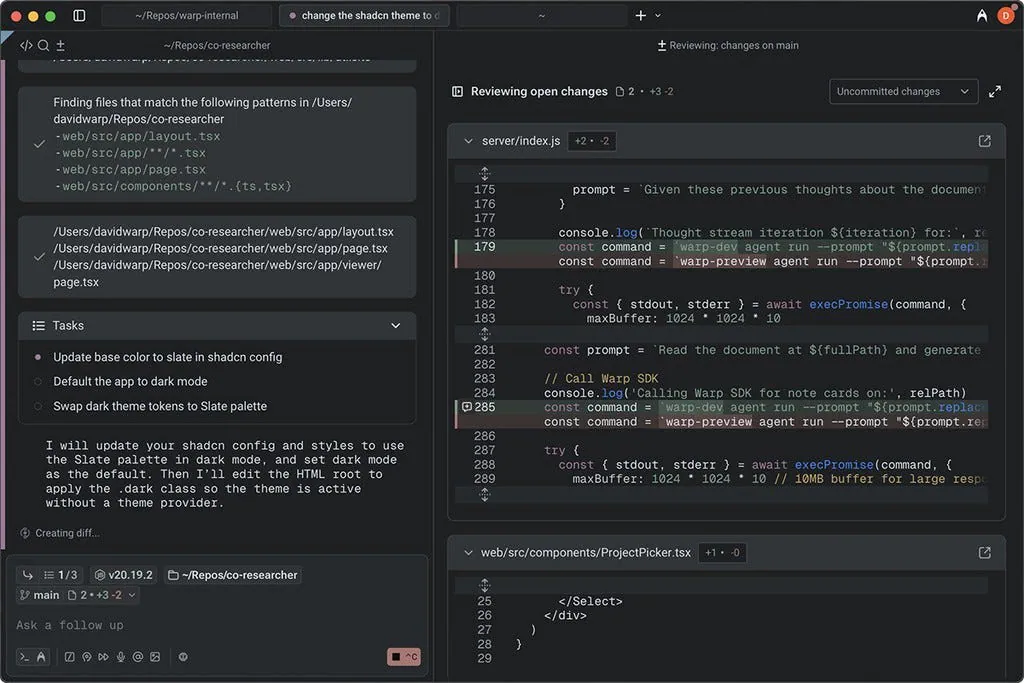
A preview of a working project in Warp. Image from Warp.dev
It’s lightweight. It’s fast. It supports multiple models. It feels agentic. And it gives me something between a terminal and a full IDE without making me commit to either one.
It didn’t replace the parts I liked about using Claude Code in the terminal. It just made the experience around it better.
How I use Claude Code in Warp
In the prompt field, Warp accepts terminal commands, so when you type “/model,” it’ll show all supported models. Open the “Full Terminal Use” tab, and you can see every Claude model available to you.
Press enter or click to view image in full size
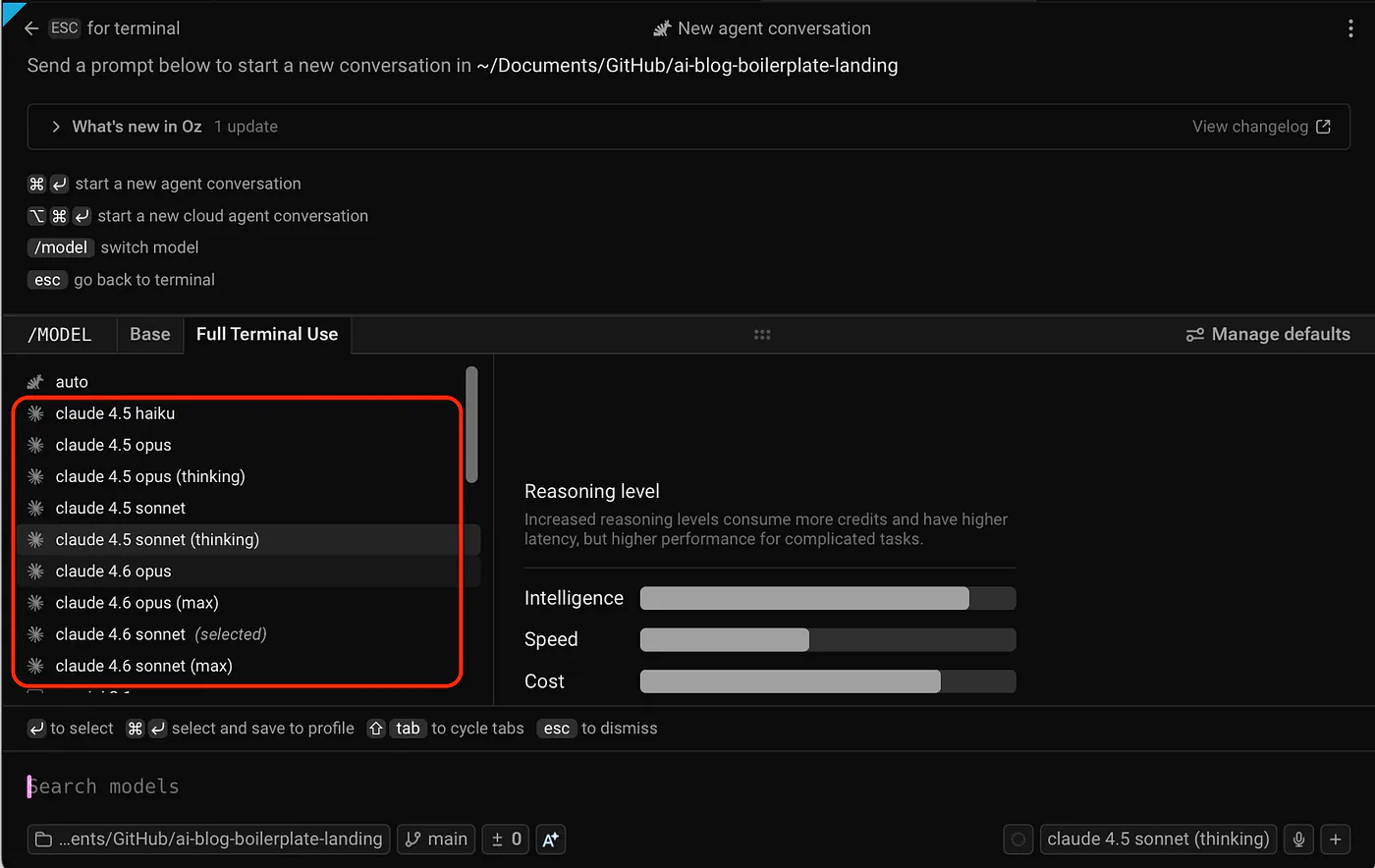
Bringing up the Claude models in Warp. Image by Jim Clyde Monge
You can also choose other models or launch Warp’s Oz orchestrator to handle the agent scaffolding for you.
Now, whenever I prefer to work inside Claude Code instead of Warp’s built-in composer, I can simply run “claude” and continue using it as I would inside the CLI.
Press enter or click to view image in full size
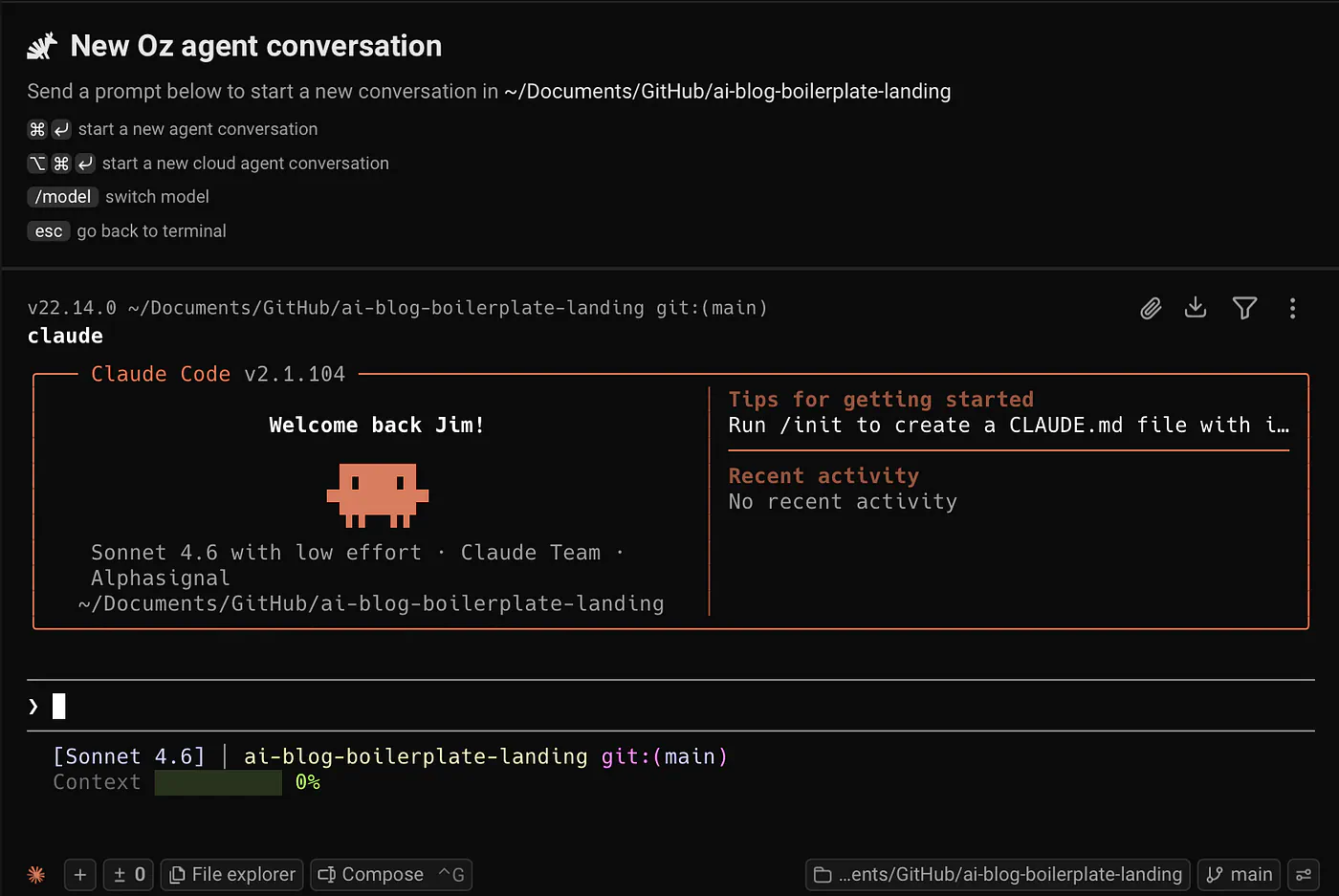
Switching to Claude Code from Warp’s composer. Image by Jim Clyde Monge
This is pretty cool, right? To switch back to the composer, I just click on the “Compose” button.
CLI Agent Toolbar
Another reason I prefer Warp over a default CLI terminal is the customizable controls in the toolbar section.
Power users want their agent workflow tailored to them. The toolbar puts the right controls at your fingertips without leaving the terminal.
To get to it, right-click on the toolbar section and select “Edit CLI agent toolbelt.”
Press enter or click to view image in full size
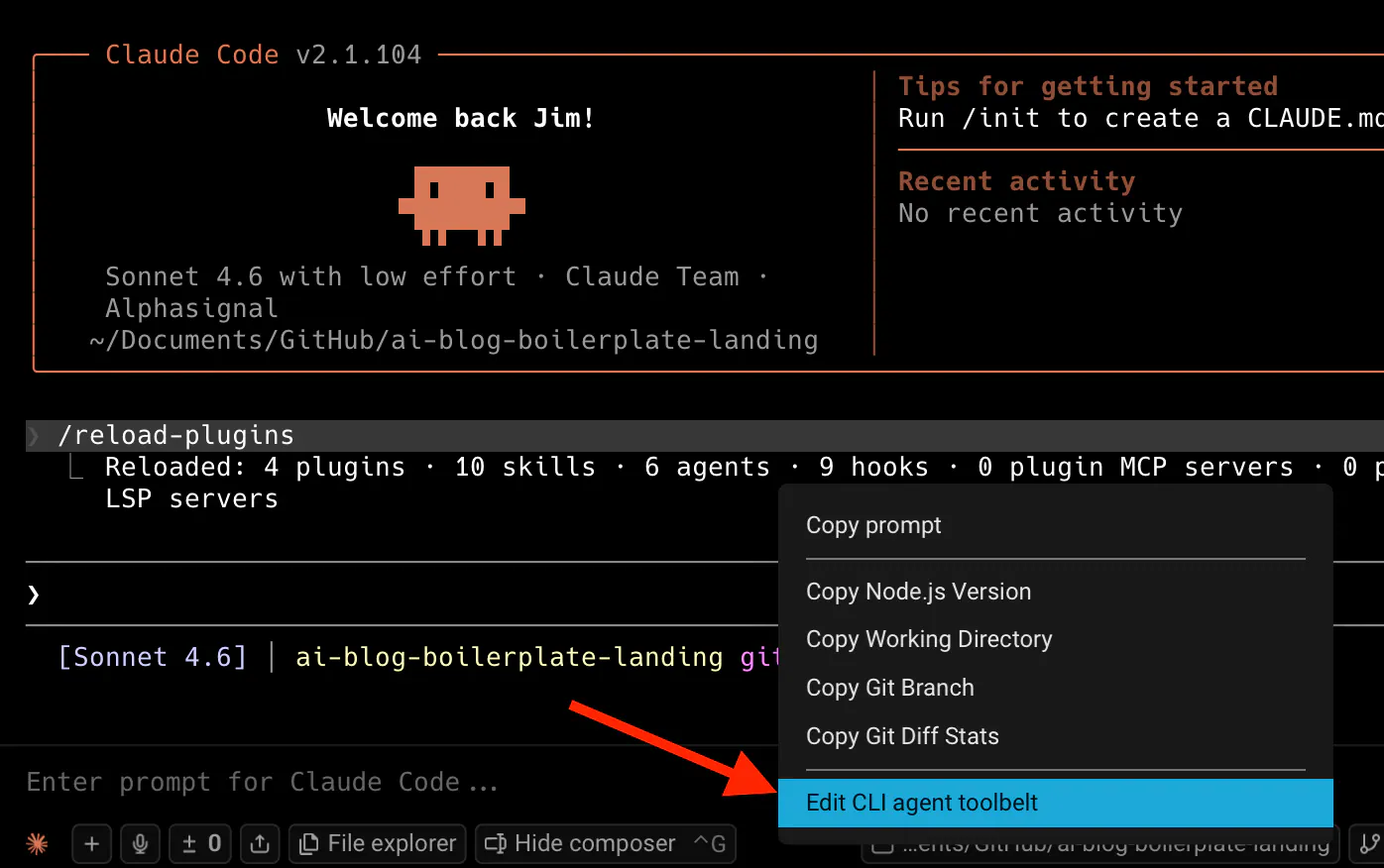
Editing the CLI agent toolbelt. Image by Jim Clyde Monge
This brings up a modal where you can customize which tools appear on both the left and right sides of the toolbelt.
Press enter or click to view image in full size
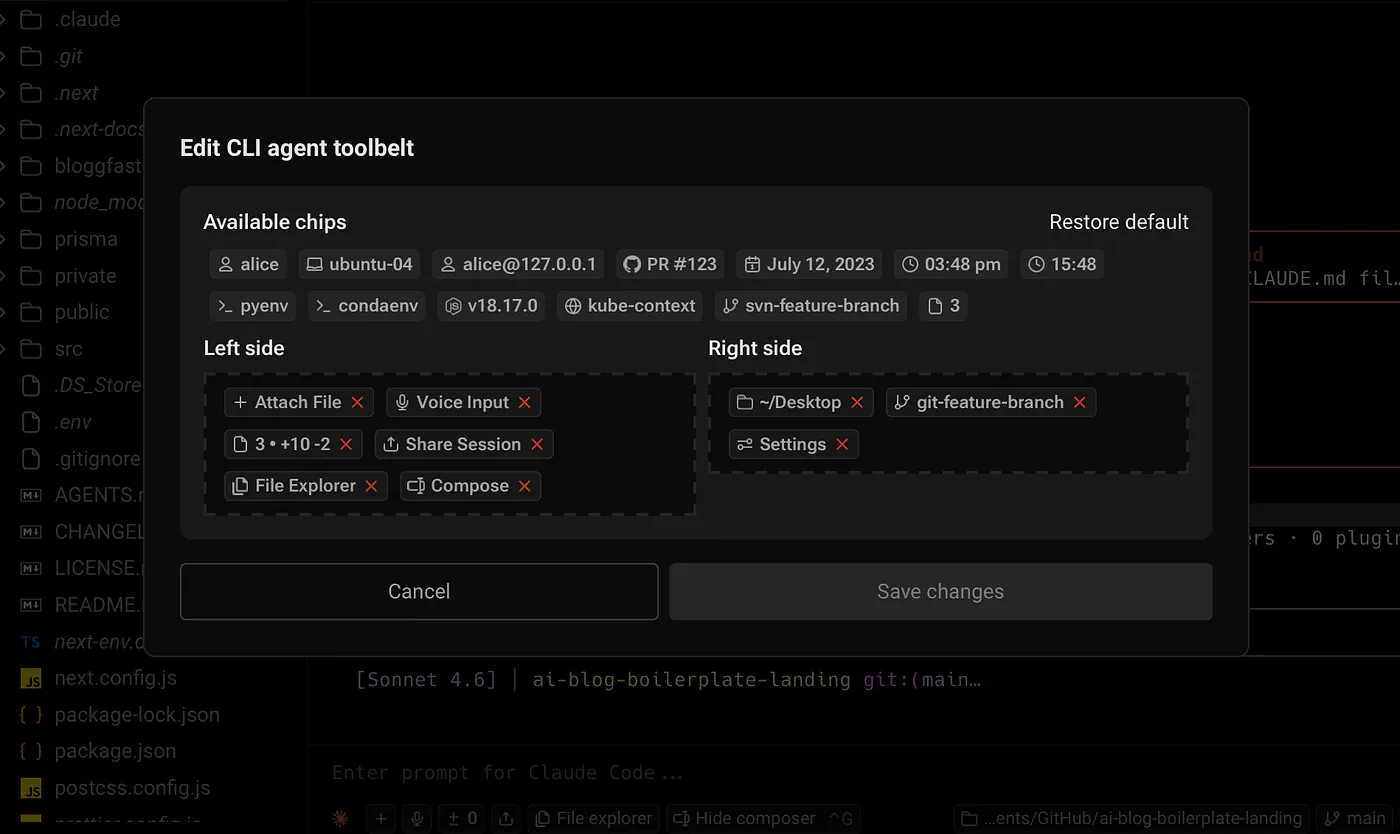
The CLI agent toolbelt menu. Image by Jim Clyde Monge
Here’s my default setup: no voice input since I prefer typing my prompts, no session sharing since I’m a solo dev, and I always want to see which branch is active on which project folder.
Press enter or click to view image in full size
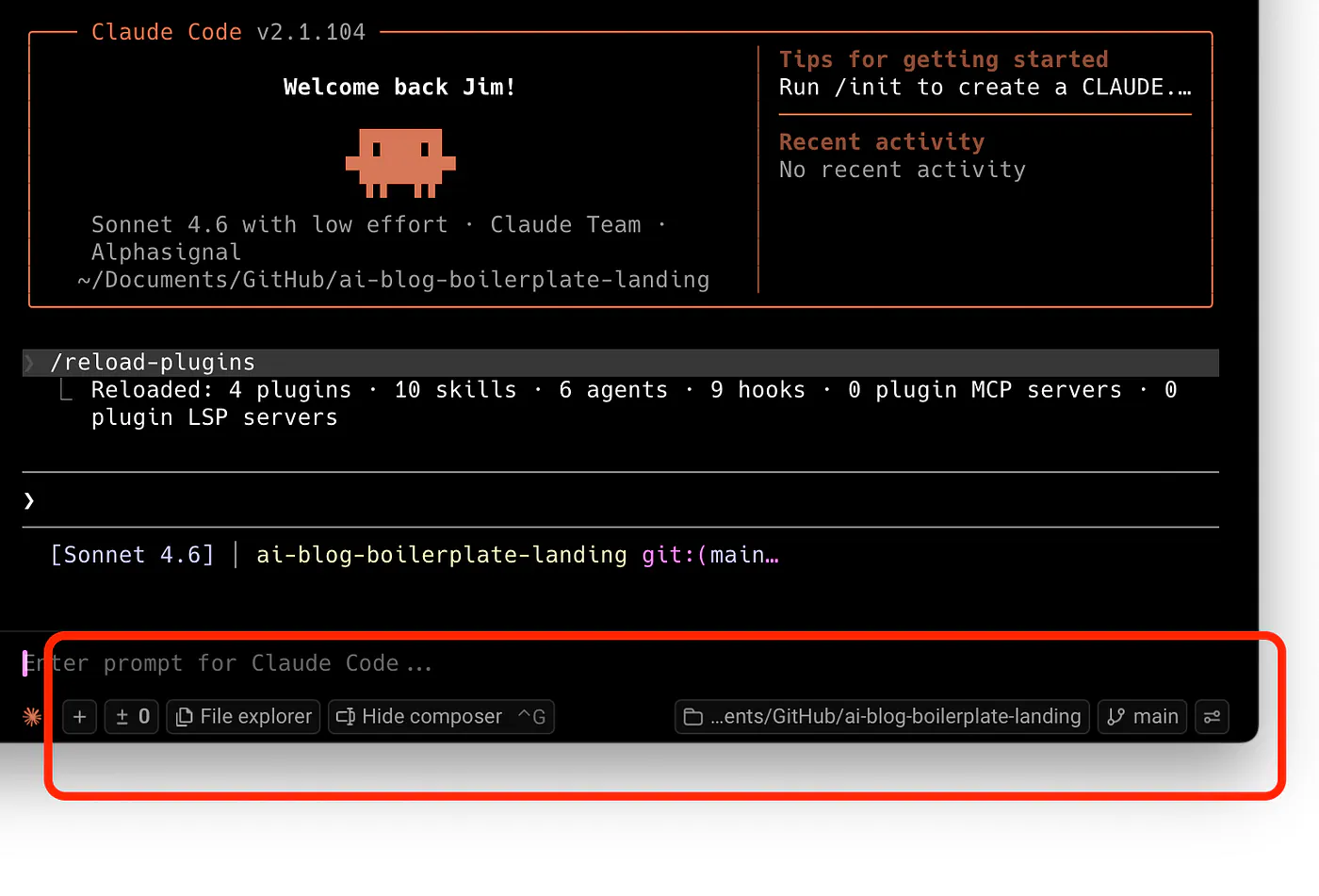
My personal toolbelt menu. Image by Jim Clyde Monge
If you work on a team, it’s worth enabling the current logged in user and the shortcut to share your session with other team members.
I stay in one environment with quick access to the things I actually need when working with an agent. No bouncing between different apps just to give better context or review what changed.
That is a big part of why Warp feels more complete than a plain terminal.
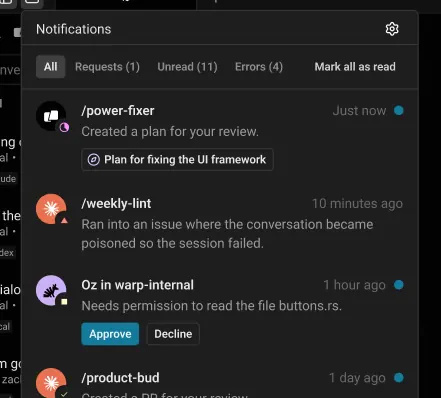
Unified Notifications
Agents run in the background, and they do not always need your attention right away.
- Sometimes they are still thinking.
- Sometimes they are waiting for a response. S
- Sometimes they are out of tokens.
- Sometimes they are done and ready for the next instruction.
In a regular terminal, you kind of have to babysit all of that yourself.
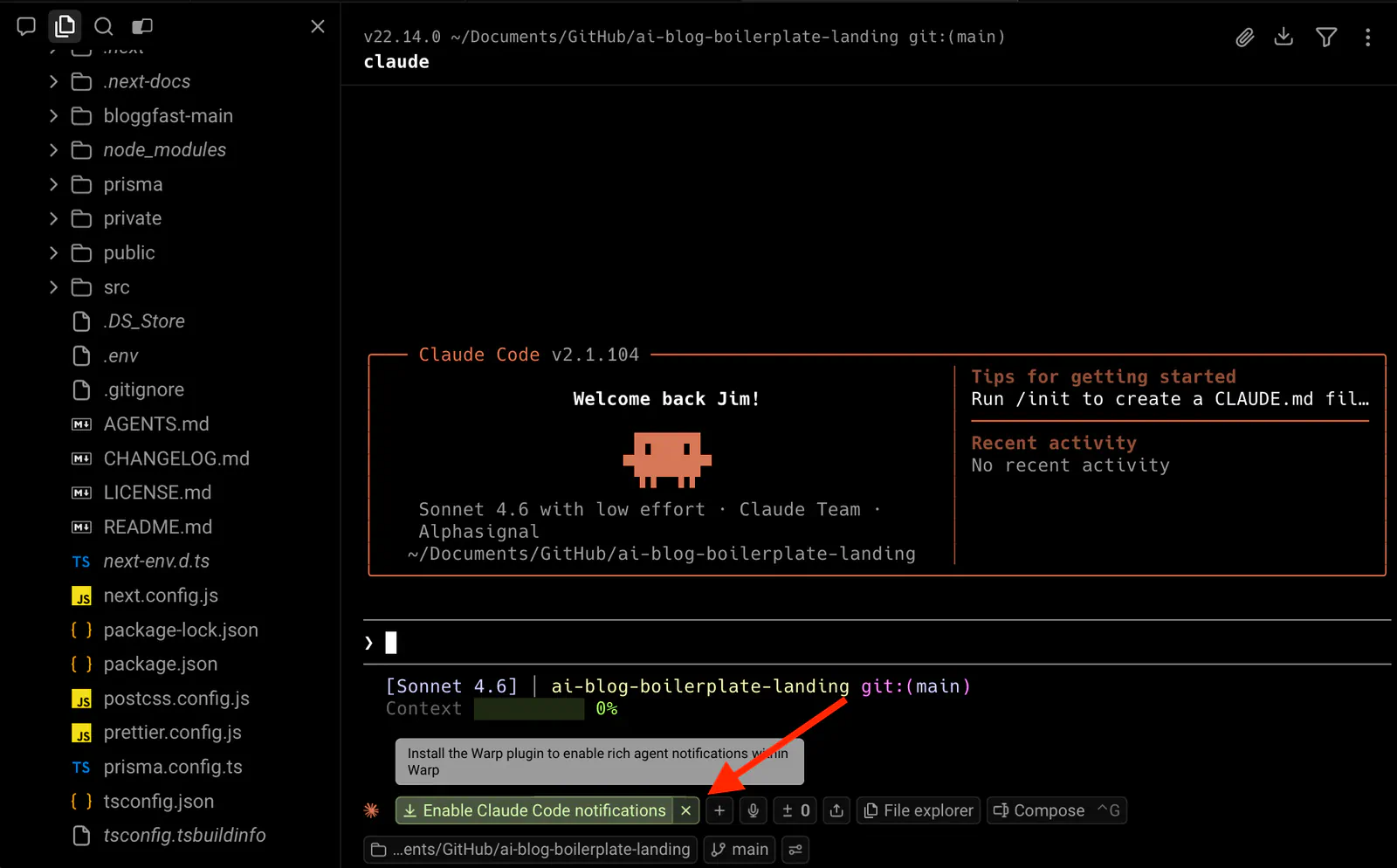
Warp fixes this with a unified notifications UI that keeps you in sync with all your agents across tabs. You do not have to keep checking every session manually just to see whether something happened. Desktop notifications are also supported, which is especially useful when you are multitasking.
Press enter or click to view image in full size
Press enter or click to view image in full size