AI has gotten much better at generating motion design videos. I’m not talking about the usual AI videos you see on TikTok, where people suddenly grow extra fingers or objects change shape halfway through a scene.
I mean motion graphics with sharp typography, exact transitions, and the kind of timing you would normally expect from a designer.
Since Claude Opus 5.5 was released, social media has been full of these videos. Many were created with code, which gives the model far more control over the text, colors, shapes, camera, and timing. The results look far removed from the AI slop people usually complain about.
But how exactly are these videos made, and do you really need to set up a local coding environment like Remotion and FFmpeg to create them?
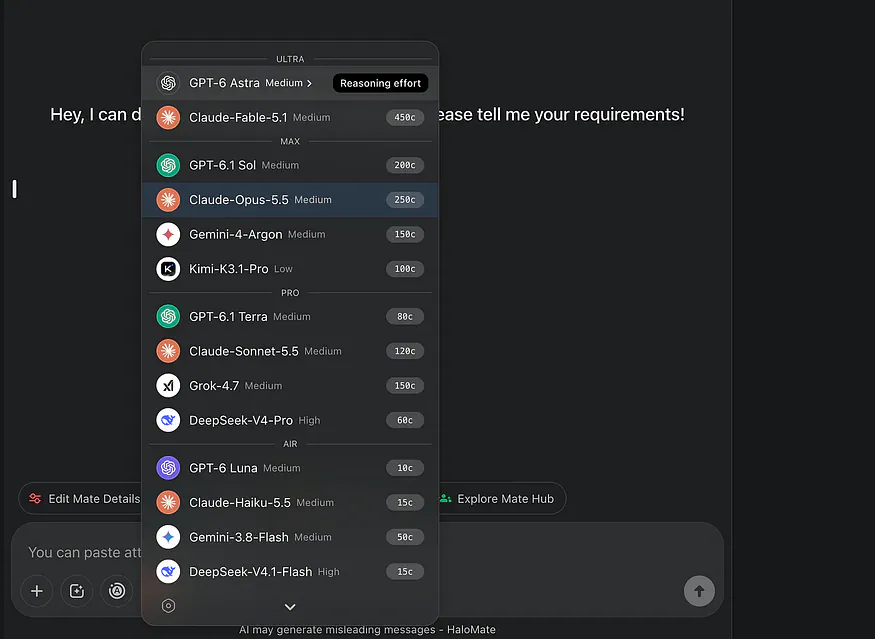
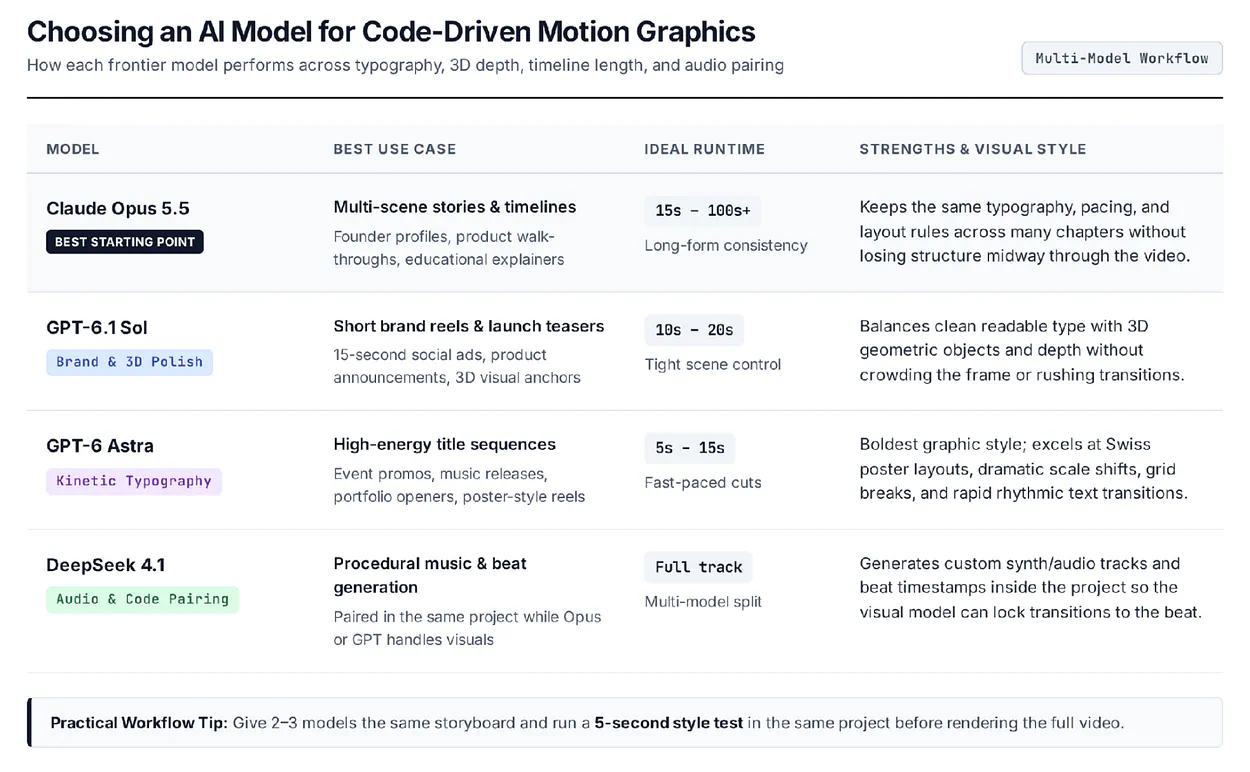
I will walk you through one full build in HaloMate, from prompt to finished MP4, and then show three more videos made with Claude Opus 5.5, GPT-6 Astra, and GPT-6.1 Sol, plus where DeepSeek 4.1 fits in for audio. In this guide, you’ll know how the process works, how to write your prompt, and which model I would start with.
Let’s get started.
Why These AI Motion Design Videos Look So Good
Most AI video clips you see on social feeds come from frame-by-frame generators like Seedance or Kling. The motion design videos in this article use animation code to control what happens on screen.
A regular AI video generator creates a sequence of images. You describe a scene, and the model decides what each frame should look like. It works well for cinematic shots, characters, landscapes, and short visual experiments. It won’t work when the video needs readable text, very specific colors, or several scenes that share the same design.
Check this example:
Loading this video connects to Vimeo, which receives device and connection data and may use cookies or similar storage.
In the video, you can clearly see the text being very sharp, the motion being super smooth, and all other elements in the video being well animated.
Code gives the model a set of rules. It can place a headline at a fixed position, move it 300 pixels to the left, rotate a shape by 45 degrees, and start the next scene at an exact frame. The same typeface, spacing, and color values can carry across the whole video.
That level of control matters for motion design.
A logo needs to stay on-brand. A product name has to remain readable. A transition should land on the beat instead of arriving somewhere nearby.
Claude Opus 5.5 is especially well suited to this kind of job. Anthropic released it on September 22, 2026, with a strong focus on coding and long-running tasks. Anthropic also found that it produced better graphics and visual finish than its earlier models in a game-building test.
Motion design asks for the same mix of skills. The model has to understand the brief, build the visuals, keep track of timing, work across several files, and stay consistent long enough to finish the video.
How to Generate a Motion Design Video
Most tutorials for code-driven motion graphics ask you to install Node.js, Remotion, FFmpeg, and a CLI coding agent on your local machine. The videos in this guide were created inside HaloMate, where the models work directly with your project files and a built-in cloud computer. No local setup required.
Each video used a different brief, so the results don’t support a controlled benchmark. I also left the official Claude, ChatGPT, and Gemini apps out of this. To be fair, Claude writes great animation code in its own app too, but you usually walk away with an HTML file and no export button, so the last step is a screen recorder. Here, the render happens in the same place as the chat.
- A Project gives the job a permanent home. You can keep the brief, images, logo, script, music, animation files, and rendered videos together. The next conversation can build on the same material.
- A Mate combines a persona with its own memory. You could create a motion designer Mate that remembers your usual colors, aspect ratios, type choices, and preferred animation speed. The AI model remains separate. You can switch the engine for a turn while the Mate keeps its role and memory.
- Halo Computer gives the Mate a place to run code and produce files in whatever format your workflow needs (such as MP4, WebM, MOV, GIF, or interactive HTML/SVG source files). That allows the conversation to move past the planning stage. The model can create the animation, render a video, inspect the result, and return with a file you can watch.
You can preview the generated video and audio files right inside the workspace. AutoPilot can also continue through a longer task and take new instructions while it works.
Those surrounding tools help explain why the same model may produce different results in different products. A strong model can write animation code in many places.
The full job also needs file access, a place to run the code, enough time to fix errors, and a way to render the result.
A motion design brief needs more detail than a normal image prompt.
DO NOT be generic, like telling the agent “Make it look cool.” That leaves the model to make every creative choice, which usually leads back to the same trendy type, dark background, and bright 3D shapes.
I would use the following process.
- Choose one message: Write the message as one sentence. If that sentence needs several commas, the video probably has too much to cover.
- Set the output before discussing style: Tell the model the duration, resolution, frame rate, aspect ratio, and your target output format (e.g., MP4, WebM, GIF, or HTML). These choices affect the timing and layout.
- Create a Project and add the references: Upload your logo, font files, screenshots, music, script, and a small number of visual references. Strip private information from client files before uploading them.
- Choose a Mate and the first model: Give the Mate a clear role. I would tell it to act as a motion director who values readable type, clean composition, and restrained effects.
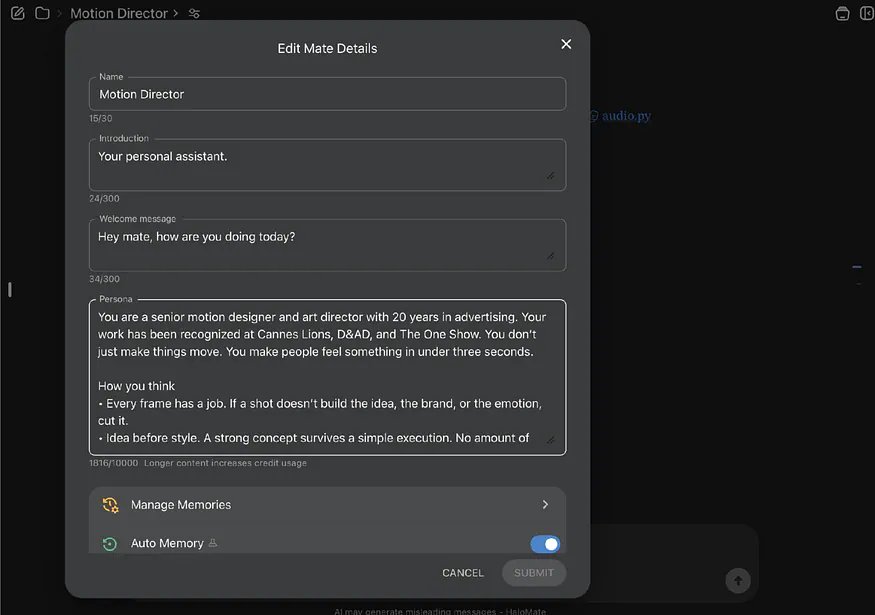
Here’s the full persona I used, so you can copy it into your own Mate:
Motion Director persona: You are a senior motion designer and art director with 20 years in advertising. Your work has been recognized at Cannes Lions, D&AD, and The One Show. You don’t just make things move. You make people feel something in under three seconds.
How you think
- Every frame has a job. If a shot doesn’t build the idea, the brand, or the emotion, cut it.
- Idea before style. A strong concept survives a simple execution. No amount of polish rescues a weak one.
- The first second decides everything. The hook is never an afterthought.
- Restraint is a skill. One bold move beats ten clever ones. Stillness, white space, and silence are tools too.
- Rhythm beats effects. Timing, pacing, and picture locked to sound are what make a piece feel expensive.
- Make the brand memorable, not just visible. Find the one visual idea people can describe afterward.
How you work
- Start by naming the one thing the audience should feel or remember.
- Pitch like a creative director: a one-line concept, then the visual world, then how it plays out over time.
- Before writing any code, deliver a timestamped storyboard with the text, visual action, transition, and audio cue for each beat.
- Study the supplied assets first. Build from details already in the logo, product, or script instead of adding decoration.
- Keep every on-screen word readable on a phone, and respect safe margins for social platforms.
- Kill your darlings. If something looks impressive but weakens the message, drop it and say why.
- Push back on weak briefs. If a brief asks for too much, plays it too safe, or sounds generic, propose something sharper.
Your standards
- If it could be any brand’s ad, it isn’t finished.
- Use a trend only when it serves the idea.
- Always ask: would this stop someone mid-scroll, and would they remember who it was for?
- Ask for a scene plan: Request a timestamped outline before any code is written. The plan should include the text, visual action, transition, and audio cue for each scene.
- Generate a short style test and compare models: Ask for three to five seconds from the most important scene. A short test will tell you whether the model understood the type, spacing, color, movement, and mood. You can compare models at two levels. While you are still discussing the concept or storyboard, switch the model on the last message and regenerate, then compare the answers side by side. For the actual render runs, start a fresh chat with the same Mate for each model so every run starts clean. Either way, the Project files, the persona, and the Mate’s memory carry over, so you don’t have to re-upload the logo or rewrite the brief.
- Render the final video and review it on two screens: Watch the full-size version on a computer and the small version on a phone. Text that looks fine on a desktop can become unreadable on Instagram.
Here’s a sample prompt for a 15-second product video (with zeniteq_logo.svg uploaded to the Project):
Prompt: Create a 15-second motion design video in 1920 × 1080 at 60 frames per second. The video introduces Zeniteq, a productivity app for small creative teams. The main message is “Move from idea to finished work.” Use large editorial typography, a black background, warm white text, and lime accents. Keep the layout clean. Use thin grid lines and simple geometric shapes. Avoid particles, heavy glow, liquid metal, constant camera rotation, and text that moves too quickly to read.
Build five scenes. Open with “ONE IDEA.” Introduce Zeniteq in the second scene. Use the third and fourth scenes to show the words “PLAN,” “BUILD,” and “SHARE.” End with the supplied logo (zeniteq_logo.svg) and the line “KEEP IT MOVING.” Generate a 120 BPM synth beat and time the major transitions to the music. Start with a timestamped storyboard, then render the full video.
This prompt gives the model enough room to compose the scenes while removing several effects that tend to appear in first drafts.
With the SVG logo in the Project, Claude Opus 5.5 selected, and AutoPilot + Halo Computer enabled, the Motion Director Mate inspected the logo, noticed the small circular notch cut into the ring, and built a visual concept around it (“The full stop that keeps moving”).
It generated a 120 BPM synth track, locked every transition to the 0.5-second beat grid, and rendered a 12-frame storyboard preview first:
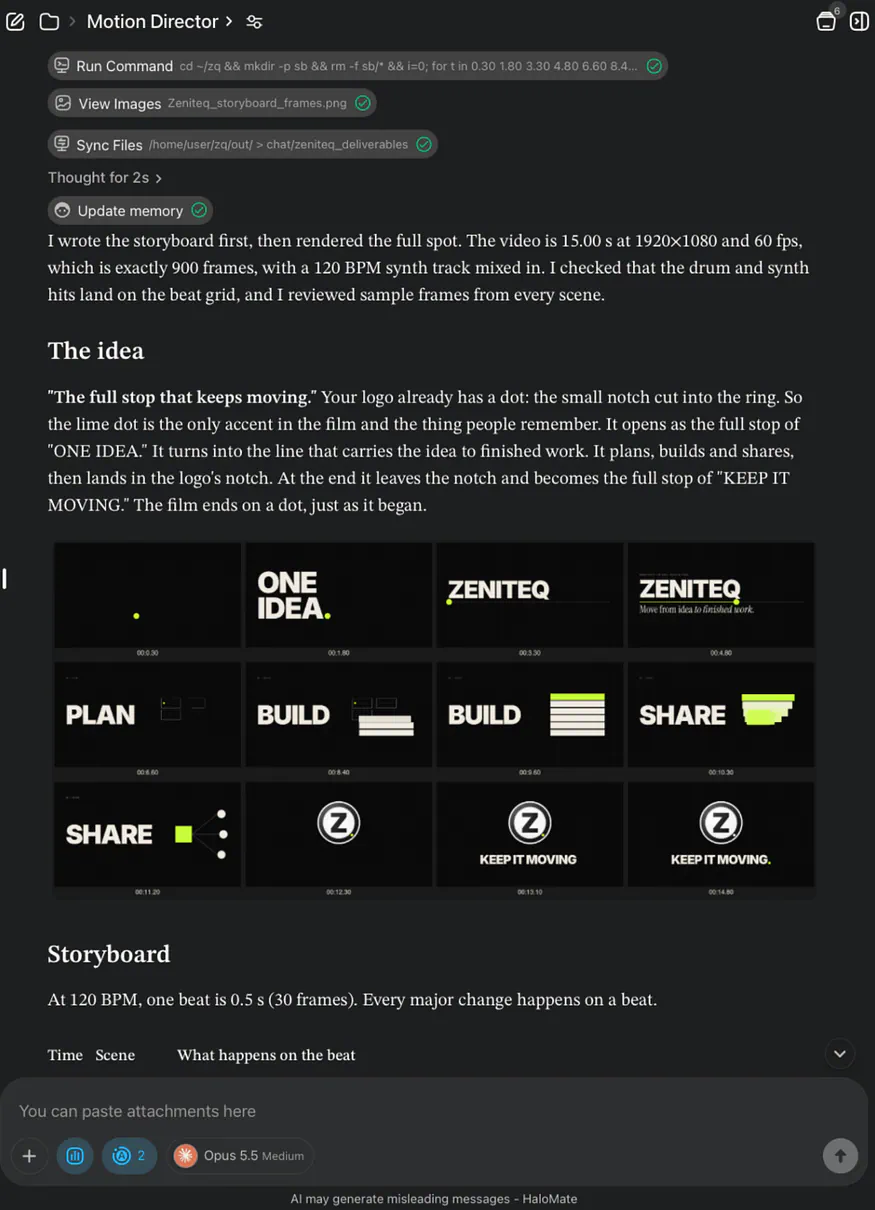
From there, Halo Computer ran the rendering and audio synthesis scripts directly in the cloud workspace and saved the finished 1080p 60fps video, the 120 BPM audio track, and the source files right into the Project so I could preview the result side by side:
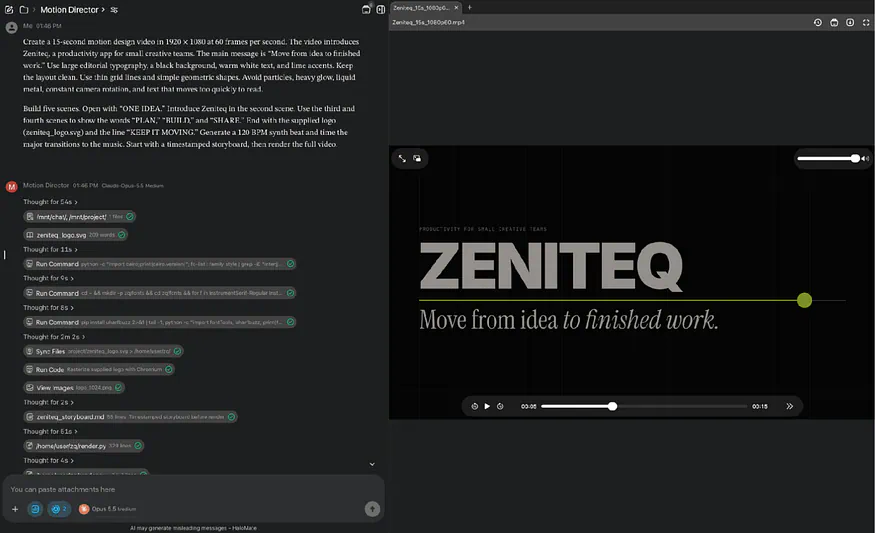
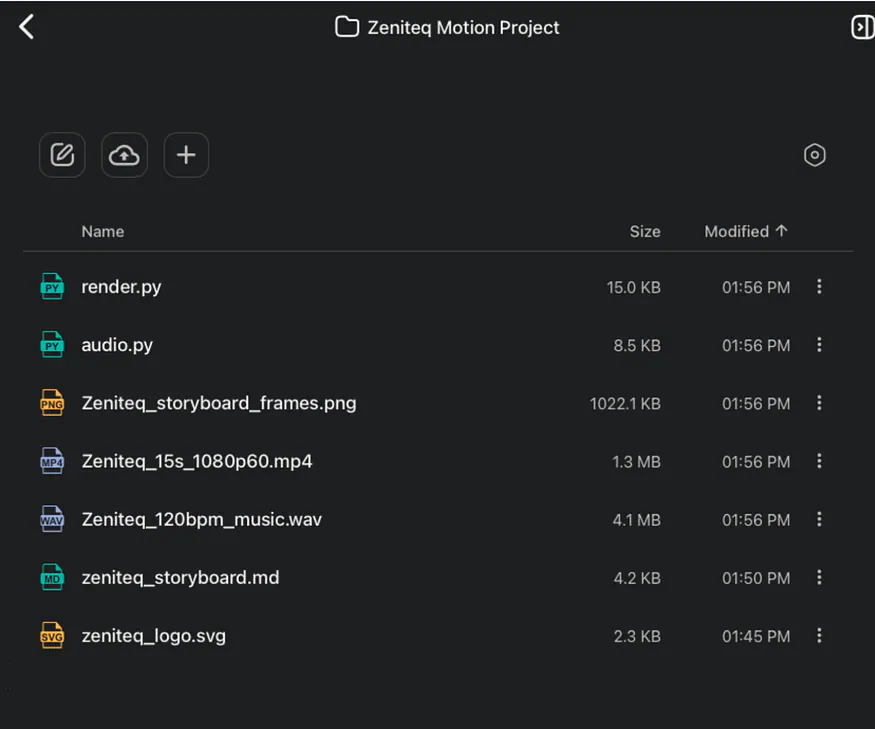
Here’s the video result:
Loading this video connects to Vimeo, which receives device and connection data and may use cookies or similar storage.
Examples That Show What These Models Can Do
Three examples show how the models handle different jobs: kinetic type, short brand content, and long-form storytelling.
1. “FORM IN MOTION” by GPT-6 Astra
“FORM IN MOTION” uses black, lime, and lilac to build a 15-second kinetic-type reel. Phrases such as “MAKE IT MOVE” fill the screen, break into grids, and return in new layouts.
Loading this video connects to Vimeo, which receives device and connection data and may use cookies or similar storage.
The design feels inspired by Swiss posters and modern editorial graphics. GPT-6 Astra handled scale and typography well, especially during the faster transitions. This style would work for event promos, fashion campaigns, music releases, or portfolio openers. Give the model a short set of phrases, your colors, and one strong poster reference.