Sponsored content. External links in this article are marked as sponsored.
AI Summary
AI meeting tools like HappyScribe, Fireflies AI, and Otter AI offer distinct advantages for transcription and note-taking. HappyScribe excels for interviews and content creation with built-in editing and AI chat features, starting at $8.50/month annually. Fireflies AI integrates with CRM systems for teams managing customer records, with Pro at $10/user/month annually. Each tool uses different pricing models and supports various meeting platforms, requiring careful review of transcription quality, language support, and hidden costs before committing.
Perhaps one of the most useful applications of AI in the past couple of years has been its ability to listen to a long conversation, understand what was discussed, and turn it into something easier to read and digest. Yeah, I am talking about AI-powered meeting recorders and note takers.
Back in the day, I had a habit of keeping a notebook and pen beside me, or sometimes using my phone to record everything.
I wanted to make sure I had something to return to if I forgot a detail, especially when a client was explaining what they needed.
The problem was that writing things down could distract me from the conversation. Recording it helped, but I still had to listen through it afterward to find the part I needed.
Ever since I started using AI note takers like HappyScribe, I have had much less reason to reach for that notebook. I get to focus on the meeting itself, knowing I can return to the transcript when I need to check something.
Now, with so many tools available, which one should you choose?
In this guide, I have listed five of the best AI note-taking tools I have used over the past couple of years. They offer different ways to record, review, and share conversations, so I will explain where each one makes sense and what you should know before paying.
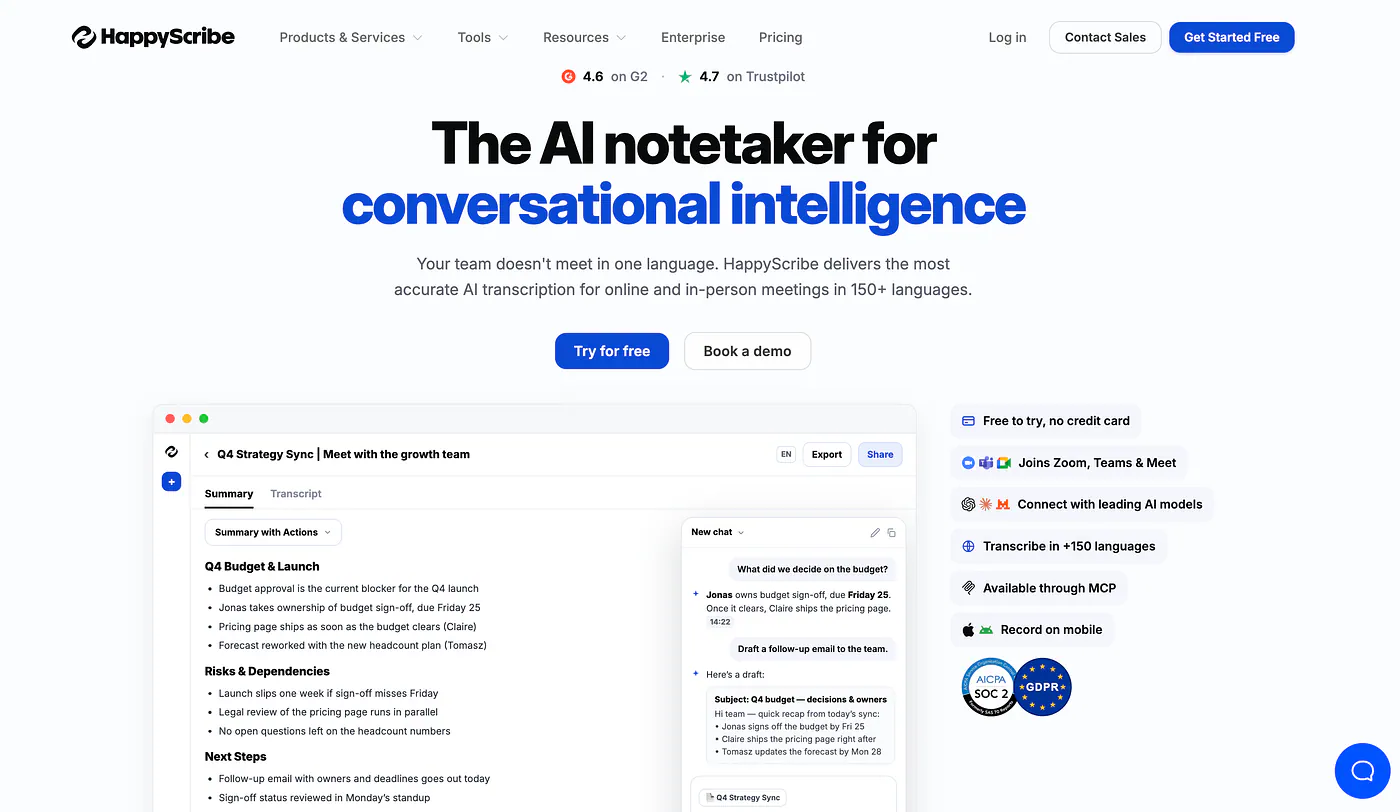
HappyScribe is my first recommendation if you need to do more with a recording after the meeting ends.
For someone writing articles or working with interviews, a conversation can become several things. You might need a summary for your notes, a transcript to share, and a few quotes to include in a draft. If you recorded video, you might also want subtitles for a clip.
Best for: Meeting notes, interviews, transcripts, and subtitles.
I like having those options in the same tool because each additional app introduces another file to upload, organize, and check.
HappyScribe’s notetaker works with Zoom, Google Meet, and Microsoft Teams. You can connect Google Calendar or Outlook and choose which meetings it joins, or paste a meeting link when you want to record a particular call.
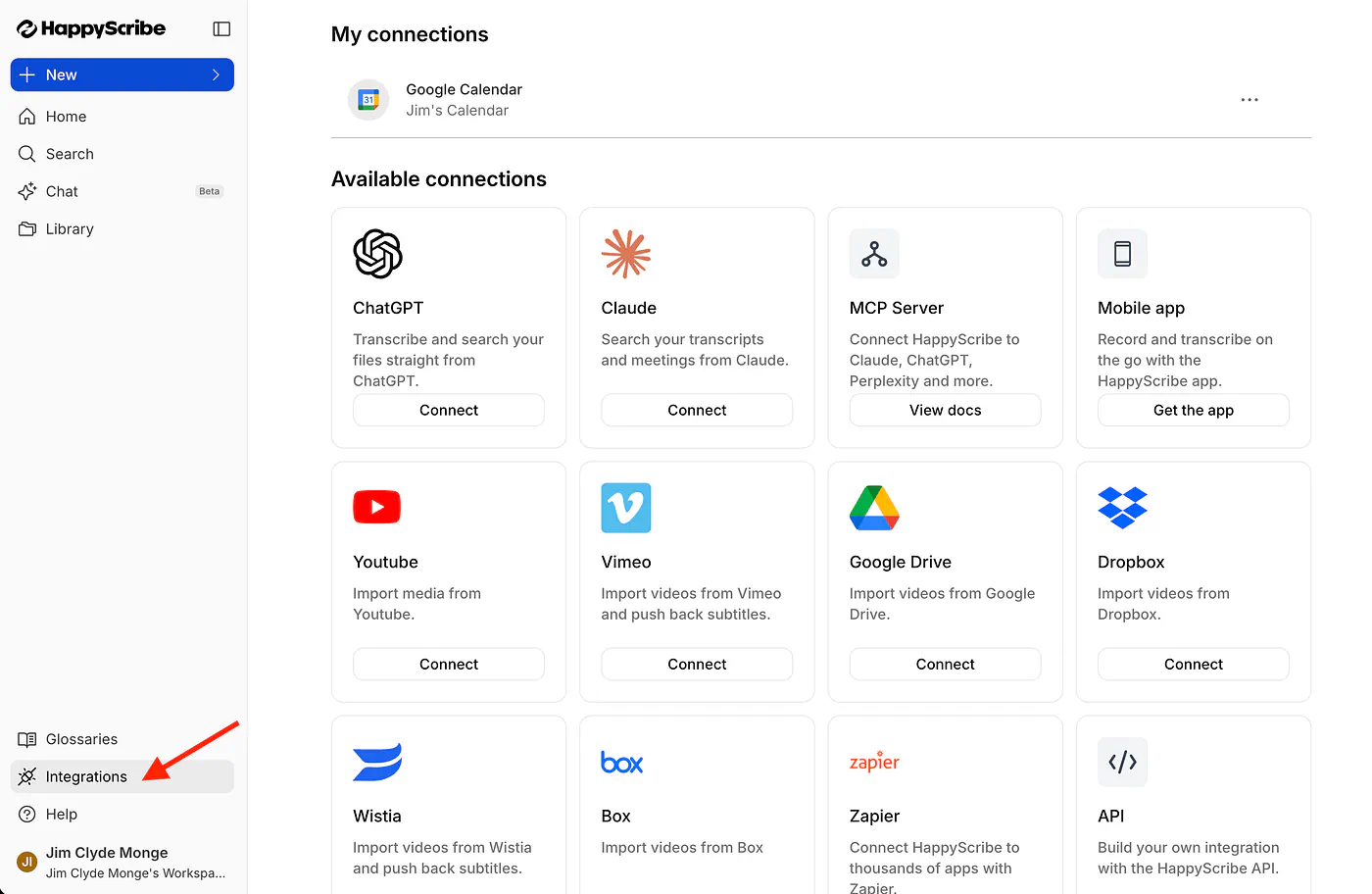
What’s even cooler about it is that it can integrate not just with meeting apps like Google Meet. It can also be integrated into your favorite AI chatbots like ChatGPT and Claude. Just go to the integrations tab and select the tool you want to connect to.
Before using it with clients, check who can access the transcript and who receives the summary email. I would rather make that decision during setup than discover afterward that the notes were shared more widely than intended.
You should also check that recording has actually started. The host may need to admit the notetaker and grant it recording permission. HappyScribe’s guide explains that a bot can be present in the call without recording anything.
Once a meeting has started, the bot will automatically take notes by capturing both the video and the audio. You’ll be amazed by how the AI identifies and notes speaker names in the final transcript.
After the meeting is done, the notes will be saved in your library, and you’ll also receive an email with a detailed transcript and summary of the meeting.
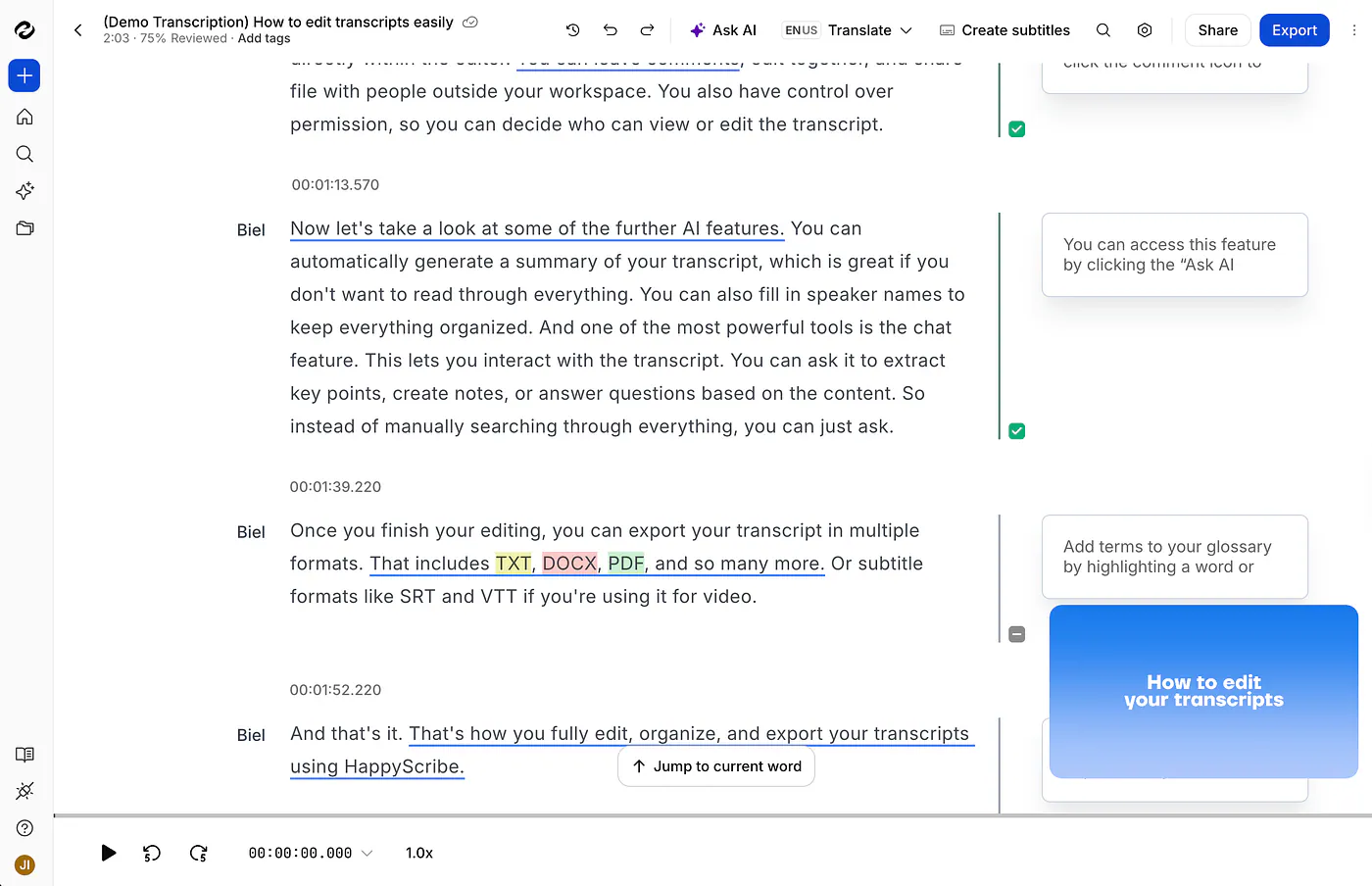
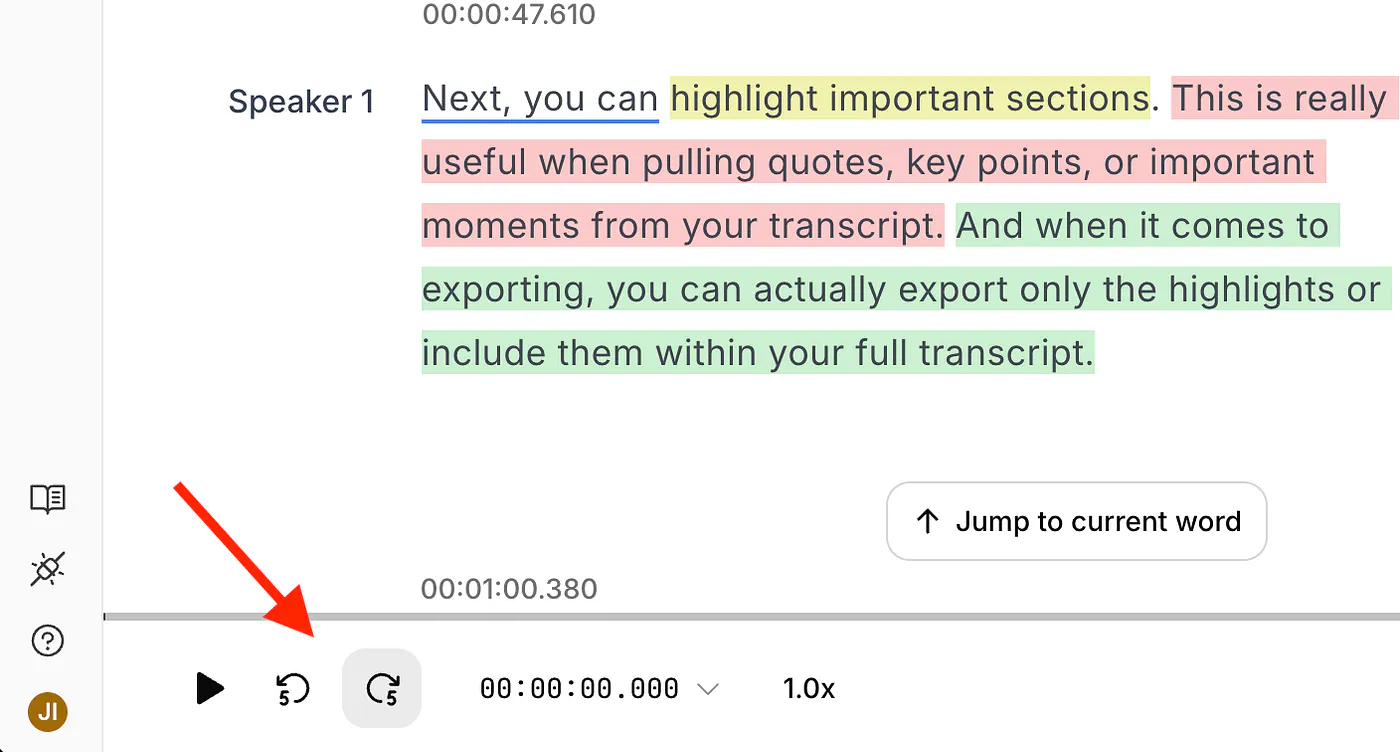
HappyScribe transcription dashboard. Image by Jim Clyde Monge
You can basically do whatever you want with the transcript. You can listen, summarize, edit, translate, export to a file, or share it with other users.
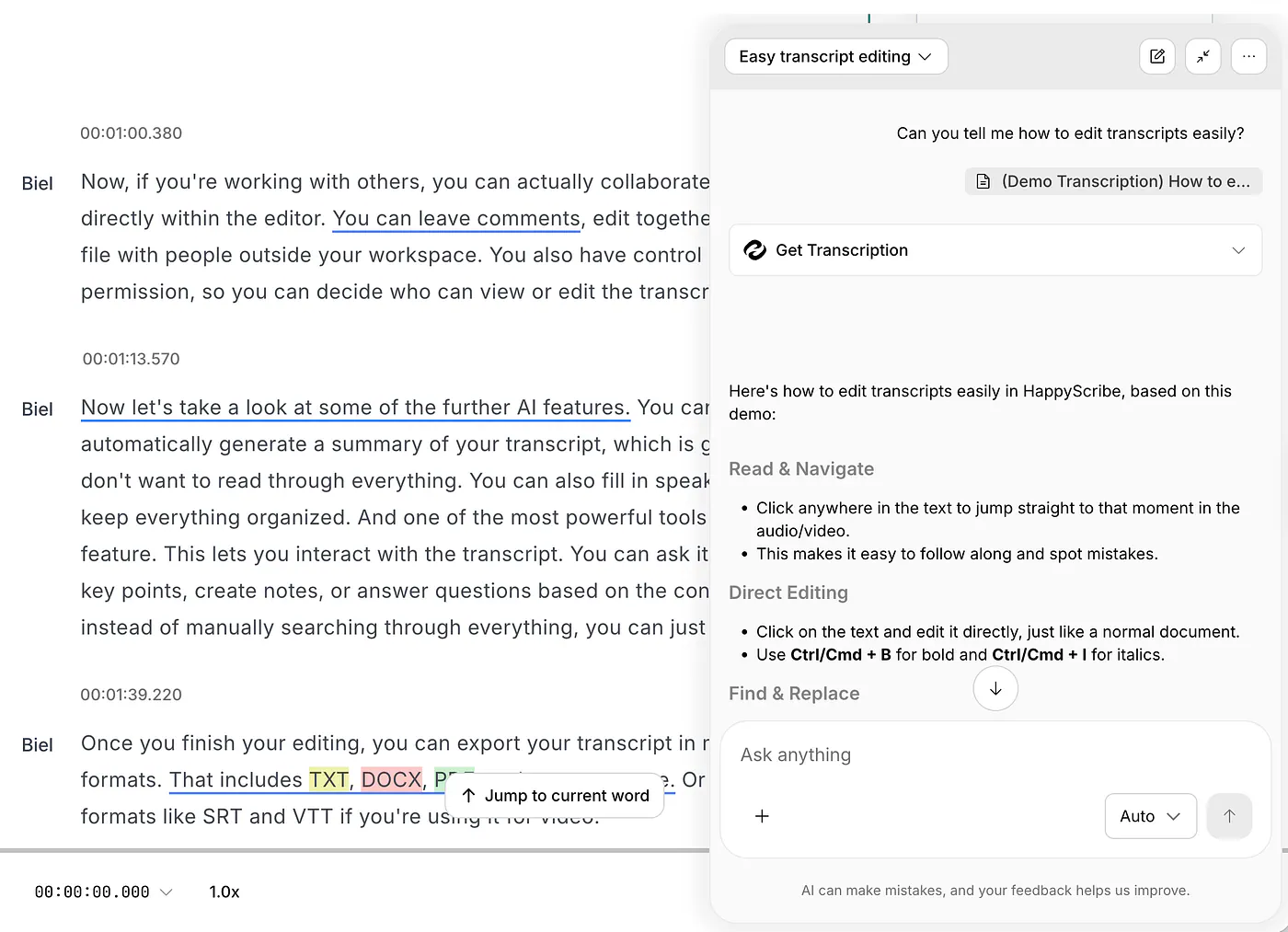
There’s also a built-in AI chat agent that you can use to ask questions about the transcript!
You can ask questions about one file or a folder of files, retrieve quotes with timestamps, and draft a follow-up email.
For example, I would ask which questions a client left unanswered or where they explained a change to the deadline. For several interviews about the same subject, comparing what people said could help identify something worth exploring in the article.
Pretty cool, right? No need to copy and paste text to a chatbot. Such a huge time saver.
You can learn more about the details on how to set it up and various tricks you can do with the AI notetaker in the documentation below.
There is also version history and an option to request human proofreading. HappyScribe’s editor guide explains these features.
If I am going to quote someone, I want to hear the original passage before putting it in an article. Having playback and editing together makes that easier to manage.
Glossaries are another feature I appreciate for technical subjects.
They let you add product names, acronyms, and other terms, although HappyScribe says they act as keyword boosters for automatic transcription. You may still need to correct the result.
In terms of pricing, annual equivalents start at $8.50/month for Basic, $19 for Pro, and $59 for Business. Additional AI minutes cost $0.20, and human proofreading starts at $2/minute.
2. Fireflies AI
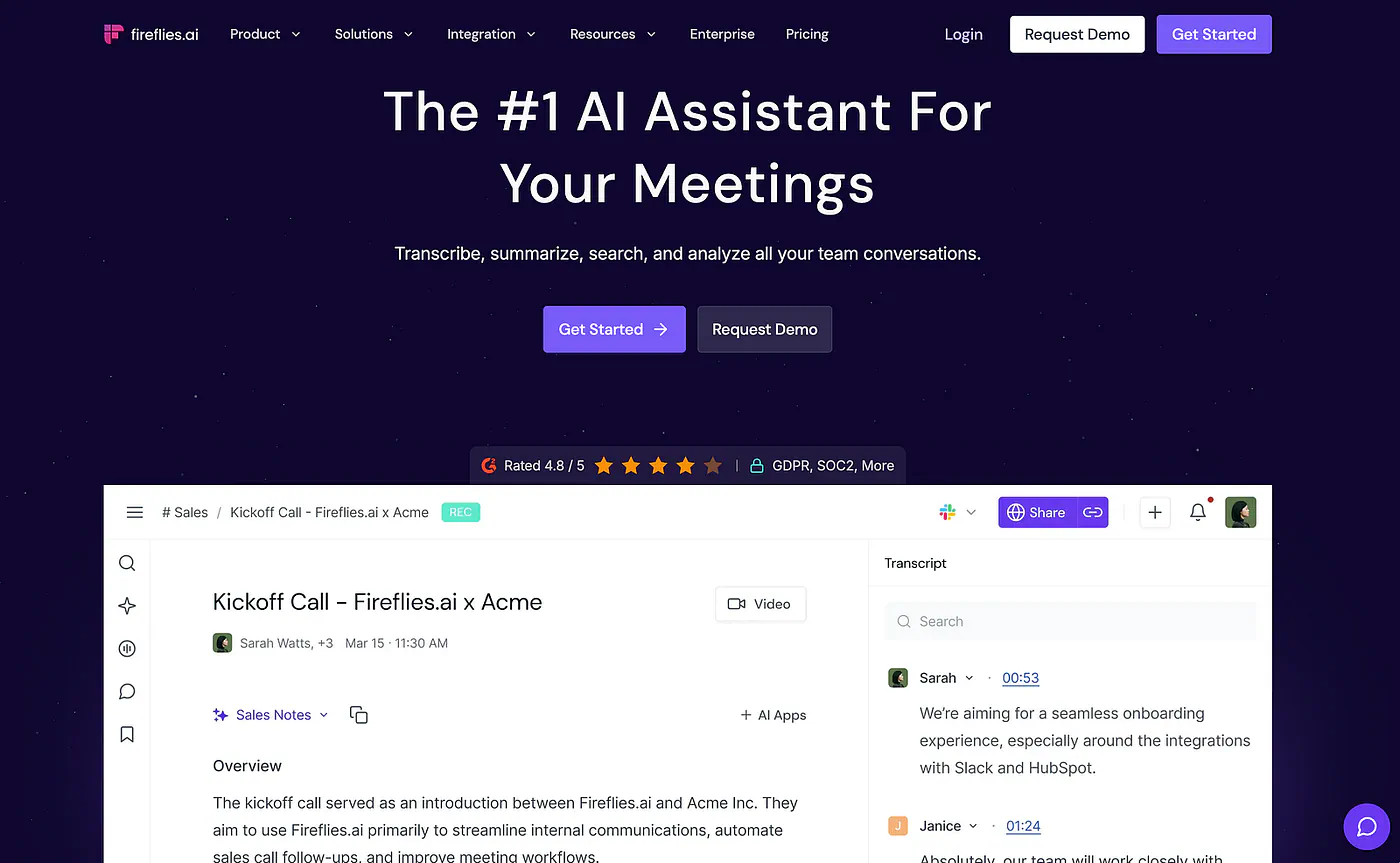
If you have several customer calls in a day, you know the work does not end when you leave the meeting. You still need to update the customer record, send a follow-up, and make sure the right person knows what they are supposed to do.
Fireflies is worth considering when that part of the job takes more time than it should.
Best for: Teams that need meeting notes connected to customer records and follow-up tasks.
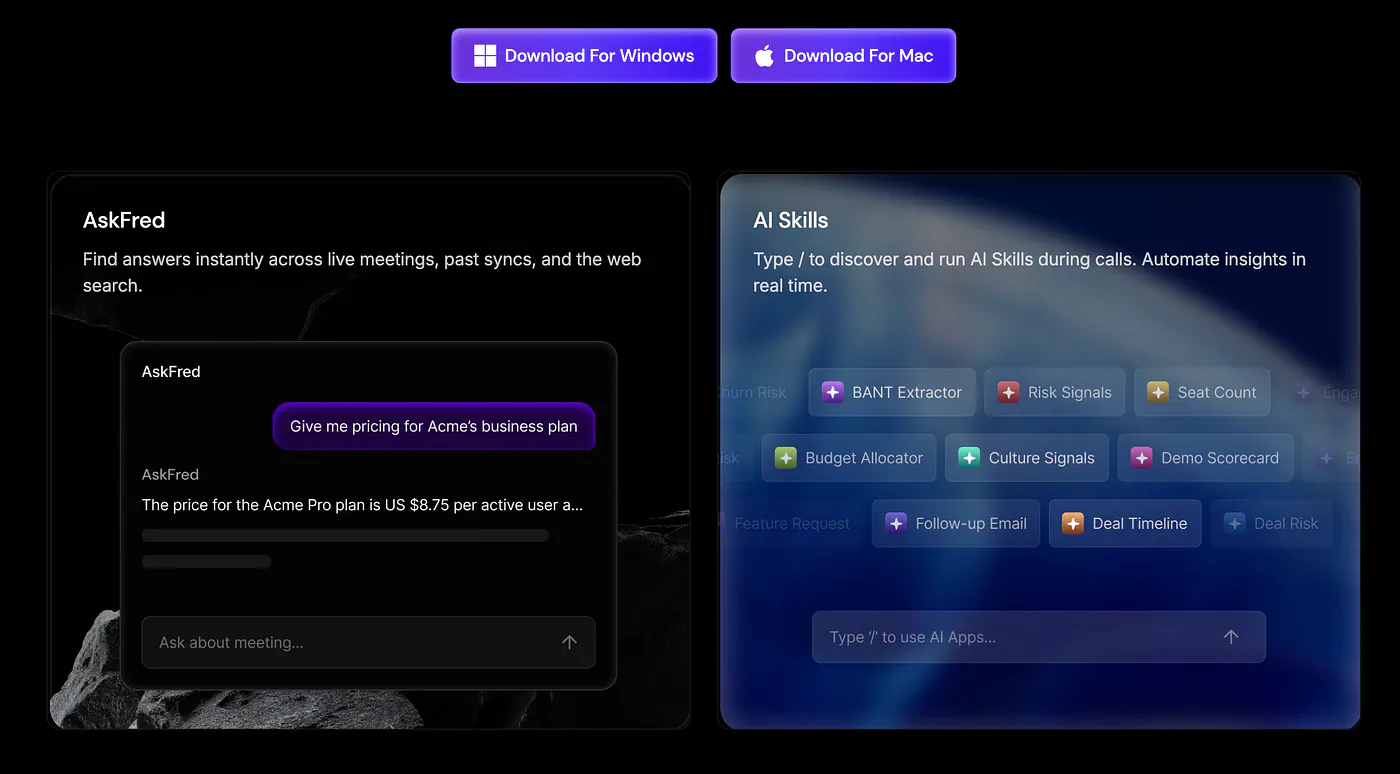
It provides searchable transcripts, an assistant called AskFred for meeting questions, and connections to other business tools. Paid plans include downloads and integrations, while Business adds conversation intelligence and unlimited storage.
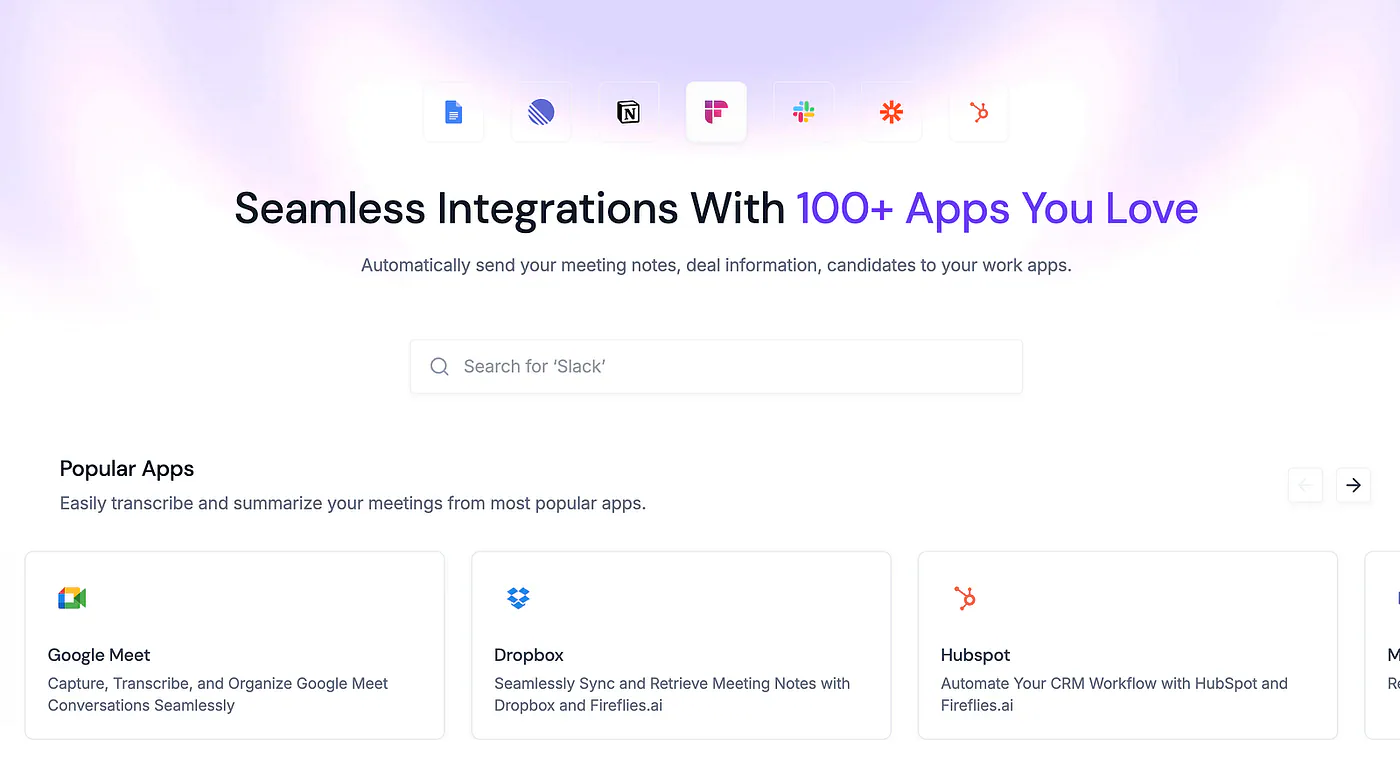
Similar to HappyScribe, Firefly also supports hundreds of connections. Just go to the integrations page to see if your favorite app is supported.
The CRM connection interests me because meeting notes are easier for a team to use when they are attached to the customer they are already working with.
Sales users reviewing Fireflies on G2 describe spending more time listening to calls and less time writing notes. They also mention using the integrations to maintain customer records. Another reviewer describes finding decisions and responsibilities across a longer project.
For me, the important question is whether those notes contain enough detail to act on. If the customer changed the deadline, I want the new date. If someone agreed to send a proposal, I want to know who.
Fireflies also has desktop and browser capture options, so inviting a meeting bot is not the only way to use it.
Fireflies AI’s desktop applications. Image by Jim Clyde Monge
The AI credit system takes some attention. Standard summaries are unlimited on paid plans, but advanced features such as custom summary sections, live assistance, and CRM autofill can use credits.
The included credits are a one-time team allocation. Additional credit subscriptions and automatic upgrades have separate billing rules. Fireflies explains the charges in the doc below.
Check those settings against the features you intend to use, especially if several people will be enabling automations.
Pricing: Free; Pro costs $10/user/month annually or $18 monthly. Business costs $19 annually or $29 monthly, per user. Advanced AI usage can add charges. See the current plans available for more details.
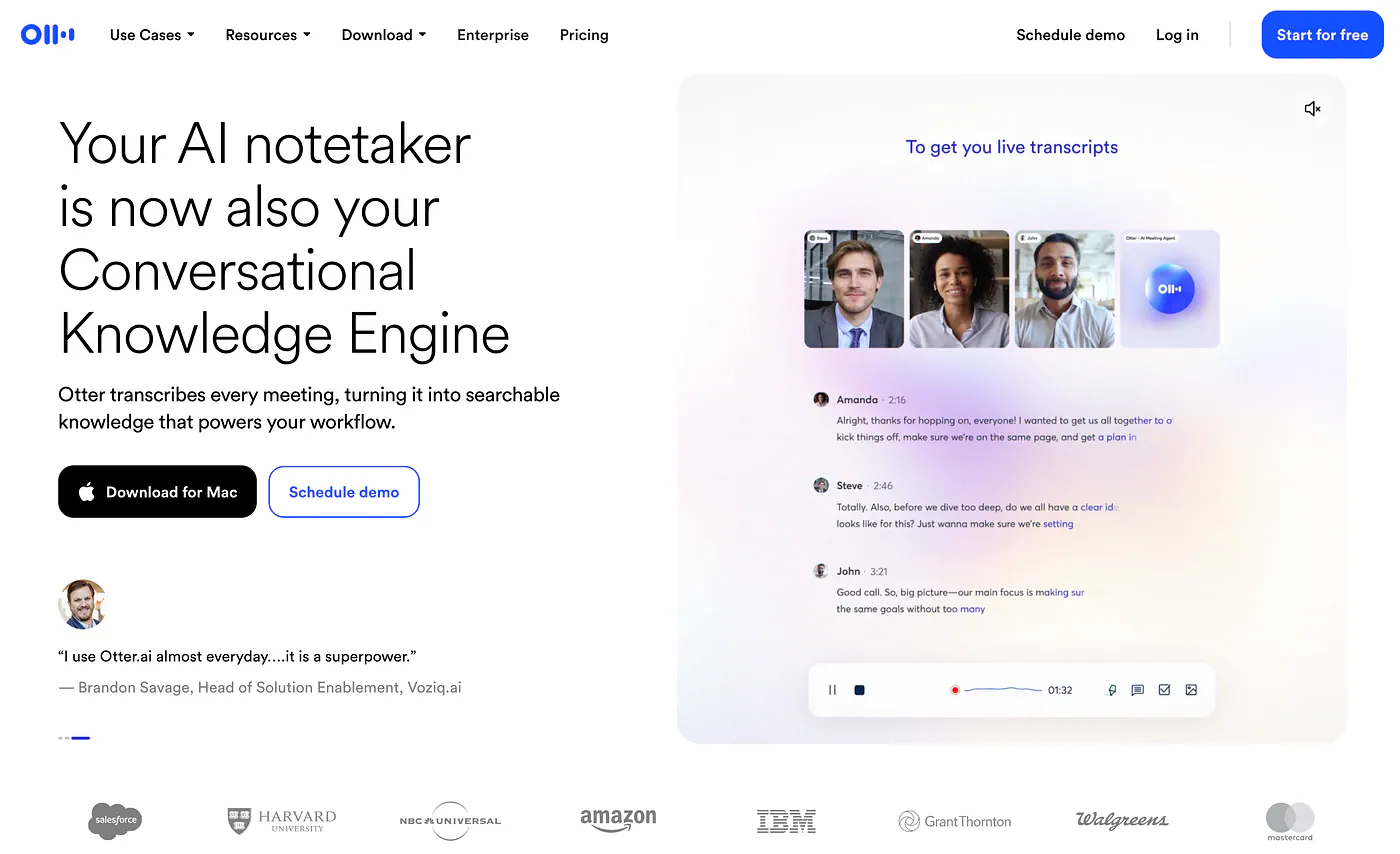
3. Otter AI
There are times when I need to check what someone said before the meeting is over. It could be an unfamiliar term, a person’s name, or a detail I missed while looking at a presentation.
Live transcription helps with that because you can return to the text while the conversation continues. You can decide whether you need to ask a question instead of waiting until afterward to realize something was unclear.
Best for: Reading along during a meeting and reviewing the conversation afterward.
Otter offers live transcription, speaker identification, AI Chat, and mobile apps. Paid plans add vocabulary tools and more search and export options.
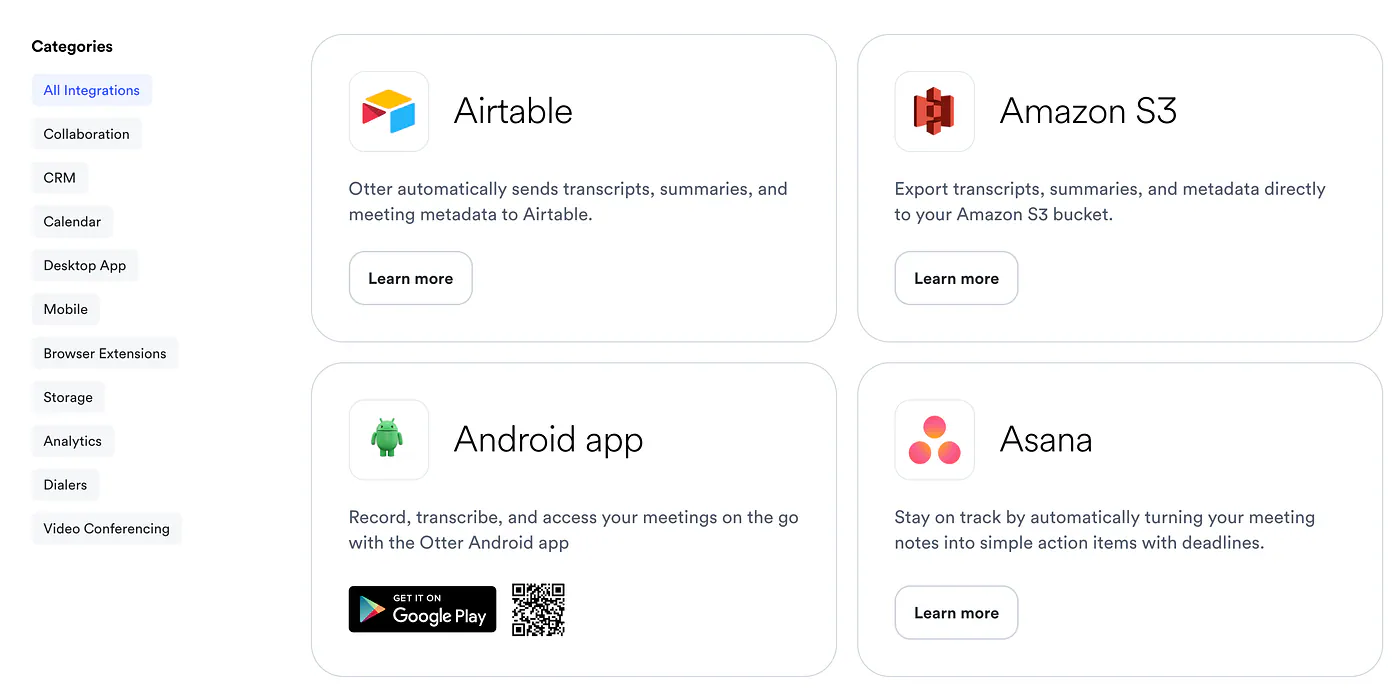
In terms of integrations, Otter also offer hundreds of tools ready to be connected to. Go check out the integrations page for the full list.
Otter AI’s list of integration tools. Image by Jim Clyde Monge
For interviews and technical discussions, being able to follow the text gives me another way to stay with the conversation. The saved transcript also gives someone who missed the meeting a record they can search.
I would pay particular attention to speaker identification during a trial. Even if the words are correct, it becomes difficult to use a transcript when you cannot tell who said them.
The vocabulary feature is also worth trying with the names and acronyms that appear in your work. Those are often the details you need to preserve when preparing notes for someone else.
Otter currently documents transcription in English, Spanish, French, German, Japanese, and Simplified Chinese. Translation through AI Chat is a separate feature, so check the supported spoken languages before relying on it for an international meeting.
Look at file imports and meeting length as well as monthly minutes. Pro includes 1,200 in-app recording minutes, a 90-minute meeting limit, and ten monthly file imports. If you mostly upload interviews, those limits affect you differently from someone recording short meetings.
Pricing: Basic is free with 300 monthly transcription minutes. Pro costs $8.33/user/month annually or $16.99 monthly. Business costs $19.99 annually or $30 monthly. See the pricing page for more information.
4. Google Gemini
Before adding another subscription, check whether your Google Workspace plan already includes Gemini’s “Take notes for me.”
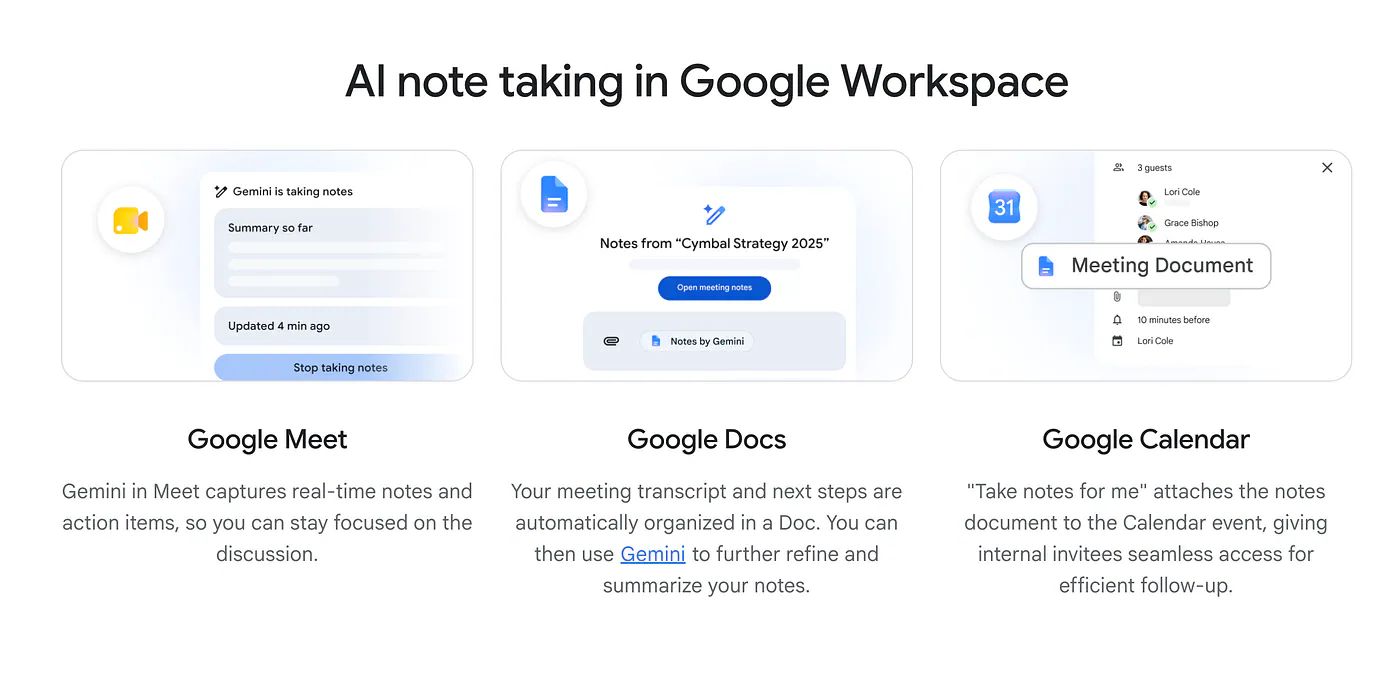
If you already have it, you don’t need to opt for other tools. Well, it’s up to you to explore other options. It’s already integrated into other Google apps like Google Calendar and Google Docs.
Google Gemini AI note taking on Google Workspace apps. Image by Jim Clyde Monge
It generates notes in Google Docs, saves them to Drive, and links them from the Calendar event. There is also a “Summary so far” feature for catching up during the meeting.
Best for: Teams already using Google Meet and Google Workspace.
I like that the notes end up somewhere the team already uses. If everyone works in Docs and Drive, asking them to check another app for meeting records may be unnecessary.
Internal project discussions are a sensible place to start. You need to know what was agreed, which questions remain open, and what happens before the next meeting.
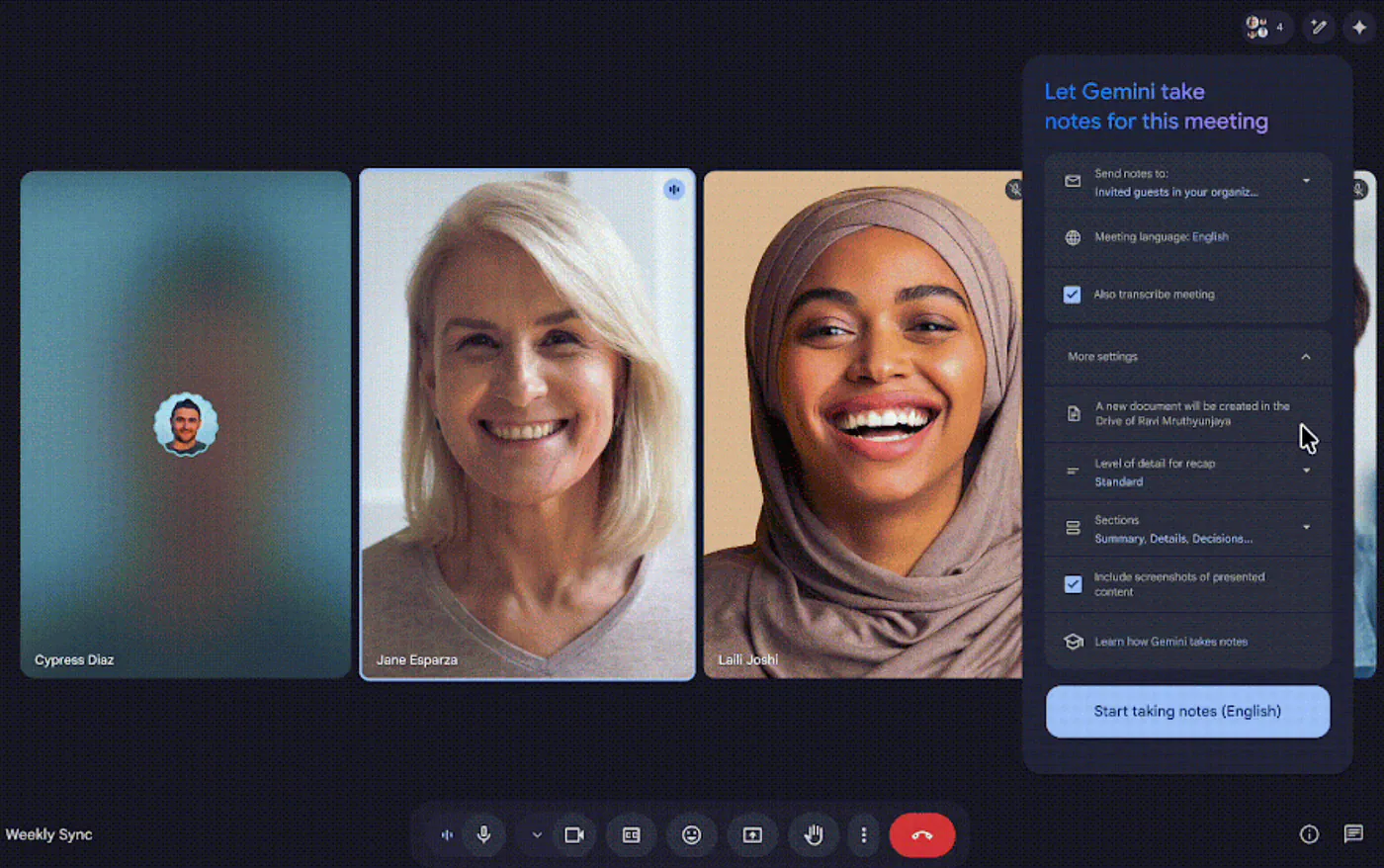
It doesn’t automatically take notes, though. You’d have to click on the “Start taking notes” button while the meeting is ongoing.
Google Gemini AI note taking on meetings. Image by Jim Clyde Monge
Google also documents an in-person note-taking mode. That gives you an option for conversations in a room, although I would check how well the device picks up everyone before using it for an important discussion.
Availability depends on the organizer’s subscription and administrator settings. Having the feature in your own meetings does not mean you can assume it will be available in a client’s meeting.
Google currently lists eight spoken languages for notes, with one active language at a time. Check the sharing settings too, because the recipient list can include invited people who did not attend.
For a team that mainly needs internal notes, I think it deserves a trial before buying another product. Read through the deadlines and assigned tasks before sending the document around as the agreed record.
Pricing: Included with eligible subscriptions. Workspace Business Standard starts at $14/user/month with an annual commitment, and Business Plus starts at $22. These are prices for the suite, not a separate notetaker subscription.
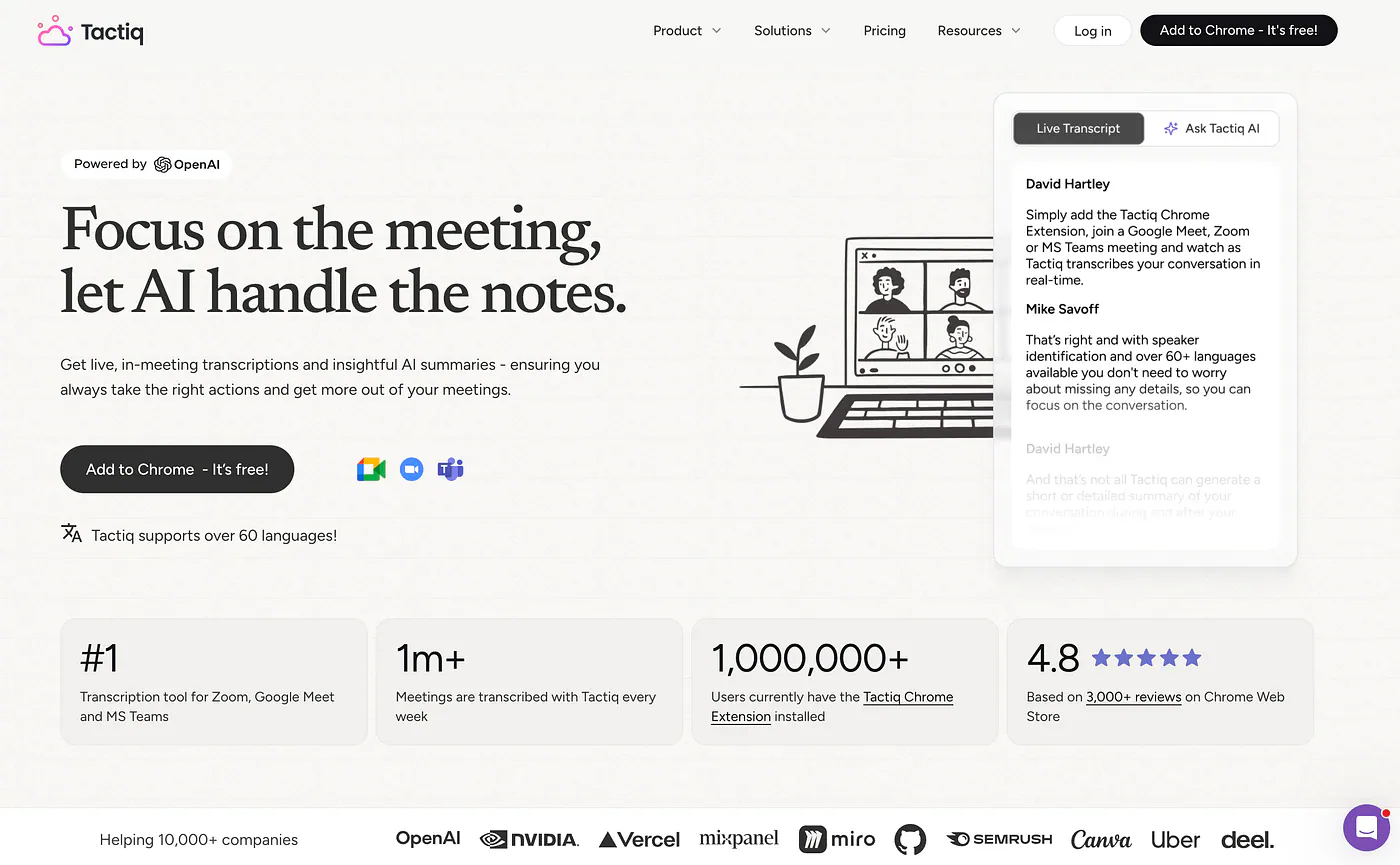
5. Tactiq AI
An unfamiliar notetaker appearing in a client call can lead to a discussion about who invited it and what it is recording. If you prefer to avoid adding another participant, Tactiq is an option to consider.
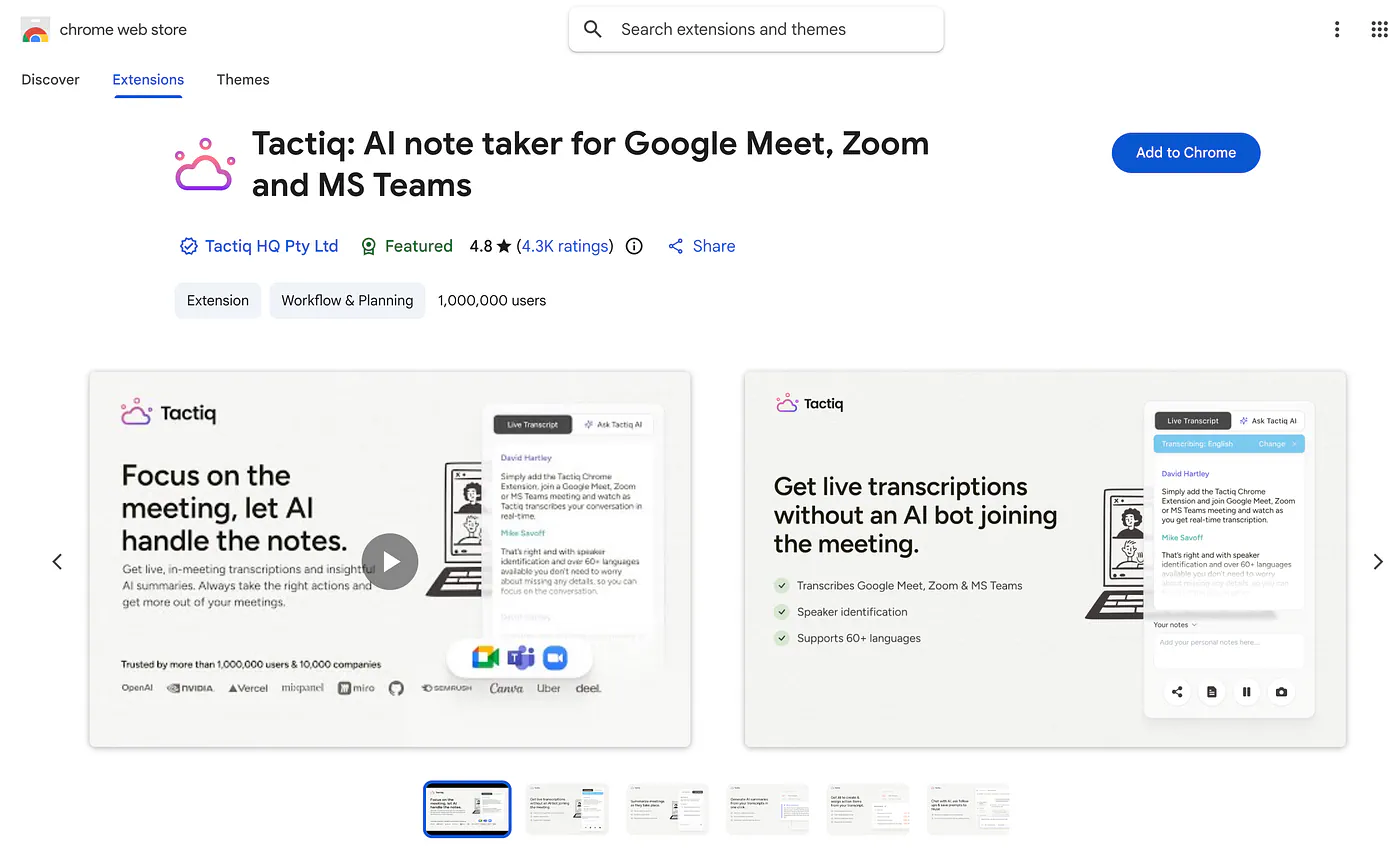
It offers bot-free transcription through its browser workflow. There is also a macOS app in beta for Zoom Desktop, so the product is no longer limited to its Chrome extension. The Mac app guide explains that option.
Best for: People who prefer transcription without a bot joining the meeting.
What I like bout it is that you can use the transcript to generate meeting notes, ask questions, and prepare follow-up material. For client calls, I would be interested in how well it separates agreed tasks from things people only suggested.
It’s chrome extension is also a very appealing feature to those who want to stay inside Google chrome and not open another app.
A prompt such as “List the commitments, owners, and deadlines where they were stated” gives you something specific to check. If nobody agreed on a date, I want that left open.
Tactiq generally uses one AI credit per meeting, covering multiple supported AI actions on that meeting. Asking several questions about the same conversation does not necessarily use several credits.
Free includes five monthly AI credits, Pro includes ten, and Team includes unlimited credits.
Ten meetings could be enough for occasional client calls. If you want AI help with several meetings every day, you should compare the Team plan instead.
Also, keep participants informed that you are transcribing, even when no bot appears.
Pricing: Free includes ten monthly transcripts. Pro costs $8/user/month annually or $12 monthly. Team costs $16.67 annually or $20 monthly, per user.
So which one should you actually pick?
Depends on what you’re trying to avoid.
If your meetings are English only and you’re already inside Google Workspace, use Gemini. If you’re in sales and everything has to reach a CRM, go with Firefly. If you need live captions while the call is happening, use Otter. If a bot showing up on client calls is a problem, I’d recommend Tactiq.
If you’re working across languages, or your transcripts go to somebody outside your team, or you sometimes need subtitles from the same recording, HappyScribe is built for that.
The 150 language coverage and the human review path of HappyScribe are the two things nobody else from the competing tools match, and they’re the two that start mattering the moment the output stops being just for you.
One last thing, and this applies whichever you pick. Test it on your worst recording, not your best one. If you explore the demo section of each tool, all the recording examples are clean and the results are always good.
Go find the four person call with the cross talk, the accents and the guy on his laptop microphone in a coffee shop. That’s the meeting you’ll actually need a transcript for, and that’s where three of these five fall apart.
Final Thoughts
For the kind of work I do with articles and interviews, HappyScribe is the one I would consider first. Having transcript editing, quote extraction, subtitles, and optional human proofreading together gives me several ways to use the same recording.
Fireflies is worth considering when customer records and follow-up tasks take up much of your day. Otter suits people who want live text during the conversation, Gemini deserves a look if your team already uses Google Workspace, and Tactiq offers another way to capture meetings without inviting a bot.
Whichever you choose, try it on a conversation that resembles your actual meetings. Check a name, find a decision, and prepare the follow-up you would normally send.
I do not expect to stop reviewing my notes. I want the tool to take care of enough of the work that I can spend more time listening and less time reconstructing the conversation afterward.
What do you think of this list? Let me know your thoughts in the comments.