AI agents with browser control have been getting a lot of attention over the past couple of months. We now have different versions of these tools from OpenAI’s browser agent to Perplexity Comet, OpenClaw, and many others.
I have tried a handful of them, and while they are useful, there are still clear limits to what they can actually do. Sometimes I ask an agent to complete a web task, and it starts fine, only to fail midway because of CAPTCHAs, authentication, login issues, or some random website behavior it cannot handle properly.
One tool that I find really interesting and stands out among those that I tried is called BrowserAct. It gives agents a more reliable way to use the web, extract live data, take browser actions, and complete real tasks from end to end.
In this guide, I’ll describe what BrowserAct is, show you how it works, and discuss how you can take advantage of it.
Let’s get started.
What is BrowserAgent?
BrowserAct is a browser automation tool built for AI agents.
The easiest way to think about it is this: instead of giving your AI agent a normal text-only search tool, BrowserAct gives it a real browser it can control from the terminal.
It can open pages, read what is on the screen, click buttons, type text, extract information, inspect page state, manage sessions, and continue working through multi-step web tasks.
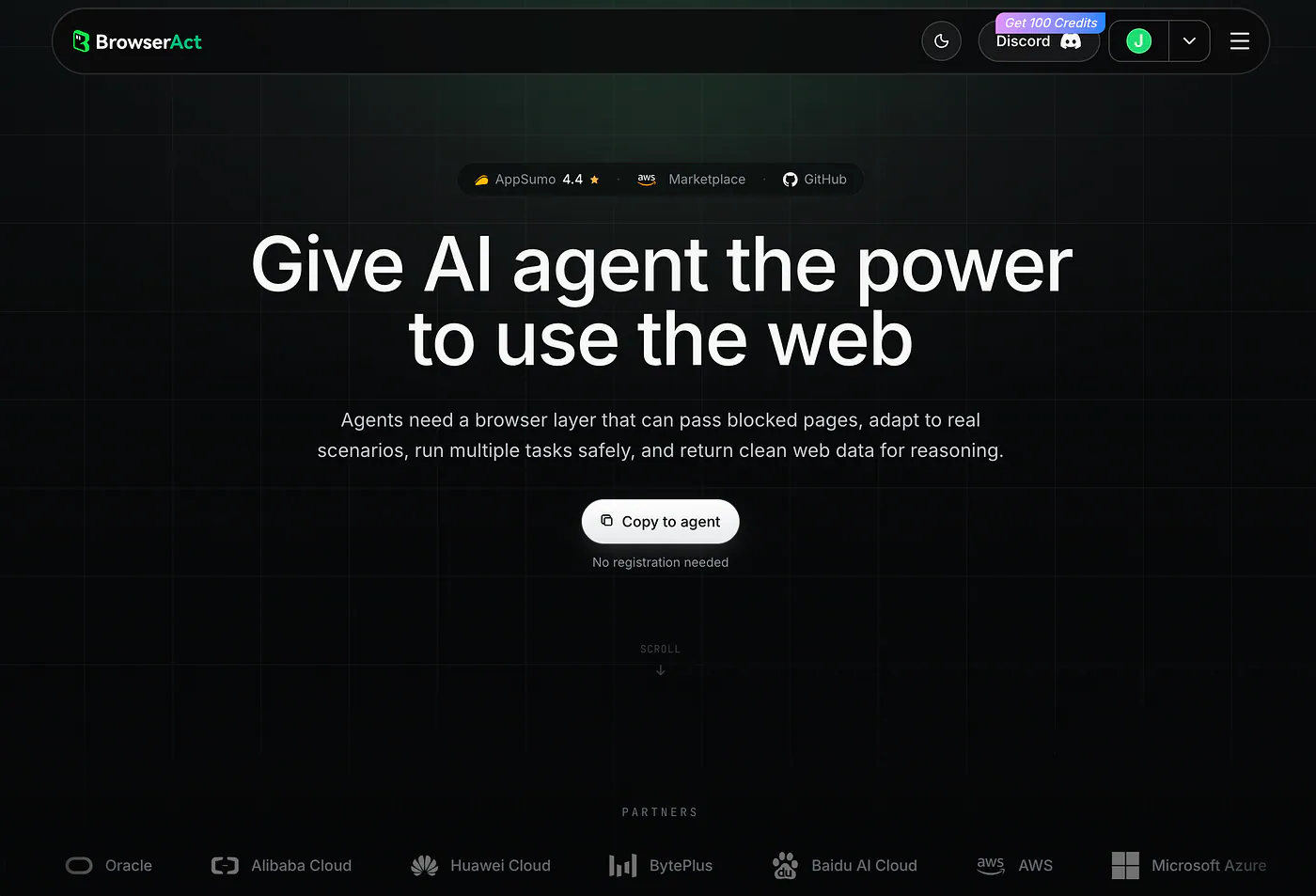
BrowserAct landing page. Image by Jim Clyde Monge
The real value is in how BrowserAct handles the messy parts of the web.
If you keep an eye in the latest AI news, you’d know that a lot of popular browser agents only work well in clean demo environments. Ask them to open a simple page and click a button, and they look impressive. But once you try them yourself in a real working environment, things start to get messy.
Pages load dynamically. Login sessions expire. Buttons move in random places. Websites detect automation. CAPTCHAs appear. Some pages need your existing Chrome profile. Some tasks need a human to step in for a few seconds.
I mean… it’s an annoying experience.
BrowserAct is designed around those problems.
It gives agents different browser modes depending on the task. You can use a normal Chrome-based browser, control your current Chrome session directly, use stealth browsers for protected public pages, or create separate browser identities for account-based work.
Key features of BrowserAct
BrowserAct has a lot of features, but these are the ones that matter most if you are using it with an AI agent.
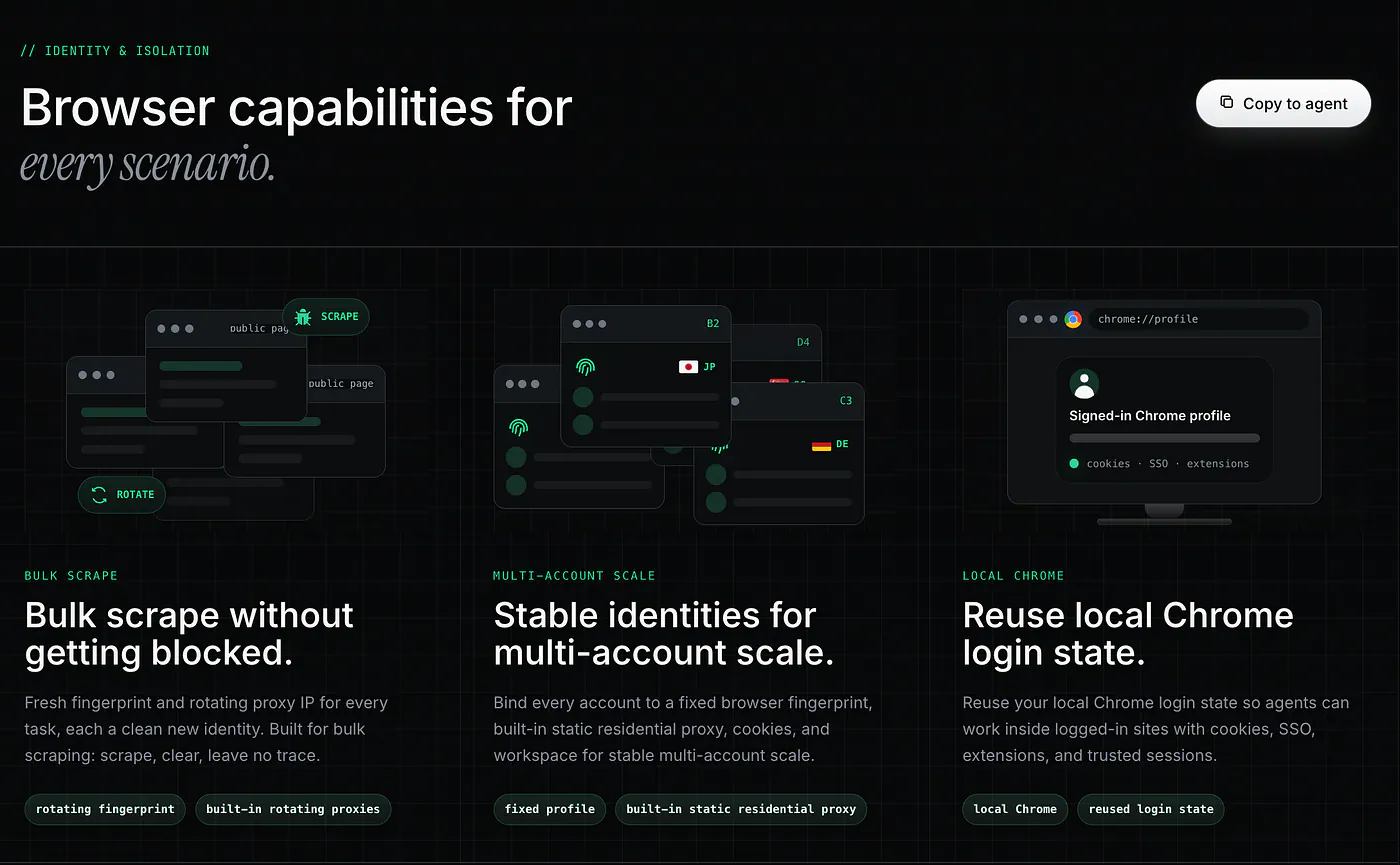
BrowserAct capabilities page. Image by Jim Clyde Monge
- Real browser control from the terminal: BrowserAct lets agents open websites, inspect the page, click buttons, type into fields, and continue through multi-step browser tasks directly from the CLI. This makes it useful for Claude Terminal, Cursor, Codex CLI, and other agentic coding tools that can run shell commands.
- Multiple browser modes: BrowserAct supports different browser setups depending on the task. You can use a normal Chrome-based browser, import a local Chrome profile, control your current Chrome session directly, or use stealth browsers for public pages that are harder to access with basic scraping tools.
- Page extraction for research: For simple research tasks, BrowserAct can extract rendered web pages as Markdown or HTML. This is useful when you need clean notes from product pages, docs, pricing pages, changelogs, or JavaScript-heavy websites.
- Support for logins and sessions: BrowserAct can reuse browser state through Chrome profiles or direct Chrome control. This is helpful when the task needs access to a logged-in dashboard, account page, admin panel, or internal tool.
- CAPTCHA solving and human handoff: If a task gets blocked by a CAPTCHA, 2FA, or another manual step, BrowserAct can either attempt solving or create a remote assist link so a human can complete the step.
- Reusable scraping skills: BrowserAct also has Skill Forge, which helps agents turn repeated browser workflows into reusable skills. This is useful when you do not want the agent to rediscover the same website structure every time.
These are just some of the things the platform can do. I encourage you to go to the skills page and explore other capabilities.
How to install BrowserAct
BrowserAct has two main parts.
- The first is the CLI itself. This performs the actual browser automation.
- The second is the entry skill. This tells your AI agent when and how to call the CLI.
If you are using an agent that supports skills, the easiest path is to ask your agent to install it for you.
Open a Claude code instance and paste the following commands:
Install browser-act.
Skill URL: https://github.com/browser-act/skills/tree/main/browser-act
After installation, verify that the CLI is available.
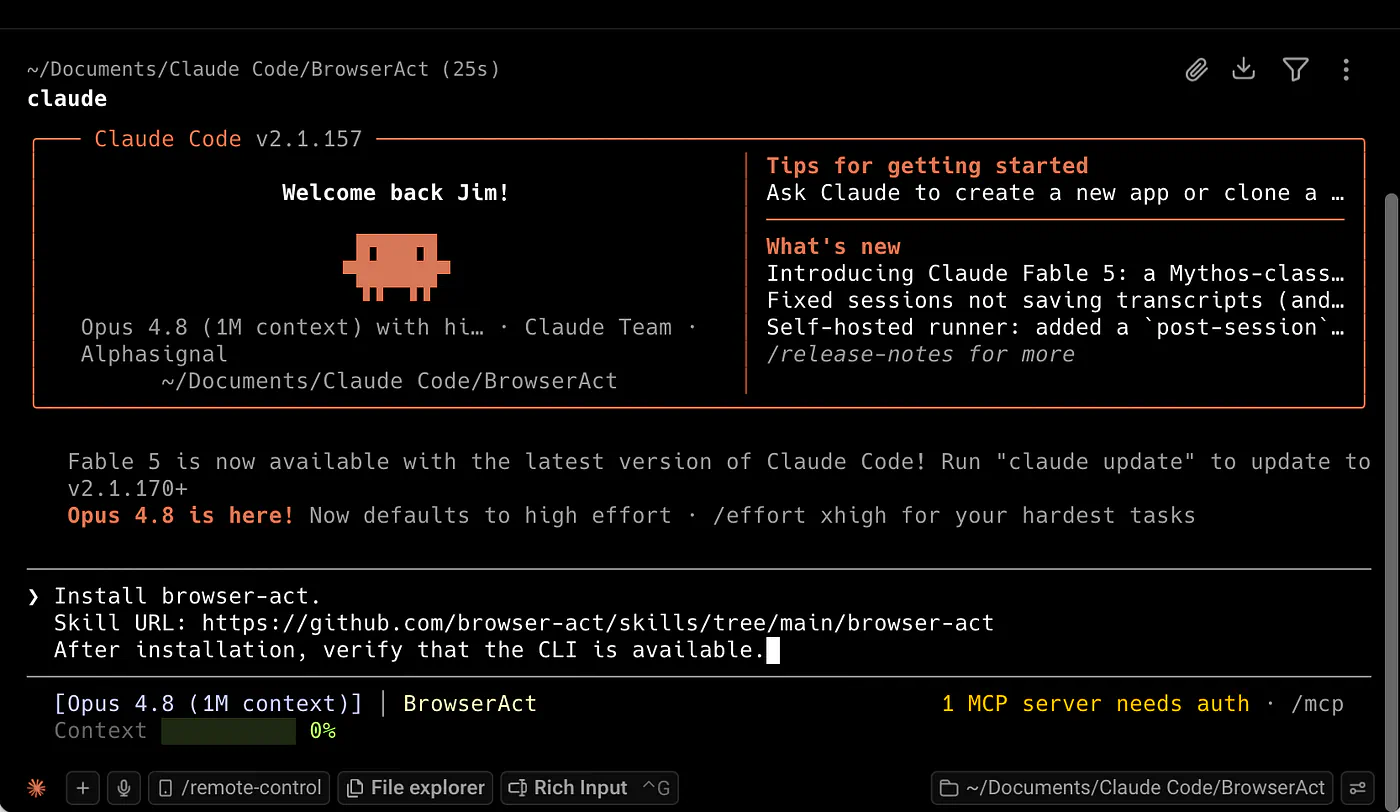
Claude code installing BrowserAct. Image by Jim Clyde Monge
If you want to install it manually, you can use uv with Python 3.12:
# Install the BrowserAct CLI using uv and Python 3.12.
uv tool install browser-act-cli --python 3.12
# Confirm that the command is available.
browser-act --version
Some BrowserAct features can work without an API key, especially basic Chrome and chrome-direct automation. But hosted features like stealth browsers, stealth extraction, dynamic proxy rotation, and CAPTCHA solving require an API key.
To get the API key, head over to the API keys page in your BrowserAct profile section and click on the Manage API Keys to create one.
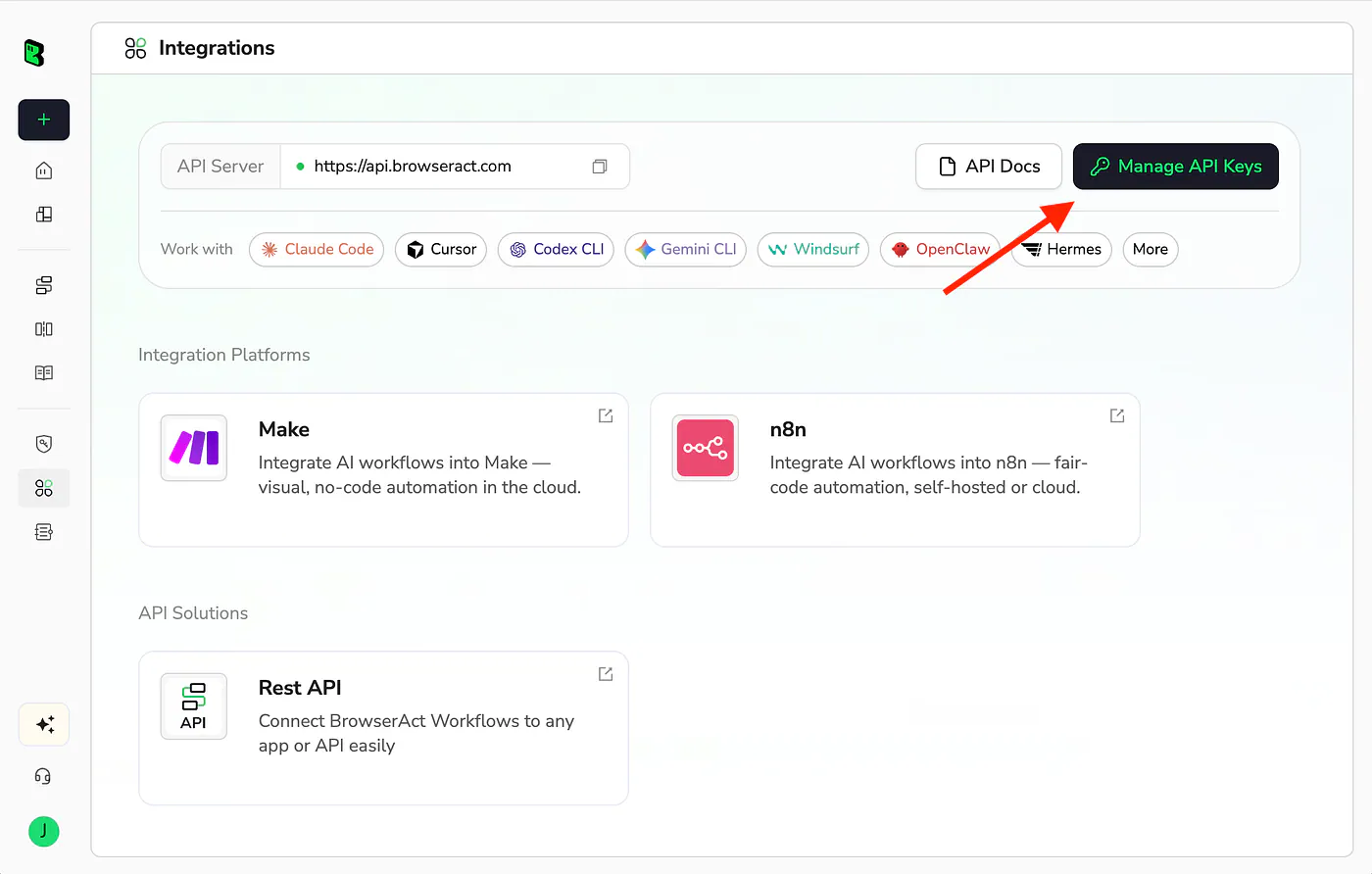
Gettin an API key for BrowserAct. Image by Jim Clyde Monge
You can start the login flow with:
# Start BrowserAct authentication.
browser-act auth login
# Poll until the login flow is complete.
browser-act auth poll
Or set your API key directly:
# Set your BrowserAct API key directly.
browser-act auth set <your_api_key>
Take note that Claude may ask for your permission to fetch several GitHub codes and also to allow some skills to execute.
Once all the necessary libraries and dependencies are installed, you should get this message in your Claude terminal.
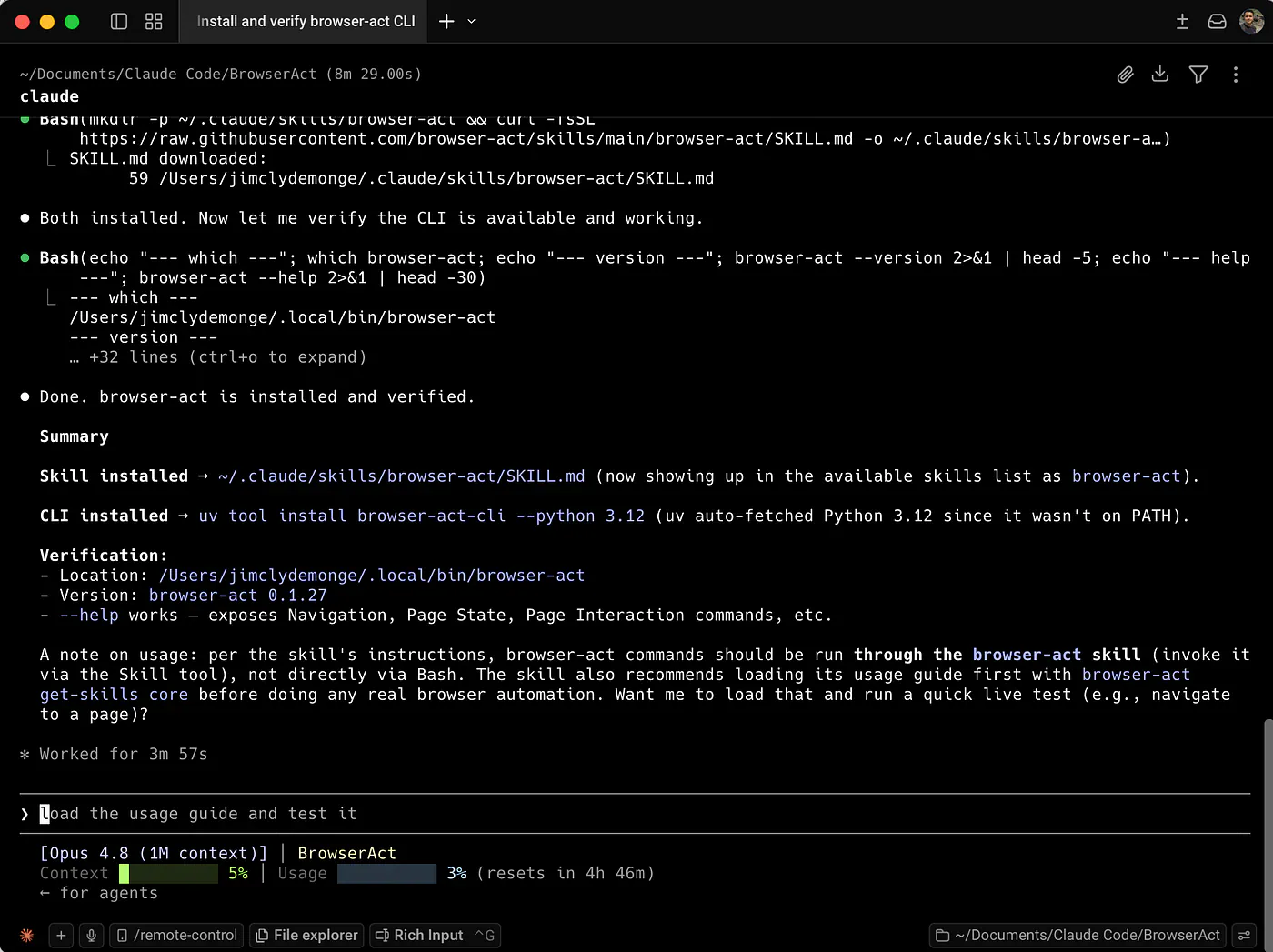
Installing the BrowserAct skills in Claude. Image by Jim Clyde Monge
Okay, you are now ready to use BrowserAct.
Example use case 1: Extract product information for article research
The first example I would show readers is a simple research workflow.
This is useful for writers, marketers, developers, and anyone who needs to collect information from live web pages. Since I write a lot of AI tool reviews and tutorials, this is the kind of task I can actually see myself using.
Let’s say I want to research BrowserAct’s homepage and pricing page, then save the results as Markdown so I can use them as notes for an article.
Command:
# Extract BrowserAct homepage content and save it as Markdown.
browser-act stealth-extract https://www.browseract.com/ --output ./browseract-homepage.md
# Extract BrowserAct pricing page content and save it as Markdown.
browser-act stealth-extract https://www.browseract.com/pricing --output ./browseract-pricing.md
Prompt for Claude Terminal:
Use BrowserAct to extract the BrowserAct homepage and pricing page.
Save both pages as Markdown files.
Then read the files and create a concise research summary with:
1. What BrowserAct does
2. Key features
3. Browser modes
4. Pricing details
5. Possible use cases for AI agents
This is a simple example, but it already shows the value. Instead of manually opening pages, copying text, cleaning the content, and pasting it into my notes, I can let the agent extract the rendered pages and turn them into a structured research summary.
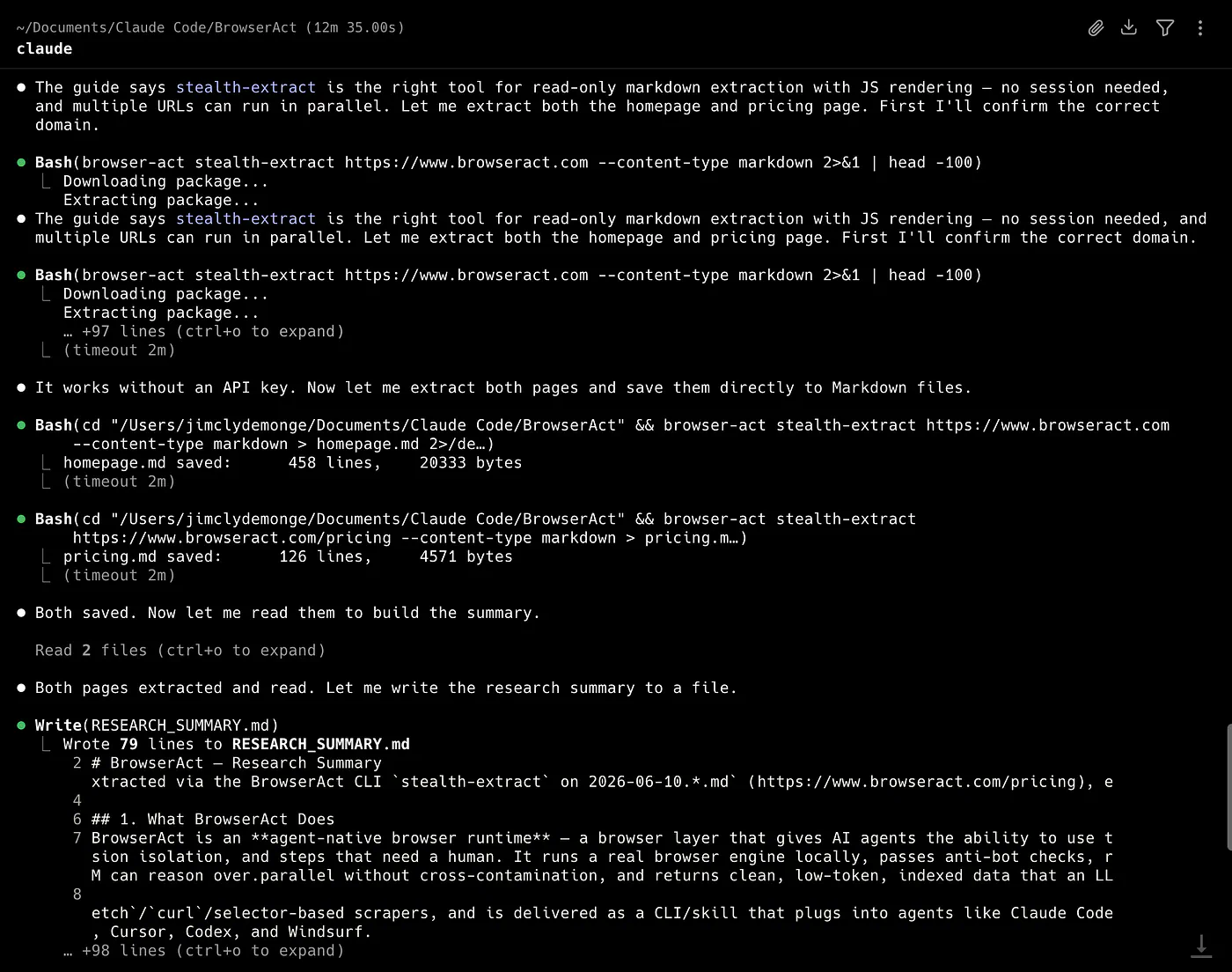
Extract product information for article research. Image by Jim Clyde Monge
Notice in the logs above, Claude loads the BrowserAct skill that we have installed earlier, uses stealth-extract to gather all relevant data, and sums it up into a markdown file.
This is the output result with full text below:
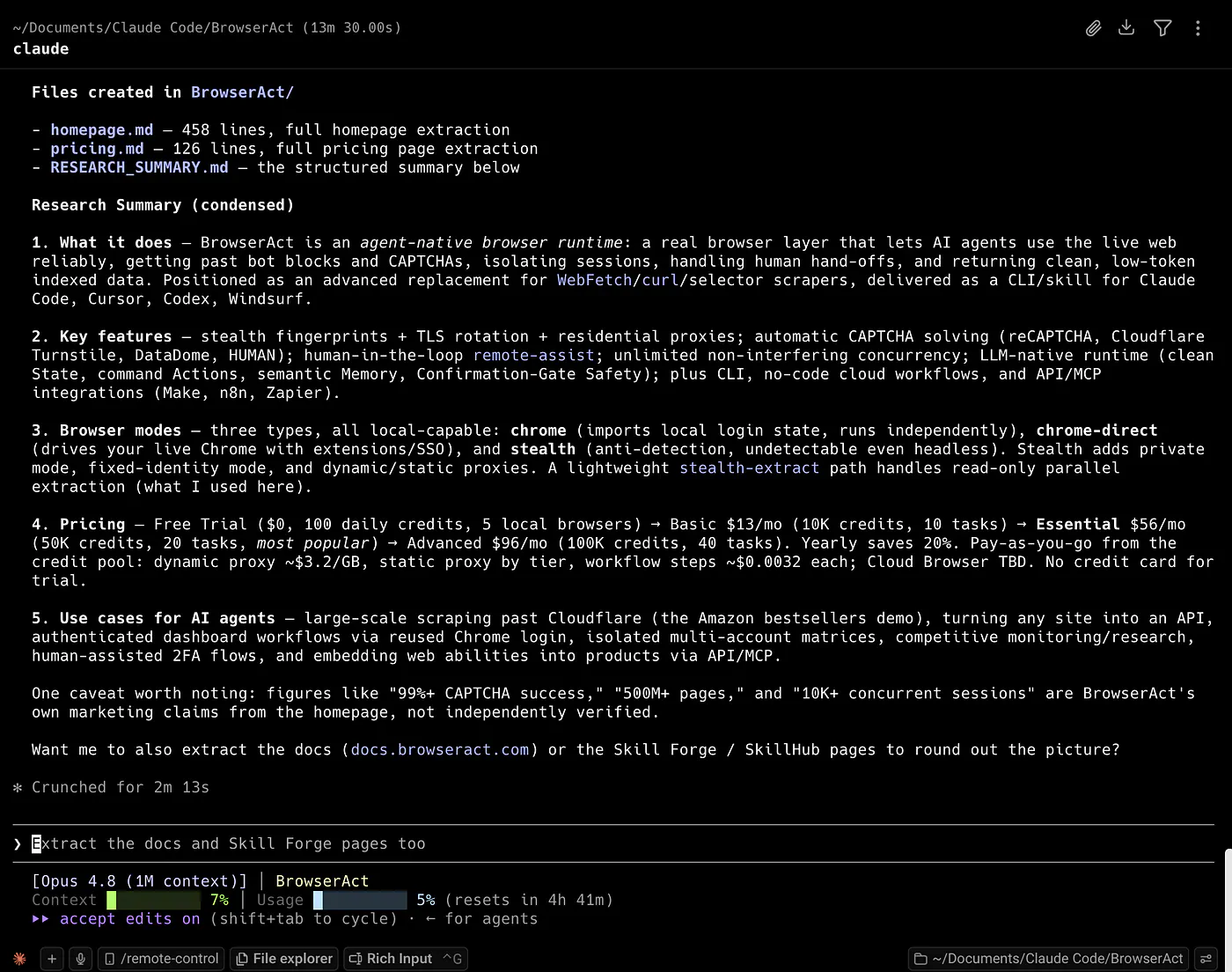
Extract product information for article research. Image by Jim Clyde Monge
Research Summary (condensed)

  1. What it does — BrowserAct is an agent-native browser runtime: a real browser layer that lets AI agents use the live web
  reliably, getting past bot blocks and CAPTCHAs, isolating sessions, handling human hand-offs, and returning clean, low-token
  indexed data. Positioned as an advanced replacement for WebFetch/curl/selector scrapers, delivered as a CLI/skill for Claude
  Code, Cursor, Codex, Windsurf.

  2. Key features — stealth fingerprints + TLS rotation + residential proxies; automatic CAPTCHA solving (reCAPTCHA, Cloudflare
  Turnstile, DataDome, HUMAN); human-in-the-loop remote-assist; unlimited non-interfering concurrency; LLM-native runtime (clean
  State, command Actions, semantic Memory, Confirmation-Gate Safety); plus CLI, no-code cloud workflows, and API/MCP
  integrations (Make, n8n, Zapier).

  3. Browser modes — three types, all local-capable: chrome (imports local login state, runs independently), chrome-direct
  (drives your live Chrome with extensions/SSO), and stealth (anti-detection, undetectable even headless). Stealth adds private
  mode, fixed-identity mode, and dynamic/static proxies. A lightweight stealth-extract path handles read-only parallel
  extraction (what I used here).

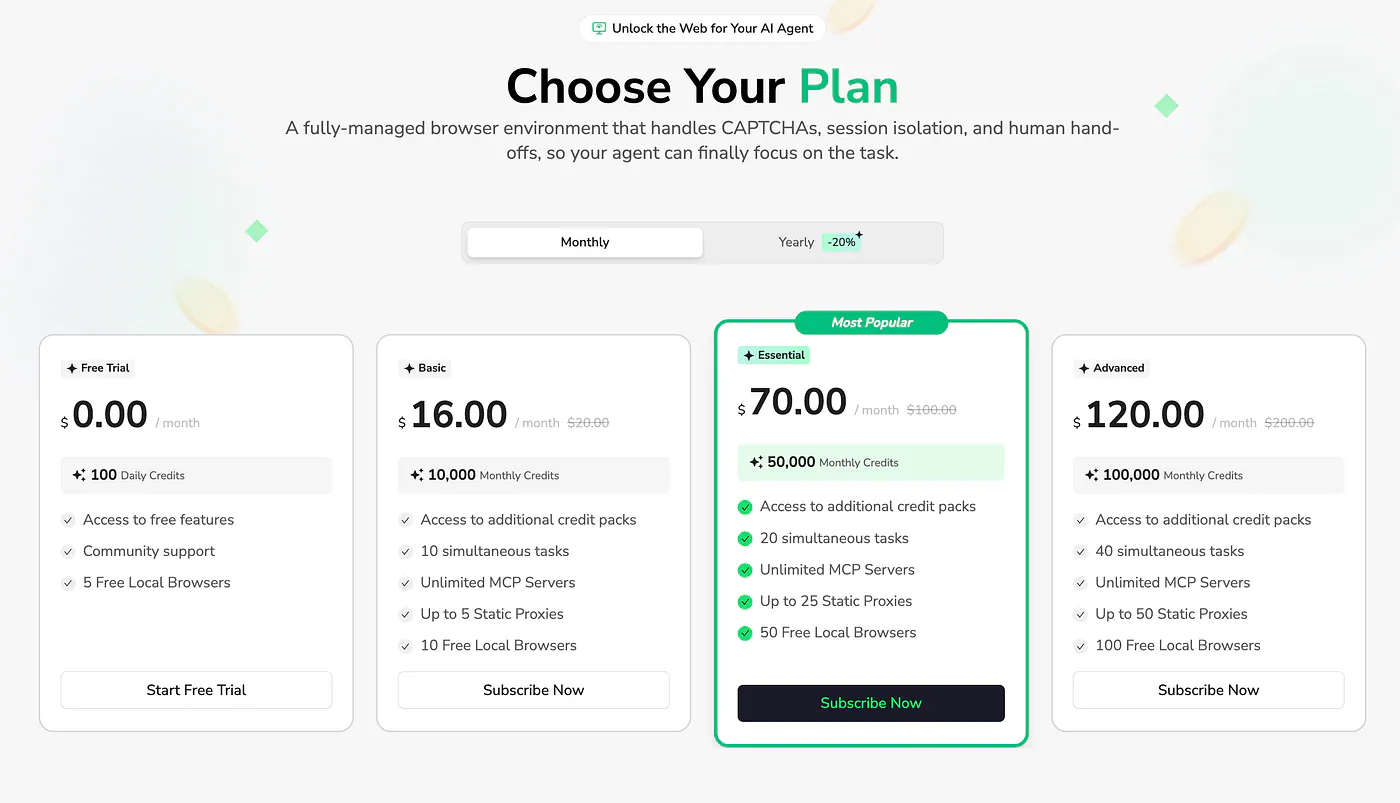
  4. Pricing — Free Trial ($0, 100 daily credits, 5 local browsers) → Basic $13/mo (10K credits, 10 tasks) → Essential $56/mo
  (50K credits, 20 tasks, most popular) → Advanced $96/mo (100K credits, 40 tasks). Yearly saves 20%. Pay-as-you-go from the
  credit pool: dynamic proxy ~$3.2/GB, static proxy by tier, workflow steps ~$0.0032 each; Cloud Browser TBD. No credit card for
  trial.

  5. Use cases for AI agents — large-scale scraping past Cloudflare (the Amazon bestsellers demo), turning any site into an API,
  authenticated dashboard workflows via reused Chrome login, isolated multi-account matrices, competitive monitoring/research,
  human-assisted 2FA flows, and embedding web abilities into products via API/MCP.

  One caveat worth noting: figures like "99%+ CAPTCHA success," "500M+ pages," and "10K+ concurrent sessions" are BrowserAct's
  own marketing claims from the homepage, not independently verified.
My thought here is that BrowserAct is very useful for writers who need live product data. A lot of AI tools update their pricing, model names, features, and limits all the time.
If you are writing a review or comparison article, you want to work from current pages, not old assumptions.
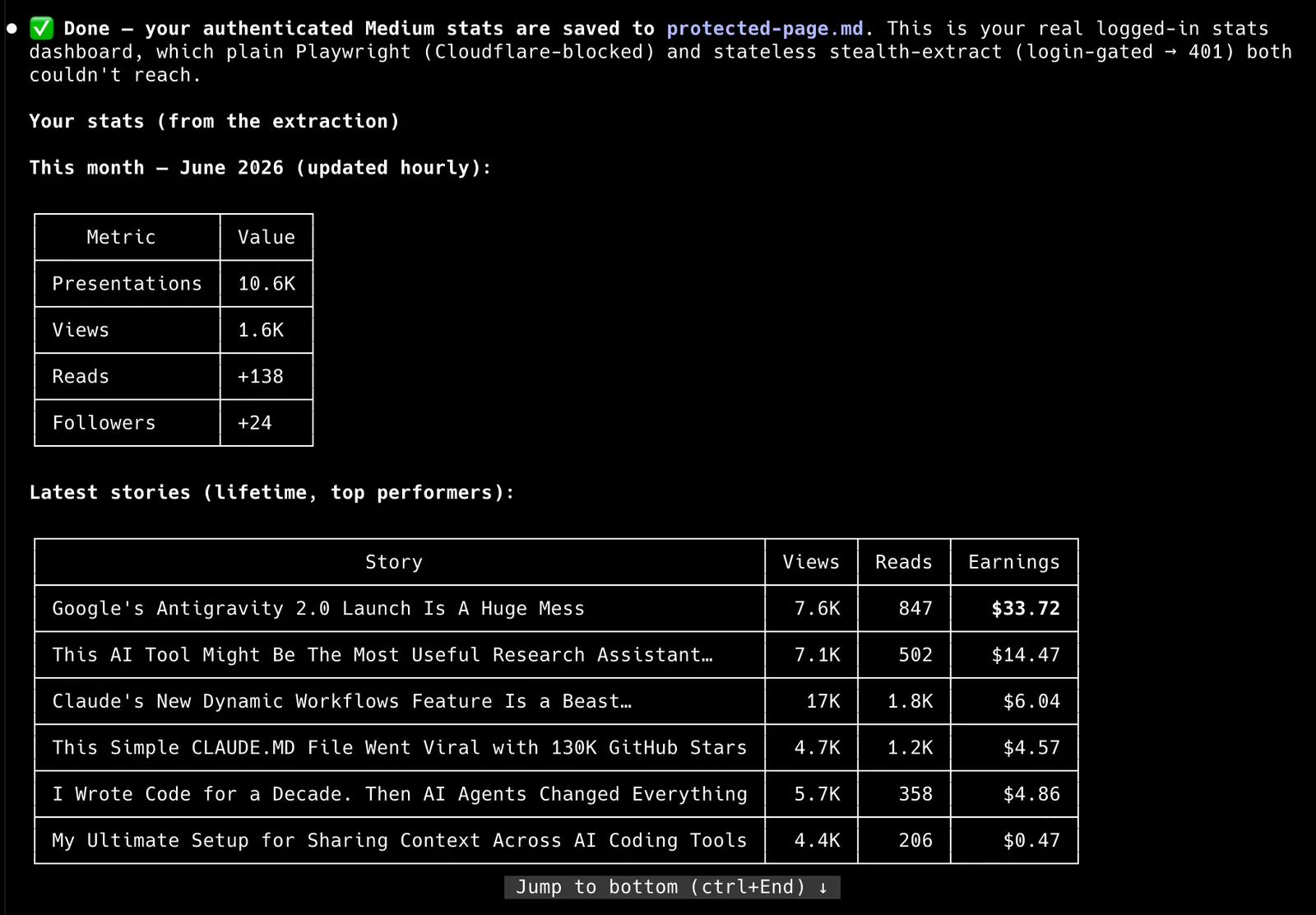
Example use case 2: Use Chrome to work with logged-in pages
The second example I would show is logged-in browser work.
This is where basic scraping tools usually fail because the page is behind an account. BrowserAct can help by importing a local Chrome profile into an isolated browser or controlling your current Chrome directly.
For example, let’s say I want the agent to open a dashboard I am already logged into and summarize the visible data.
First, list profiles:
# Find the local Chrome profile that contains the login state you need.
browser-act browser list-profiles
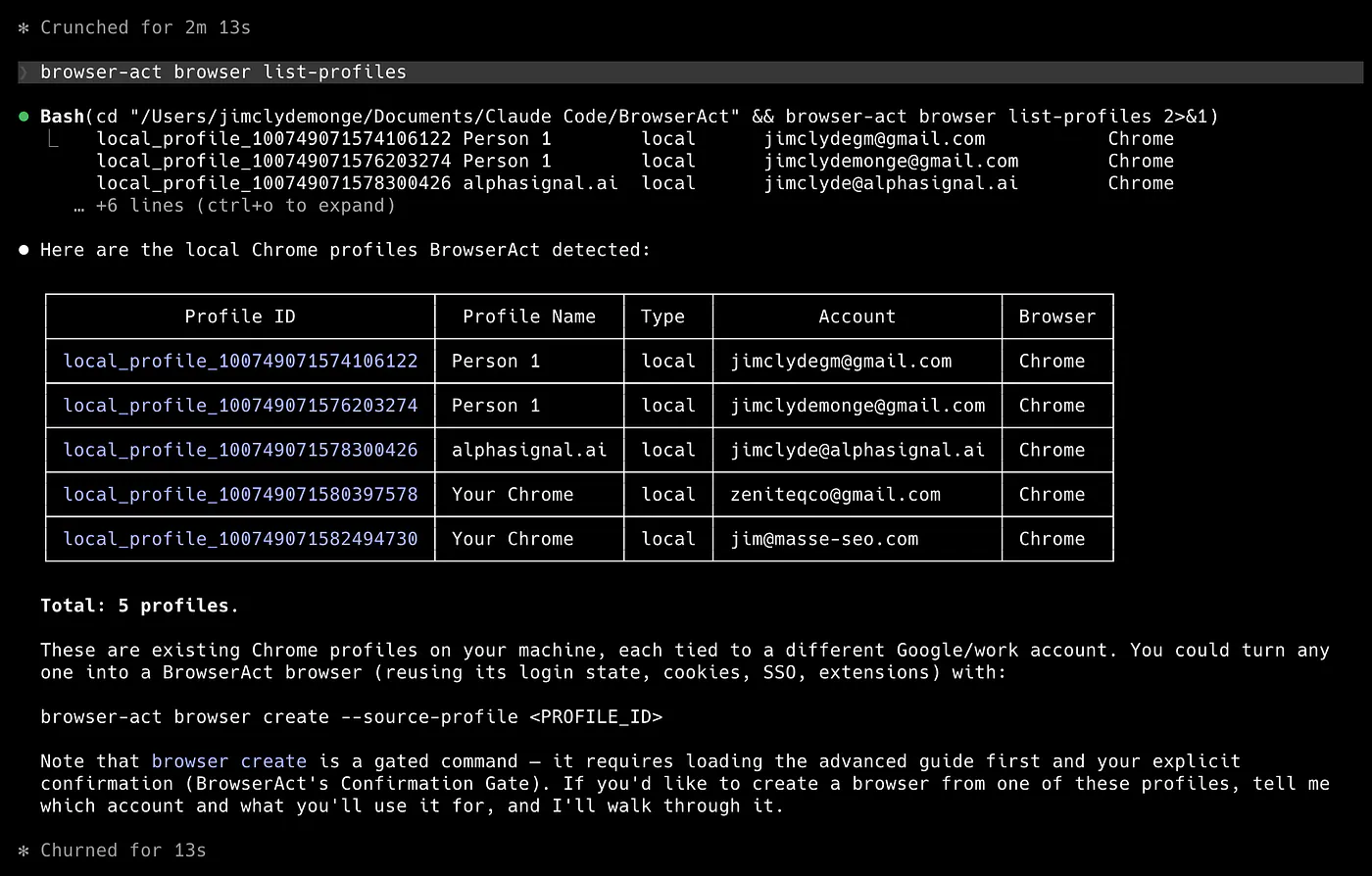
Use Chrome to work with logged-in pages. Image by Jim Clyde Monge
Then create a Chrome browser from that profile:
# Create a BrowserAct-managed Chrome browser from the selected local profile.
browser-act browser create \
  --type chrome \
  --name "dashboard-research" \
  --desc "Logged-in Chrome profile for dashboard research" \
  --source-profile <profile_id>
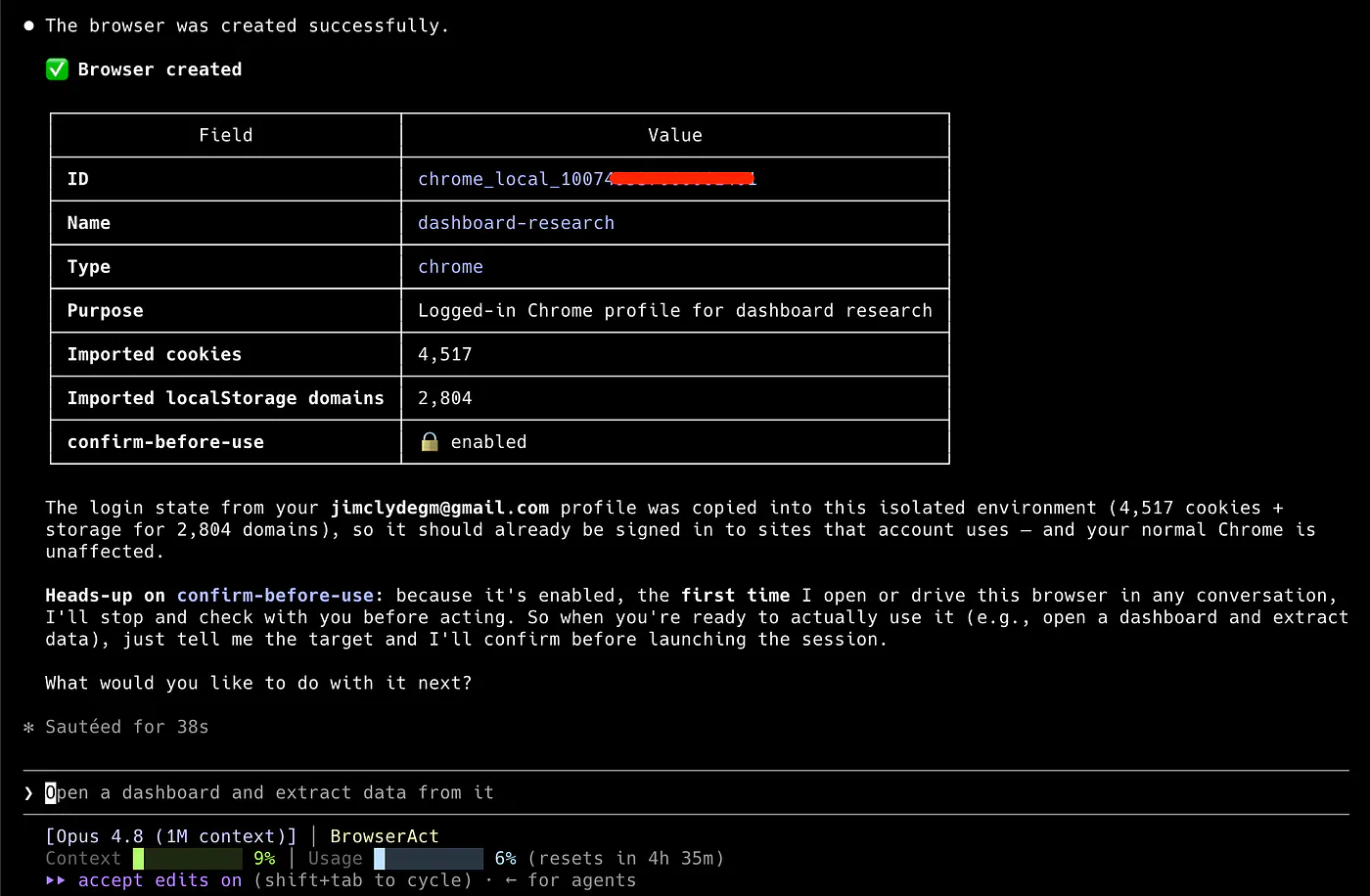
Use Chrome to work with logged-in pages. Image by Jim Clyde Monge
Then use it:
# List BrowserAct browsers and copy the browser ID you want to use.
browser-act browser list
# Open the logged-in dashboard in a named session.
browser-act --session dashboard-check browser open <browser_id> https://example.com/dashboard
# Read the current page state.
browser-act --session dashboard-check state
Prompt for Claude Terminal:
Use BrowserAct with my logged-in Chrome browser called "dashboard-research."
Open the dashboard page, inspect the visible page state, and summarize the key numbers.
Do not click destructive buttons.
If the page asks for 2FA or a manual verification step, use remote assist and wait for me to complete it.
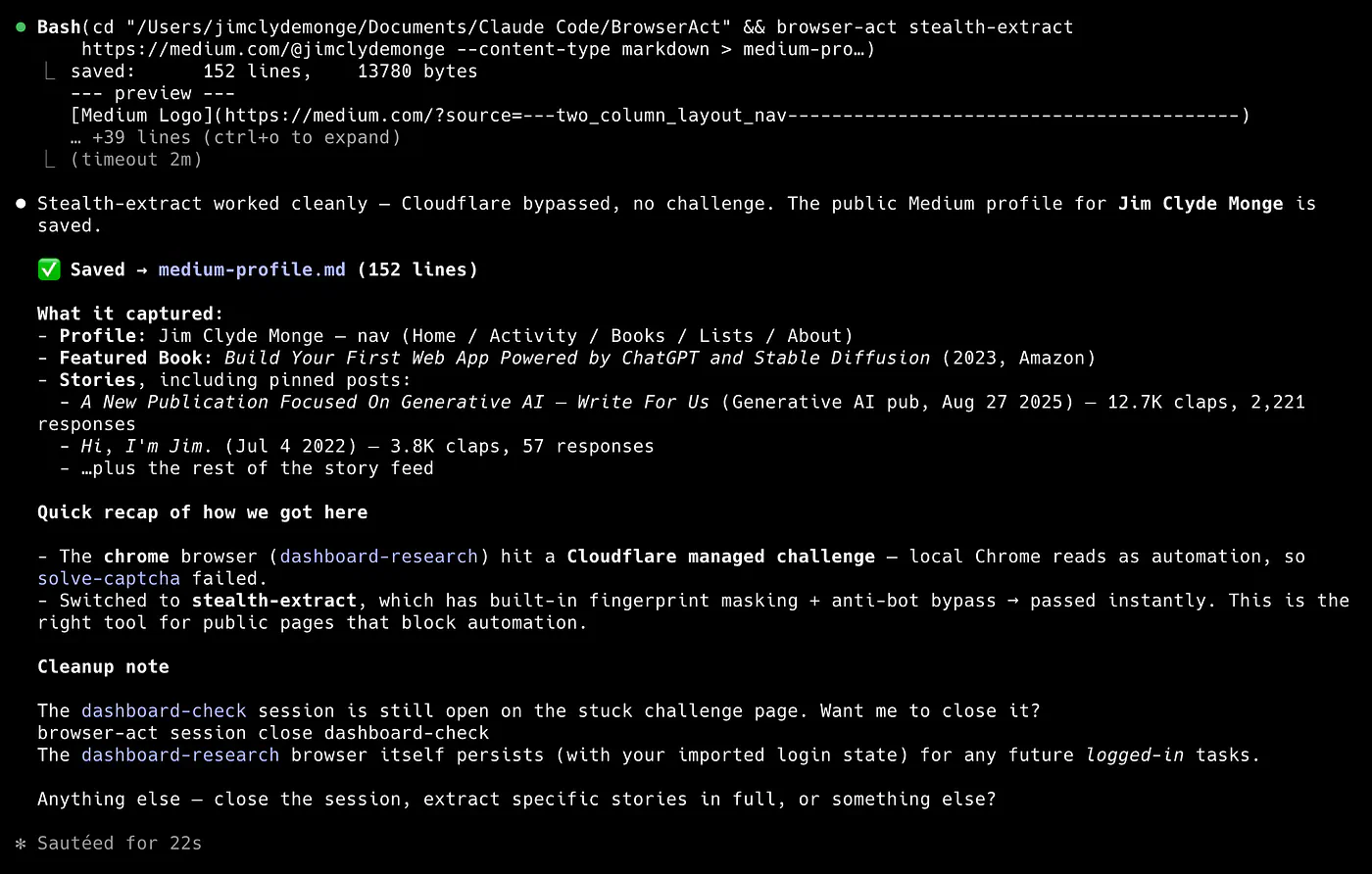
Use Chrome to work with logged-in pages. Image by Jim Clyde Monge
This is a good example because it shows the more practical side of BrowserAct.
A lot of business workflows happen inside logged-in dashboards. Analytics tools, ad platforms, content management systems, SaaS admin panels, project management tools, and internal portals all live behind accounts.
A normal search tool cannot access those. A normal scraper should not be given raw credentials. BrowserAct gives the agent a browser-based path that can reuse existing login state and keep the task more controlled.
I would still be careful here. I would not tell an agent to roam freely inside sensitive accounts. I would give it a narrow task, ask it to avoid destructive actions, and use confirm-before-use for sensitive browsers when needed.
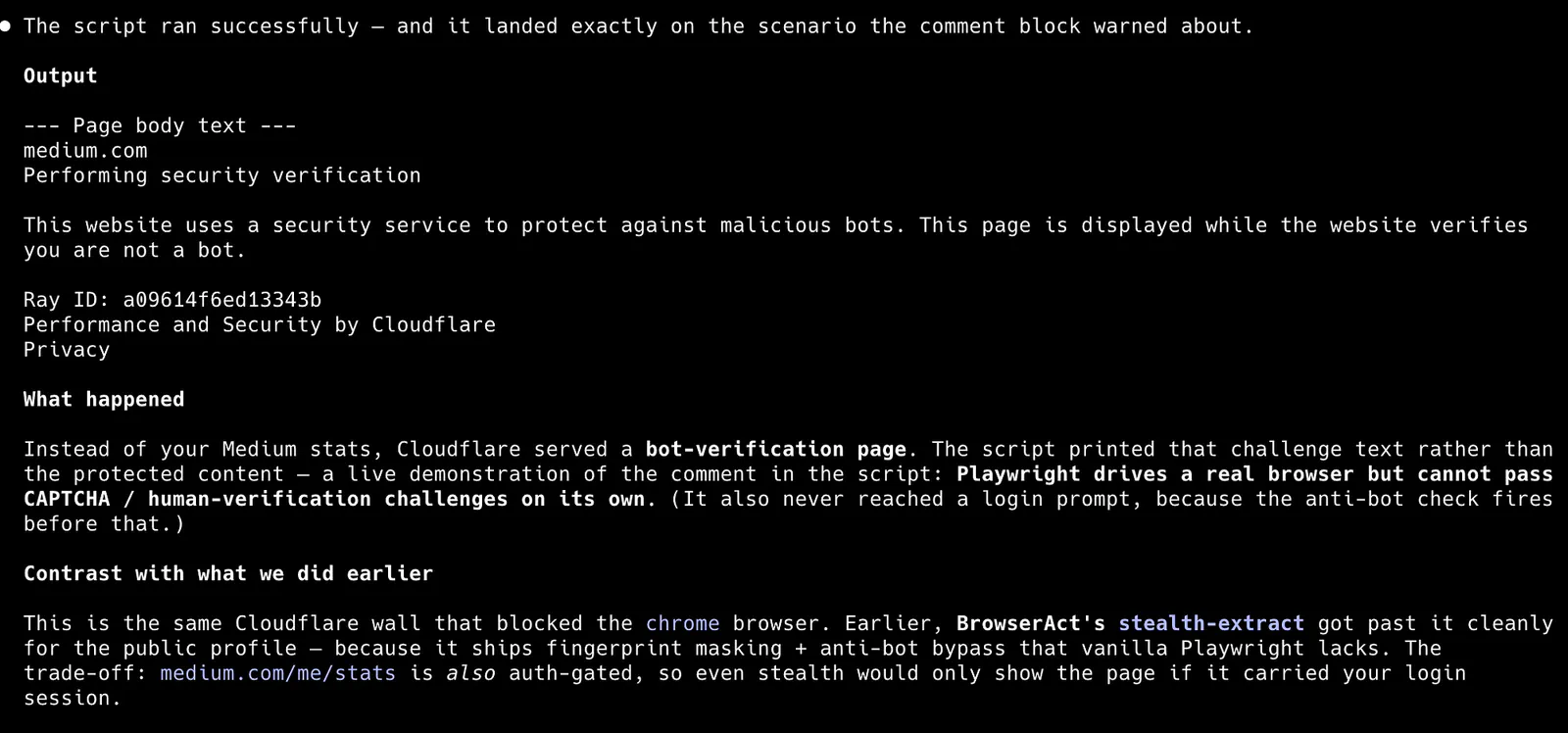
Example use case 3: Getting through human verification when standard automation fails
One practical difference between BrowserAct and a standard browser automation tool is how it handles human-verification challenges.
A normal automation script can open a page, wait for it to load, and click a few buttons. But once the website shows a CAPTCHA, bot check, or manual verification screen, the workflow often stops there.
For example, a simple Playwright-style script might look like this: