As a business owner and software engineer who creates and edits contracts and design documents regularly, having a reliable PDF editor is a must. Sometimes I need to review an entire document. Other times, I just want to change a sentence without turning it into a whole afternoon of work.
For most of my 15 years of work experience, I’ve used Adobe Acrobat and Apple’s Preview for PDF-related tasks. But over the past couple of months, I’ve switched to a tool called UPDF.
It covers the usual doc editing, and there’s an AI assistant for working through the contents of a document too.
I haven’t shared it with my readers until now because I wanted a better reason than “here’s another PDF editor.” After looking more closely at its AI features, I thought there was enough to talk about, especially for people who spend as much time reading documents as editing them.
So, let me walk you through the app, the features I care about, and a few examples you can try yourself.
We’ll cover the regular PDF tools as well, because a summary won’t fix the outdated screenshot sitting on page seven.
Let’s get started.
What Is UPDF?
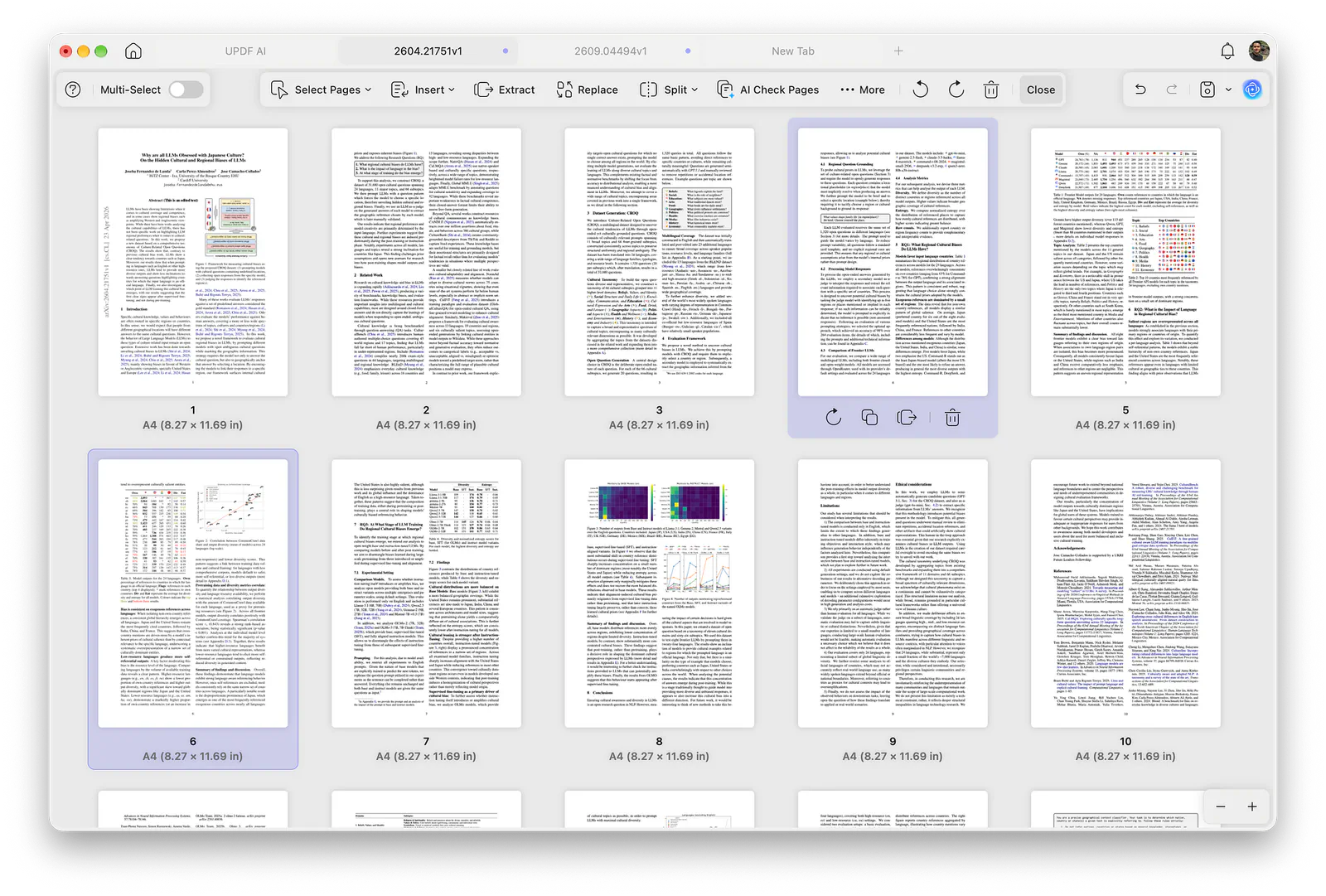
UPDF is a complete PDF application for reading and working on documents. You can edit its contents, mark up a draft, convert files, recognize text in scans, and organize pages.
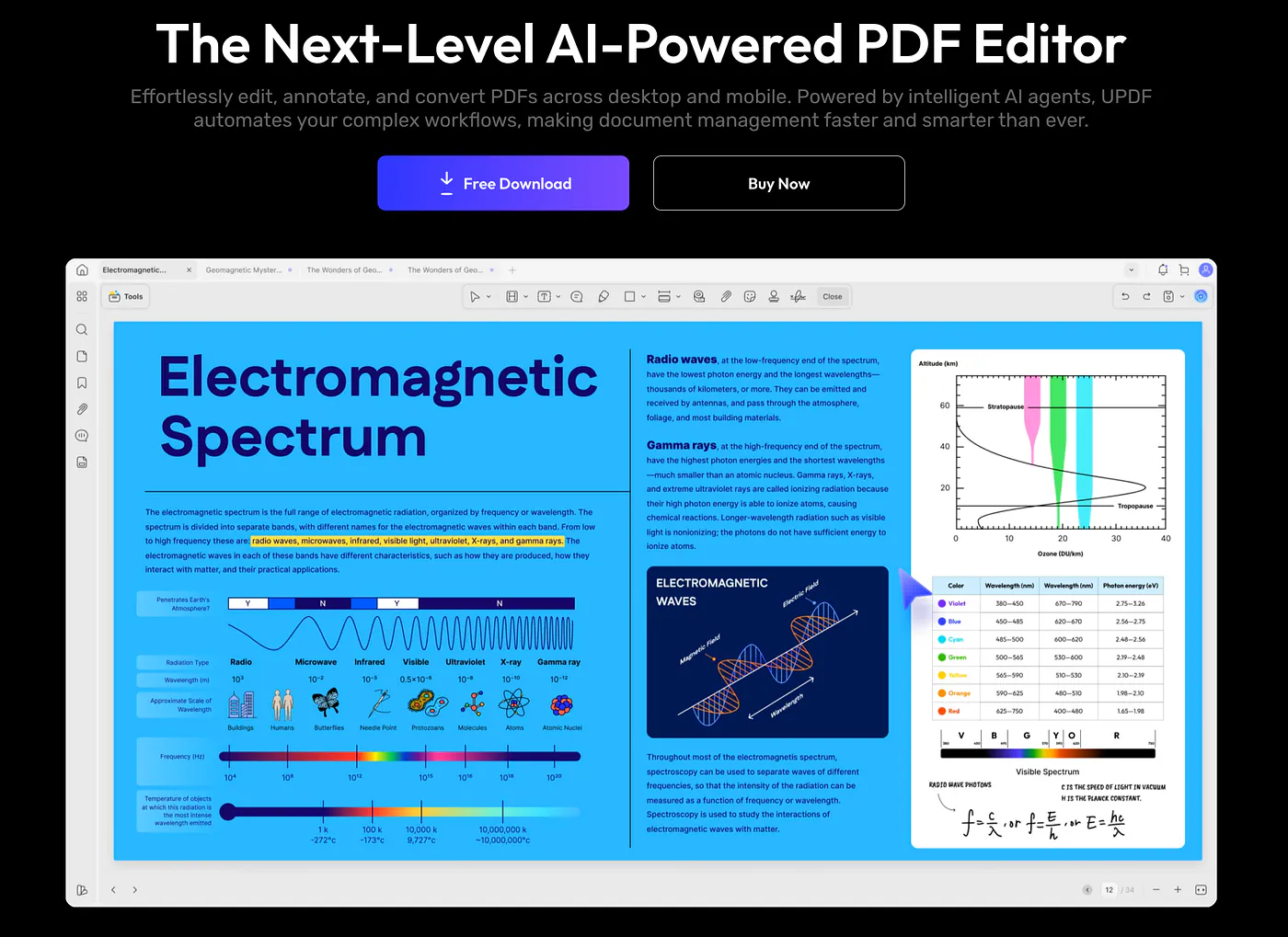
The application is available for Windows, macOS, iOS, and Android, although feature availability varies between desktop and mobile.
Here are the key features:
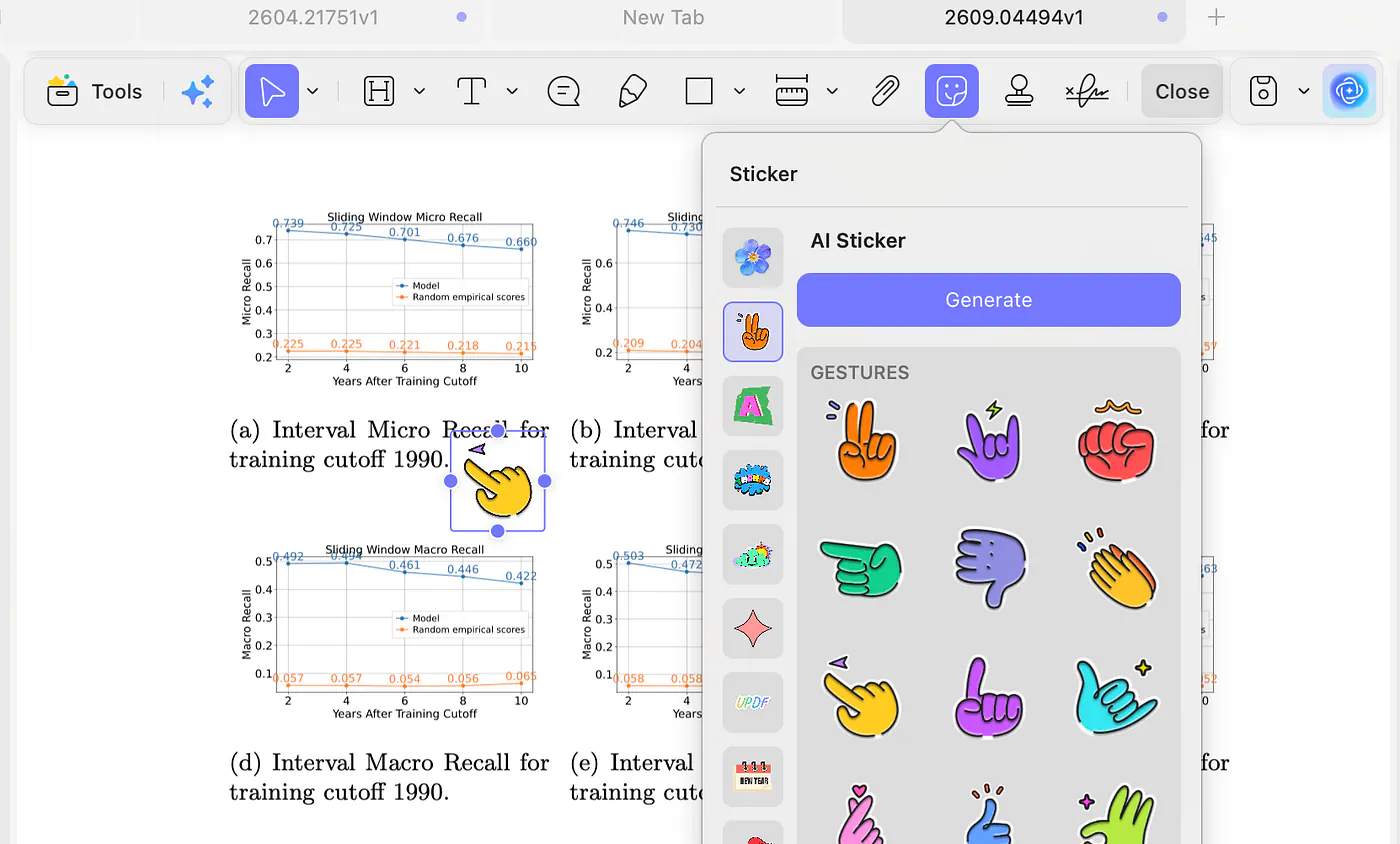
- PDF editing and review: Edit existing text, work with images and links, add comments, highlight passages, and annotate documents.
- Conversion and document management: Convert PDFs into other formats, perform OCR on scans, rearrange or extract pages, combine files, and handle forms and document protection.
- UPDF AI: Chat with PDFs, summarize sections, translate passages, explain unfamiliar content, and analyze documents through the app or online assistant.
That combination is why I’m interested in it. A lot of document work happens after you understand what a file says. You still need to correct something, leave feedback, or prepare a version someone else can use.
Imagine receiving a project proposal. You might want an overview before reading closely, then comments beside two unclear requirements, followed by a corrected contact address.
Those are different jobs, but they all belong to the same document.
By the way, UPDF is packed with tons of features. You can explore all of them in the Core Features submenu.
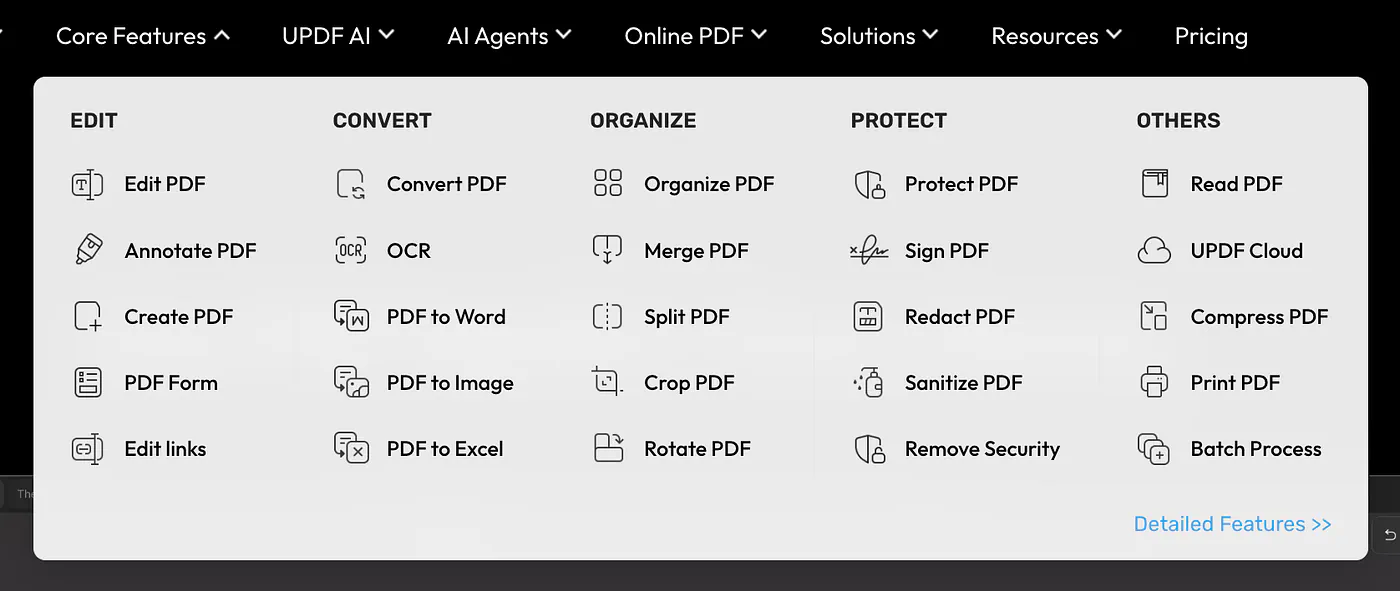
I can’t talk about all of them in this post, but if there’s enough interest, I will share my thoughts and experience on all of its core features in future articles.
Getting Started with UPDF
Head to the UPDF website and choose the download for your device. For this guide, I’d start with the desktop application so you can follow the editing and document-management examples on a larger screen.
On Windows, open the downloaded .exe file and follow the installation instructions. On Mac, open the download and follow the Mac installer prompts. Launch the app, create an account or sign in, and open a PDF you’re comfortable experimenting with.
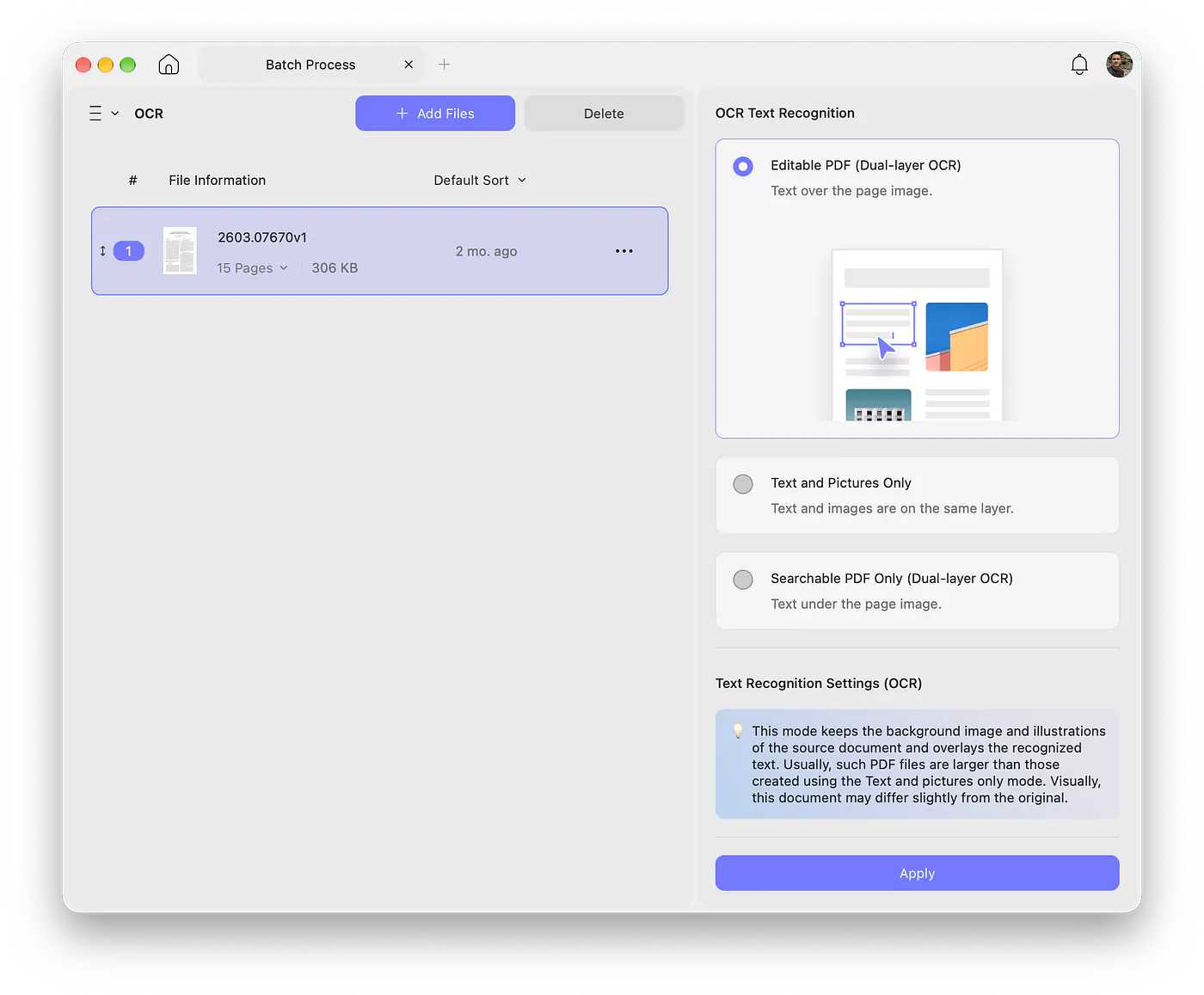
One detail for Mac readers: UPDF’s installation guide says the Mac App Store version currently lacks the dedicated OCR feature. Download the website version when OCR is part of what you want to try, and check compatibility with your Mac.
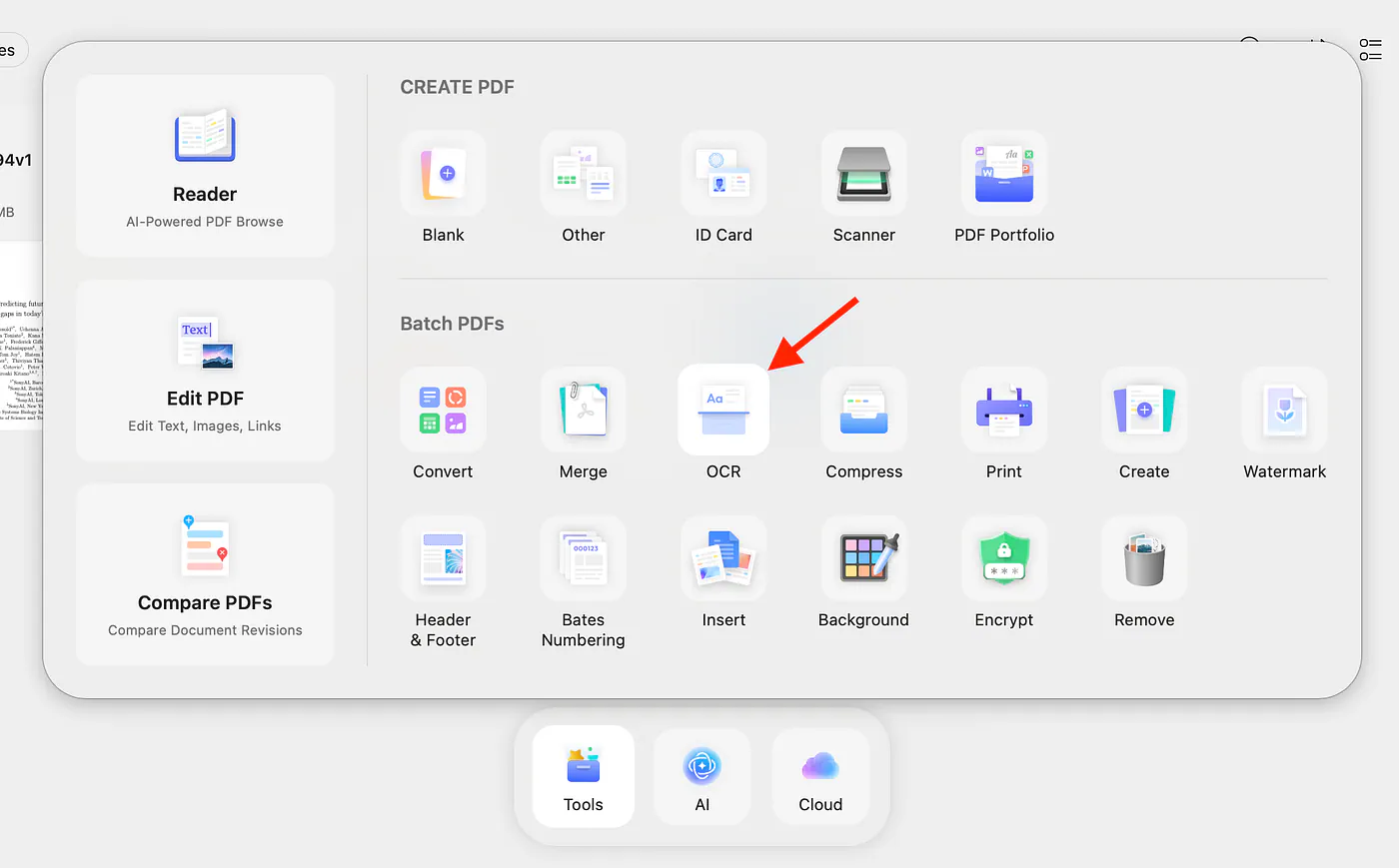
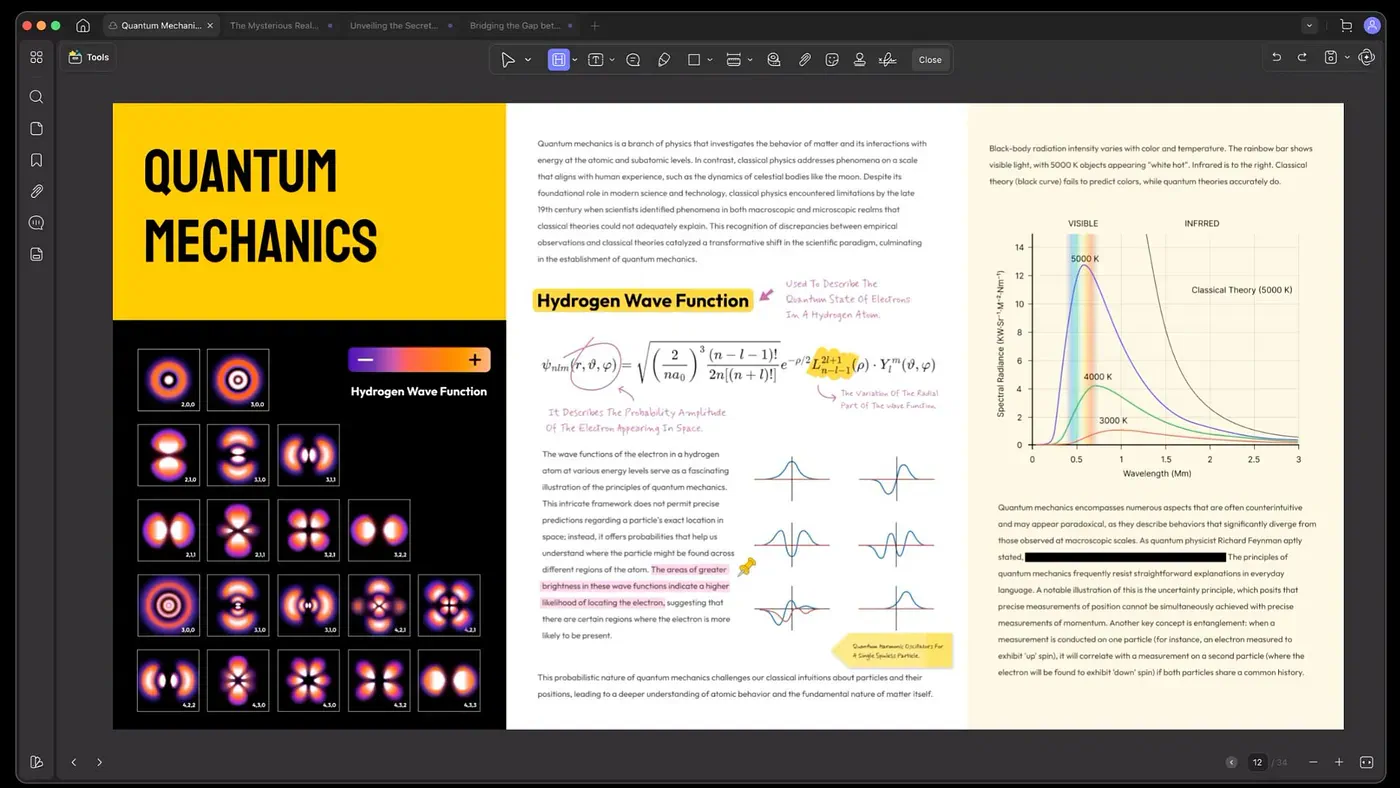
This is what the desktop app looks like on a Mac:
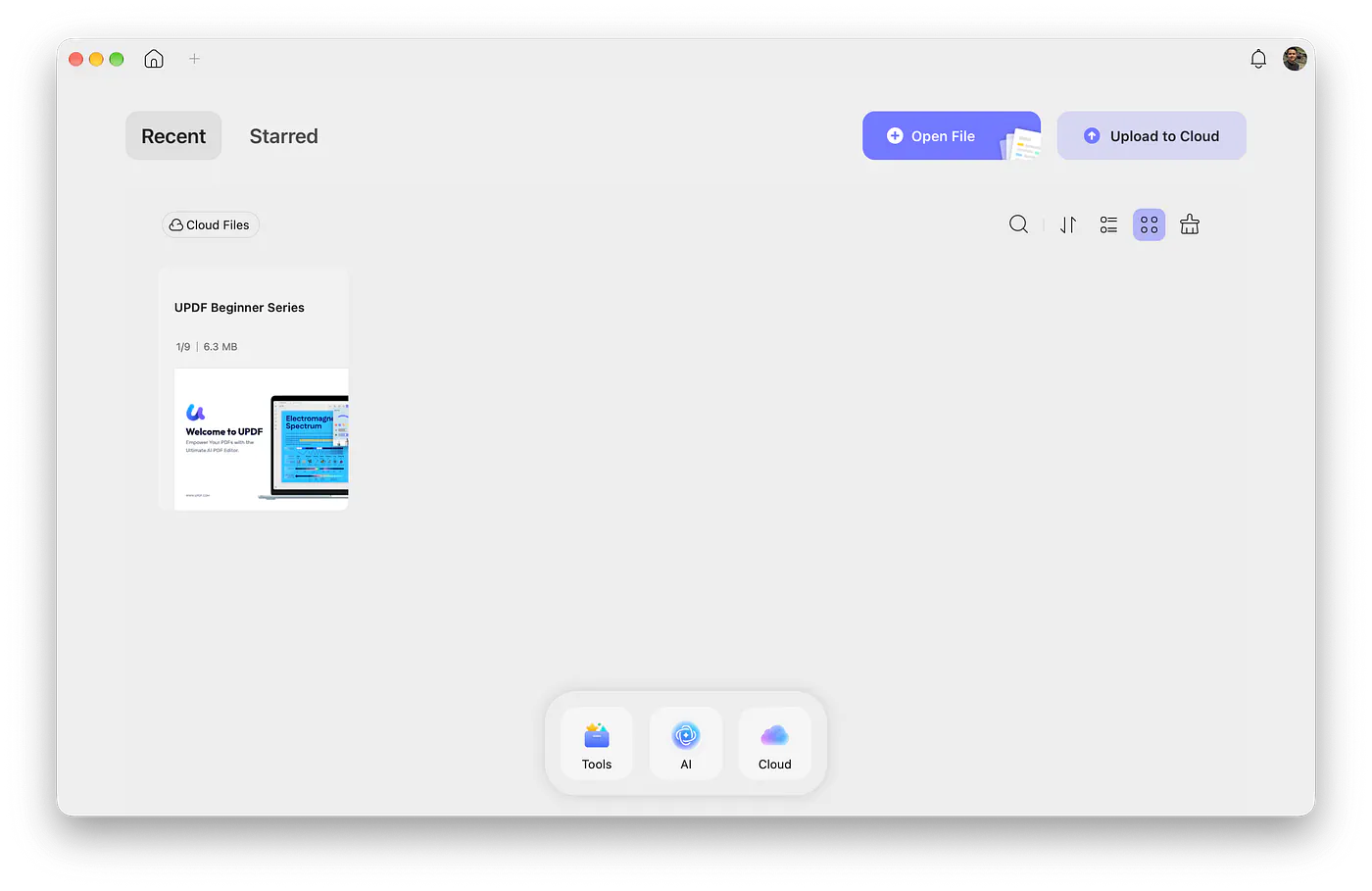
Start with a copy of a document. Change a heading, highlight a paragraph, then save it under a different name. That gives you a quick feel for editing and annotation before you bring a client’s contract into the picture.
Also, free download doesn’t mean unrestricted editing. UPDF’s free-version limitations include watermarks on saved files and limits on features such as conversion and OCR. It’s useful for trying the app, but check the export before sending anything to someone else.
To try only the assistant, open UPDF AI Online in your browser. You don’t need to install the desktop editor for that route.
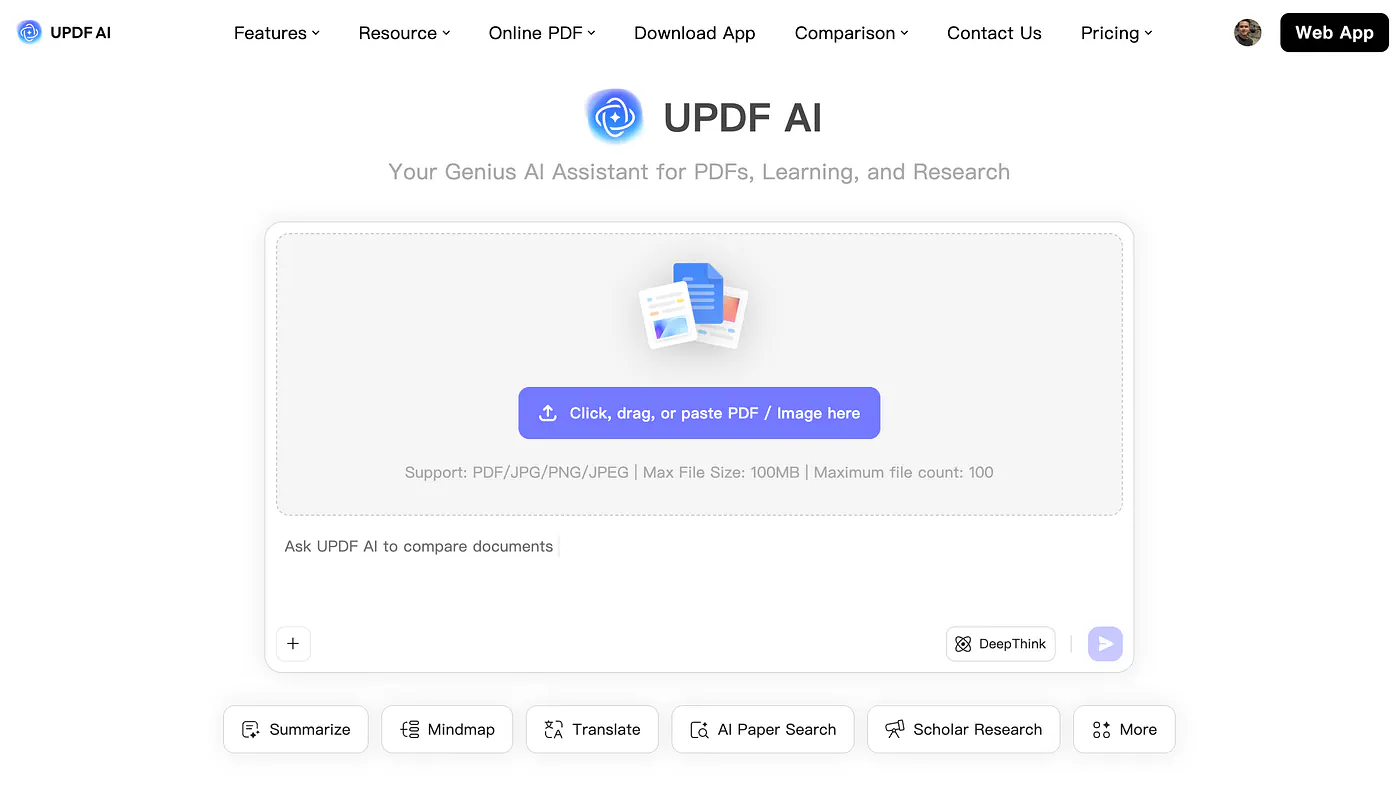
Just remember that asking questions about a PDF online and editing its actual page contents are separate tasks.
UPDF AI Lets You Ask the Document
Perhaps one of the most useful features of any PDF reader app is an AI chat tool. UPDF AI supports document questions, summaries, translation, and explanations, so you can follow up on something while you’re reading.
Inside the desktop app, open a PDF and select the AI Assistant icon.
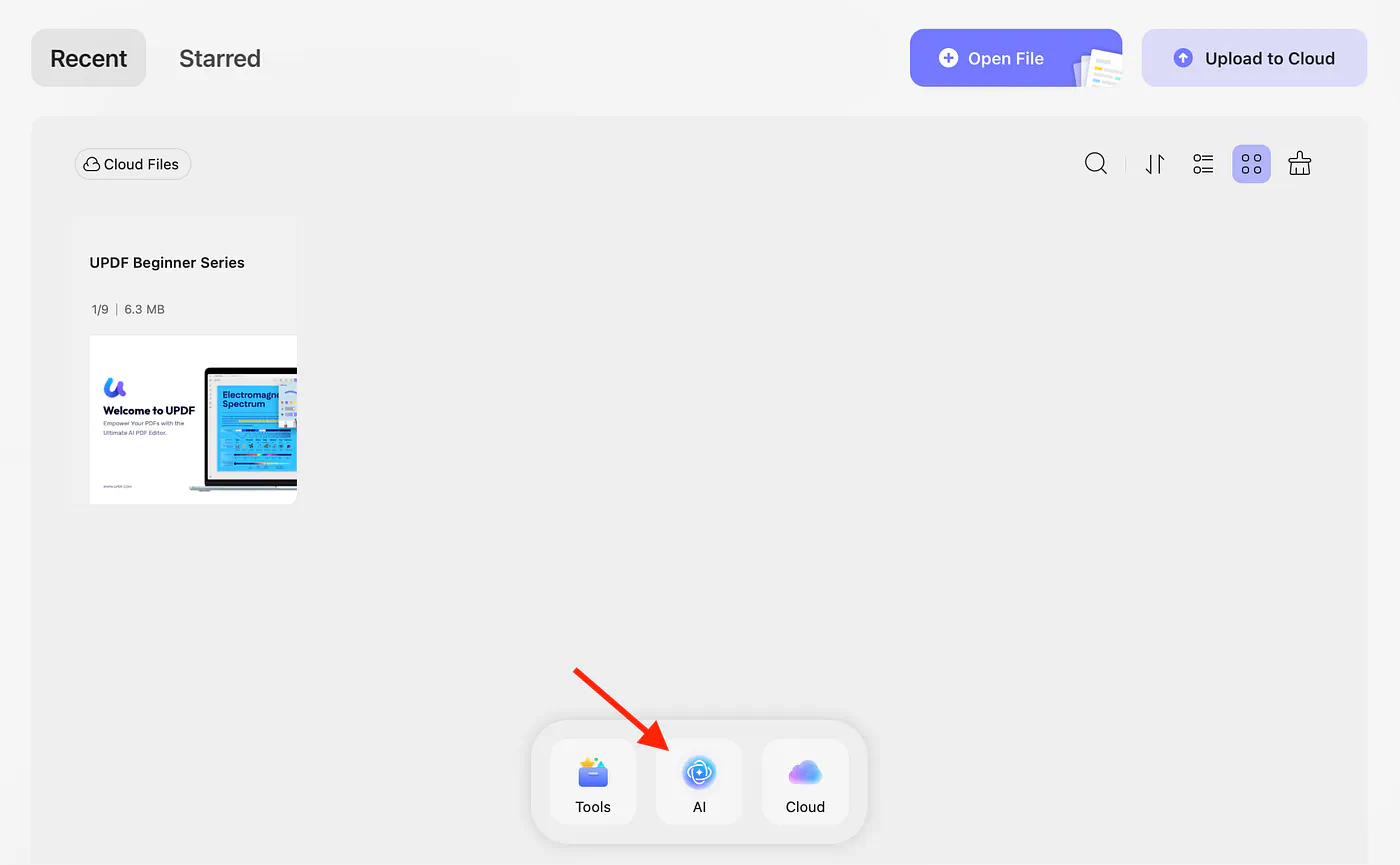
Choose Ask PDF, then Chat with PDF to work with the open document. The AI assistant guide distinguishes this document mode from general chat, which is important when your question is about a particular file.
For this demo, let’s use an actual AI research paper titled Why are all LLMs Obsessed with Japanese Culture? On the Hidden Cultural and Regional Biases of LLMs.
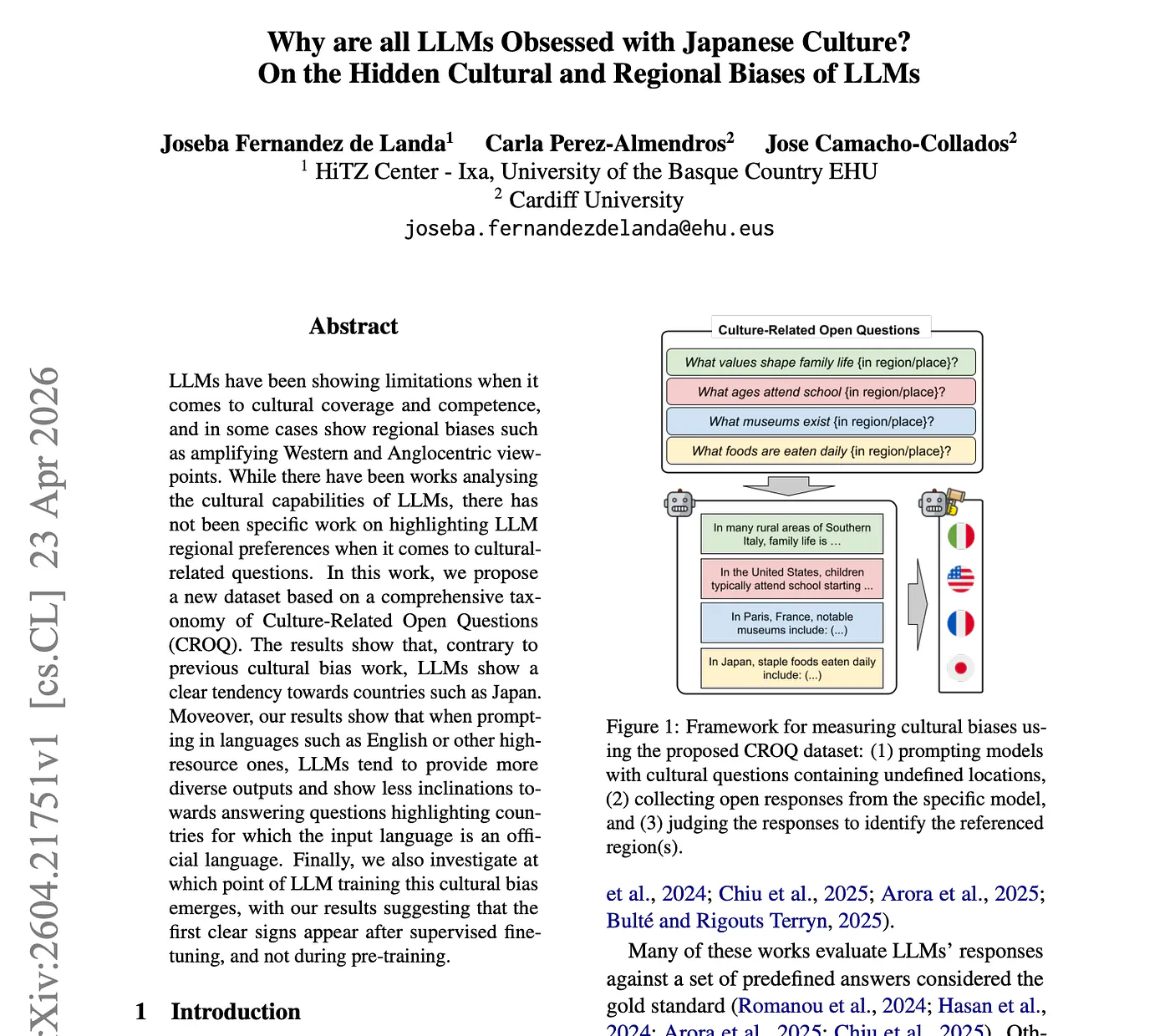
The paper investigates why large language models tend to favor certain countries and cultures when answering open-ended questions. The researchers tested eight LLMs using a dataset of 31,680 cultural questions across 24 languages. Interestingly, Japan emerged as one of the most frequently referenced countries.
It’s an interesting study, but reading through the methodology, tables, and findings takes time. Let’s see how UPDF AI handles it.
First, download the research paper and open it in UPDF. Then, start with this prompt:
Prompt: Summarize the main findings of this research paper in simple terms. Why do LLMs tend to favor Japanese culture? Explain the research methodology and key conclusions without using complicated academic language.
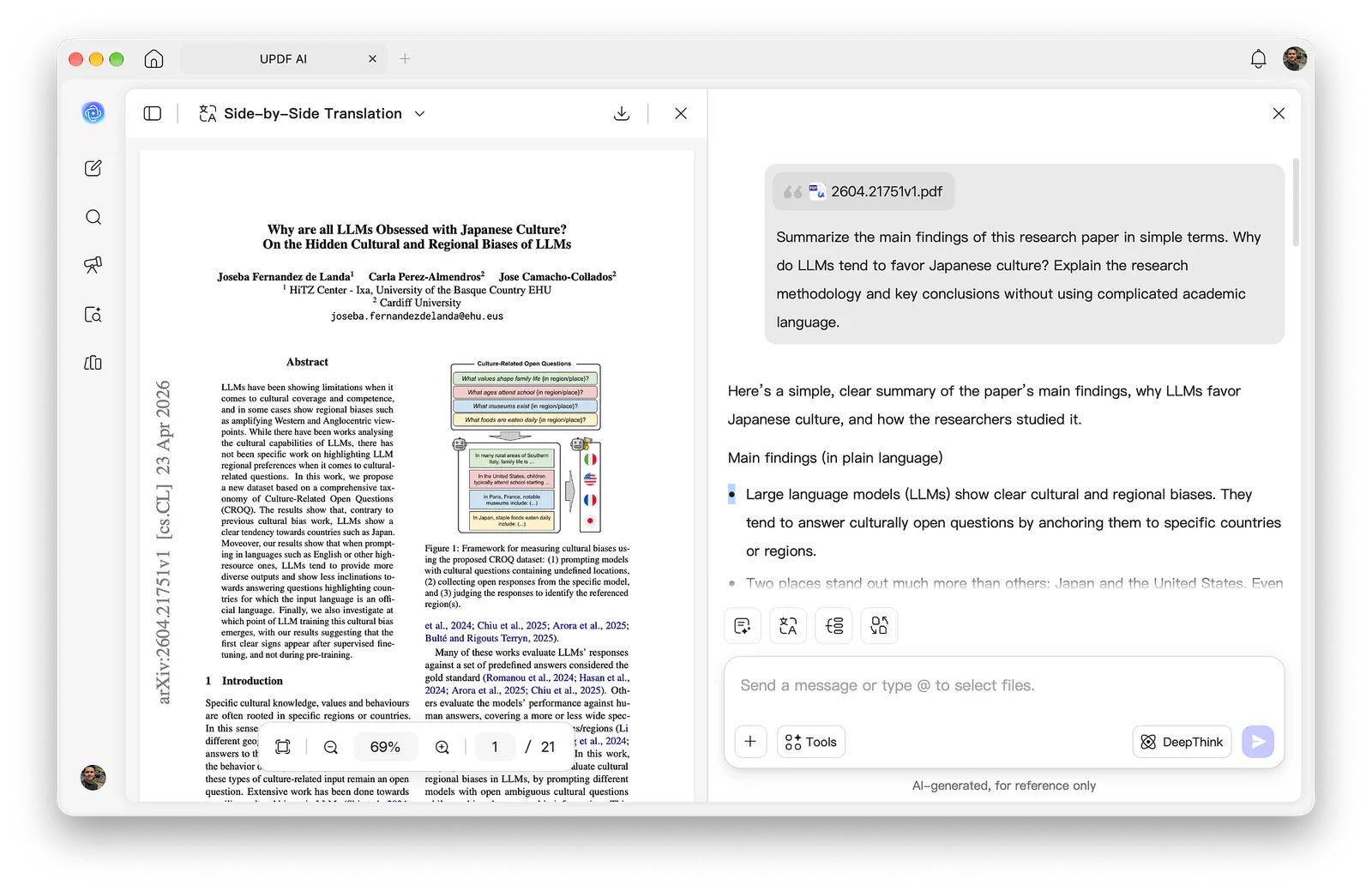
For this sample, a good answer should explain that the researchers found a recurring preference for Japan and the United States in model-generated cultural references. It should also mention that the language used in a prompt affects which countries appear in the responses.
More importantly, the assistant shouldn’t invent a definitive explanation for Japan’s popularity. The paper provides evidence of cultural preferences and investigates how they develop, but that doesn’t mean it proves exactly why Japan is favored.
Here’s a snippet of the output:
Main findings (in plain language)
Large language models (LLMs) show clear cultural and regional biases. They tend to answer culturally open questions by anchoring them to specific countries or regions.
Two places stand out much more than others: Japan and the United States. Even when the question is asked in many different languages, models often pick Japan or the U.S. as the cultural context.
Models usually try to ground answers in the region tied to the language of the prompt (for example, Spanish prompts often lead to Spain or Latin American countries). But when they pick a region outside the prompt’s language, Japan and the U.S. dominate.
These biases become stronger after the model goes through supervised fine-tuning and alignment steps (the post-training steps where models are taught to follow instructions and sound helpful). The raw base models are more geographically balanced; later training concentrates answers on a few popular regions.
Languages with more internet data (high-resource languages) lead to more diverse regional references. Low-resource languages get more self-referential answers.
This is an example where I find AI-assisted PDF reading useful. Instead of spending time decoding academic language, I can get a quick overview and decide which sections deserve a closer look.
Now, let’s ask something more specific:
Prompt: According to the paper, at what stage of LLM training do cultural biases begin to emerge? Does the research suggest these biases originate during pre-training or supervised fine-tuning? Explain the evidence.
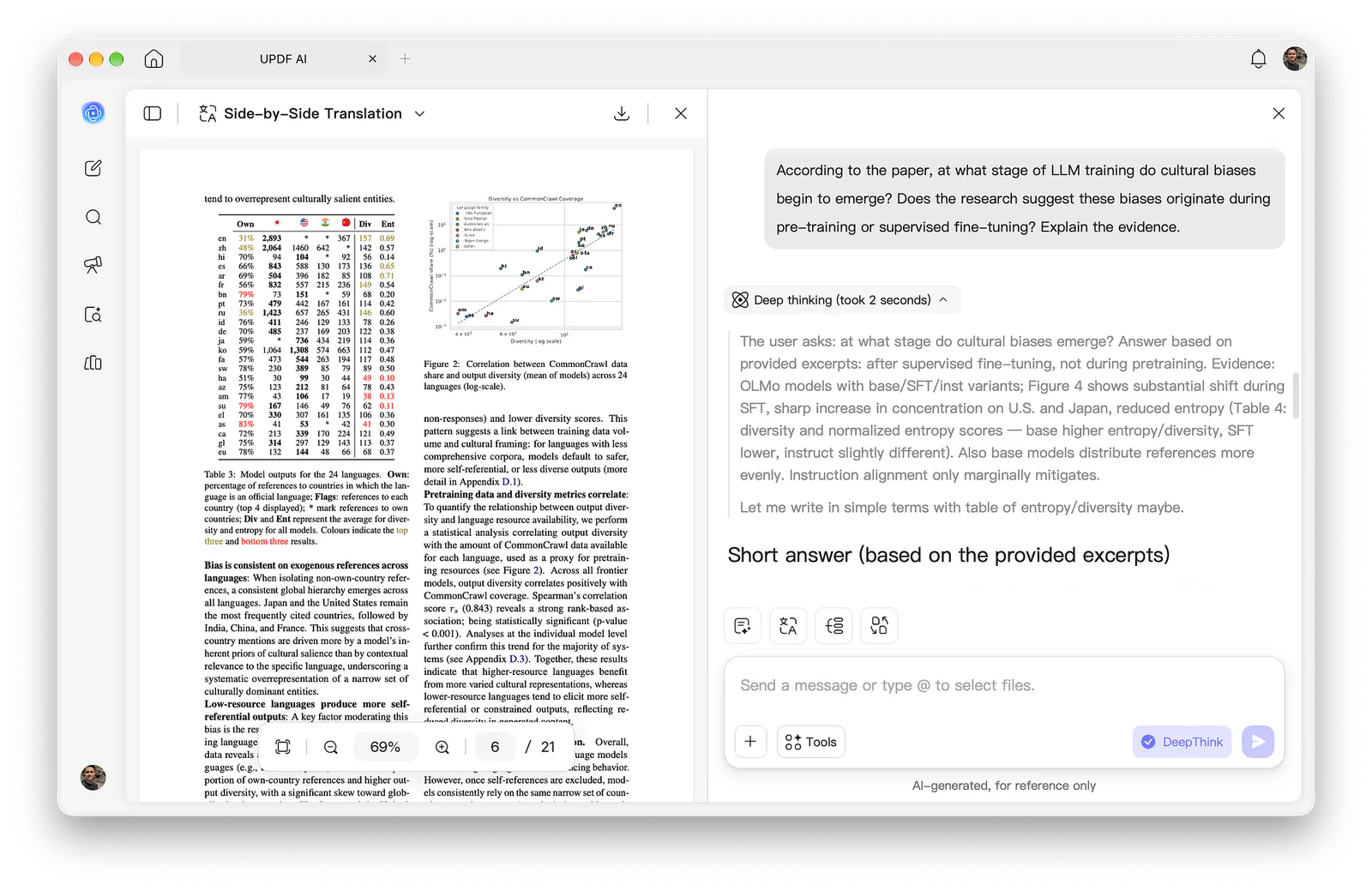
Notice that I have enabled the DeepThink option. This gives the assistant more time to reason through a complex question like this one and produce a more structured answer.
Here’s a snippet of the output:
Short answer (based on the provided excerpts)
According to the paper, the cultural bias does not originate during pre-training.
It emerges mainly during supervised fine-tuning (SFT) — the stage before the final instruction/alignment tuning.
The paper states plainly: “the first clear signs appear after supervised fine-tuning, and not during pre-training.”
Later instruction alignment only marginally mitigates the effect and does not restore the more balanced behavior seen in base models.
The researchers investigated this question by comparing models at different training stages. Their findings suggest that the first clear signs of these cultural preferences emerge after supervised fine-tuning, rather than during pre-training.
I like asking these follow-up questions because research papers often contain important qualifications that get lost in short summaries. An AI assistant is more useful when it helps you identify those details rather than simply repeating the abstract.
For longer research papers, I’d use the same approach to examine experimental results, compare model performance, or locate specific findings without manually searching through dozens of pages.
UPDF AI also supports explaining selected content and translating text. I’d use explanations for a dense technical paragraph before asking for a rewrite. Understanding what the author intended should come before making their wording prettier.
The online version has another useful distinction: it supports multi-file chat through collections. The integrated app assistant currently works with the open PDF. Keep that in mind when you want to compare several research papers rather than examine one document.
Editing PDFs Without Rebuilding the Document
Okay, let’s fix something in the file itself. Say you’ve received a proposal with an outdated company name and an old product screenshot. The content is mostly fine, so rebuilding the entire document would be a bit much.
UPDF’s Edit PDF feature covers these jobs.
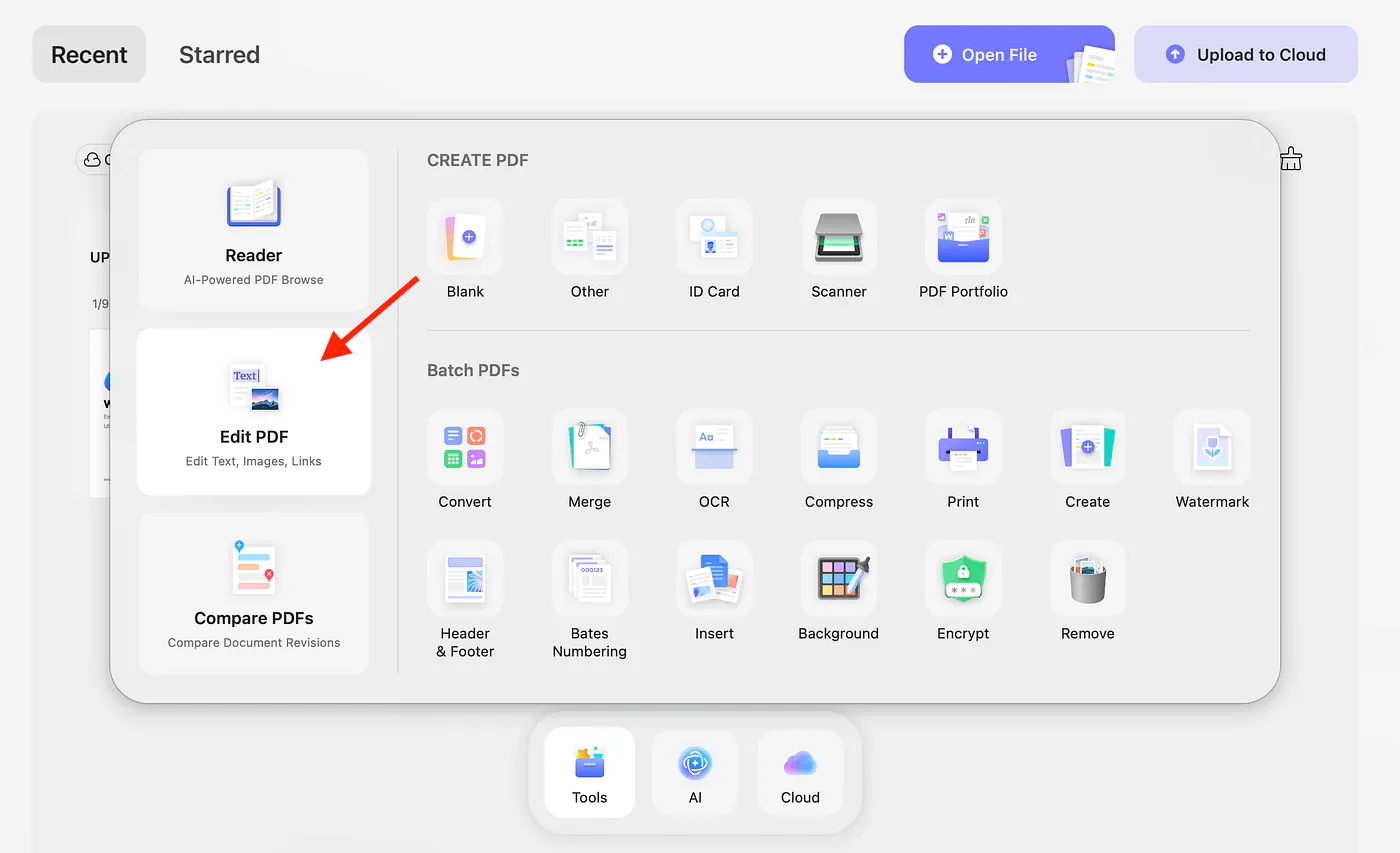
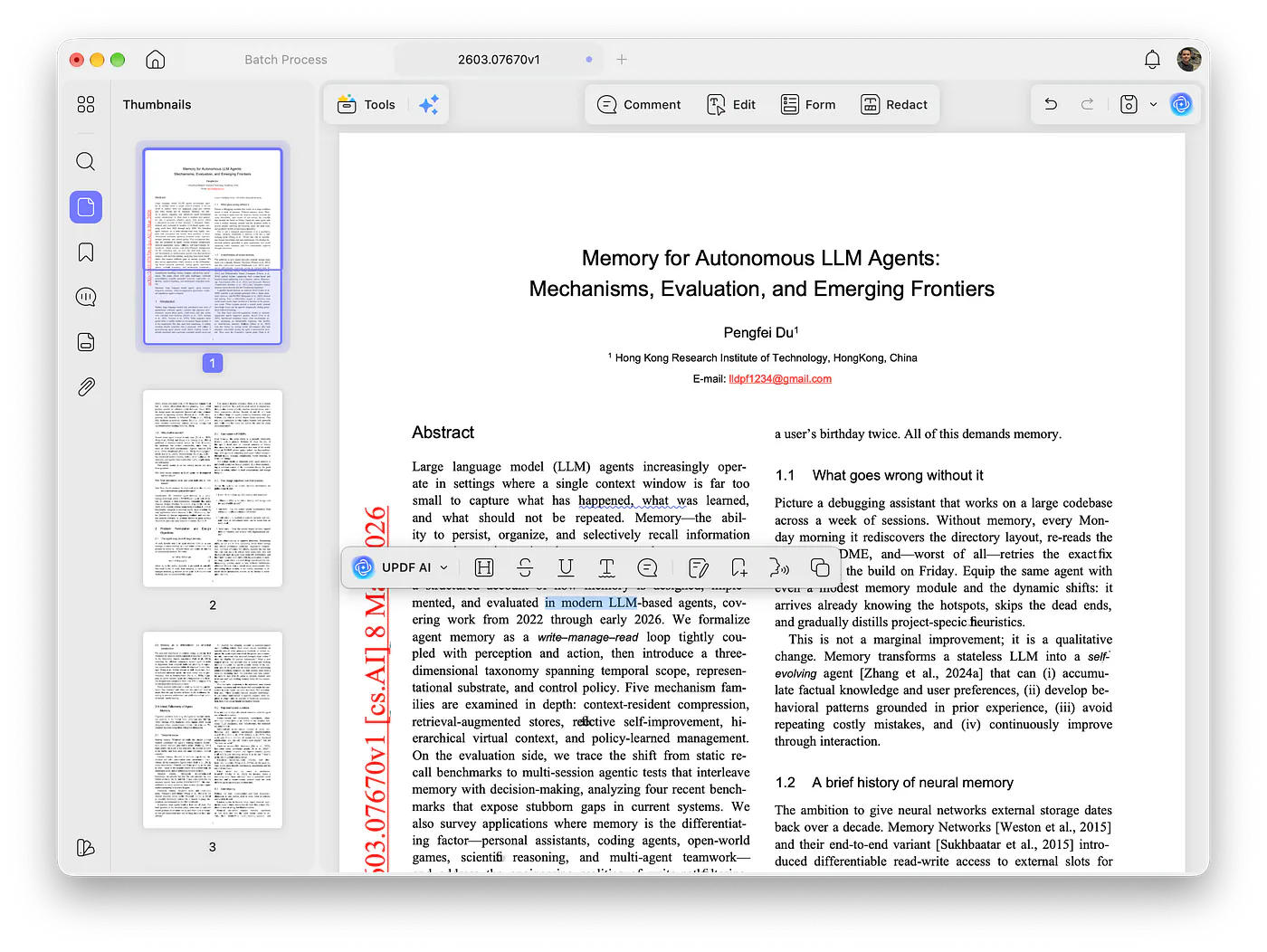
For a straightforward text correction, open the PDF, go to Tools → Edit, and select the line or paragraph you want to change. UPDF’s Mac text-editing guide shows controls for the font, size, color, alignment, and spacing, along with moving and resizing text boxes.
Replace any text, then click away and look at the whole paragraph. A longer name can push text onto another line.
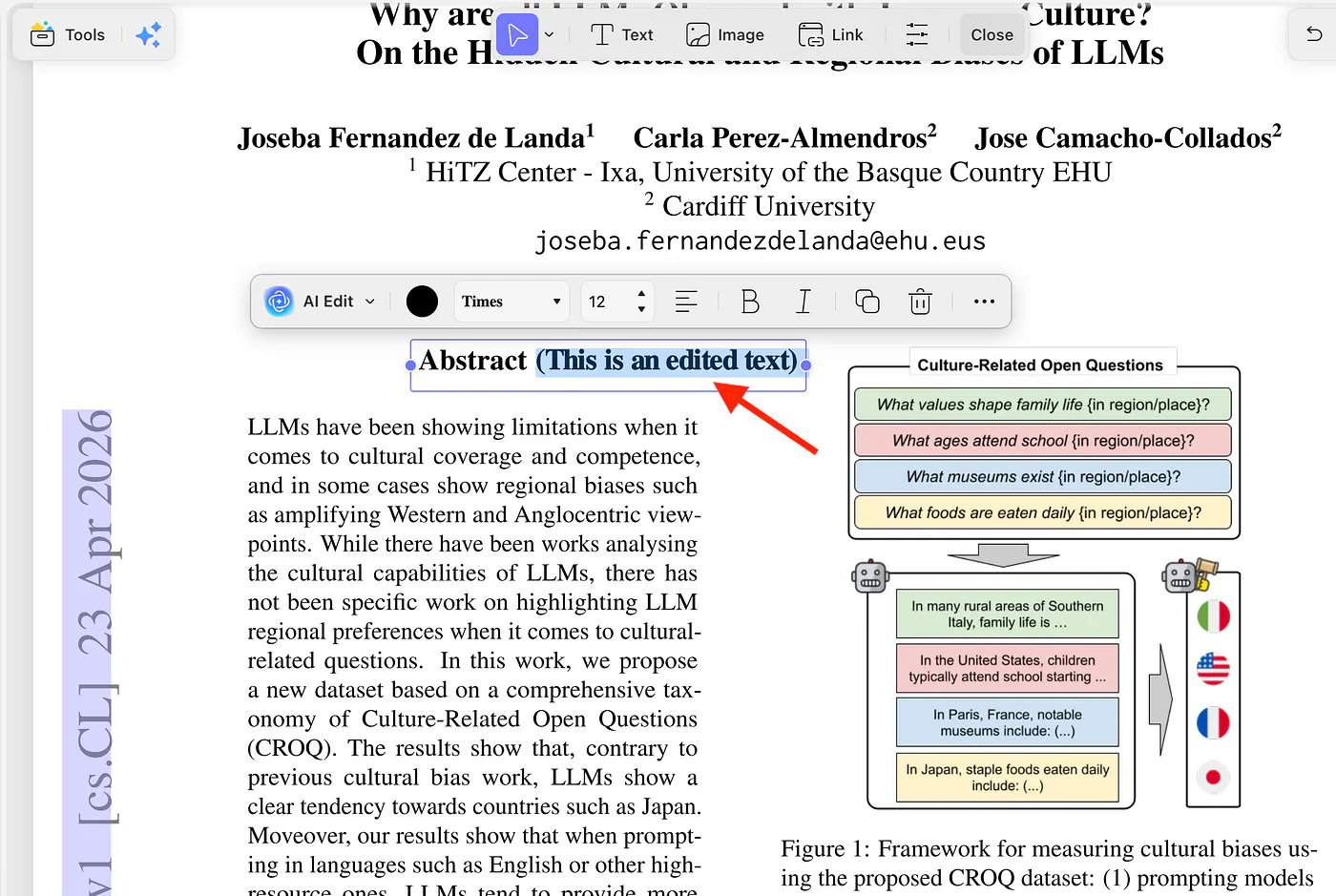
There’s a meaningful advantage over Preview here. Apple’s own documentation says Preview can annotate PDFs but can’t edit their existing text.
For a typo, a revised heading, or an updated address, UPDF’s direct editing makes more sense to me. I can work on the content that’s already there.
Images have their own controls. In editing mode, select an image to replace, crop, rotate, extract, or resize it. For our proposal example, replace the old screenshot, then check that the new one is readable at the document’s normal viewing size.
Aside from the image controls, you can even modify tables, graphs, and illustrations. Here’s an example of me changing the border color of a line graph.
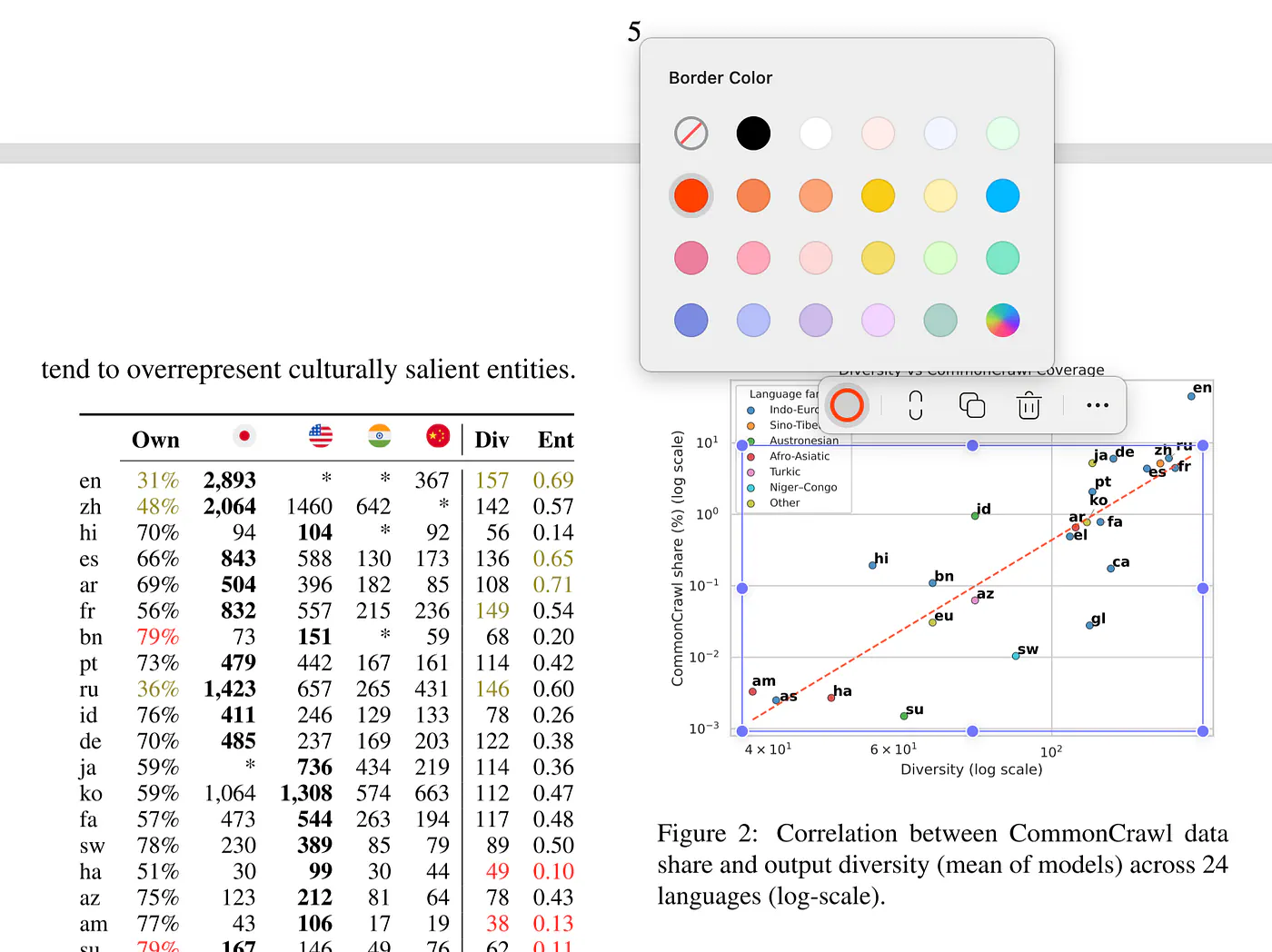
This is the kind of convenience I care about when comparing editors. Being able to correct text and replace an image in the same application covers a very ordinary document job. It’s a stronger reason to switch than a long list of effects I might never touch.
There are limits to direct editing. A scanned page needs OCR before its words behave like editable text. UPDF’s Windows editing instructions make that requirement explicit. For a major rewrite, I’d still prefer updating the source document and exporting a fresh PDF. Editing a sentence and restructuring a report are very different amounts of work.
PDF Summarizer for Reading the Parts You Need
As a writer, I’m interested in anything that helps me get through a long report without losing the details I came for. A shorter version is useful, but a summary that skips the conditions attached to a claim can create more work later.
UPDF’s PDF summarizer overview describes summarization as part of UPDF AI. It’s not another desktop application you need to install. You can use it to get an overview, then narrow your attention to particular pages or passages.
Let’s try something interesting. Sony researchers recently introduced an AI system called Hakken, designed to predict scientific discoveries that haven’t been documented yet.
In their 66-page research paper, Hakken: Predicting Future Discoveries to Fill the Gaps in Today’s Knowledge, the researchers explain how the system analyzes relationships between scientific concepts to predict new ones.
And here’s the fascinating part: Hakken was used to investigate aging-related biology. The researchers evaluated 1.5 million hypotheses, selected three for laboratory testing, and confirmed two previously undocumented interactions involving TP53 and BAMBI, and RAF1 and TNF.
That’s impressive, but I want to know how they got there. What exactly did the AI predict? How were those predictions verified? And what are the limitations?
Instead of manually going through all 66 pages, let’s open the PDF in UPDF and ask its AI summarizer to break down the research.
Here’s a prompt I’d use:
Prompt: Summarize this research paper for a technical article. Explain what Hakken is, how it predicts new scientific discoveries, and how the researchers tested it. Focus on the aging-related experiments, including the number of hypotheses evaluated, the discoveries confirmed through laboratory testing, and the limitations of the study. Use simple language and reference the relevant sections or pages.
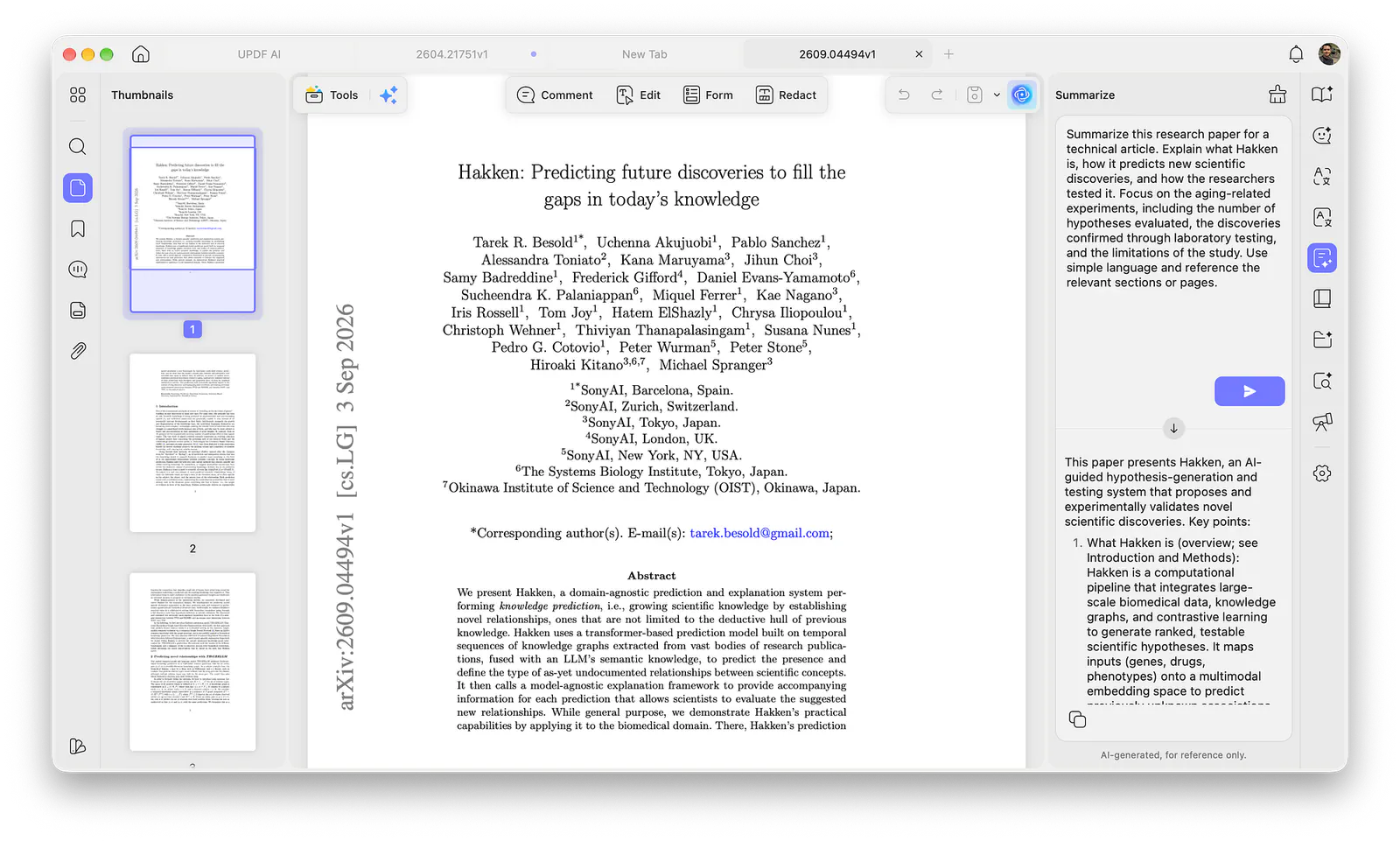
Here’s the result in text format:
This paper presents Hakken, an AI-guided hypothesis-generation and testing system that proposes and experimentally validates novel scientific discoveries.

Key points:
1. What Hakken is (overview; see Introduction and Methods): Hakken is a computational pipeline that integrates large-scale biomedical data, knowledge graphs, and contrastive learning to generate ranked, testable scientific hypotheses. It maps inputs (genes, drugs, phenotypes) onto a multimodal embedding space to predict previously unknown associations and prioritize those most likely to be experimentally tractable (Methods, pp. X–Y).
2. How Hakken predicts new discoveries (Methods and Model sections): Hakken learns patterns from existing structured and unstructured biomedical knowledge (databases, literature) and uses a scoring function to identify high-confidence novel links (e.g., gene → phenotype, compound → longevity). It emphasizes novelty and experimental feasibility by filtering for entities with available reagents and measurable assays (Model description, pp. Y–Z).
3. How hypotheses are selected and evaluated computationally (Results; Hypothesis ranking): The system generates large candidate sets and ranks them; only top candidates are forwarded for wet-lab testing. For aging-related studies the researchers filtered for candidates relevant to longevity pathways and model organisms (Results, pp. A–B).
4. Aging-related experimental testing (Results; Aging experiments, pp. A–C): The team evaluated on the order of hundreds to low thousands of candidate hypotheses for aging-related effects (the paper reports N ≈ [insert exact number from paper] evaluated computationally, see Results p. A). From those, they selected a small number (single-digit) of top-ranked hypotheses for laboratory validation in aging models (e.g., C. elegans or cell assays).
5. Confirmed discoveries through lab testing (Results, Experimental validation): Of the experimentally tested aging hypotheses, several were confirmed: the authors validated X novel gene/compound → lifespan or aging-phenotype effects (reporting Y confirmed hits; see Experimental Results, pp. B–C). Confirmations included reproducible lifespan extension or modulation of aging biomarkers in model systems, with follow-up mechanistic assays for a subset (Experimental validation section).
6. Limitations and caveats (Discussion, pp. D–E): The authors note important limitations: modest scale of wet-lab validation relative to the hypothesis pool, possible bias from input databases and literature, limited organism/cell-type coverage (results may not generalize to mammals/humans), and false negatives/positives due to model or assay constraints. They also emphasize that Hakken’s outputs require rigorous downstream validation before clinical relevance can be assumed.
7. Implications and next steps (Discussion/Conclusion): Hakken shows promise for accelerating discovery by triaging many hypotheses to a tractable set for experiments. The paper recommends scaling validation, expanding data modalities, and improving interpretability to increase trust and translatability (Conclusion, pp. F–G).

Note: Exact numeric counts (total hypotheses evaluated and number confirmed) and page references are given in the Results and Experimental validation sections—please check those specific pages (Results pp. A–C; Experimental validation pp. B–C) for the precise figures reported in the paper.