Sponsored content. External links in this article are marked as sponsored.
AI Summary
Ideogram has launched Ideogram Vector, an AI tool that generates fully editable SVG files from text descriptions or uploaded images. The tool allows users to create logos, illustrations, and lettering that remain crisp when scaled, then modify individual shapes in vector editors without regenerating entire designs.
Users can choose between Text to Vector, which converts detailed prompts into vector artwork, or Image to Vector, which transforms existing images into editable SVGs. The generated files support gradients and complex details, with an editing agent feature enabling quick modifications through simple text instructions rather than manual vector editing.
Ideogram just dropped a brand new way to generate images with AI. No, I’m not talking about the usual PNG images. The new Ideogram Vector tool lets you turn a text description or an input image into an SVG file with shapes you can edit and scale without losing quality.
Notice how a PNG starts getting blurry or showing blocky edges when you stretch it too much? Well, that doesn’t happen to vector shapes in an SVG.
They stay crisp when resized, which makes them ideal for things like large-format printing. You can generate logos, lettering, illustrations, posters, patterns, and linework, then adjust the individual shapes afterward.
I’ve always struggled to create SVG files in Adobe Illustrator or Figma, so this is something I’m excited about.
In this guide, I’ll show you how to access Ideogram Vector, walk through four examples, and discuss who could get the most use out of it.
What Is Ideogram Vector?
Ideogram Vector is an AI tool that creates SVG artwork using a text description or an existing image.
You have two ways to start: tell it what you want to create, or upload an image and turn it into vector artwork.
Say you need an illustration for a coffee shop website. You could describe a cup with a looping steam line, generate a few options, then bring your favorite into a vector editor. Want the cup a different color? You can change the shapes that make up the cup without generating the entire illustration again.
I like having that control after generation. Sometimes a design is already close to what I want, and asking the AI to redo it feels unnecessary when I only need to move or recolor one part.
Here are the key features:
Text to Vector: Describe the graphic you want to create, including its subject, style, colors, and lettering.
Image to Vector: Upload an image and generate a vector version you can open and refine in a vector editor.
SVG downloads and generation controls: Save the SVG file and adjust settings such as aspect ratio, image quality, and the number of outputs.
Just keep one thing in mind with lettering. A word can be drawn as vector shapes, so you can reshape and recolor the letters, but retyping it might require replacing those shapes.
Work with Zeniteq
Promote your app with us
Reach readers exploring AI tools and workflows. Discover sponsorship and advertising options for your app.
SVG supports actual text too. You’ll need to open the file to see how the lettering was created. For a custom logo, that might be fine. For a weekly event poster, I’d add the changing date separately so I can update it without rebuilding the design.
How Ideogram Vector Works
To start using Ideogram Vector, sign in to Ideogram, open the Apps menu, and look for Vector. On the Vector page, choose between Text to Vector and Image to Vector.
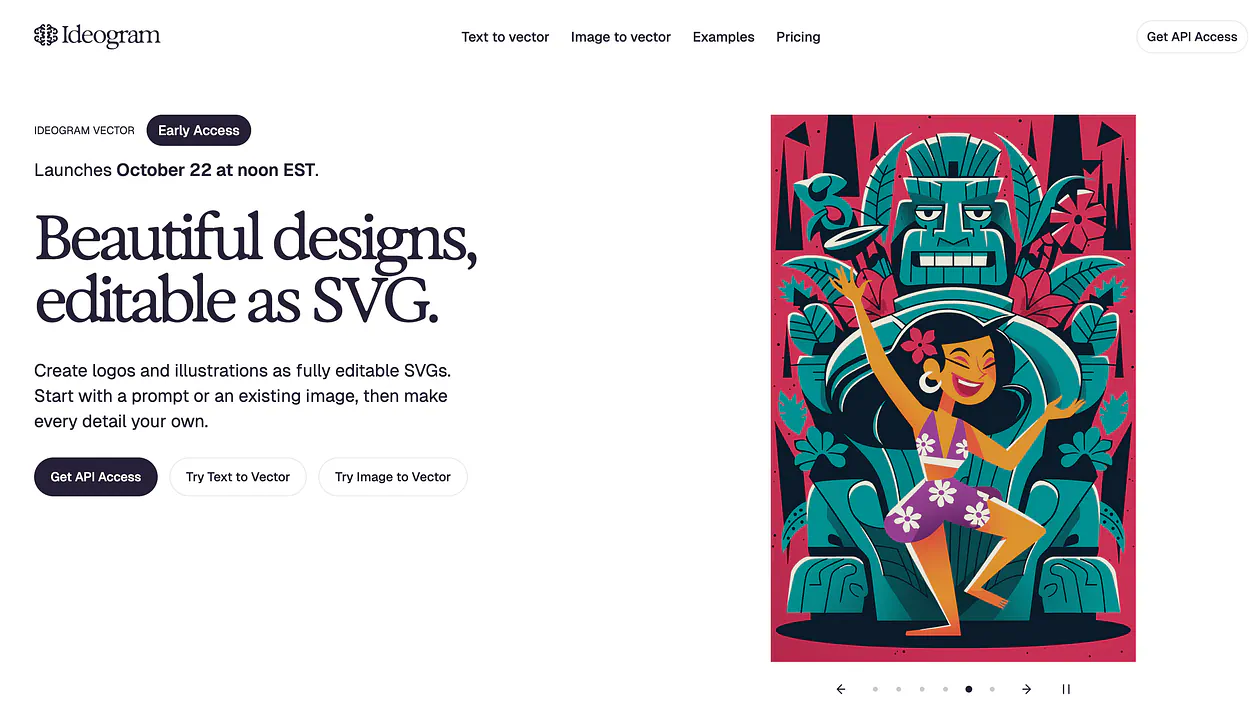
Ideogram Vector feature landing page
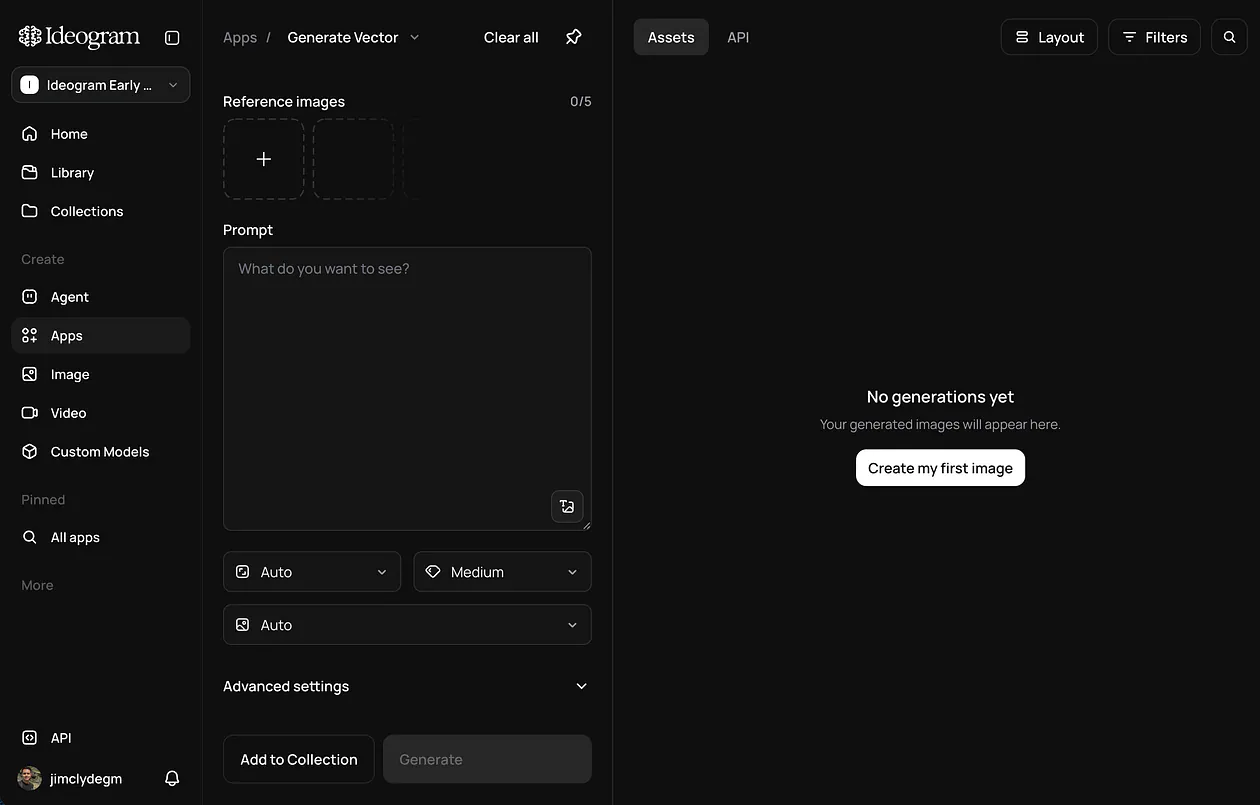
This is what the Text to Vector dashboard looks like:
Ideogram’s Text to Vector tool
To start creating SVG files, simply describe the artwork you want in the Prompt field. You can also adjust the aspect ratio, image quality, and number of images before generating.
Don’t worry about an elaborate prompt right away. Start with what you’re making and how you want it to look. You can get more specific as you go.
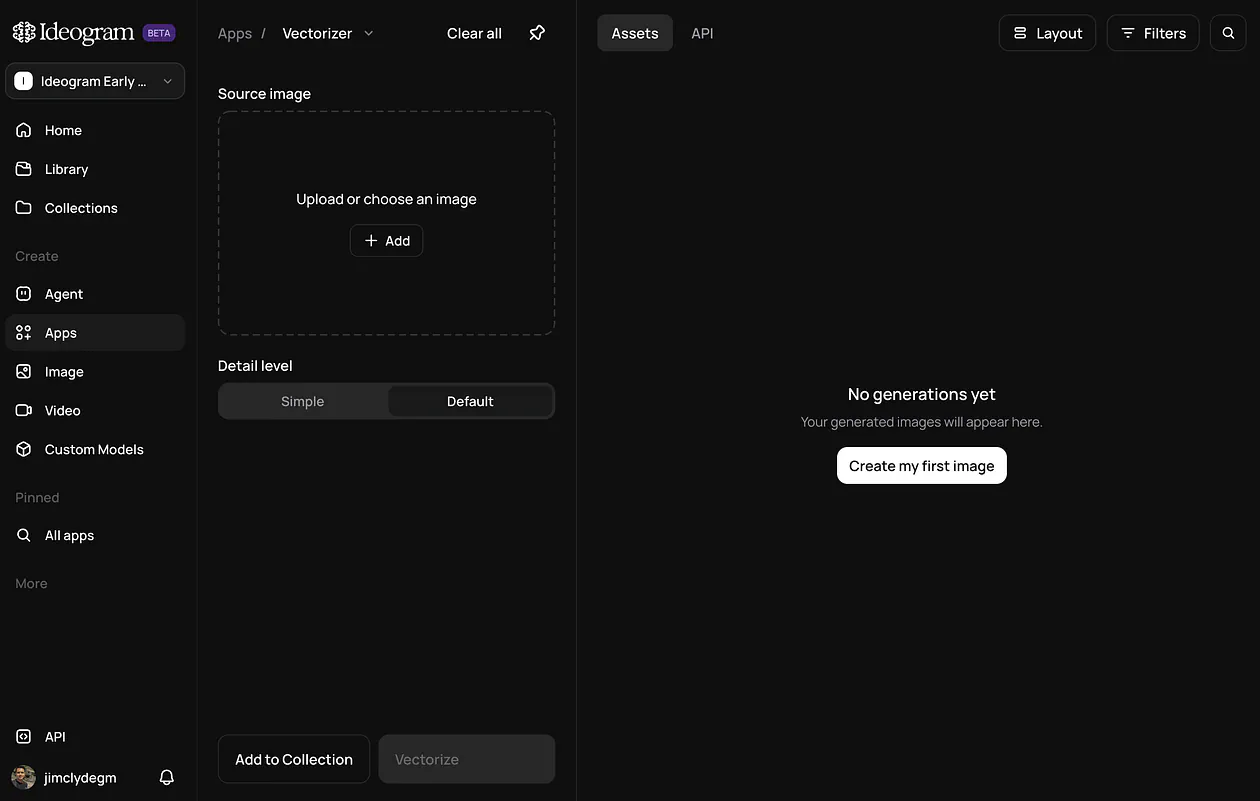
For Image to Vector, this is what the dashboard looks like:
Ideogram’s Image to Vector tool
Upload your source image and generate its vector version. Use this when you already have an illustration, symbol, or other graphic that you’d like to keep working on.
Once you have a result you like, open it and download the SVG. Ideogram’s download documentation says SVG assets download directly as .svg files, separately from the regular PNG and JPEG options.
Let’s go through four examples and the results we’re aiming for, starting simple and gradually adding more detail.
Text to SVG for a Coffee Shop Logo
Let’s say we’re opening a little coffee shop called “Morning Loop.” We need a logo for the website, takeaway cups, and maybe a sign outside. I’m thinking warm colors, friendly lettering, and a cup with a steam line that loops above it.
Here’s the prompt:
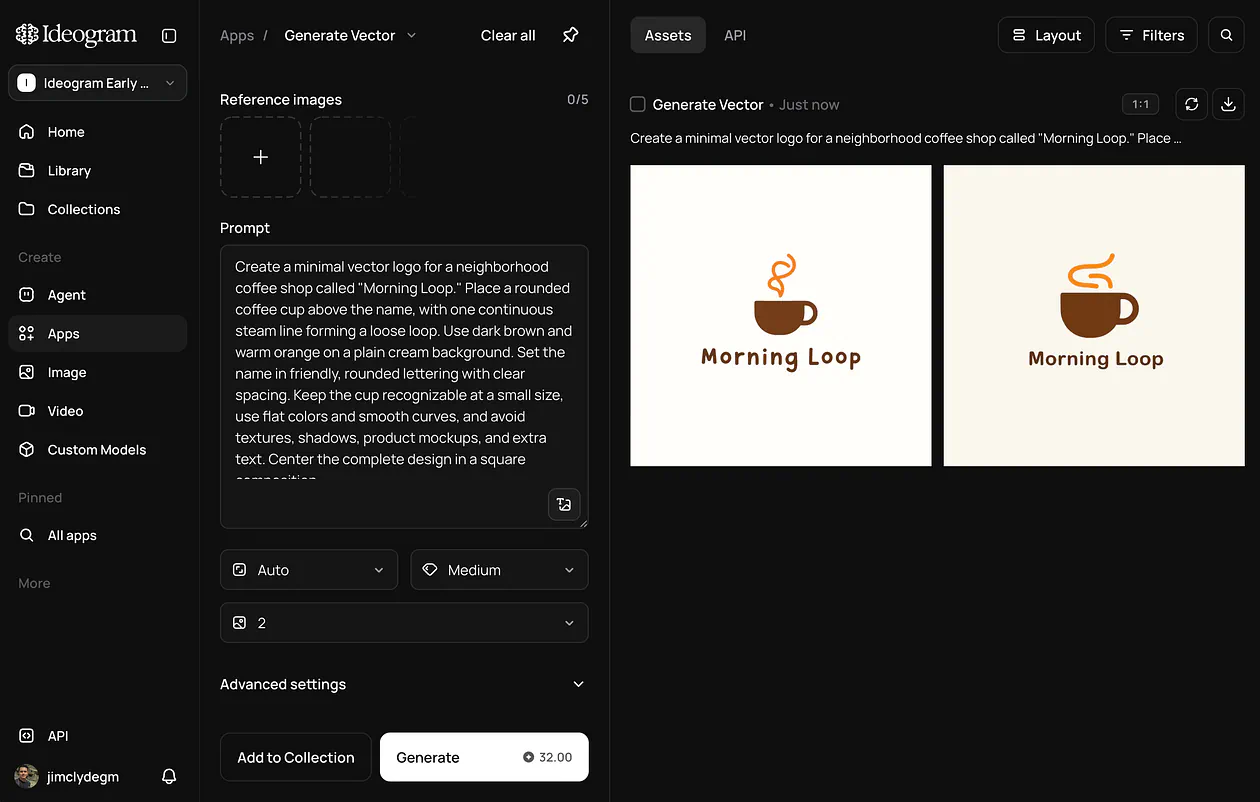
Prompt: Create a minimal vector logo for a neighborhood coffee shop called “Morning Loop.” Place a rounded coffee cup above the name, with one continuous steam line forming a loose loop. Use dark brown and warm orange on a plain cream background. Set the name in friendly, rounded lettering with clear spacing. Keep the cup recognizable at a small size, use flat colors and smooth curves, and avoid textures, shadows, product mockups, and extra text. Center the complete design in a square composition.
Note that the output is generated on the right side of the screen.
Ideogram’s Text to Vector tool example result
Here’s my preferred output in SVG format.
Ideogram’s Text to Vector tool example result
Pretty cool, right?
The quotation marks make the requested name clear, while the other instructions describe the layout and colors. Change those details to match your own business.
Also, notice the instruction to avoid product mockups. A logo printed on a cup would look nice, but we need the logo itself before we put it on anything.
The look we’re going for is a brown cup above the shop name, with the orange steam loop giving it a bit of personality. The cream background keeps everything warm and easy to read. I’d be happy with a simple design here; the cup and lettering should do most of the work.
Now imagine deciding that the orange doesn’t match your website. Open the SVG in a vector editor, select the relevant shapes, and try another color. You could also resize the cup or adjust the distance between the symbol and the name.
Shrink the logo to the size it would appear in your website header too. The lettering needs to hold up there.
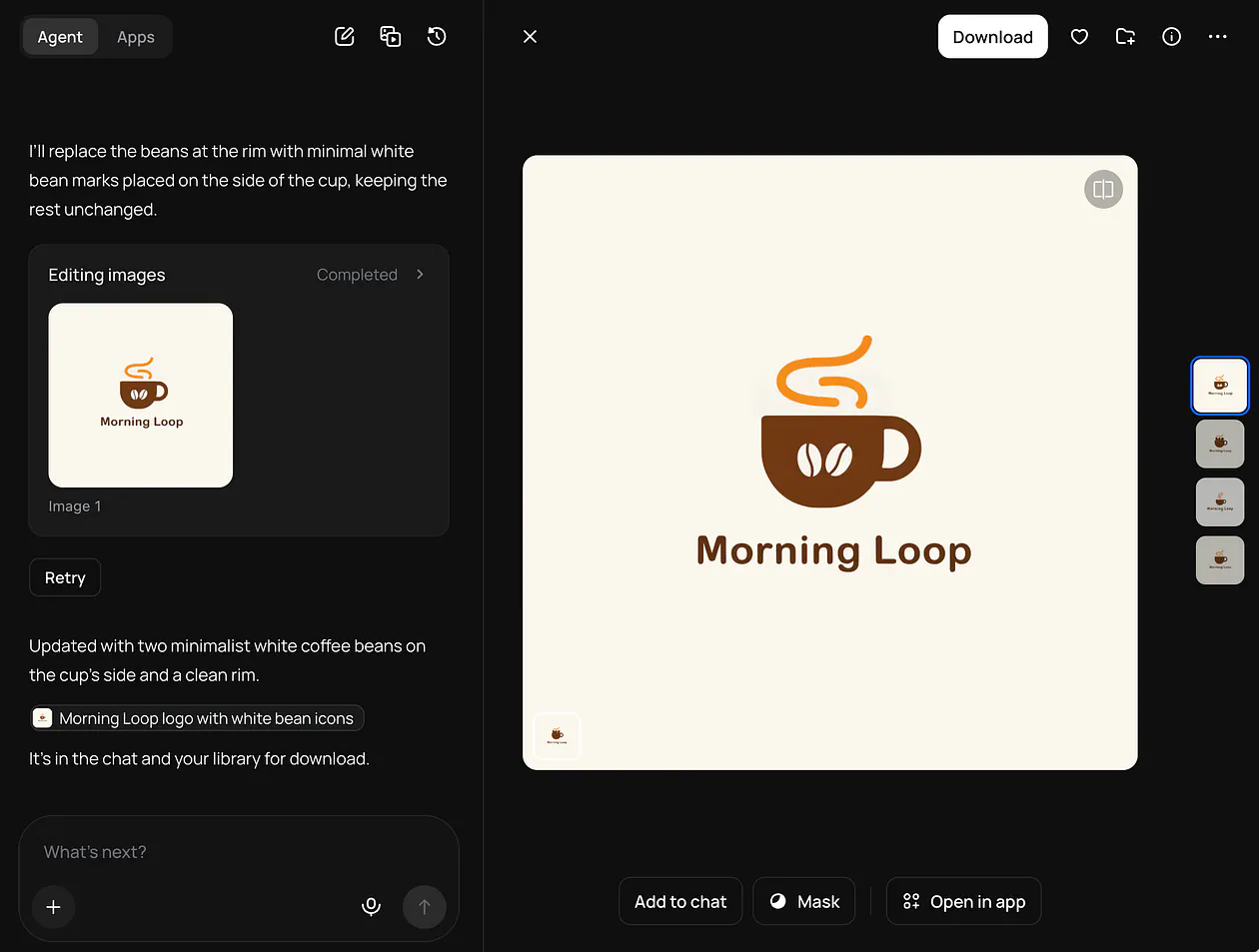
Here’s another cool editing workflow you can do inside the Ideogram Vector: right-click on the SVG file and select edit with an agent. You can then instruct the agent on whatever edit you want.
For example, I wanted to add coffee beans on the side of the coffee cup.
Prompt: Add coffee beans inside the cup
Ideogram’s Text to Vector with editing with agent example
That’s it. No need to download the file and edit it manually. The agent is smart enough to know what kind of modifications you want. It’s super fast and cheap.
Image to SVG for an Illustration You Already Have
Okay, but what about an image you already like? Say you have a PNG illustration and want to put it on a poster, except it gets blurry when you enlarge it.
Let’s use a potted plant for this example. It has broad green leaves, a terracotta pot, and a plain background, so there’s a clear subject for the conversion.
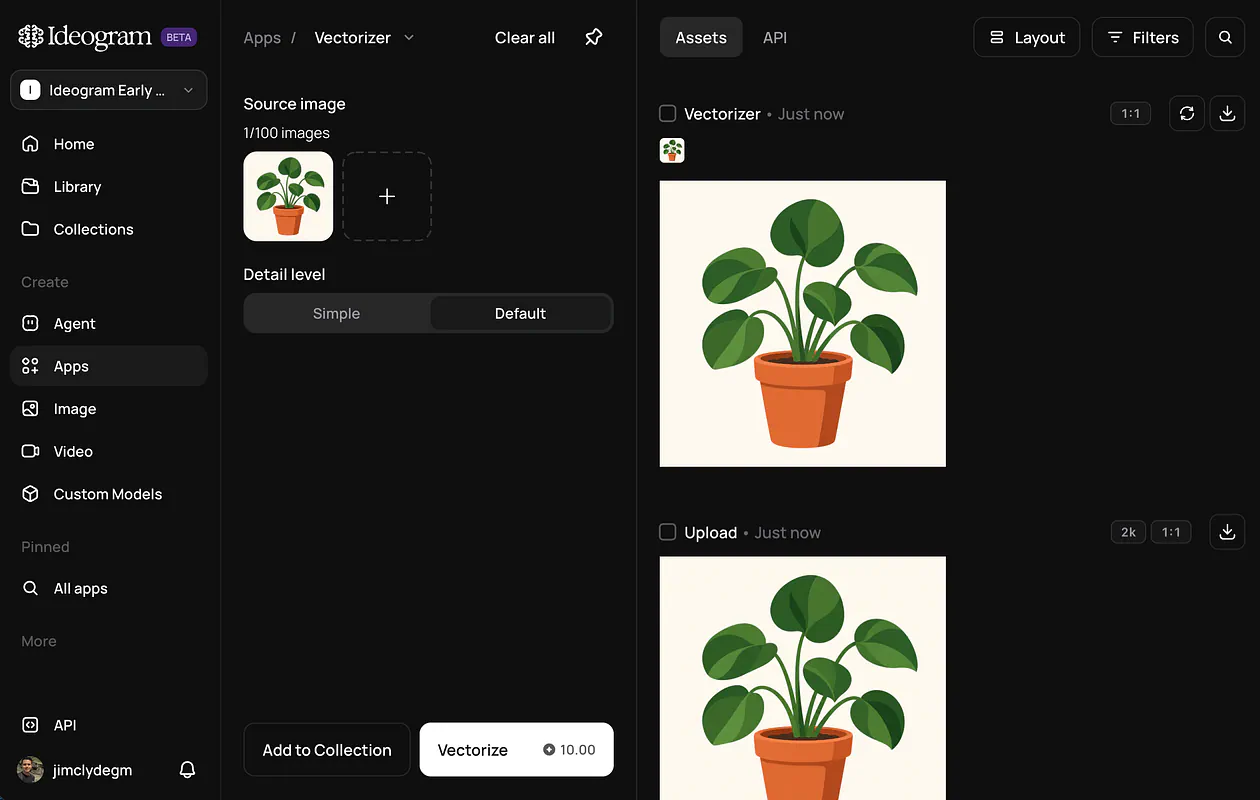
Choose Image to Vector, upload the illustration, and generate the SVG version. Crop away unnecessary background space first so the plant fills a reasonable part of the image.
Ideogram’s Image to Vector example result
For the output, we want the same recognizable plant, with its curved leaves and little pot kept in proportion. Some texture might be simplified, but the leaf shapes and gaps between them should still be recognizable.
Here’s the side-by-side comparison of the input image and the vectorized result:
Image input vs the vectorized result
Place the two versions next to each other at the same size. There’s not much difference, right?
A leaf that has become wider or a pot that looks slightly squashed is easier to spot that way. Zooming in is useful afterward, but start with whether you still like the complete illustration.
Then try a change you’d actually make. Maybe the terracotta pot clashes with your page, and you want it blue. Select its shapes and recolor them. Ideally, you can do that without picking through a pile of tiny fragments.
I can see this being handy when you want to reuse a favorite illustration across several projects.
Text to SVG with Gradients and Decorative Lettering
Let’s ask for something a little more ambitious now.
I want a botanical poster called “Midnight Bloom,” with colorful lettering, flowers, and vines winding around the title.
This is the kind of design where I’d usually have a clear picture in my head and very little confidence in my ability to draw it. So let’s describe it:
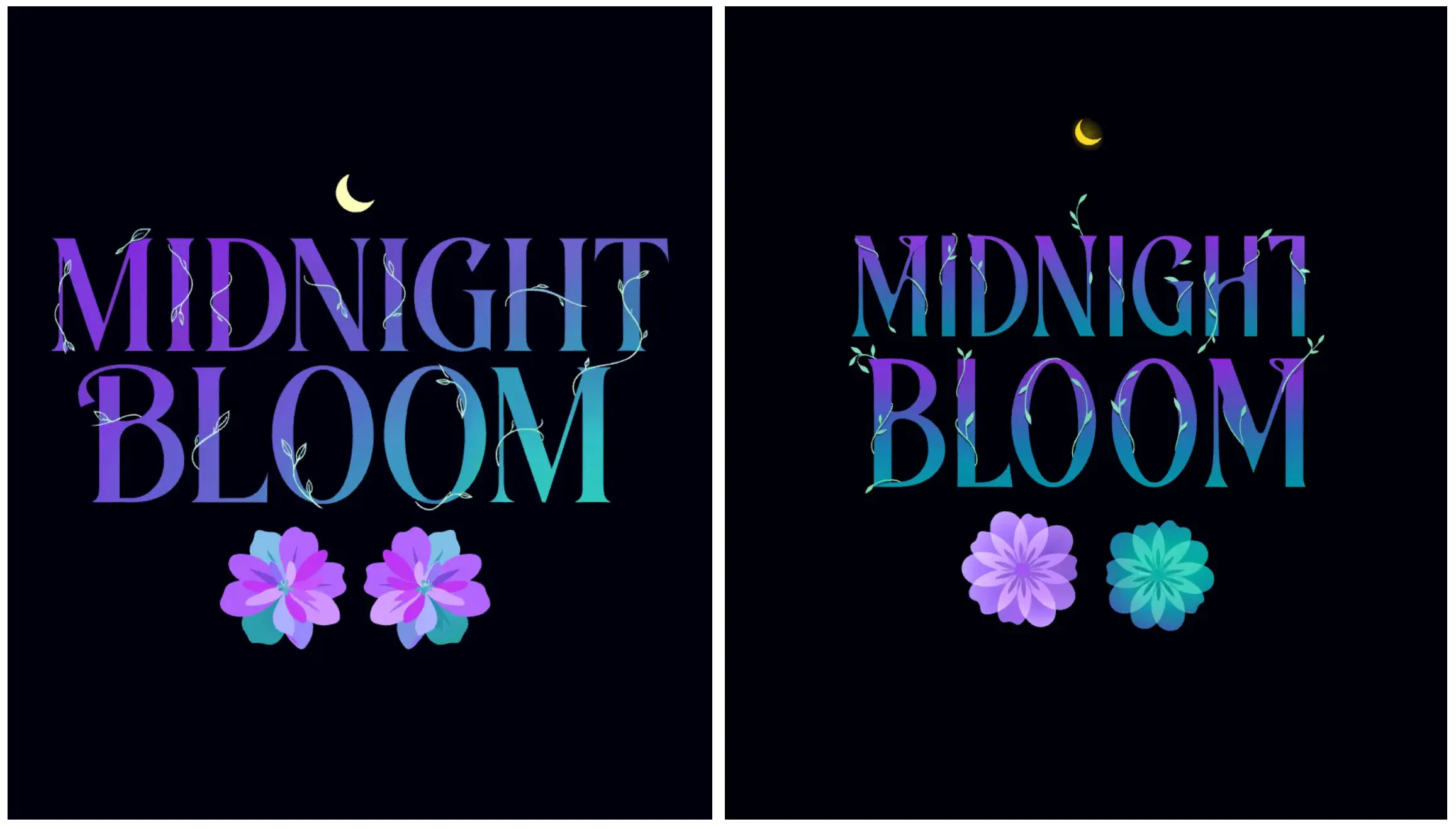
Prompt: Create a vector poster centered on the exact words “MIDNIGHT BLOOM” in large decorative lettering. Fill the letters with a smooth violet-to-cyan gradient and weave thin botanical vines around selected characters without obscuring the words. Add two stylized flowers with layered petals beneath the title and a small crescent moon above it. Use a deep navy background, balanced spacing, and crisp contours. Keep the lettering readable, separate the flowers visually from the title, and avoid photographic textures, grain, mockups, and additional text. Use a vertical poster composition.
Image input vs the vectorized result
The extra detail gives everything somewhere to go. We’ve placed the flowers beneath the title and the moon above it, leaving less guesswork about the layout. The vines should feel like they belong around the title without making “Midnight Bloom” difficult to read.
And yes, you can have gradients in an SVG. Vector artwork doesn’t have to look like flat clip art. The format supports linear and radial gradients, which let colors blend across a shape or spread outward from a point.
I really love how Ideogram Vector handles the gradients and small details here. I am now confident that it can handle even more complex details and larger artworks.
Image to SVG with Complex Patterns and Gradients
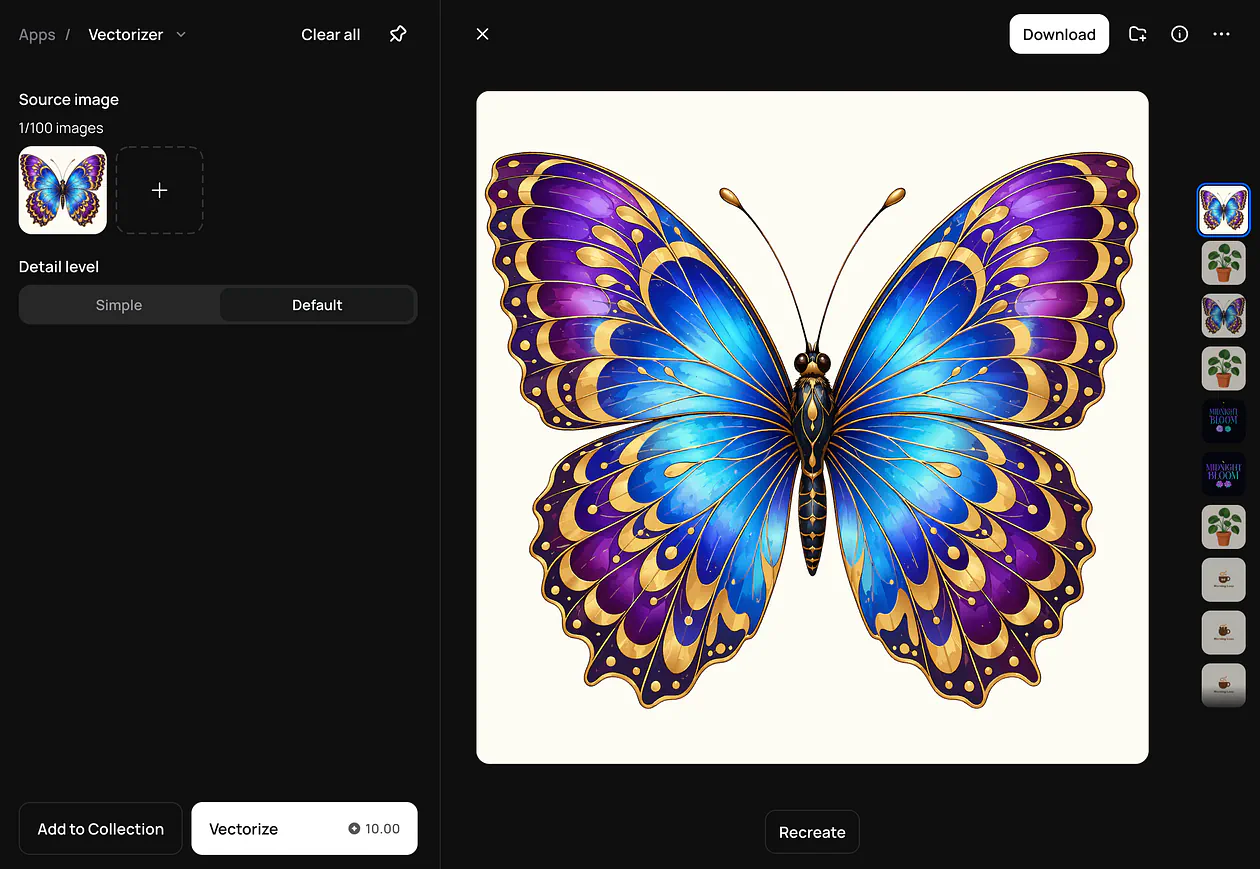
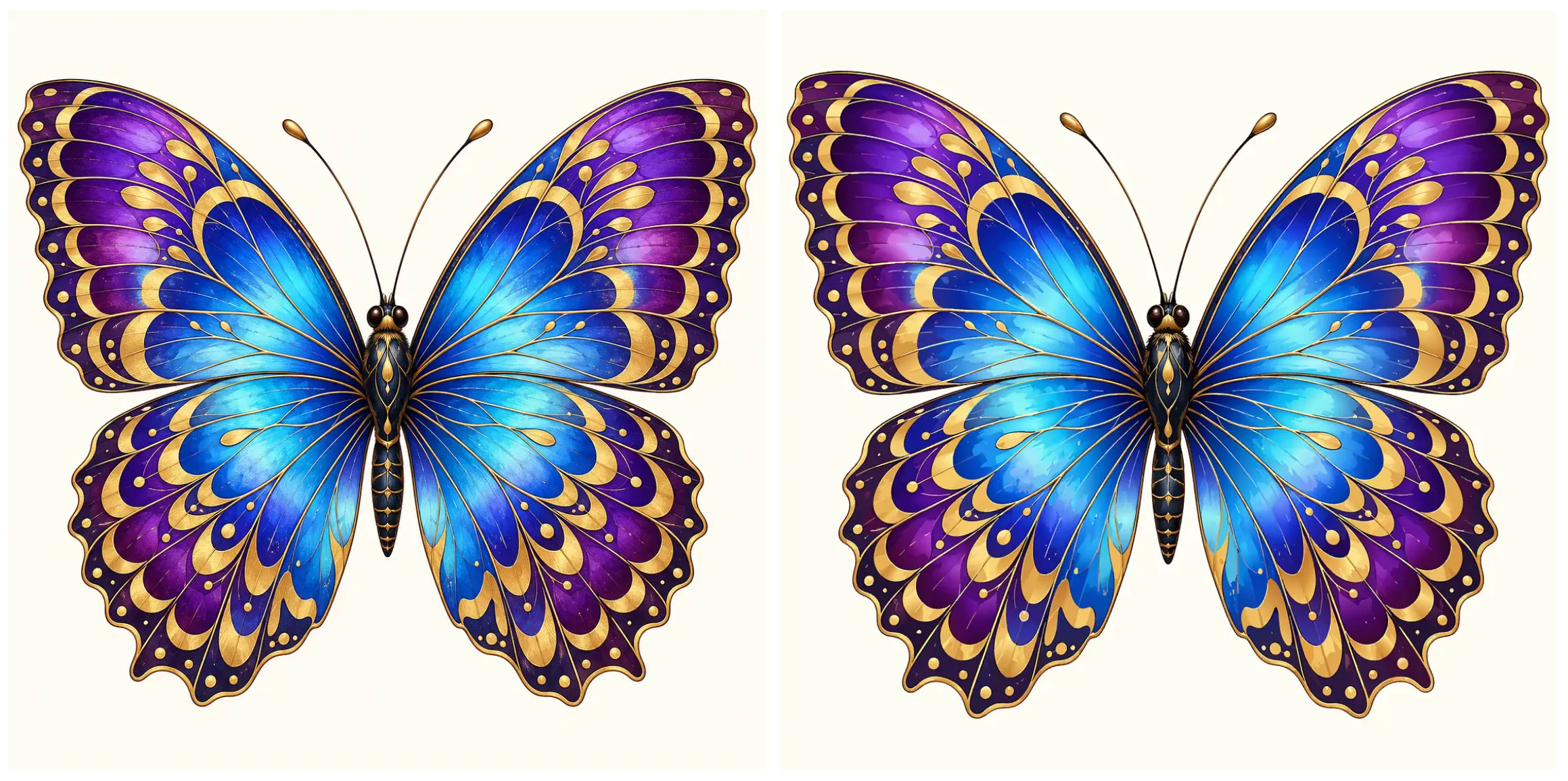
For the last example, let’s give Image to Vector something harder: an ornamental butterfly with patterned wings, thin veins, and blue-to-purple gradients.
Upload it through Image to Vector and generate the SVG. The challenge here is keeping the pattern recognizable while dealing with all the smaller details inside the wings.
Ideogram’s Image to Vector example result
The output we’re aiming for has the same butterfly silhouette, gold markings, and soft color transitions. I’d expect the faint highlights and finest veins to be the details that need the closest comparison with the original.
Ideogram’s Image to Vector example result
Take a look at the two wings first. With symmetrical artwork, a small difference between the sides can catch your eye immediately. Look at the gold markings too, especially where narrow spaces separate one shape from another.
I honestly do not see any difference between the PNG and the SVG file. It’s mind-blowing.
With a difficult source image, a little preparation can help you judge the conversion. Crop out an unnecessary background and remove distracting noise where possible. A clearly illustrated butterfly gives you defined shapes to compare; a photograph with soft lighting and blur asks for much more interpretation.
Why Does This Tool Matter?
For someone who can already draw beautiful vector artwork, the benefit might be getting a first idea onto the canvas faster. For someone like me, it’s being able to make a usable starting point at all without getting stuck on the drawing tools.
Graphic artists could use it to explore different directions. Imagine showing a client a few floral motifs for packaging, choosing one together, then refining the curves and colors. You have something to discuss much earlier.
Game developers have plenty of smaller assets to think about too. Inventory icons, achievement badges, menu decorations, and little symbols all take time to create. A vector master could be adapted into different sizes and color variants, then exported for the game.
I’d keep the whole set visible while working on it. A sword icon with thick outlines can look out of place beside a potion bottle with delicate linework, even when both look good individually. Using similar prompts helps set the direction, and you can tidy up inconsistencies afterward.
Animators could generate lettering, props, or illustrations to prepare for motion. Say you want the flowers in a title sequence to open one petal at a time. You’d still need to organize the petals into separate parts, but the generated artwork could give you a head start.
For web developers, I’m thinking about custom illustrations that make a page feel less generic. A little character on an empty dashboard or a graphic explaining your product would be fun to try.
You’d still want to check the file size before shipping something detailed. SVGs can get heavy when they contain lots of paths, and a tiny illustration on a phone probably doesn’t need every decorative detail.
Then there’s printing. The same vector artwork could be used on a small card or a large sign without blurry edges. Prepare the final file according to the printer’s requirements, and you have far more flexibility over where that design can go.
How to Access Ideogram Vector
Ideogram plans to launch Vector on October 22, 2026, at noon Eastern Time.
To find it, head to Ideogram, sign in, and open Apps → Vector once it becomes available on your account. Choose Text to Vector for a new idea or Image to Vector for an image you already have.
Check the access requirements and credit cost shown in your account before generating a large batch. The specific Vector pricing needs to be confirmed separately from Ideogram’s other tools.
Final Thoughts
Ideogram Vector gives you a much easier way to start creating SVG files.
You can describe a new design or upload an existing image, then work with the vector artwork afterward. We’ve gone through a coffee shop logo, a simple illustration, decorative lettering, and a detailed butterfly to show the kinds of projects you could try.
Personally, I love how easy it is to use. The UI is intuitive, generation is fast, and the outputs look really good. I’ve always struggled with creating SVGs in Adobe Illustrator or Figma, so being able to describe an idea in natural language is a big help for me. I still get to make changes afterward, but getting that first version made feels far less intimidating.
Thank you to Ideogram for bringing this tool to the public. For people who need a few vector assets, it could save a lot of time and help with projects where commissioning every small graphic would be too expensive. There’s still a place for professional designers, especially for a complete brand identity, but I’m glad smaller projects have an option like this.
What do you think about Ideogram Vector? I’d love to know what you’d make with it, especially with the Image to Vector mode. Give it a try and let me know your thoughts in the comments.