One of the saddest moments in AI history was when OpenAI suddenly shut down Sora. The Sora web and app experience officially went offline on April 26, 2026, followed by the Sora API on September 24. So if you were using OpenAI’s own tools for video generation, that option is gone.
Generating images is pretty limited too. You are stuck with OpenAI’s own models and whatever limitations come with them.
MCP, or Model Context Protocol, solves a lot of these issues. It basically acts like a bridge that lets ChatGPT connect to outside tools and services.
In this case, you can use it to access third-party image and video models directly inside ChatGPT.
In this guide, I’ll walk you through the process of installing Pollo AI’s MCP and demo a few different projects you can do with it.
Let’s get started.
What is Pollo AI MCP?
MCP is a standard that allows AI assistants like ChatGPT, Claude, and other agents to connect with external tools. Think of it as giving ChatGPT access to another app.
Instead of ChatGPT only being able to answer your prompt using its own built-in tools, MCP lets it call another service when needed.
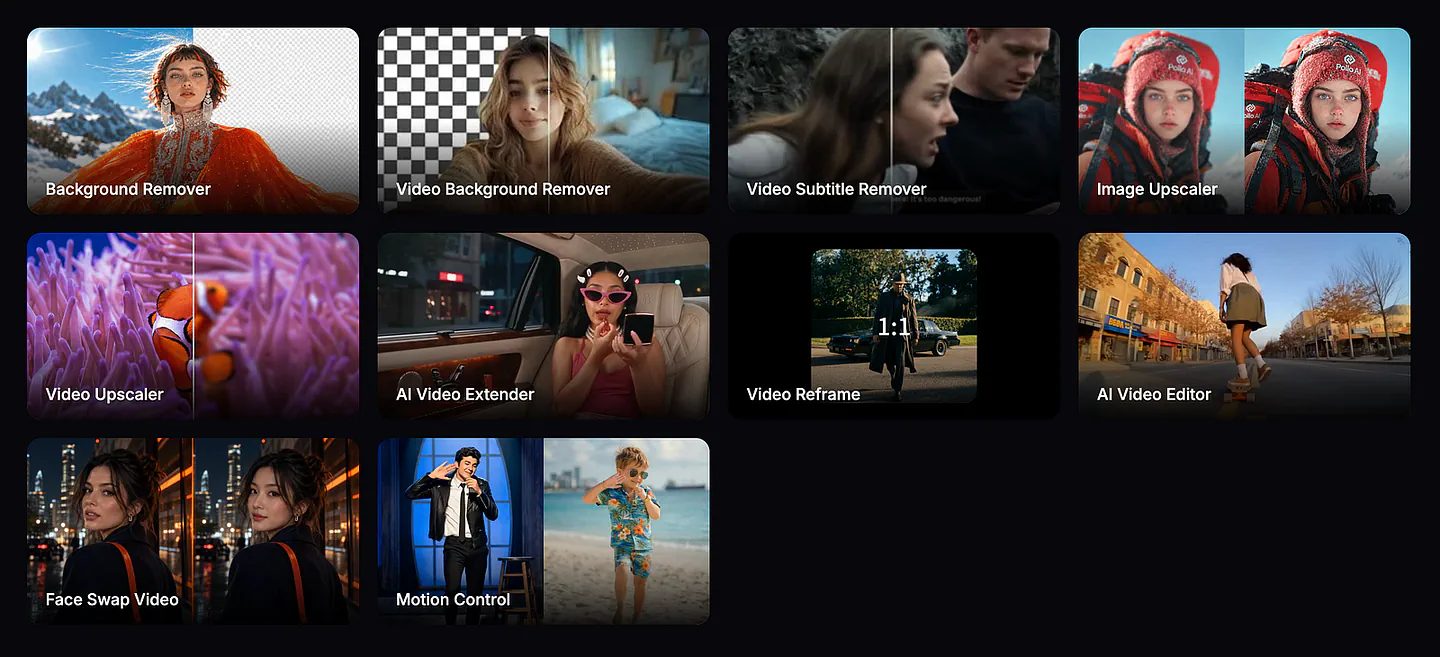
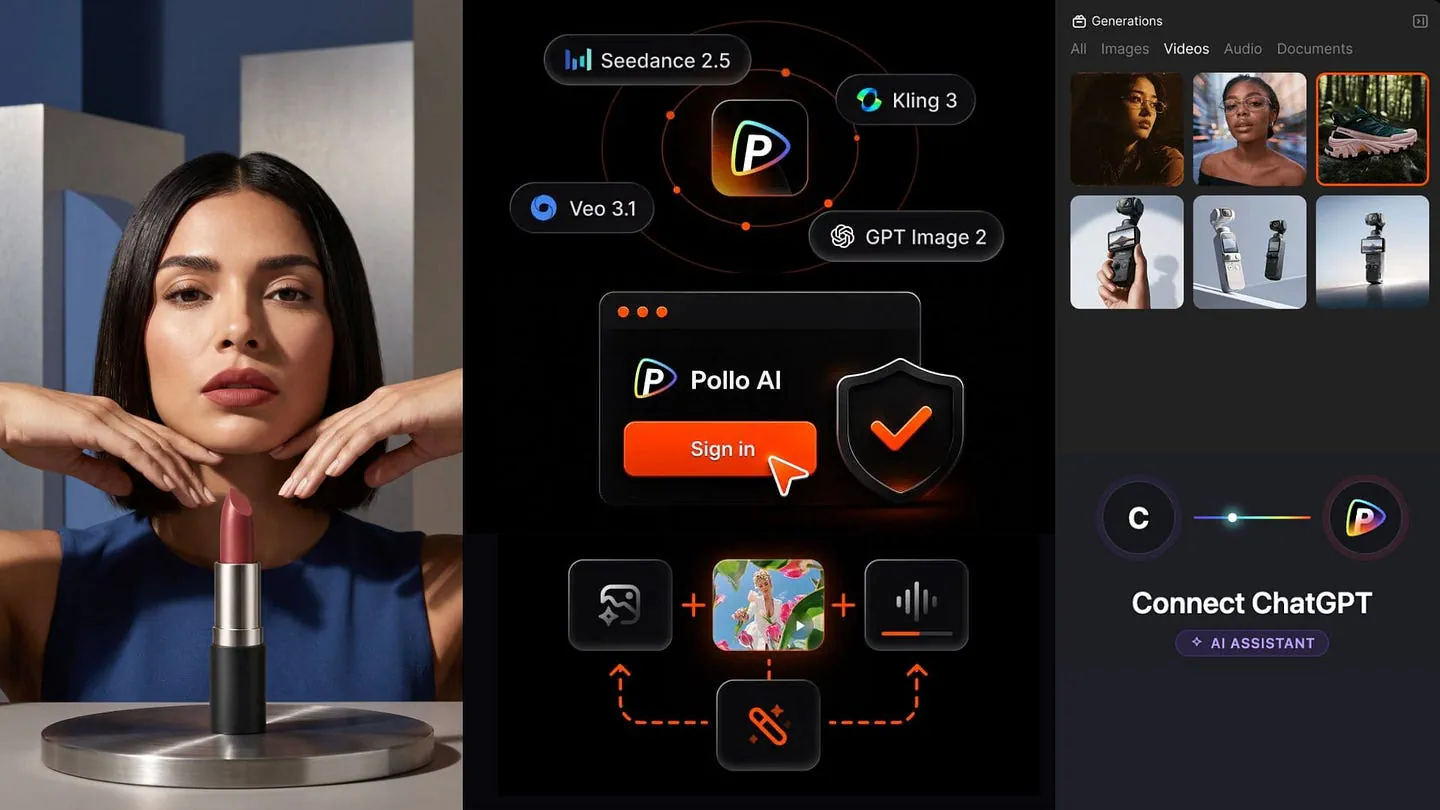
Pollo AI MCP connects ChatGPT to Pollo AI’s image, video, and media generation tools.
So instead of opening Pollo AI separately, uploading your file, choosing a model, entering a prompt, waiting for the output, and downloading everything manually, you can do most of that from the ChatGPT conversation.
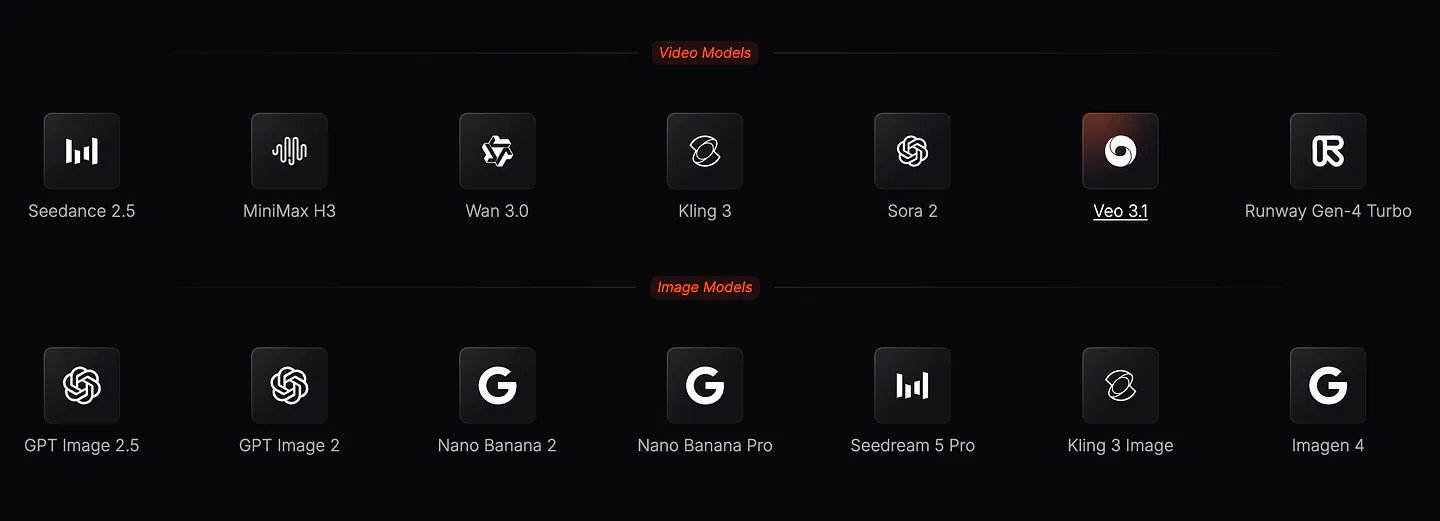
Pollo AI gives you access to models such as Seedance, Kling, GPT Image, Nano Banana, Veo, Seedream, and many others.
You can use it to:
- Generate and edit images/videos
- Work from reference images
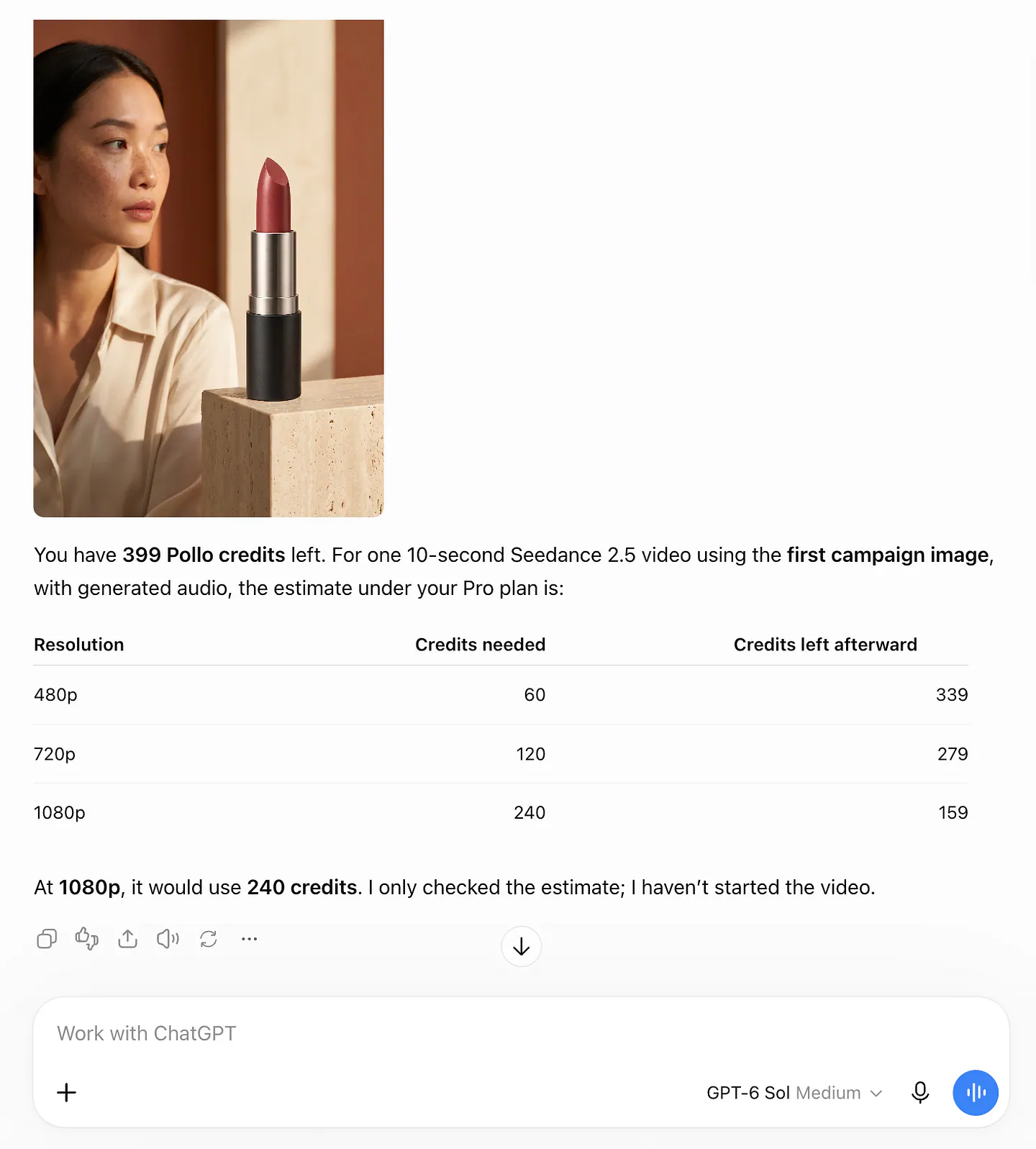
- Check your remaining Pollo AI credits
- Estimate how much a generation will cost
- Let the agent write a prompt and choose a model for you
- Run multiple generation tasks at once
The initial release supports ChatGPT, Claude, Codex, and Cursor. Pollo AI also says OpenClaw and Hermes integrations are coming.
What I like about this setup is that it reduces the learning curve of Pollo AI’s platform. You can just tell ChatGPT what you want to make.
Installing Pollo AI MCP
Here’s how to install Pollo AI’s MCP in ChatGPT.
- Head over to your ChatGPT dashboard.
- Open the Plugins tab and look for Pollo AI.
- Click the Install Plugin button.
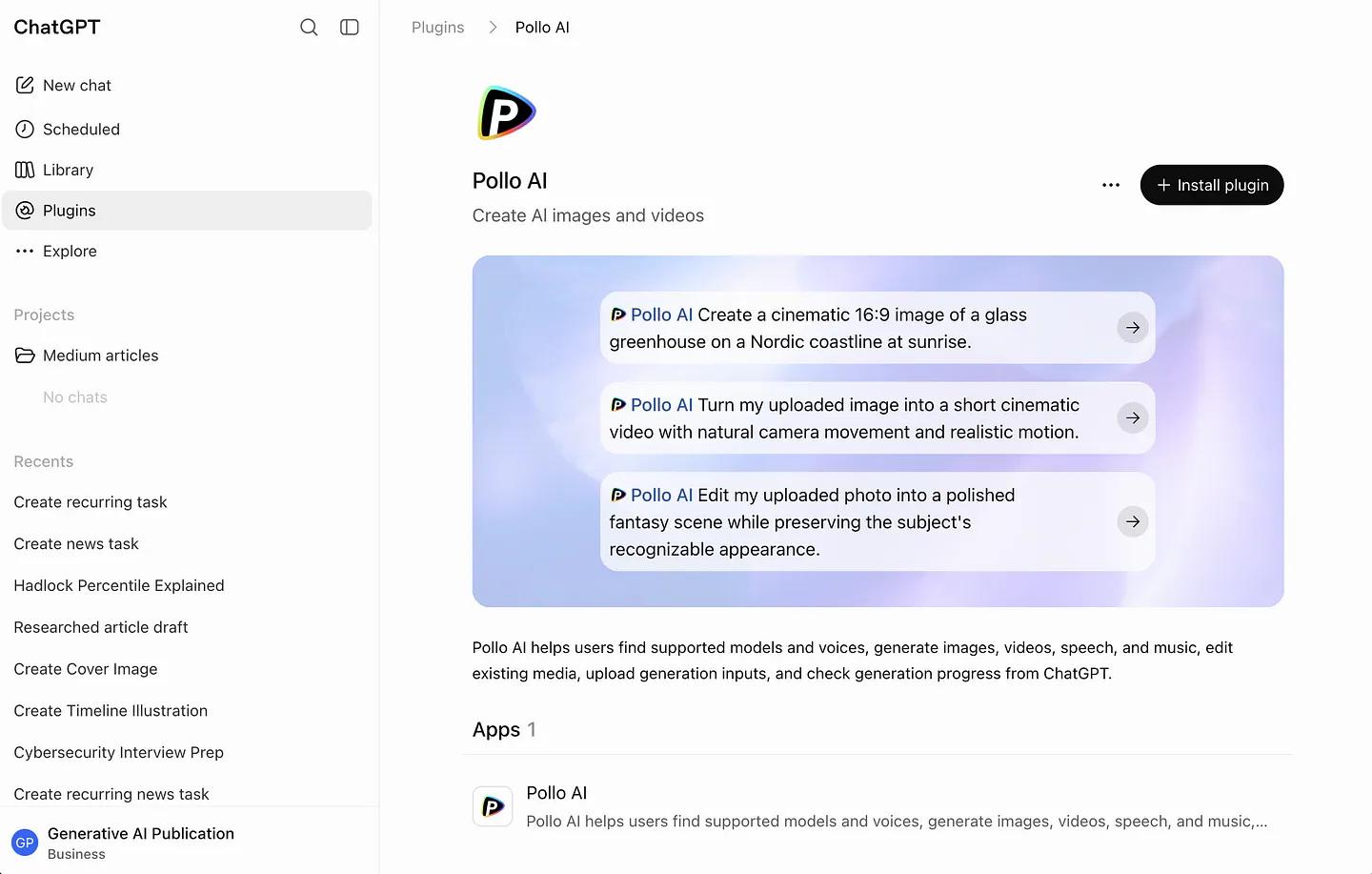
Pollo AI MCP in ChatGPT. Image by Jim Clyde Monge
You will be redirected to Pollo AI’s server and asked to allow access to things such as generated content, media uploads, and your workspace.
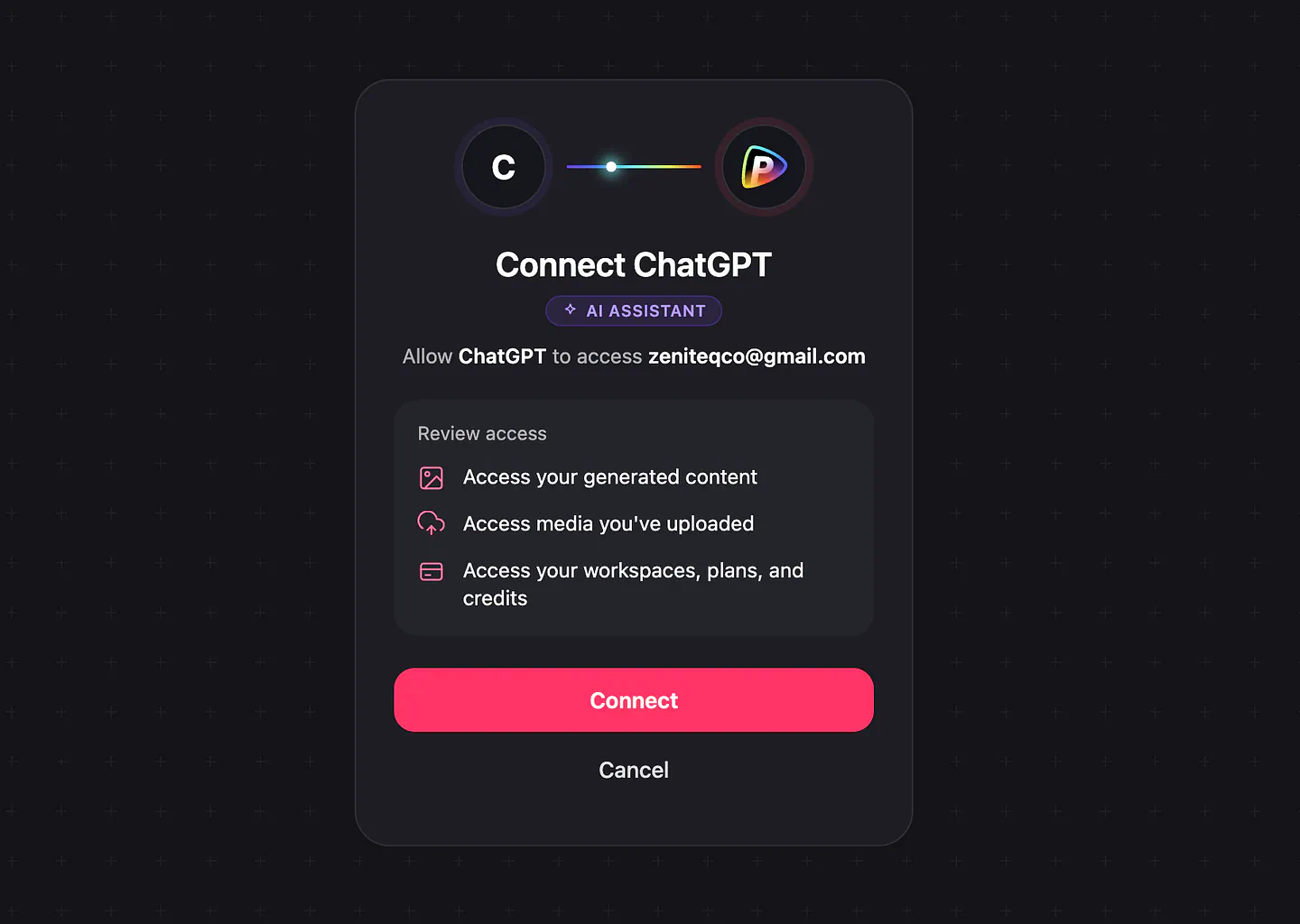
Pollo AI MCP in ChatGPT. Image by Jim Clyde Monge
Once connected, you will be redirected back to ChatGPT. You should now be able to tag the Pollo AI plugin directly in the chat field. You can also access it under the Plugins dropdown.
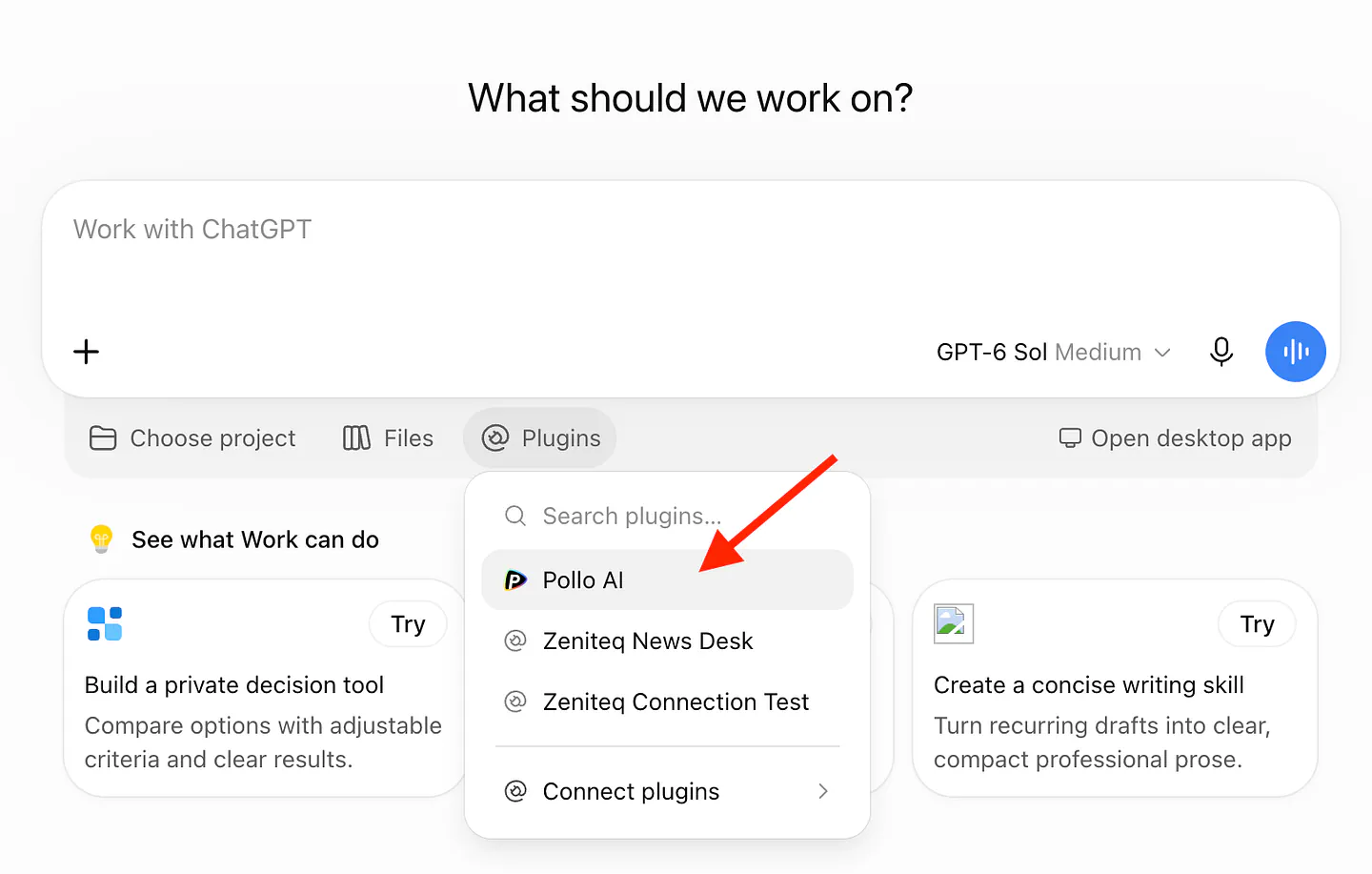
Pollo AI MCP in ChatGPT. Image by Jim Clyde Monge
That’s it. Notice that there was no API key needed to set up the connection.
Remote MCP uses browser-based Pollo account authorization, while CLI and local MCP reuse your Pollo CLI login.
Now it’s time for a demo.
Generating Campaign Images + Video in One Shot
The first example I wanted to try was generating a campaign image and video from a plain product photo. For this one, I used an action camera.
Here’s the prompt I used:
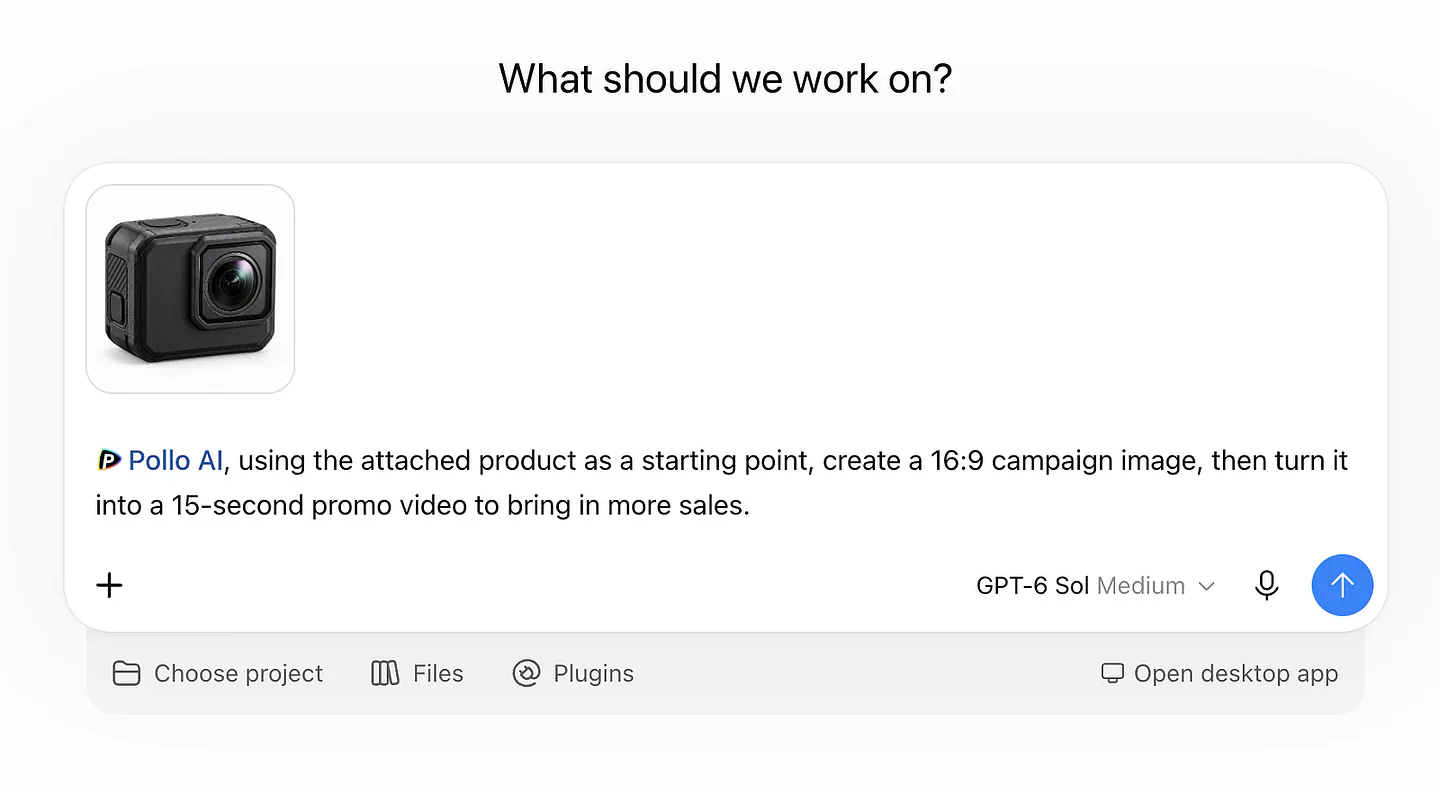
Sample image/video generation with Pollo AI MCP in ChatGPT. Image by Jim Clyde Monge
Prompt: Pollo AI, using the attached product as a starting point, create a 16:9 campaign image, then turn it into a 15-second promo video to bring in more sales.
At this point, the exact OpenAI model you’re using doesn’t matter too much. Just don’t use a very old model. GPT-5.5 or newer should be fine.
You can monitor the workflow while ChatGPT analyzes the reference image, figures out the campaign direction, prepares a more detailed generation prompt, and sends the image to Pollo AI.
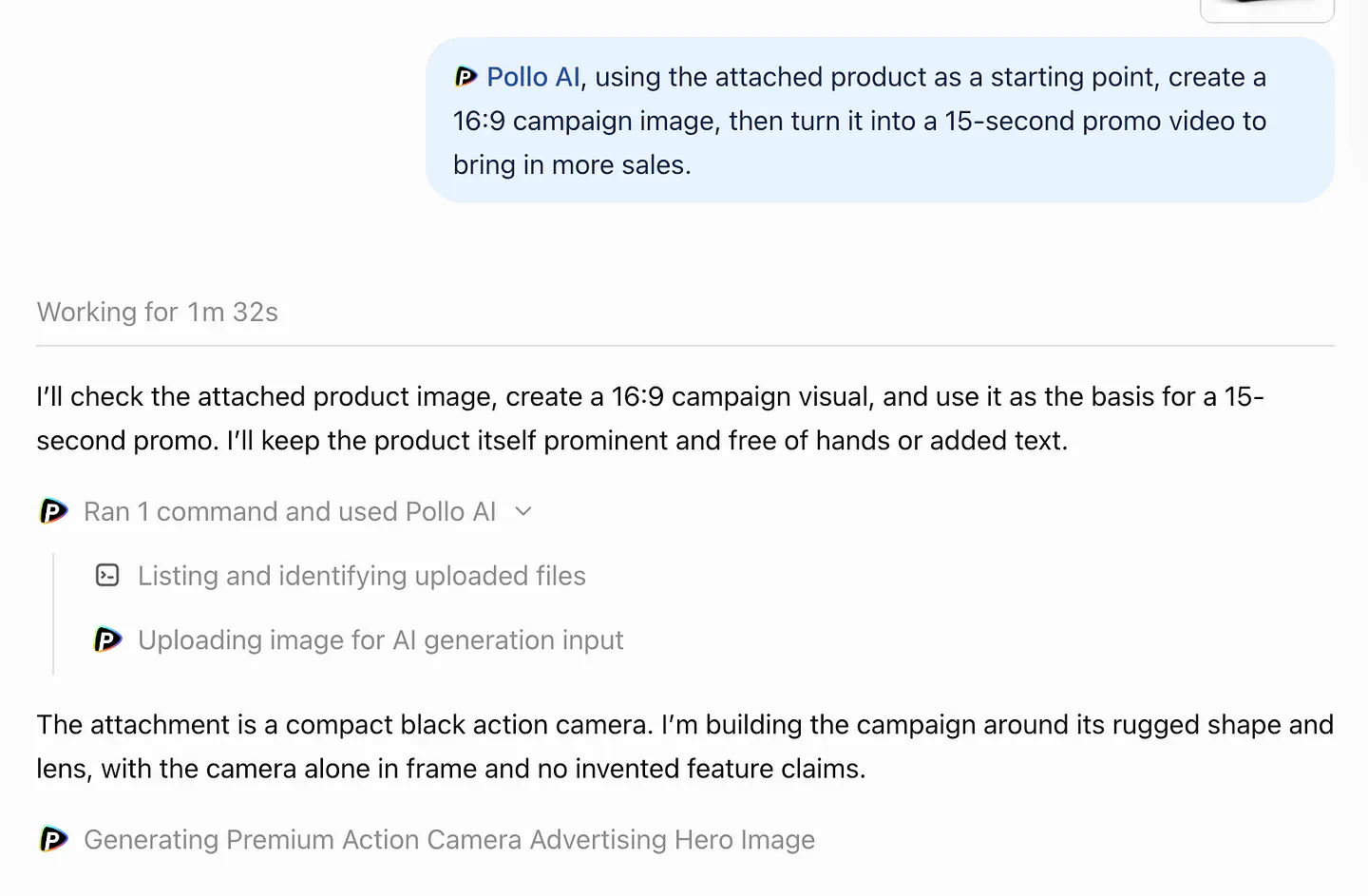
Sample image/video generation with Pollo AI MCP in ChatGPT. Image by Jim Clyde Monge
Once the campaign image is finished, it appears right inside ChatGPT. The agent can then use that result as the input for the next step and start generating the video automatically.
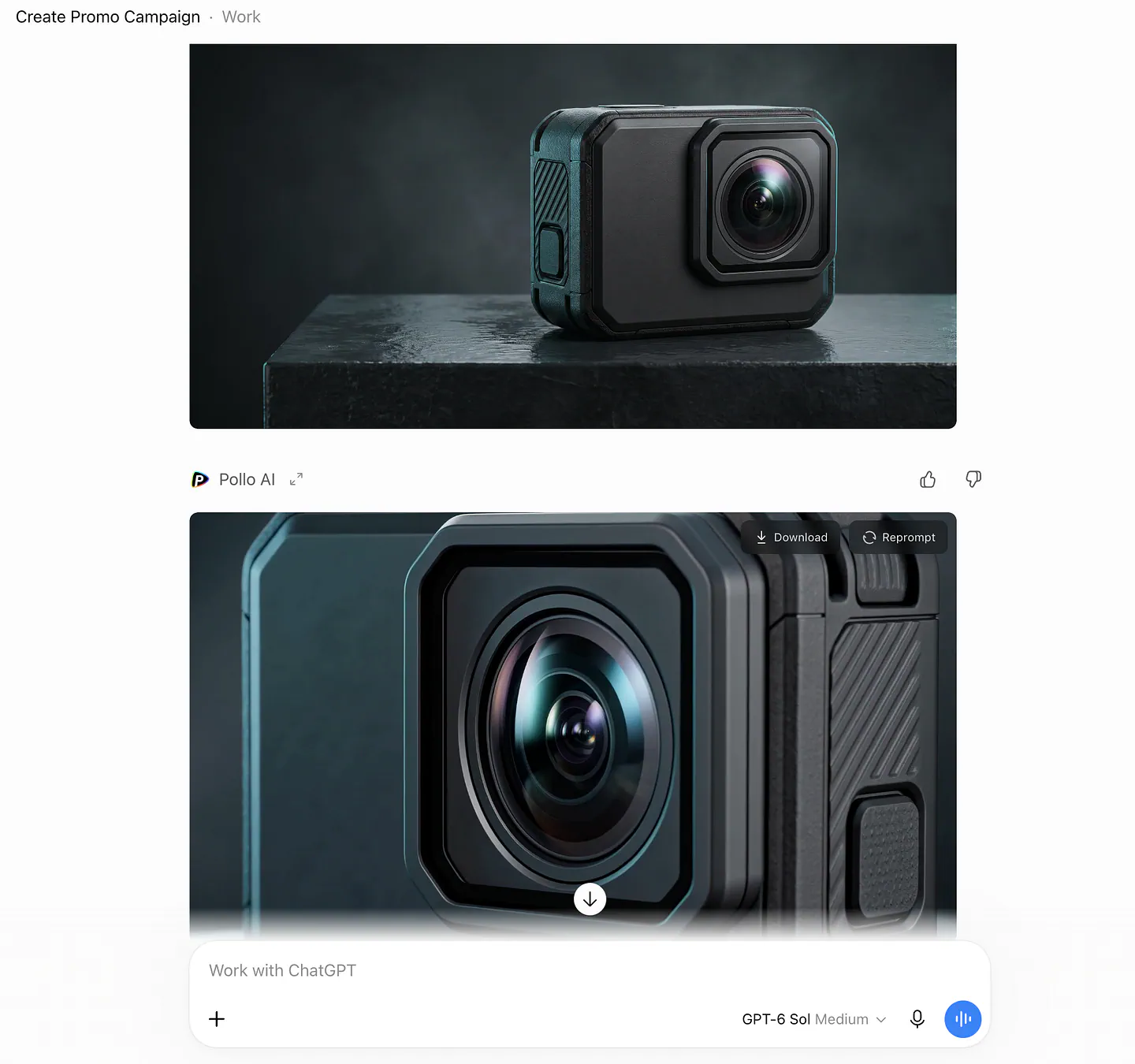
Sample image/video generation with Pollo AI MCP in ChatGPT. Image by Jim Clyde Monge
Look at how good the final image turned out. All the important details from my original product photo were retained, while the AI added the rugged, high-end commercial look I wanted. The final result was a 2752 × 1536 PNG generated with Nano Banana Pro.
If you’re curious, here’s the much more detailed prompt ChatGPT came up with behind the scenes:
Prompt: Create a premium 16:9 landscape advertising hero image using the supplied black action camera as the exact product reference. Preserve its body geometry, front lens placement, top button, left-side grip and matte textured black finish; no redesign, extra controls, brand mark or changed proportions. Product alone, fully visible, in a dramatic but restrained high-end studio environment: camera resting on a low charcoal slate plinth with a subtle wet reflective surface, deep graphite backdrop with a soft teal-blue rim light and controlled white key light, fine atmospheric haze, striking crisp lens reflections, realistic material details, ample clean negative space on the left for optional campaign copy added later. Photorealistic luxury product photography, commercial retouching, sharp focus, 16:9 composition. No hand, people, mount, accessories, water splashes over product, text, letters, logos, slogans, graphics, borders, or watermark.
Here’s what the final 15-second promo video looks like:
Again, if you’re curious about what ChatGPT sent to Pollo AI for the video, here’s the prompt:
Prompt: 15-second premium action camera product commercial. Use the supplied campaign image as the exact first frame and preserve the exact camera design throughout: compact matte black rectangular action camera, large front-right circular lens in square raised bezel, textured side grip, top button, realistic scale and geometry. No human hands, people, mounts, accessories, new branding or feature claims. 0–4s: subtle cinematic push-in as blue-white studio light rolls across the product and lens, slate plinth and charcoal backdrop stay elegant and restrained. 4–9s: smooth close orbit of only about 20 degrees around the front and side, revealing texture and precise edges without changing its shape. 9–12s: refined lens close-up with a tasteful optical reflection and gentle speed ramp. 12–15s: pull back to the original full hero composition and hold a clean final product shot with generous left-side negative space for a sales call to action to be added in editing. Photorealistic premium commercial, smooth stable camera movement, crisp product, cinematic contrast, minimal atmospheric haze. Natural subtle electronic pulse and soft mechanical whooshes, no spoken words, no generated text or logos, no watermarks.
The final video looks incredibly well made.
I especially like how the Pollo AI decided to slowly rotate around the camera and zoom in on the lens instead of adding a bunch of unnecessary action. Those movements actually make sense for the product and help show it from different angles. The result was a 16:9 1080p video generated with Seedance 2.0.
Submit Multiple Tasks in One Batch
Another useful workflow that you can do in ChatGPT with the Pollo AI MCP is doing multiple tasks in a single prompt. Yes, you don’t need to queue tasks or have multiple tabs of ChatGPT to perform jobs in parallel.
Pollo’s MCP currently supports submitting between 1 and 12 image or video generation tasks in a single batch.
For example, let’s say you’re testing promotional designs for a lipstick launch and want different models, colors, and compositions.
I uploaded the product image and used this prompt:
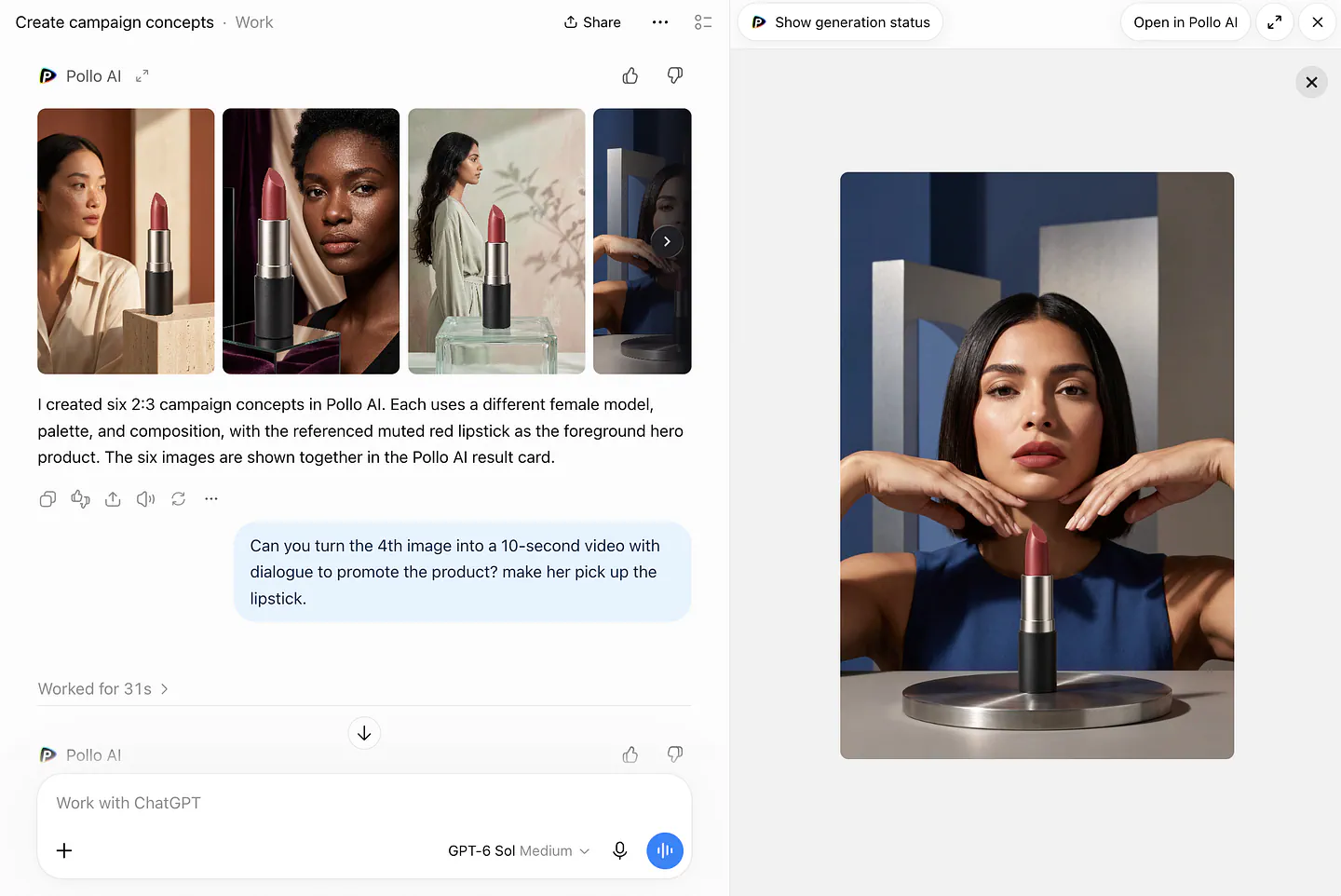
Prompt: @PolloAI create six 2:3 image concepts for the campaign and launch of the attached product. Each with a different female model, color palettes, and design composition. Keep the product focused and consistent.
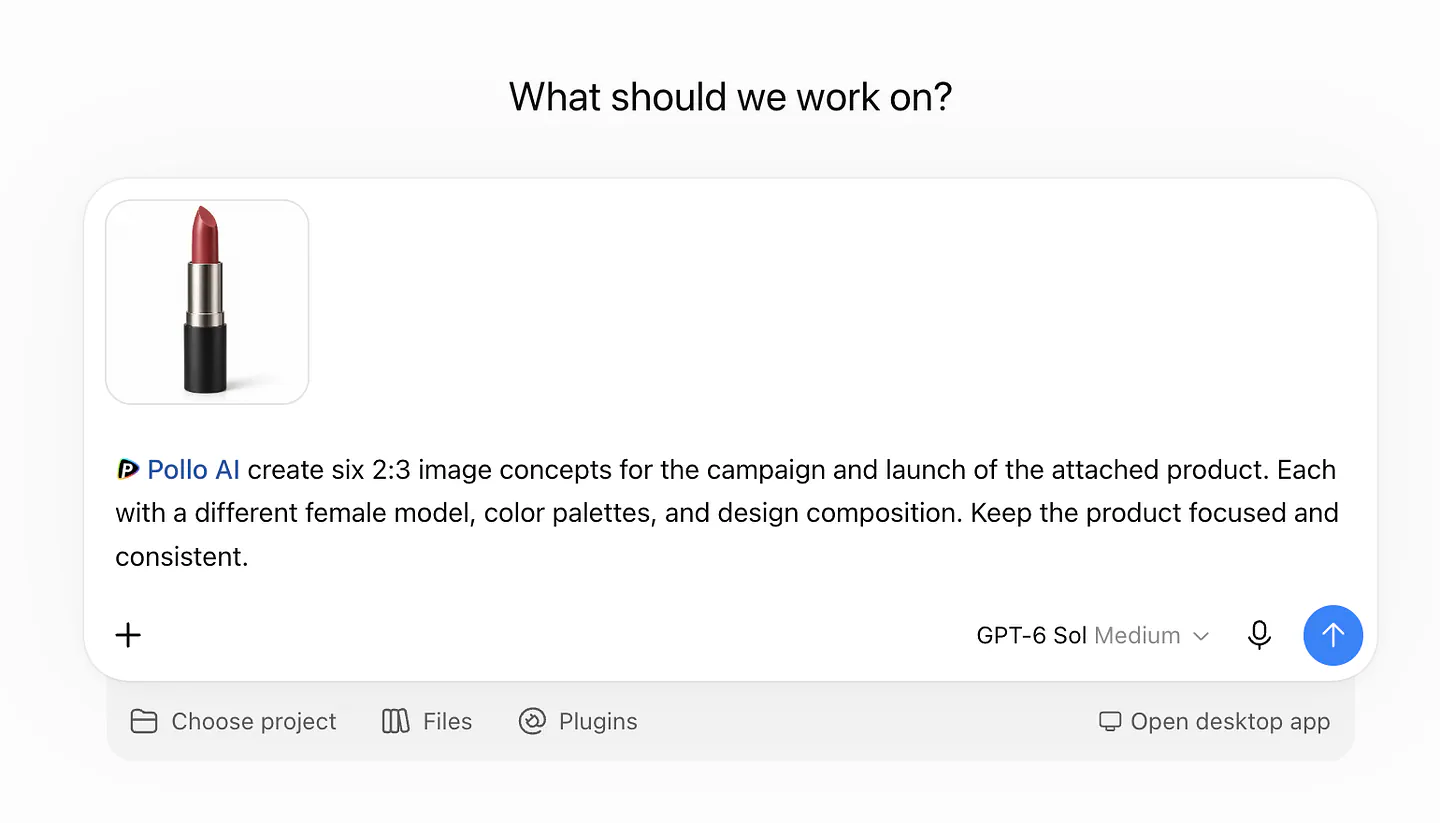
Sample image/video generation with Pollo AI MCP in ChatGPT. Image by Jim Clyde Monge
About a minute later, I had six completely different posters ready to work with. Let me say that again: all of these images were generated in about one minute.
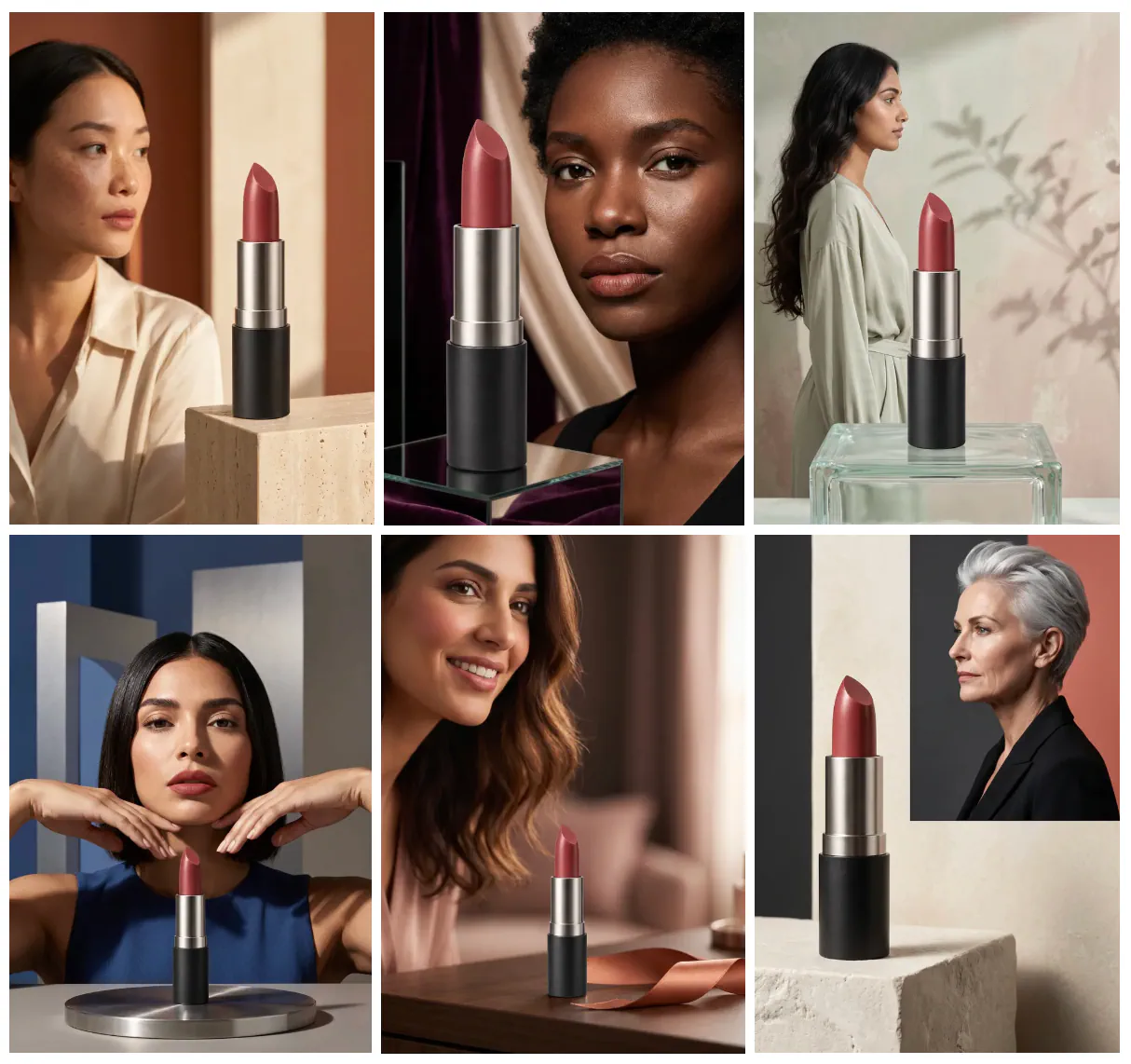
Sample images generated with Pollo AI MCP in ChatGPT. Image by Jim Clyde Monge
Try doing the same thing one by one with ChatGPT’s native image generator, and you’ll immediately see why batch generation is useful.
What’s even cooler is that ChatGPT and Pollo AI retain the context of the conversation. So after the images are generated, you can keep working on them without starting over.
For example, I wanted to transform the fourth image into a video. I just sent this follow-up prompt:
Sources
- Model Context Protocolgenerativeai.pub
- Pollo AI’s MCPtinyurl.com
- Jim Clyde Mongemedium.com
- https://vimeo.com/1231152804?fl=pl&fe=vlvimeo.com
- https://vimeo.com/1231174431?fl=pl&fe=vlvimeo.com