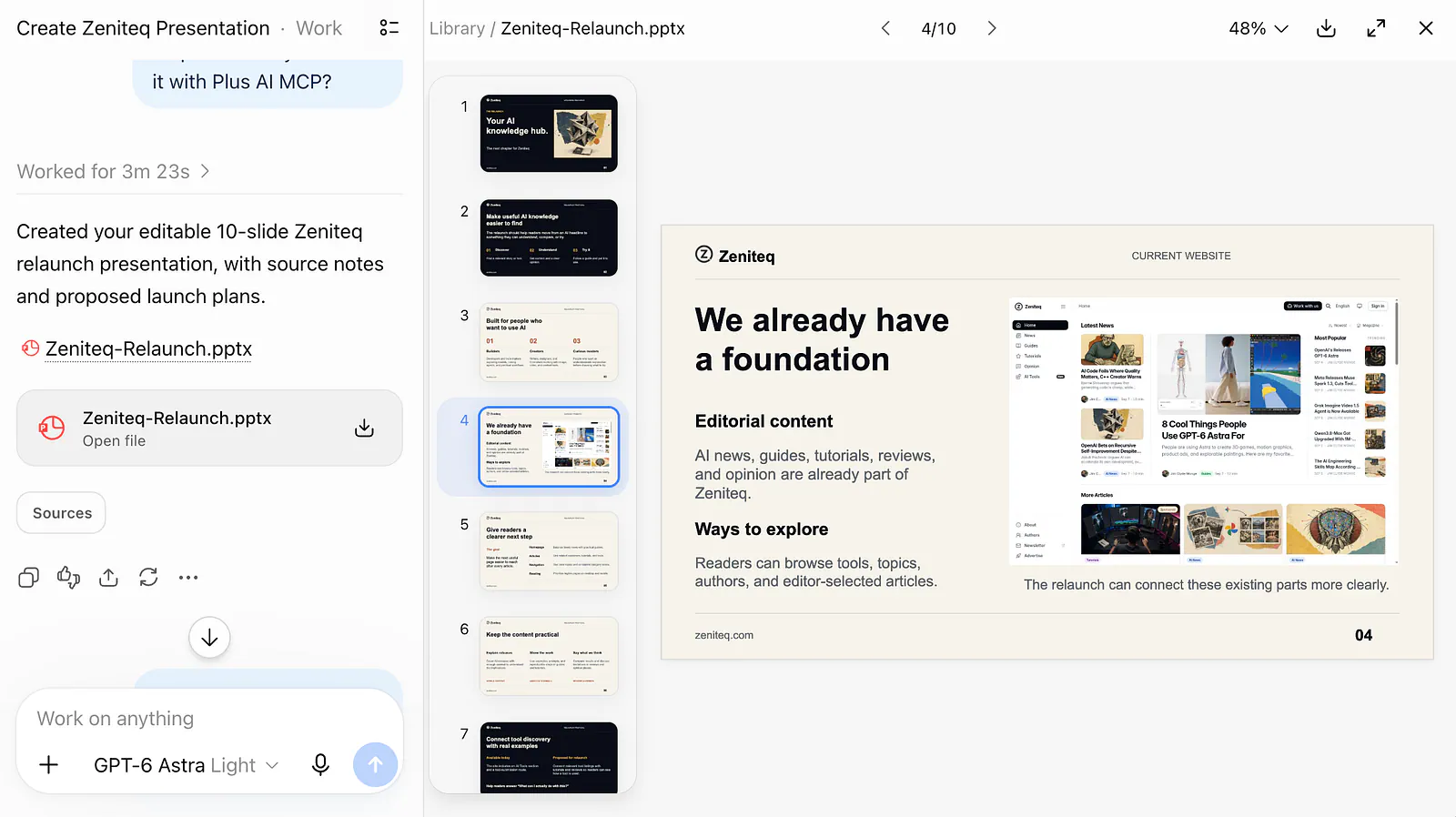
I have always wondered why native support for PowerPoint generation does not exist directly inside ChatGPT. Sure, Microsoft added Copilot capabilities into PowerPoint itself, but as a user, it would be 100x better if I could simply ask the AI agent to come up with a high-quality presentation without ever leaving the chat interface.
The answer to that missing feature is a Model Context Protocol connector from Plus AI that lets you generate presentation files directly inside ChatGPT.
Standard ChatGPT can output text outlines or Python scripts to generate basic slides, but the formatting often requires more manual correction than building the deck from scratch.
This workflow changes entirely when you introduce this protocol. By connecting ChatGPT directly to an external presentation engine, you bridge the gap between text generation and professional slide creation.
What is Plus AI
Before integrating anything into your local environment, we need to look at the engine powering the slides.
Plus AI provides a dedicated PowerPoint API designed specifically for software developers and automation workflows. You can find the documentation at the Plus AI API features page.
This API does not just dump plain text onto white backgrounds. It applies styling, manages slide layouts, and ensures the output is a native presentation file. When you send a structured payload of headings and bullet points to the endpoint, the API returns a ready-to-present document. This removes the need to manually map AI text into PowerPoint templates line by line.
The service handles the complex XML structure required by modern presentation software. Instead of worrying about font sizes or bounding boxes, you only need to provide the raw content and a chosen design theme.
Understanding MCPs in ChatGPT
The Model Context Protocol acts as a standardized bridge between AI assistants and external tools.
Originally introduced by Anthropic for Claude, MCP is rapidly becoming the industry standard for giving chatbots secure access to local files, databases, and external web services.
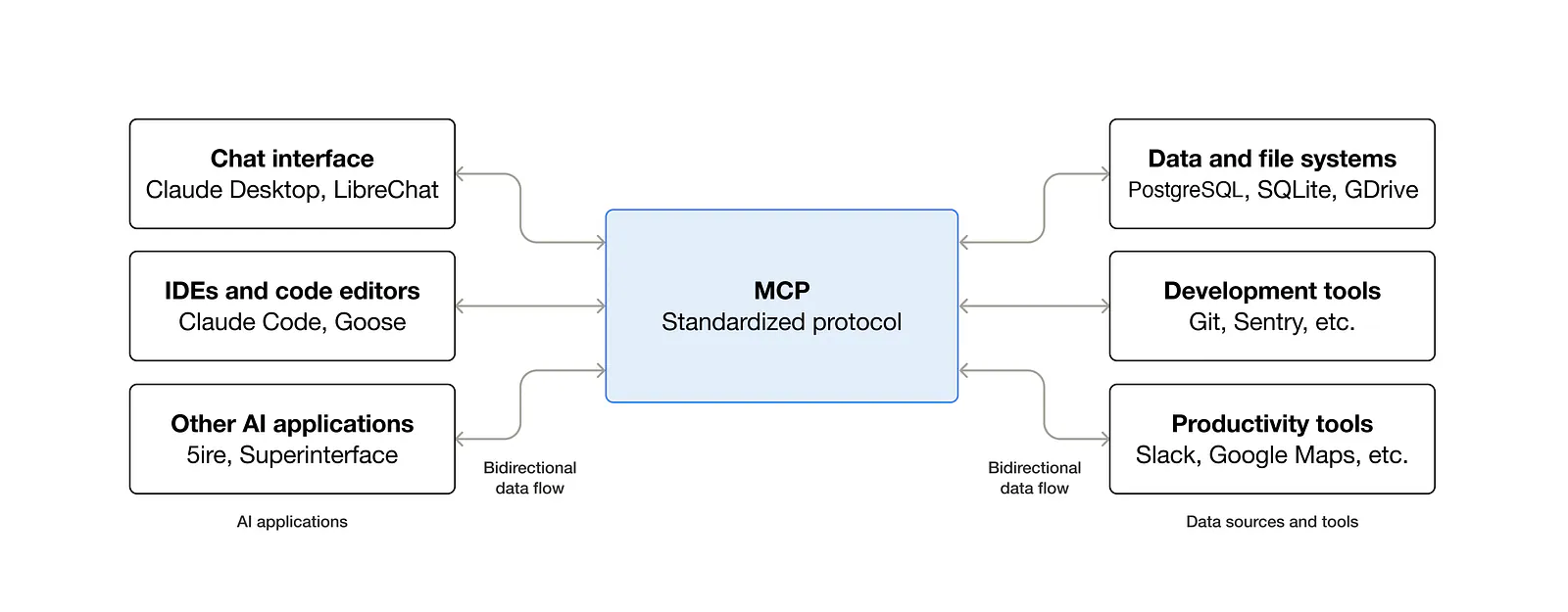
MCP protocol diagram. Image from Model Context Protocol
Instead of pasting text back and forth between ChatGPT and the Plus AI web interface, an MCP server allows ChatGPT to communicate with the Plus AI API directly in the background. You simply ask the assistant to create a presentation. ChatGPT reasons through your request, formats the data exactly as the API requires, and triggers the generation tool autonomously.
The architecture consists of the ChatGPT desktop application acting as the client, a local server running the specific tool logic, and the external API processing the heavy lifting.
This setup keeps your API keys secure on your local machine while giving the AI model new capabilities.
How to Install the Plus AI MCP in ChatGPT
Setting up this integration requires configuring a local server environment to host the tool. Here are the step by step guide in adding Plus AI in your ChatGPT account as a plugin.
Step 1: Enable Developer Mode
Navigate to the advanced settings page inside your ChatGPT client. Locate the developer mode section and toggle the switch to enable it.
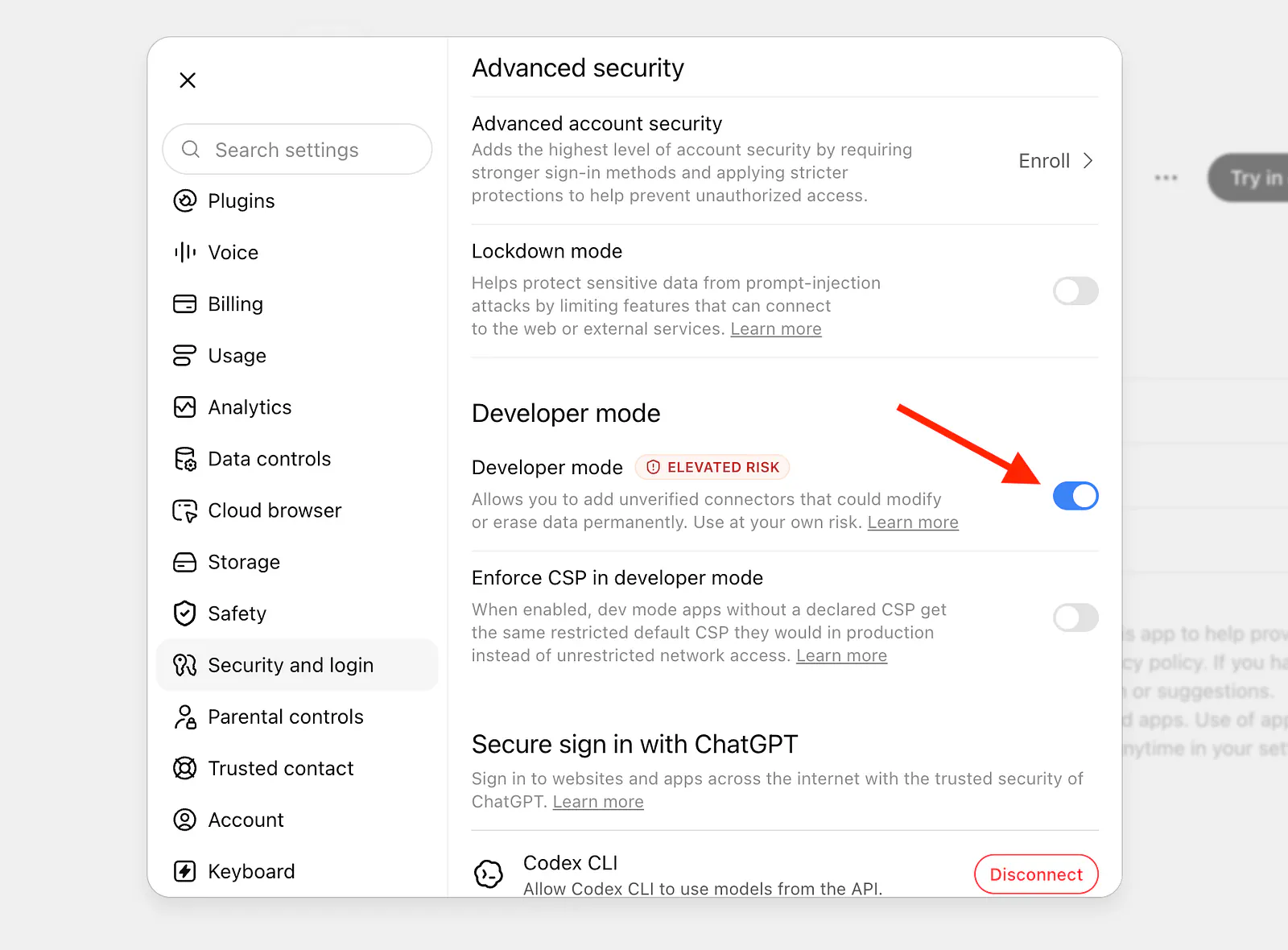
Enabling developers mode in ChatGPT. Image by Jim Clyde Monge
This exposes the interface options necessary to connect external protocol endpoints.
Step 2: Configure the Plugin
Head over to the plugins page and create a new plugin. Name it “Plus AI” to keep your workspace organized. In the connection field, enter the official endpoint URL: [https://mcp.plusai.com/](https://mcp.plusai.com/).
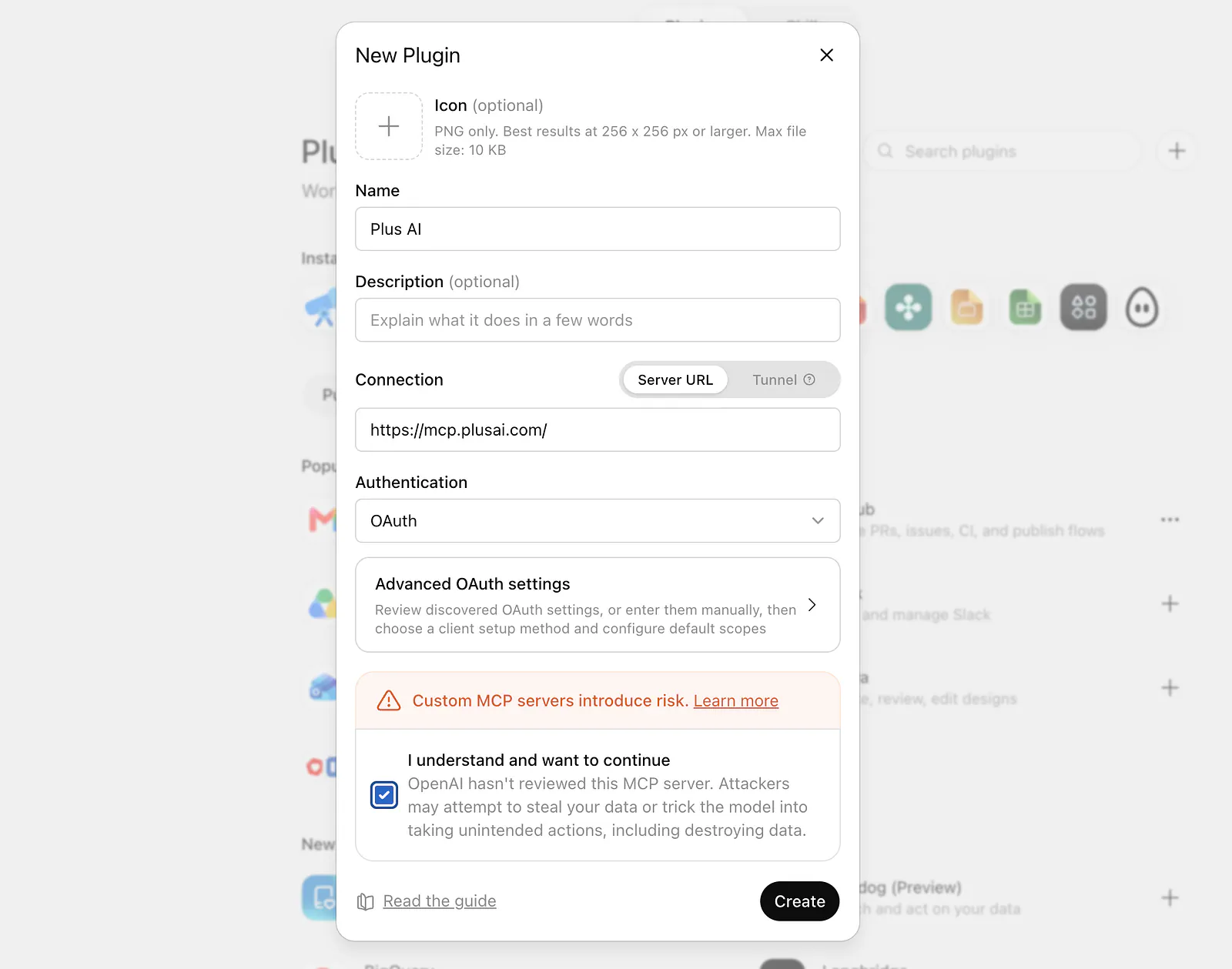
Adding a custom plugin in ChatGPT. Image by Jim Clyde Monge
Agree to the terms of service and click the Create button to register the endpoint.
Step 3: Review the Disclaimer
A disclaimer window will appear detailing the permissions the connector requires. Read through the security notices carefully.
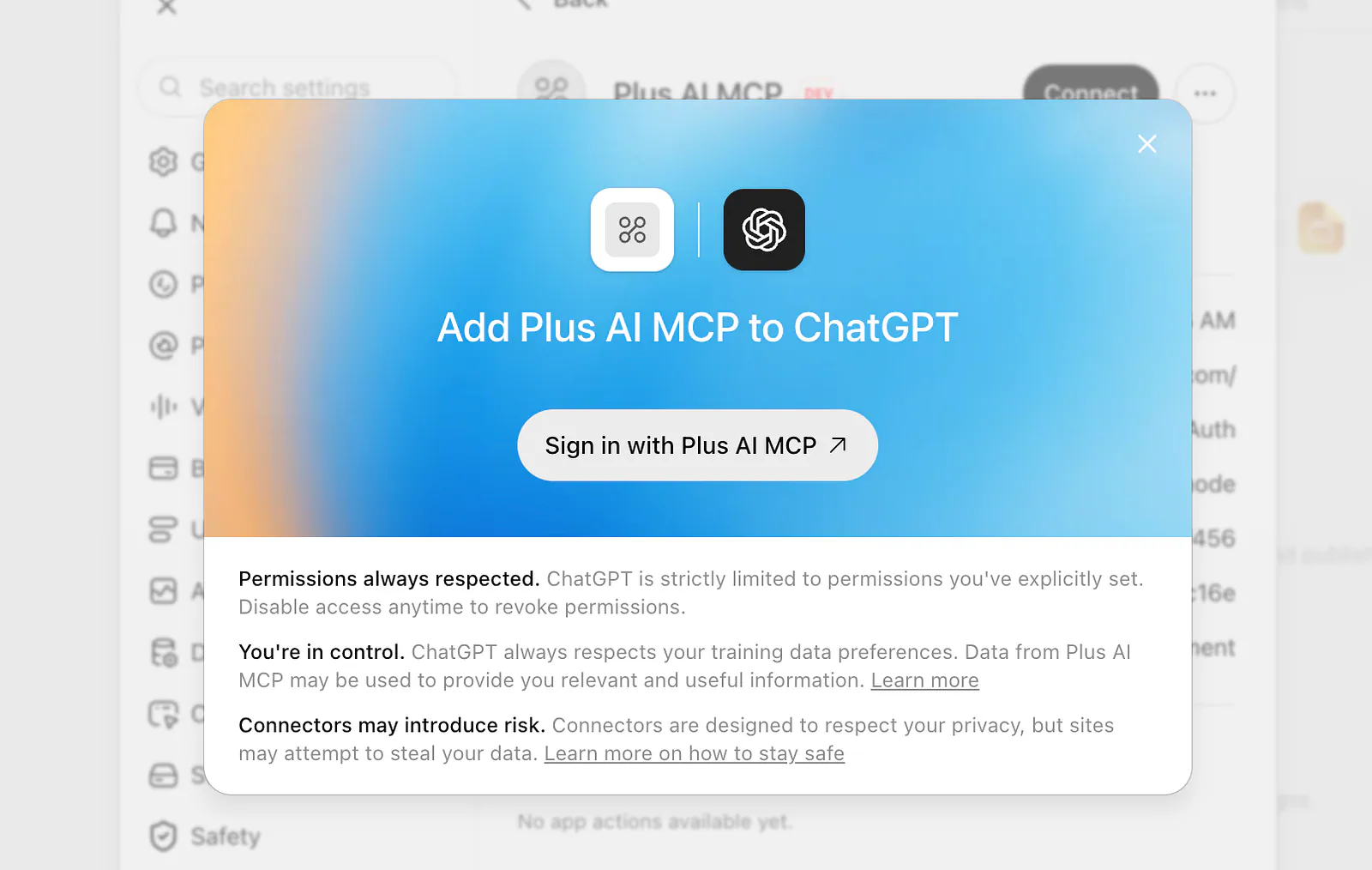
Signing into a plugin server in ChatGPT. Image by Jim Clyde Monge
Once you agree to the conditions, click the “Sign in with Plus AI MCP” button to proceed to the authentication phase.
Step 4: Authenticate Your Account
You will be redirected to a secure login page. This step grants ChatGPT the necessary access to communicate with your Plus AI account.
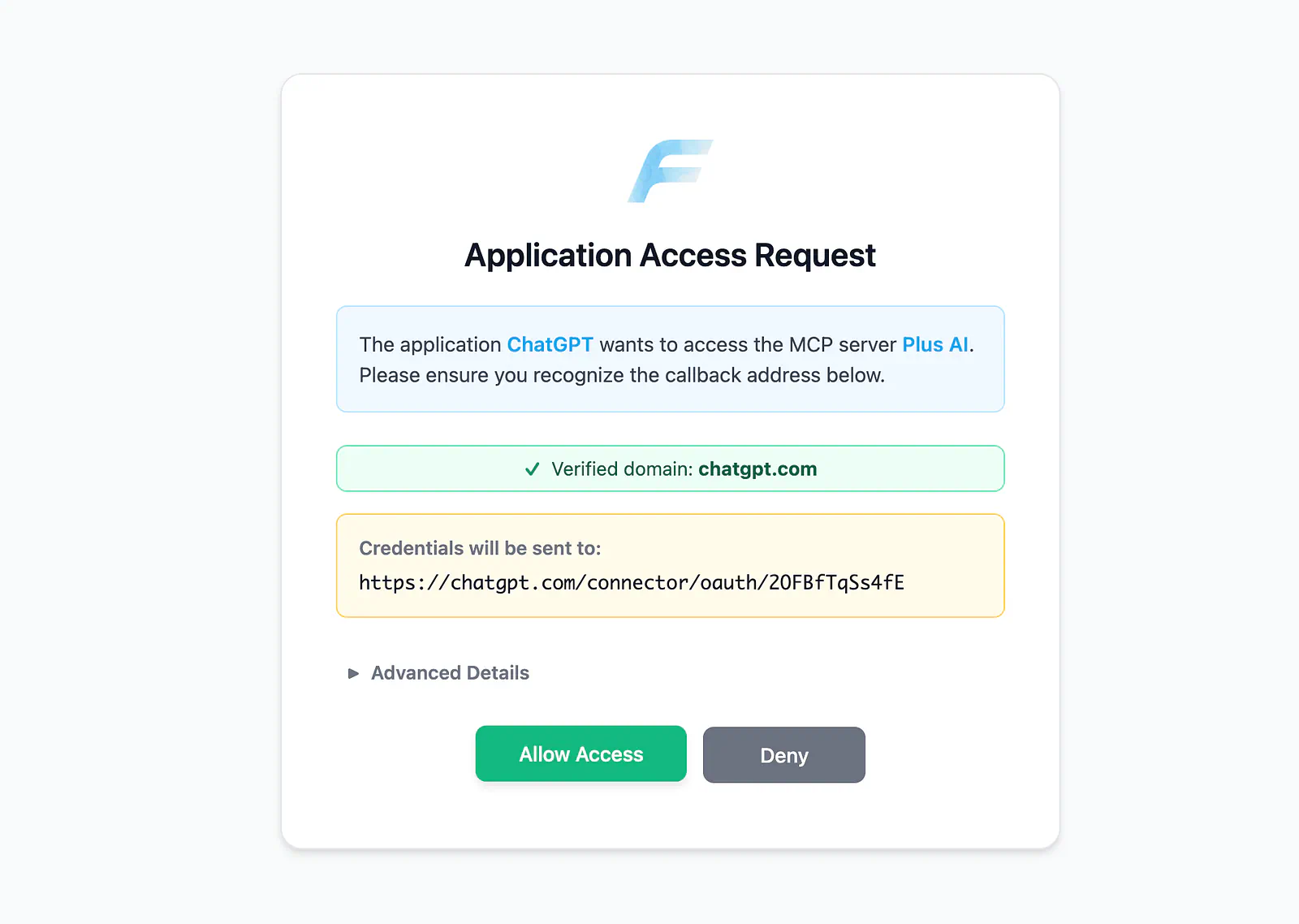
Allowing an MCP server to gain access in ChatGPT. Image by Jim Clyde Monge
Click the allow access button to authorize the connection. The system will automatically redirect you back to the ChatGPT interface, and the plugin will be fully active and ready for use.
Generating Presentations with ChatGPT
With the plugin installed, the entire presentation build process happens directly inside your chat window. You no longer need to switch tabs or open separate applications until the PowerPoint file is ready to download.
Prompt the Agent
Open a new chat instance. To invoke the tool, simply mention the plugin by typing @Plus AI MCP followed by your instructions. For my test, I used the following prompt to build a deck for my own publication:
Sample prompt: @Plus AI MCP create a 10 slide powerpoint presentation about the upcoming relaunch of my AI knowledge hub website https://www.zeniteq.com/
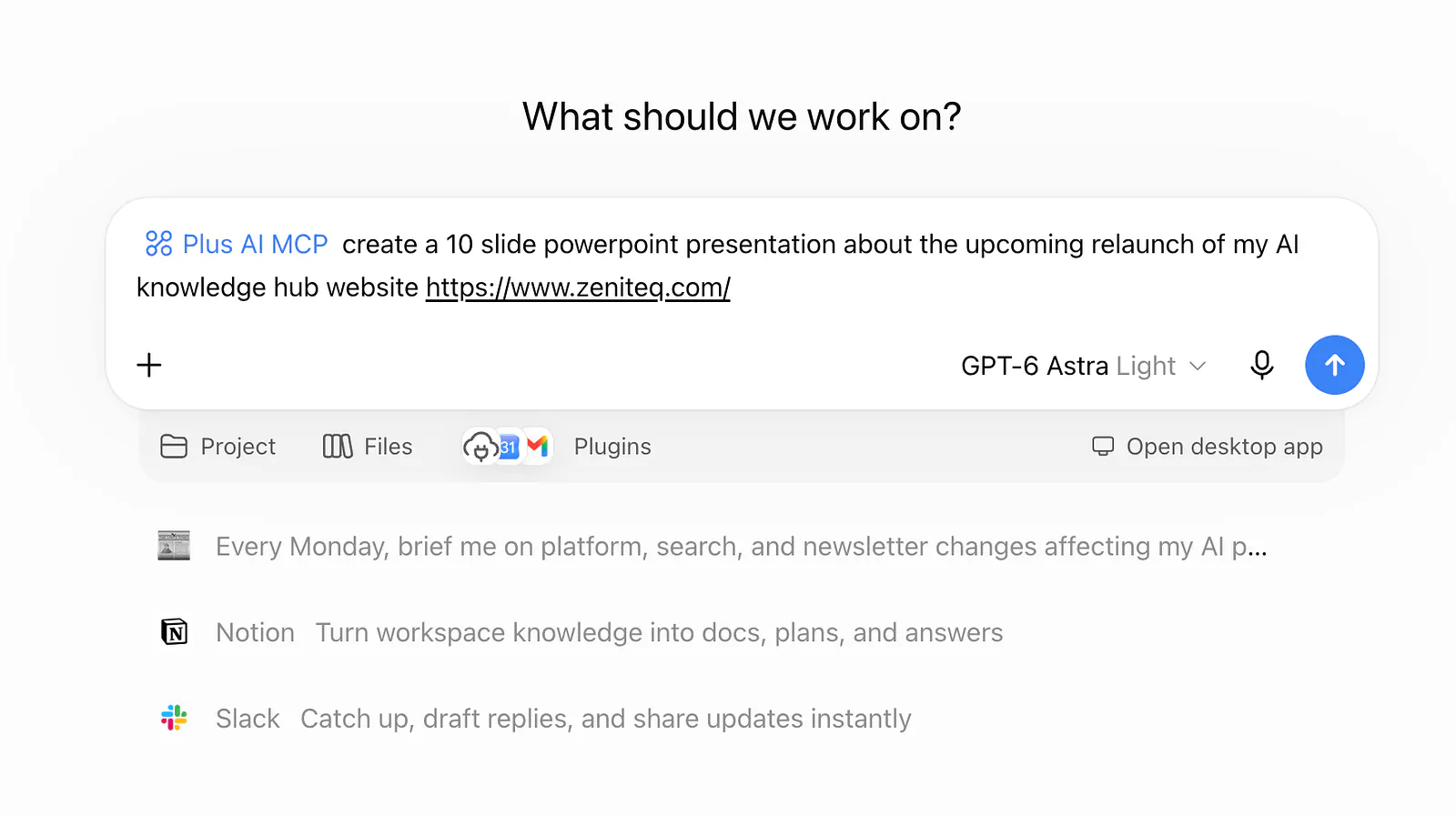
Using a custom plugin in ChatGPT. Image by Jim Clyde Monge
Review the Output
The speed and accuracy of the generation process are impressive. After just two minutes of processing, ChatGPT returned a high-quality, well-researched presentation file.