Shufler Launches a 3D View for Claude Code and Codex | Zeniteq
Loading
Loading article
Shufler Launches a 3D View for Claude Code and Codex
The macOS beta turns parallel coding-agent sessions into a visual workflow, but its transcript access and GitHub controls deserve a cautious first run.
Shufler, an open-source macOS app, gives developers a 3D visual control room for managing multiple Claude Code and OpenAI Codex CLI sessions simultaneously, with terminal rows, pull request stages, and red indicators flagging items needing human input.
At version 0.3.0, uploaded October 28, 2026, the MIT-licensed tool requires Python 3.11 or later and installs via Homebrew, pipx, or uv. Its ability to read agent transcripts and trigger GitHub actions like CI reruns and merges warrants careful evaluation before use with sensitive work.
Shufler gives developers running multiple Claude Code and OpenAI Codex CLI sessions a shared 3D control room. Terminal sessions become rows, pull requests move through work stages, and items needing human input light up red. Developers can jump to a terminal tab, answer an agent, dispatch a prompt, rerun CI or merge work from the interface, according to the project’s README.
The open-source, MIT-licensed project is a macOS beta at version 0.3.0. Its PyPI release record lists that version as uploaded on October 28, 2026. A browser demo uses sample data, while Homebrew, pipx and uv provide documented installation routes.
The useful distinction is that Shufler sits alongside existing agent sessions. Developers keep using their terminals and coding tools; Shufler adds a view across them. That makes it immediately understandable as a navigation aid, but its ability to read transcripts and trigger GitHub actions also makes it more consequential than a decorative dashboard.
I’d begin with the sample-data demo, then evaluate the installed beta in an environment containing only non-sensitive work. The reasons come from its documented data inputs and controls, not from evidence of a specific security incident.
What Shufler Reads
Shufler names three inputs: terminal sessions, agent transcripts and GitHub pull requests. Together, they connect where an agent is running, what it is doing and where its work sits in a repository workflow. The README describes the resulting scene as a live companion to the terminal.
Input
Documented role
Practical consideration
Terminal sessions
Represent sessions as rows and connect the scene to terminal navigation
Check which sessions are discovered and whether each row targets the expected tab or pane
Claude Code and Codex CLI transcripts
Help show agent activity and requests for human input
Transcripts can contain prompts, code excerpts and other repository context
GitHub pull requests
Place repository work into the visual pipeline and support actions such as rerunning CI or merging
Confirm the repository and available actions before using write controls
The distinction between terminal discovery and transcript reading matters. A list of open tabs tells a tool where work lives. An agent transcript can reveal the content of that work, including instructions and material supplied to the model. The project descriptions do not justify assuming that Shufler reads every byte of terminal output, but they explicitly identify transcripts as an input.
GitHub configuration is a separate concern. The quickstart tells users to set repo = "owner/name" under [scm] to see a repository’s pull requests. That is a documented GitHub selection step. It should not be treated as proof that all terminal and transcript discovery is restricted to that same repository.
That produces an important practical implication: choosing a harmless GitHub repository does not, by itself, establish a harmless local data environment. Anyone experimenting on a machine already used for confidential agent sessions should inspect how discovery works before starting the beta against that account.
How Rows Connect Terminals to GitHub Work
Shufler’s basic unit is a terminal session. The README describes each terminal workspace as a row, arranged in the same order as the terminal’s sidebar. Clicking a row switches the real terminal to that session’s tab or pane, where the terminal integration supports it.
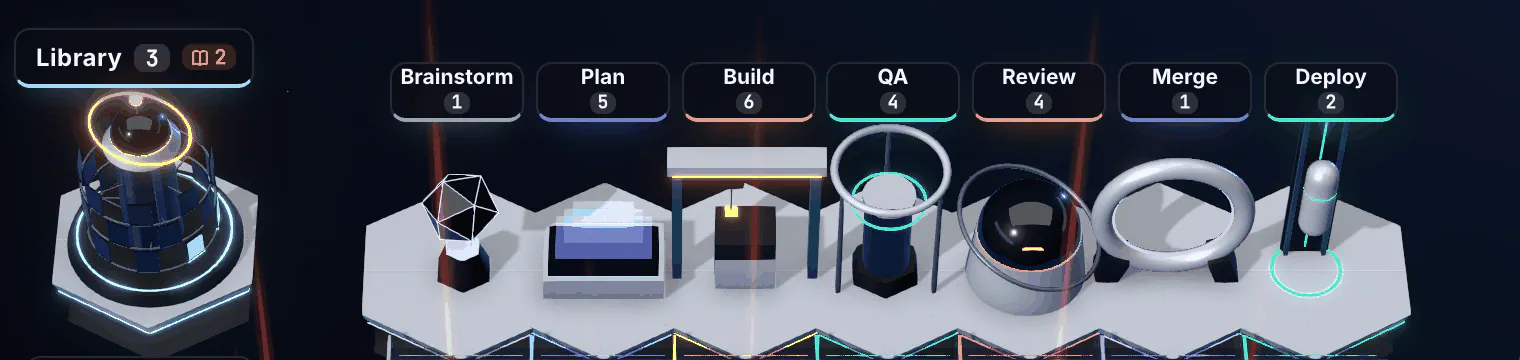
Work then moves horizontally through seven stages:
Brainstorm
Plan
Build
QA
Review
Merge
Deploy
Each stage has a landmark and a live count. Row headers show a domain colour, an item count and a red count for work needing attention. A session without a live agent appears dark. These are documented interface behaviours, not results from an independent test.
The row-and-stage combination addresses two different navigation problems. Rows answer where the agent is running. Columns show the work’s reported phase. Red indicators point toward the sessions asking for intervention.
For a developer juggling several agents, that separation could be more useful than a single list of “busy” and “idle” processes. An agent waiting for a decision and a pull request waiting for review may both be stalled, but they need different next actions. Shufler aims to place those actions beside the relevant work.
The interface also works in both directions, according to the README: an agent opening a pull request or asking a question changes the scene, while an answer entered through the scene reaches the agent. Developers can continue typing directly into their terminals.
I’d judge the 3D presentation by how reliably it preserves those connections. A clear scene is valuable if the red item opens the right session and the answer reaches the intended agent. Visual movement alone says little about whether a patch is correct, a review is complete or a deployment is healthy. Those judgments still require the underlying code, checks and release evidence.
Terminal Support Has Different Levels
The quickstart describes support for any terminal on macOS, with cmux, iTerm2 and tmux getting the fullest integration. The PyPI description makes the boundary clearer: other terminals can operate in a watch-only mode.
That qualification matters when evaluating the advertised controls. Seeing session activity and switching directly to a specific pane are different capabilities. A developer using another terminal should establish which interactions are available before expecting the full click-to-focus workflow.
Shufler also wraps existing tools instead of supplying a replacement agent environment. The documented prerequisites include the GitHub CLI and either Claude Code or the Codex CLI. Installing Shufler therefore adds a coordination layer to an existing setup; it does not remove the need to configure those tools.
The likely fit is someone with enough concurrent sessions that finding the right one has become a recurring task. For a developer working in one or two tabs, I’d first ask whether another interface reduces work or simply duplicates information already visible in the terminal.
The Python package requires Python 3.11 or later, according to PyPI. It includes the local daemon, the shufler command and the built web application, so the documented package installation does not require a separate frontend build.
Next, run the setup command:
shufler setup
The project says this selects a terminal and writes configuration to ~/.config/shufler/config.toml. Open that file in an editor and set the GitHub repository under its existing [scm] section:
[scm]
repo = "owner/name"
Replace owner/name with the repository to evaluate. This is a configuration example, not a command to overwrite the rest of the file.
Start the service with:
shufler start
The documented browser address is http://127.0.0.1:4700.
That address deserves a precise explanation. 127.0.0.1 is the loopback address, used to reach a service on the same computer. The documented URL is not a public internet address or a local-network address for other computers. It also does not, on its own, prove every aspect of the server’s binding, authentication or outbound network behaviour.
The browser demo is the lower-commitment starting point. The project describes it as running on sample data with nothing to install. It can help readers decide whether the spatial layout is useful before involving real sessions or repository access.
Local Execution Is Useful, but It Is Not Isolation
The README says Shufler “runs on your machine only” and describes it as a wrapper around existing tools, including the GitHub CLI. That tells readers where the application is intended to run. It leaves separate questions about what it reads, retains and sends through its integrations.
Those questions matter because the interface combines observation with action. Reading a session and highlighting a blocked task are observational functions. Dispatching a prompt can cause an agent to do more work. Rerunning CI and merging a pull request can change repository activity or state.
The evidence available here consists of the project’s own README and package metadata, not independent security or reliability testing. Those descriptions alone do not settle transcript retention, the full set of network requests, or safeguards around each write action.
Version 0.3.0 is explicitly pre-1.0. The author also calls the project “rough in places” and says Claude Code wrote most of its code, with the author designing it and reviewing what shipped. That attribution is useful development context, but it is not a security assessment. The stronger basis for caution is the combination of early release status, sensitive inputs and consequential controls.
My recommendation is to separate three checks:
Data scope: Which sessions, transcripts and repository details can Shufler discover?
Action targeting: Does a control address the expected agent, terminal pane or pull request?
Failure behaviour: What happens when a session closes, a repository changes or an action fails?
A disposable test repository helps with the second and third checks. A separate test environment containing only non-sensitive agent history is a stronger starting point for the first. Simply closing a confidential terminal tab should not be assumed to remove any transcript files that an integration might discover.
What to Check Before Using Real Work
A useful evaluation should move from observation to actions with consequences.
Start with the sample-data demo and check whether the row-and-column layout makes sense at a glance. Then use a non-sensitive local setup to confirm that session discovery matches expectations. Open and close test sessions, compare their order with the terminal, and verify that selecting a row focuses the correct destination where supported.
Next, inspect the GitHub mapping. Confirm that the configured repository’s pull requests appear as expected and that the scene remains understandable as work changes stages.
Only then try interactions. Send a harmless prompt to a clearly identified test agent. Check its receipt in the terminal. Treat CI reruns and merges as a later step, using disposable work where an incorrect action would have little consequence.
That sequence tests Shufler’s central promise: keeping terminal context, agent state and GitHub work connected. If the connections hold reliably, the 3D view may offer a useful place to direct attention. Until then, the existing terminal and GitHub views remain the clearest places to verify what actually happened.
Frequently Asked Questions
3 questions
1
Does Shufler replace Claude Code or Codex?
No. It runs alongside Claude Code and the OpenAI Codex CLI, reading their activity and providing a shared interface. Developers can continue working in their existing terminals.
2
Does Shufler work with every terminal?
The project documents macOS support, with fuller integration for cmux, iTerm2 and tmux. Its package description says other terminals can use a watch-only mode.
3
Is selecting a test repository enough to protect sensitive work?
It is a useful first step, but the repository setting is documented for GitHub pull requests. It does not establish that terminal and transcript discovery is limited to that repository. Use a non-sensitive test environment and inspect the data scope before connecting confidential work.