The world’s “first AI feature film” just premiered in Cannes. Two years ago, that news would have been a joke. Today, it is a legitimate press release.
It’s crazy to think how much improvement has happened in the past couple of years. We went from blurry six-second clips with melting faces to coherent multi-shot scenes with synced lip movements and consistent characters.
Productions that used to cost hundreds of thousands of dollars can now be matched, in look and feel, by one person with a laptop in a single afternoon.
People keep asking me how those Hollywood-level AI short films are made. So in this guide, I am going to walk you through the exact steps using Topview’s newest feature, Drama Studio, and show you the seven-minute K-drama episode I generated with it.
Let’s get started.
What is Drama Studio?
If you open Topview today, you will see a new tool on the left side panel called Drama Studio. It is a dedicated dashboard for building drama scenes, either as a one-off episode or as a full series.
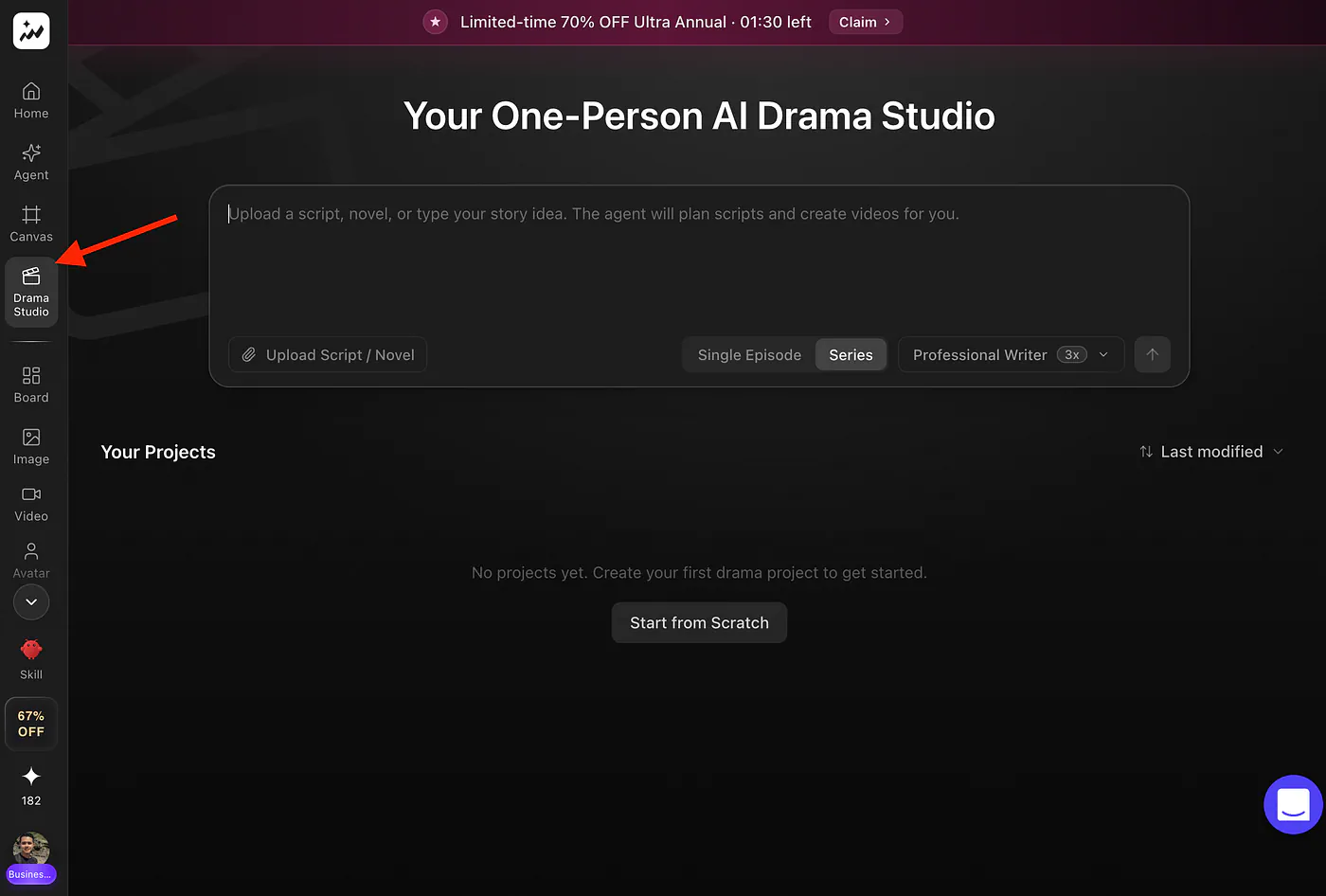
Topview’s Drama Studio dashboard. Image by Jim Clyde Monge
You can upload your own script, drop in a novel, paste a story idea, or let the AI brainstorm a plot from a single sentence. The agent then helps you develop characters, lock in dialogue, and shape the narrative beat by beat.
A few things make this feature stand out from the regular text-to-video flow on Topview:
- Character consistency is built in. Once you generate a character, that same face, hair, and outfit carries across every scene you create
- The script editor lives next to the video generator. You can rewrite a line of dialogue and regenerate just that shot without rebuilding the whole episode
- Multi-episode mode keeps continuity. The system remembers your characters and locations between episodes, so you do not start from zero each time
- Storyboards come before video. You can preview each shot as a still image first, fix anything weird, then commit credits to the actual video render
Generating video burns more credits than generating an image, so being able to lock the shot composition before you spend on motion is a big quality-of-life upgrade.
How to Create a Drama Series
Time for the actual walkthrough. I want to show you how to build a short series without uploading an existing novel or script, just to demonstrate how far the AI brainstorming part can take you.
Click on Start from scratch, and you will land on the dashboard below.
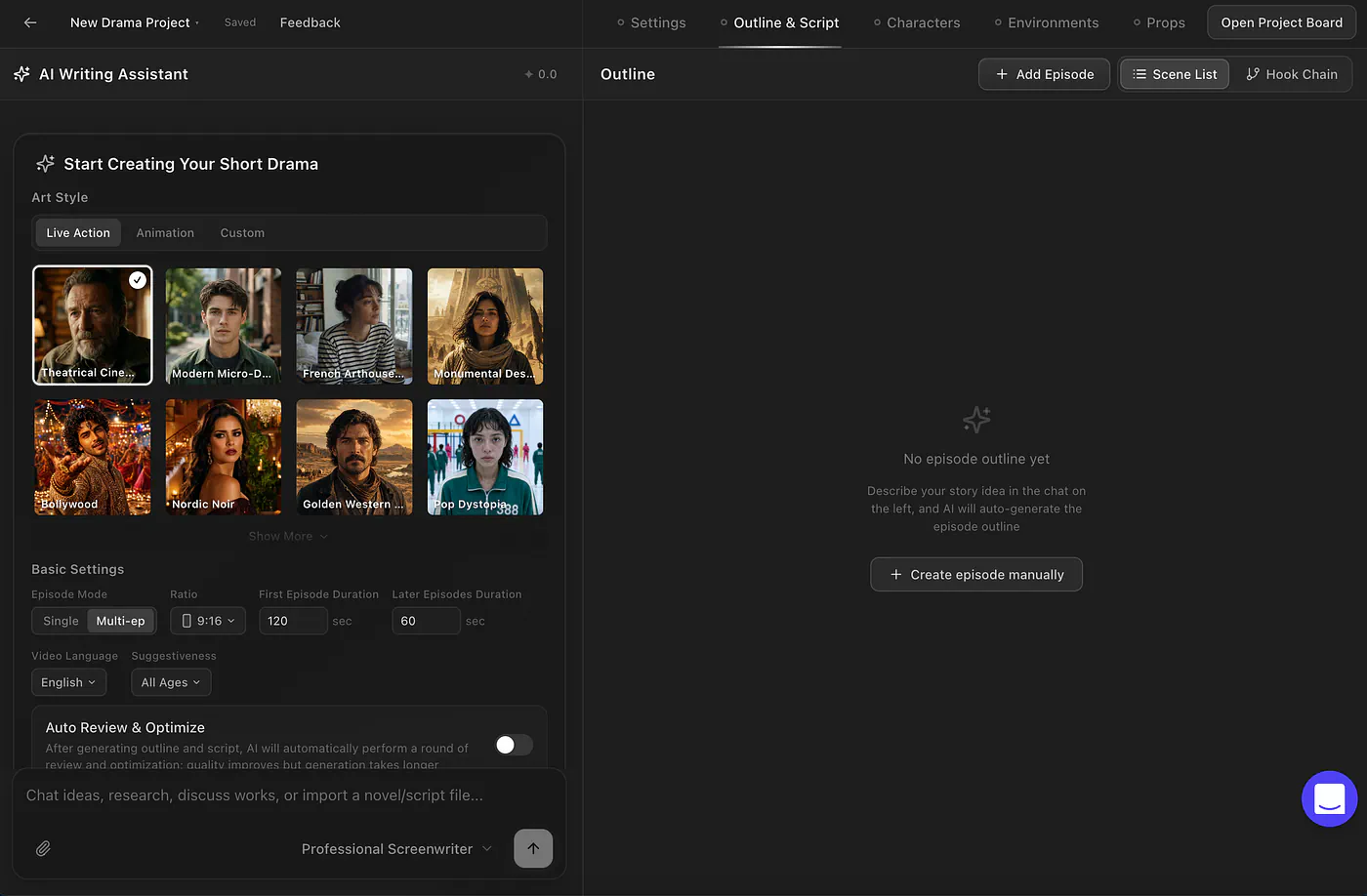
Topview’s Drama Studio story creation dashboard. Image by Jim Clyde Monge
You will see a handful of templates to start with. Live action, animation, or your own custom style. For this example, I went with a modern K-drama because the romance genre gives the AI a clear emotional arc to work with.
Next, set the basics:
- Aspect ratio (9:16 for shorts, 16:9 for cinematic)
- Language (Still in English, so it’s easier to understand)
- Duration per episode
- Single episode or multi-episode
There is also an advanced settings panel where you can pick the target audience, the genre, and the trope.
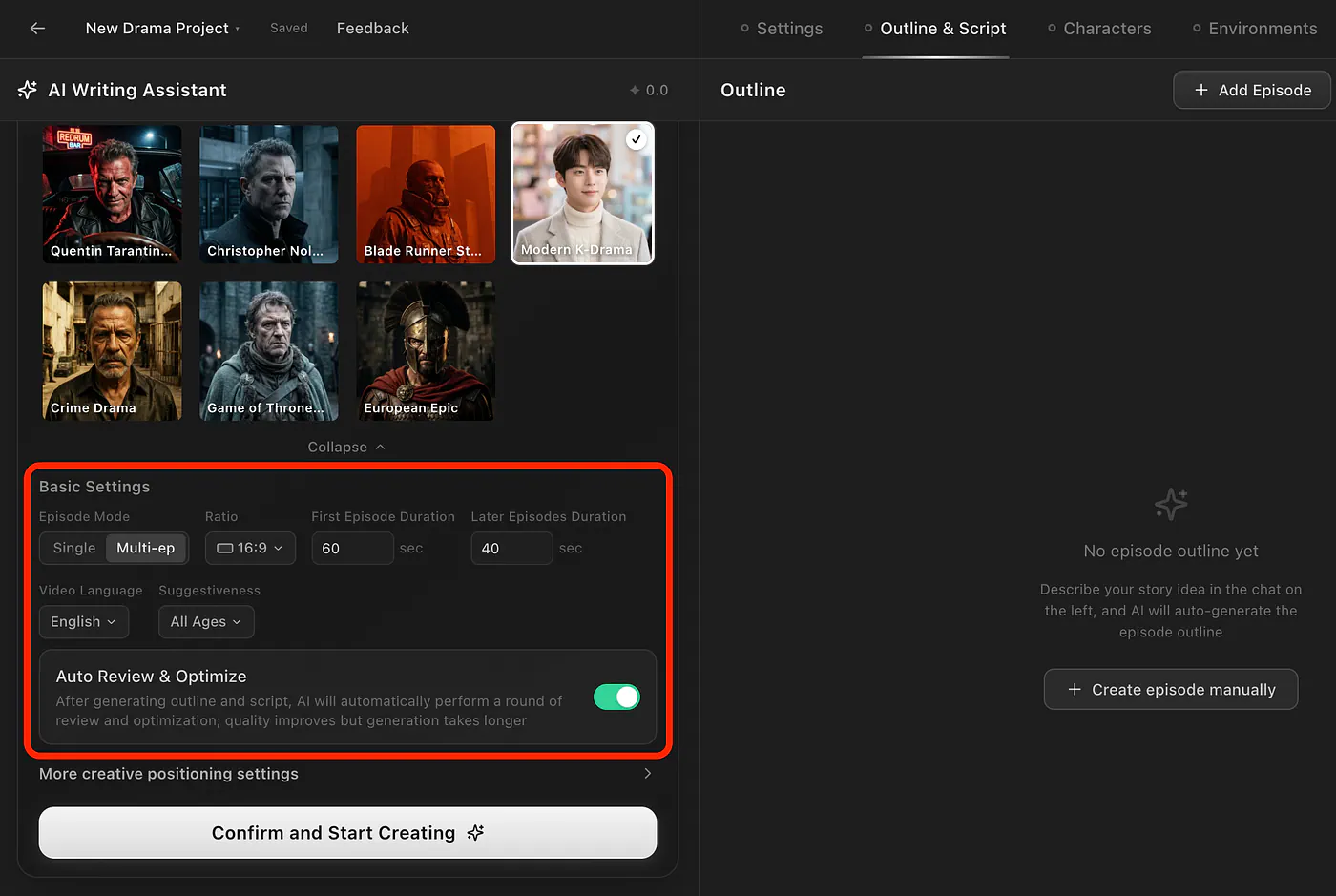
Topview’s Drama Studio story creation settings. Image by Jim Clyde Monge
Once you are happy with the configuration, click Confirm and Start Creating.
The next screen asks for the plot. This is where storytelling matters more than prompting tricks. The richer your premise, the better the agent can generate scenes with real emotional weight.
Here is the story I gave it:
A Korean office worker keeps seeing the same foreign man at the last train every night. They never talk, but they slowly notice small things about each other. One night, she misses her stop after falling asleep, and he wakes her up. That small moment starts a quiet romance, but she later finds out he is leaving Korea in seven days.
Of course, you can be as creative as you want with the storyline.
Here is what the AI generated for episode one:
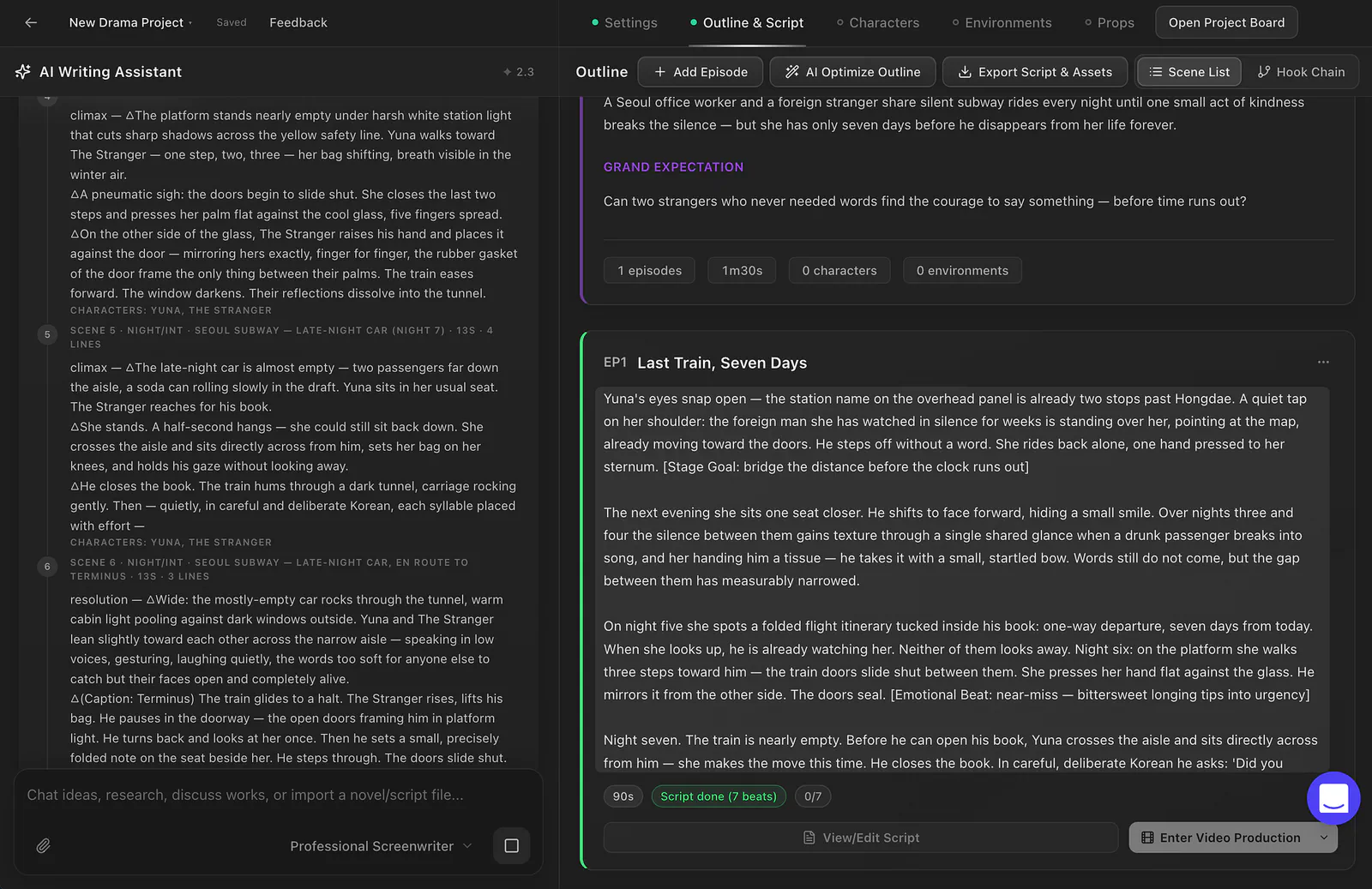
Topview’s outline and script page. Image by Jim Clyde Monge
Here’s the full story of episode 1:
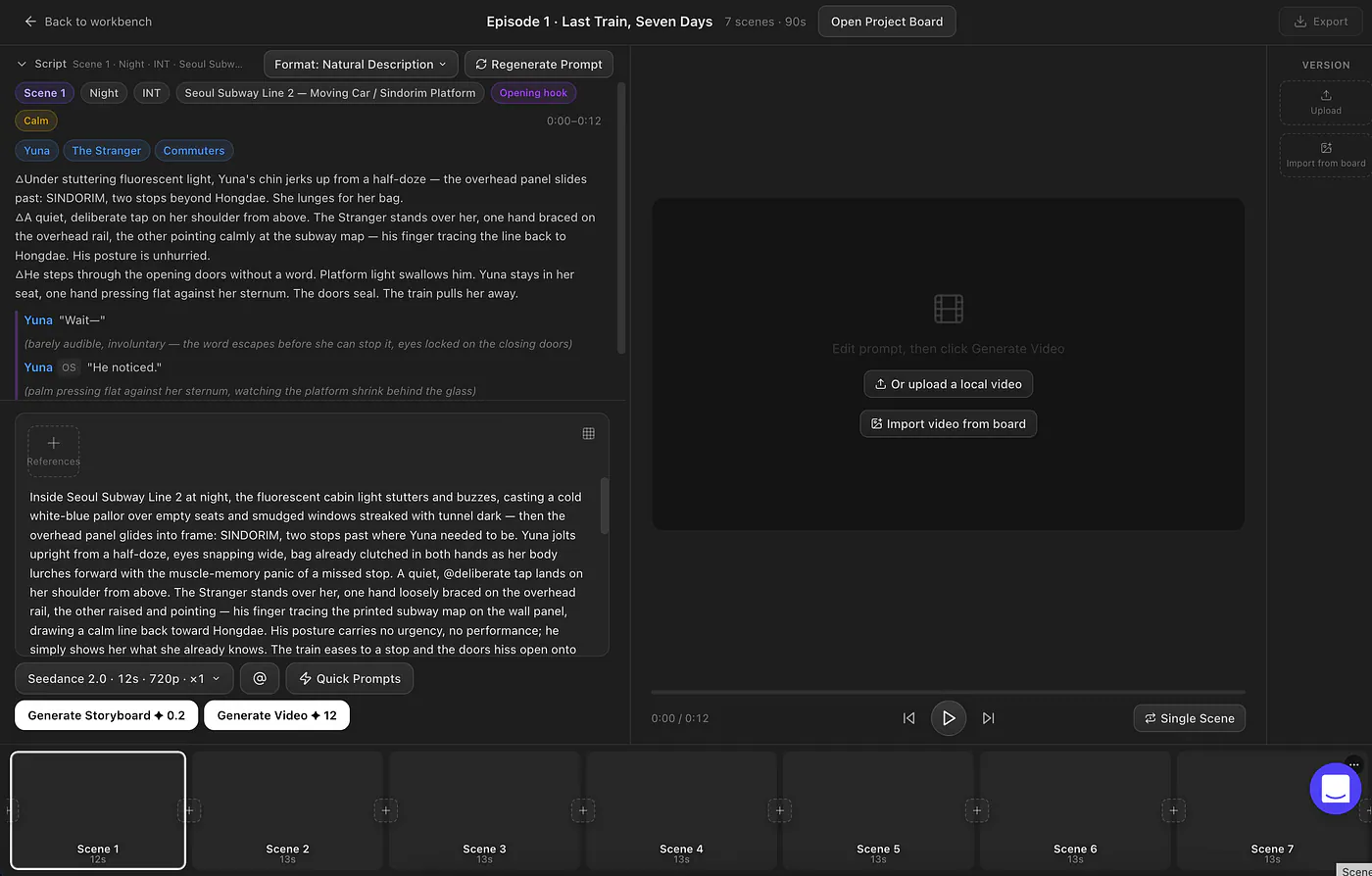
Yuna's eyes snap open — the station name on the overhead panel is already two stops past Hongdae.
A quiet tap on her shoulder: the foreign man she has watched in silence for weeks is standing over her, pointing at the map, already moving toward the doors.
He steps off without a word. She rides back alone, one hand pressed to her sternum.
[Stage Goal: bridge the distance before the clock runs out]

The next evening she sits one seat closer.
He shifts to face forward, hiding a small smile.
Over nights three and four the silence between them gains texture through a single shared glance when a drunk passenger breaks into song, and her handing him a tissue — he takes it with a small, startled bow. Words still do not come, but the gap between them has measurably narrowed.
On night five she spots a folded flight itinerary tucked inside his book:
one-way departure, seven days from today. When she looks up, he is already watching her.
Neither of them looks away. Night six: on the platform she walks three steps toward him — the train doors slide shut between them.
She presses her hand flat against the glass. He mirrors it from the other side. The doors seal.
[Emotional Beat: near-miss — bittersweet longing tips into urgency]

Night seven. The train is nearly empty.
Before he can open his book, Yuna crosses the aisle and sits directly across from him — she makes the move this time.
He closes the book. In careful, deliberate Korean he asks: 'Did you always get off at Hongdae?' She laughs — a real laugh, surprised out of herself. They talk in low voices all the way to the terminus and back, as if speaking too loudly might end it.
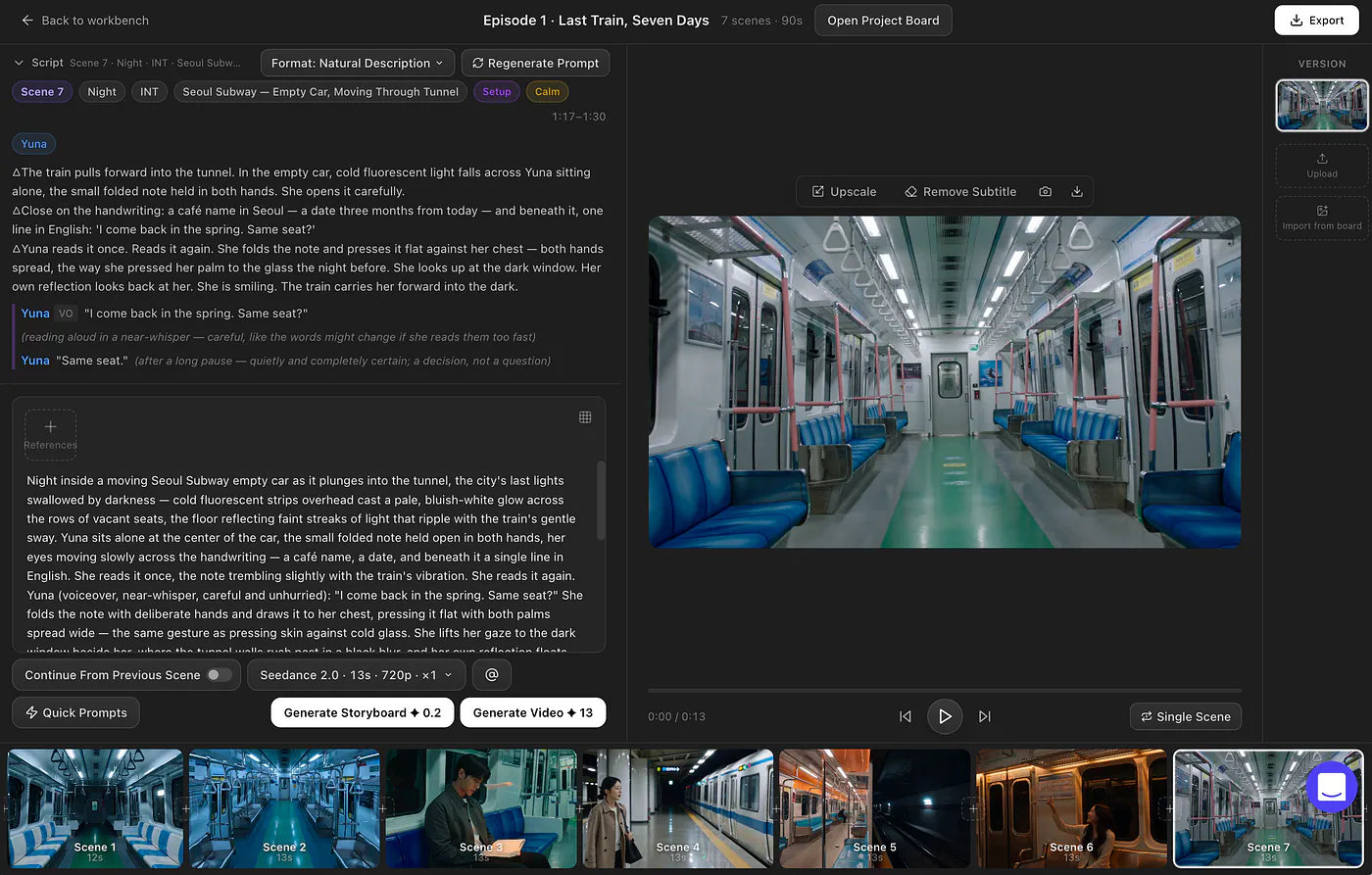
At the final stop he stands, lifts his bag, and pauses. He sets a folded note on the seat beside her and steps through the doors. When the train pulls away she unfolds it: a Seoul café name, a date three months out, and one line in English — 'I come back in the spring. Same seat?' Yuna reads it twice, then looks up at the window — her own reflection looking back, smiling.
The scenes in the story look interesting enough already. The script tracks character development across seven nights, builds physical proximity as a metaphor for emotional closeness, and lands on a satisfying open ending.
From here, you can either keep the AI-generated script or rewrite scenes manually. I left it mostly untouched because the pacing was already solid.
The next step is character and location generation. Episode one needed three characters: Kang Jun-ho, Oh Se-rin, and Yoo Sang-cheol.
You have four options for each one:
- Upload your own reference image
- Pick from Topview’s character library
- Let the AI generate the character from the script
- Mix and match (use a reference for face, then tweak outfit and hair)
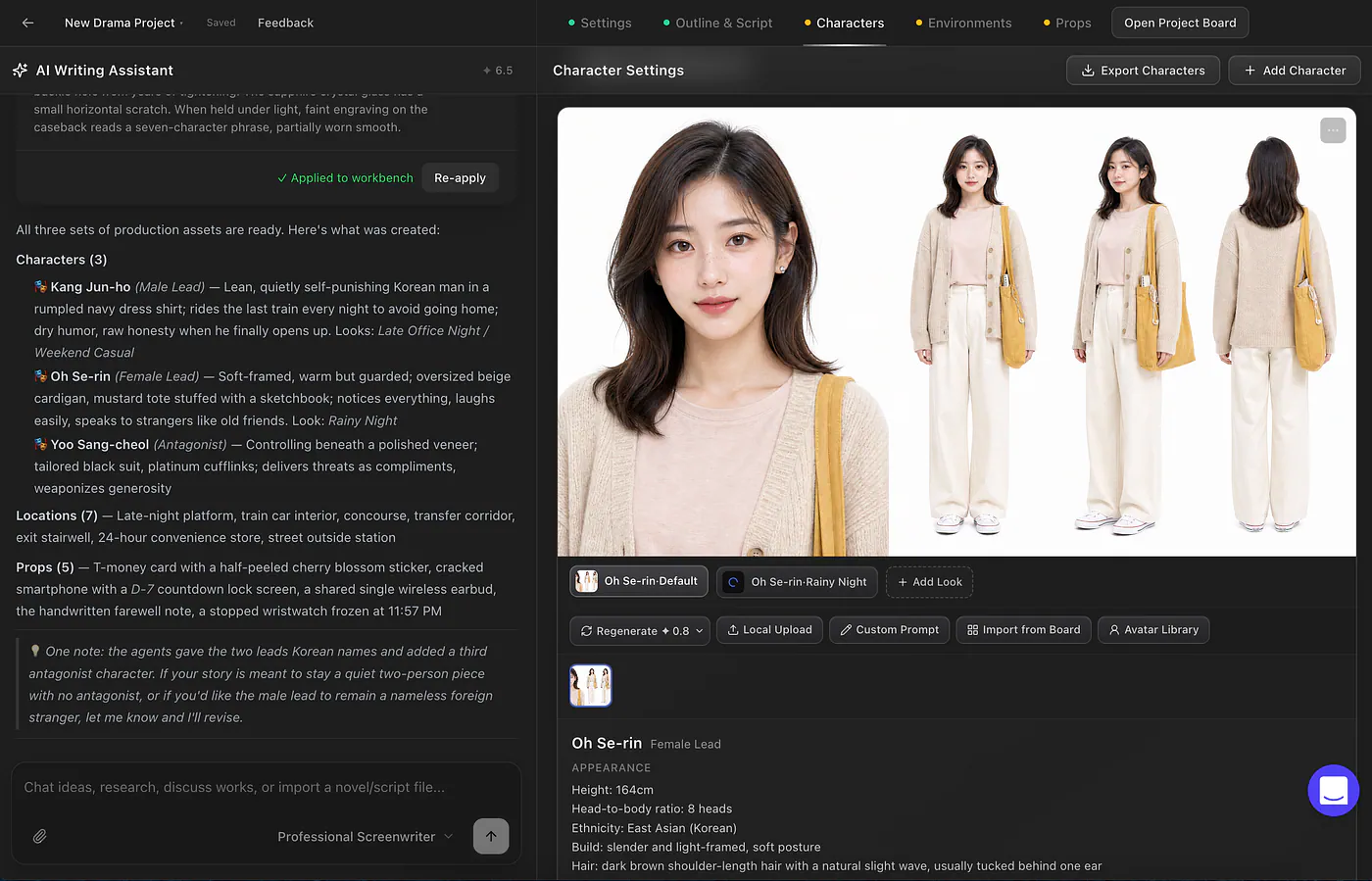
Topview’s character creation page. Image by Jim Clyde Monge
I really like how the character preview shows a close-up front view plus three full-body poses at different angles. That gives the engine more reference data to keep the character consistent across shots, which is the single hardest problem in AI video right now.
The images Topview generates look so realistic because the engine is using the GPT-Image 2 model.
The same applies to environments and props. You generate preview images for each location (the train car, the platform, the café) before committing them to video. Lock these in early. If you skip this step, your second-episode train interior might look completely different from your first-episode train interior, and the illusion breaks.
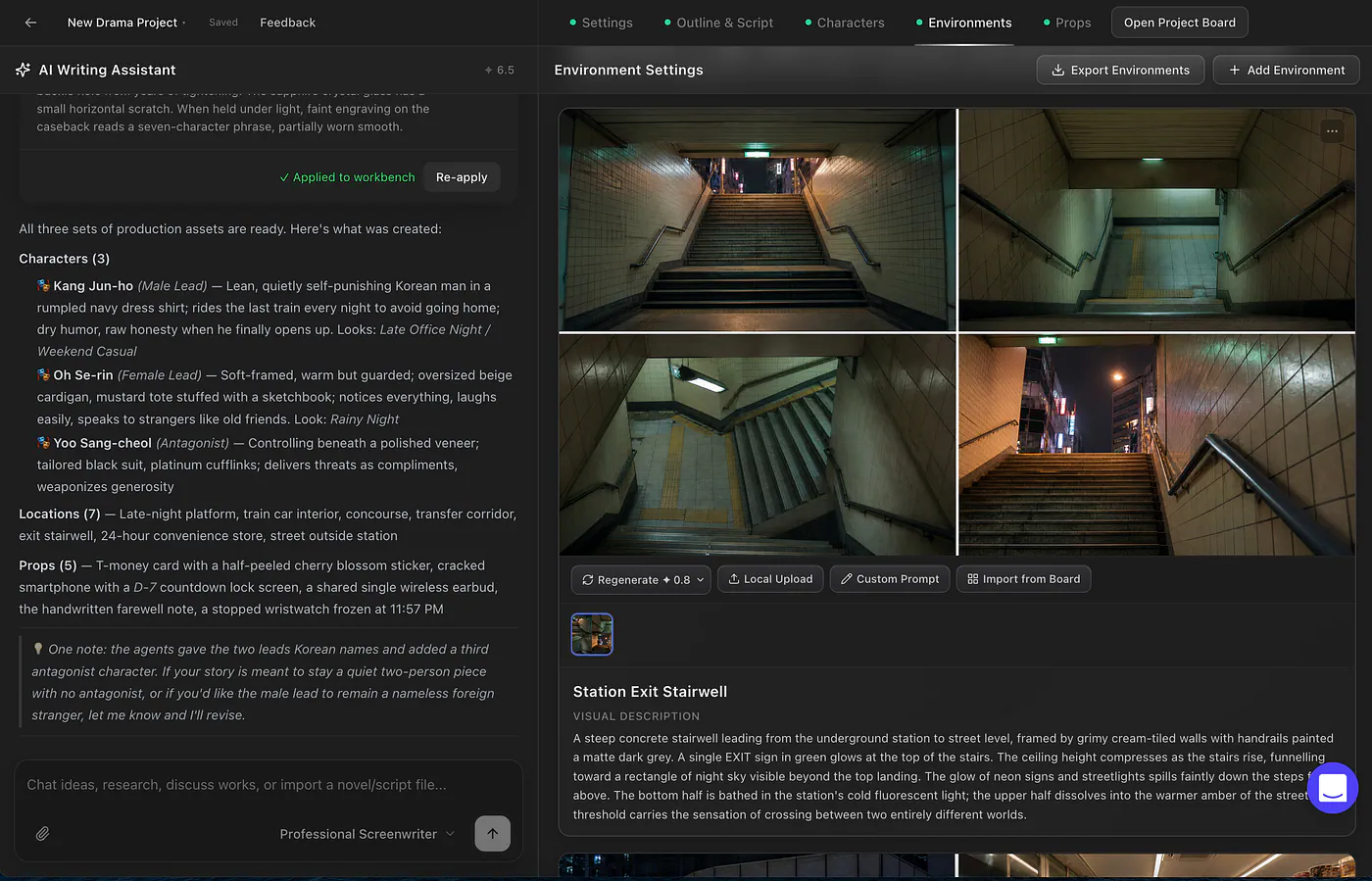
Topview’s environment creation page. Image by Jim Clyde Monge
Sources
- premieredscmp.com
- Topviewtopview.ai
- Drama Studiotopview.ai
- Jim Clyde Mongemedium.com
- GPT-Image 2 modeltopview.ai
- Seedance 2topview.ai
- https://vimeo.com/1196237630?fl=pl&fe=vlvimeo.com