It’s been a couple of days since OpenAI quietly launched the GPT Image 2.5 image model. It’s an iterative upgrade, and it solves some of the biggest concerns users had with the previous model: speed, consistency, and context awareness.
Those aren’t the only complaints people had about GPT Image 2.0, but they came up the most. Generations took a while. Your subject stopped looking like your subject after one edit. And the image got worse the longer a conversation went on.
Here’s a quick list of the four major improvements:
- Faster generation, up to 50% lower latency than Images 2.0
- Better fidelity, so people and objects from your reference photos stay recognizable
- Consistent details across multiple edits
- Comment-based editing, so you can point at a spot instead of describing it
I figured the best way to understand the improvements is to test the model directly inside a unified platform.
Over the past several months, Pollo AI has become one of my go-to platforms for generative image and video projects. It was super helpful and allows me to have a seamless workflow. I don’t need to switch between tabs. I can test different models under the exact same conditions, with fast generation speeds and low credit consumption.
What’s new in GPT Image 2.5
OpenAI’s announcement is mostly about editing rather than generation. The pitch is that you can get an image roughly right, then adjust it repeatedly without the model quietly wrecking the parts you liked.
Here’s what that breaks down into.
- Speed. Generation latency dropped by up to 50% compared to Images 2.0. Manus, one of the partners who tested it before launch, reported Flare running two to four times faster than the previous model in its own evaluations.
- Reference fidelity. This is the one I care most about. Images 2.0 would take your photo, drop your subject into a new setting, and hand back someone who looked like your cousin instead of you. Image 2.5 keeps distinctive features intact, with more natural lighting and richer textures, so subjects stay recognizable across new styles and compositions.
- Multi-turn consistency. In a longer conversation, each new edit builds on the last one instead of degrading it. Anyone who has done six rounds of edits and watched the quality slide knows why that’s worth something.
- Comment-based editing. You can drop a comment directly on a spot in the image and say what to change there. No more writing a paragraph trying to explain which of the three people in frame you meant.
For developers, Flare is the default for most work, and Sunburst is the precision option for edit-heavy jobs, at the cost of longer generation times.
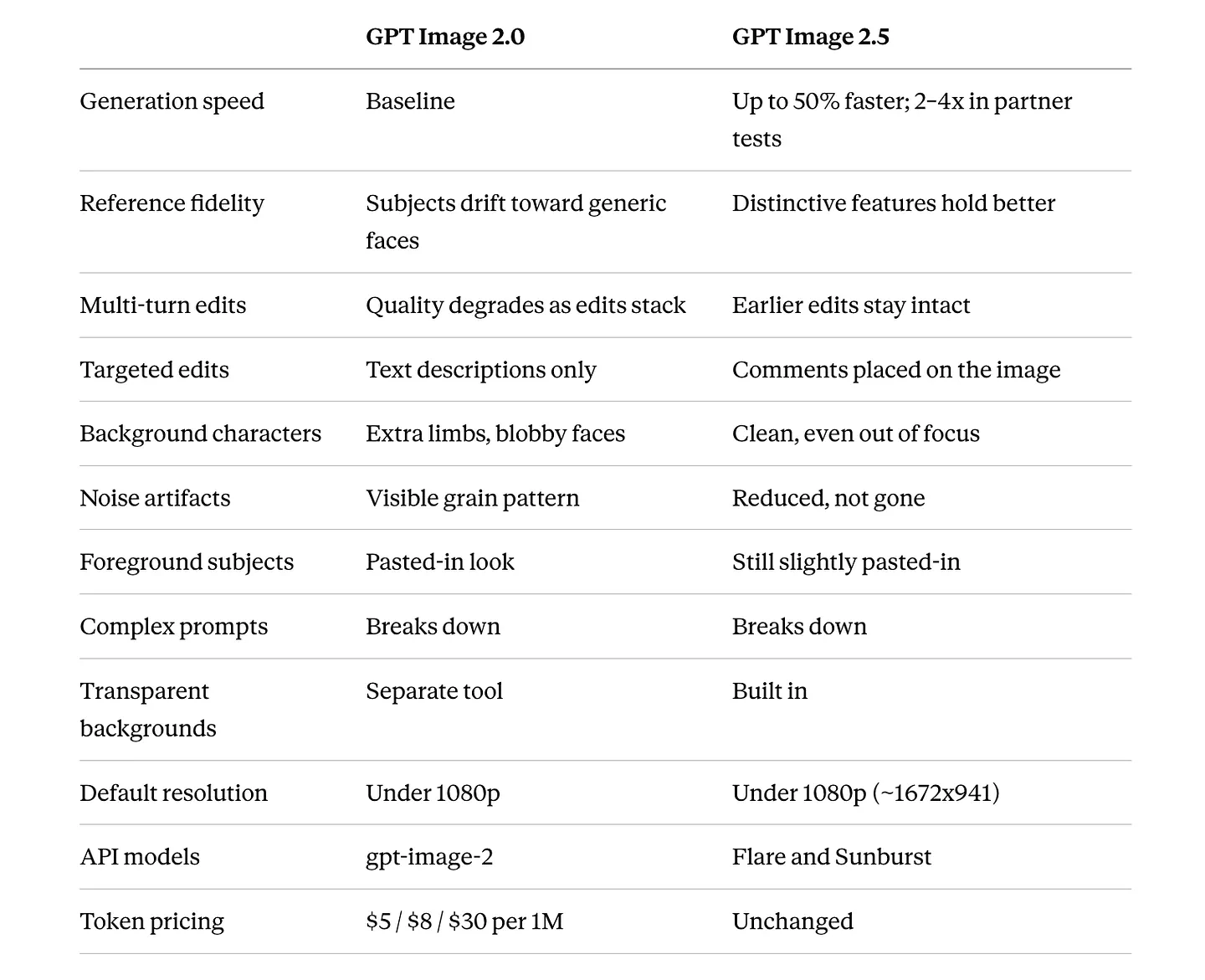
GPT Image 2.5 vs GPT Image 2.0
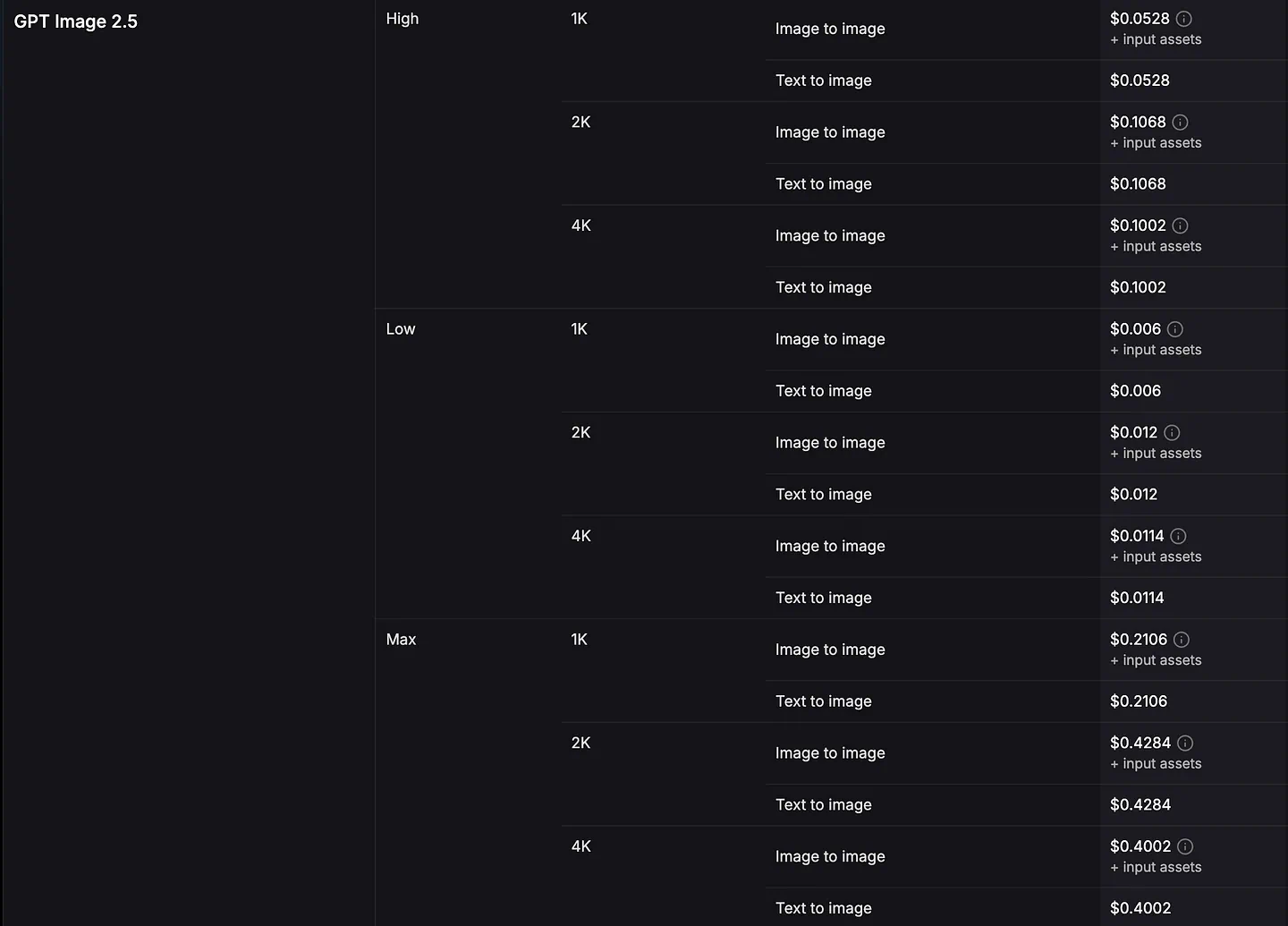
The benefit of using a platform like Pollo AI is that you do not have to worry about managing raw API tokens or calculating cost per image across Flare and Sunburst tiers.
Pollo AI handles the integration behind a clean interface, letting you focus entirely on your prompt, your reference images, and your creative output.
How to Test Both Models on Pollo AI
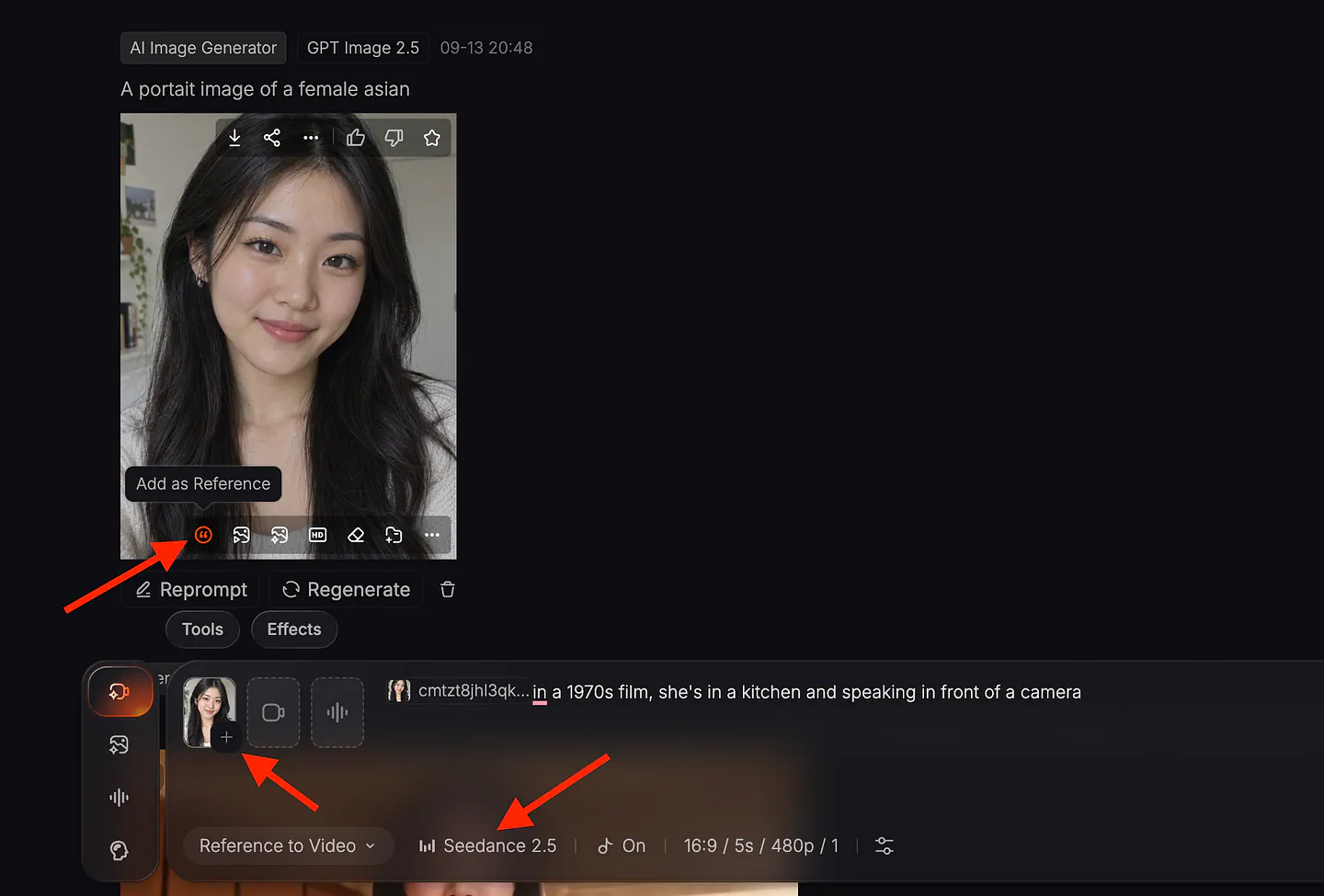
If you want to run these benchmarks yourself or build your own side-by-side comparisons, setting it up in Pollo AI takes just a few clicks. Open Pollo AI and, under the Image tab, pick GPT Image 2.5 from the model dropdown.

Pollo AI’s image generator dashboard. Image by Jim Clyde Monge
What I like about Pollo AI’s image generator tool is the rich amount of editing options there are. Aside from a handful of image models supported, you can see a bunch of image setting controls in the menu below.
Before typing your prompt, decide on your canvas specs.
- Aspect Ratio: Choose between 1:1 square, 16:9 widescreen, 9:16 vertical, or custom dimensions depending on whether you are creating for mobile, desktop, or print.
- Resolution and Quality: Set your resolution to 1K or higher. When running serious comparative tests, always ensure both models are set to the identical quality level so your latency and fidelity checks remain fair.
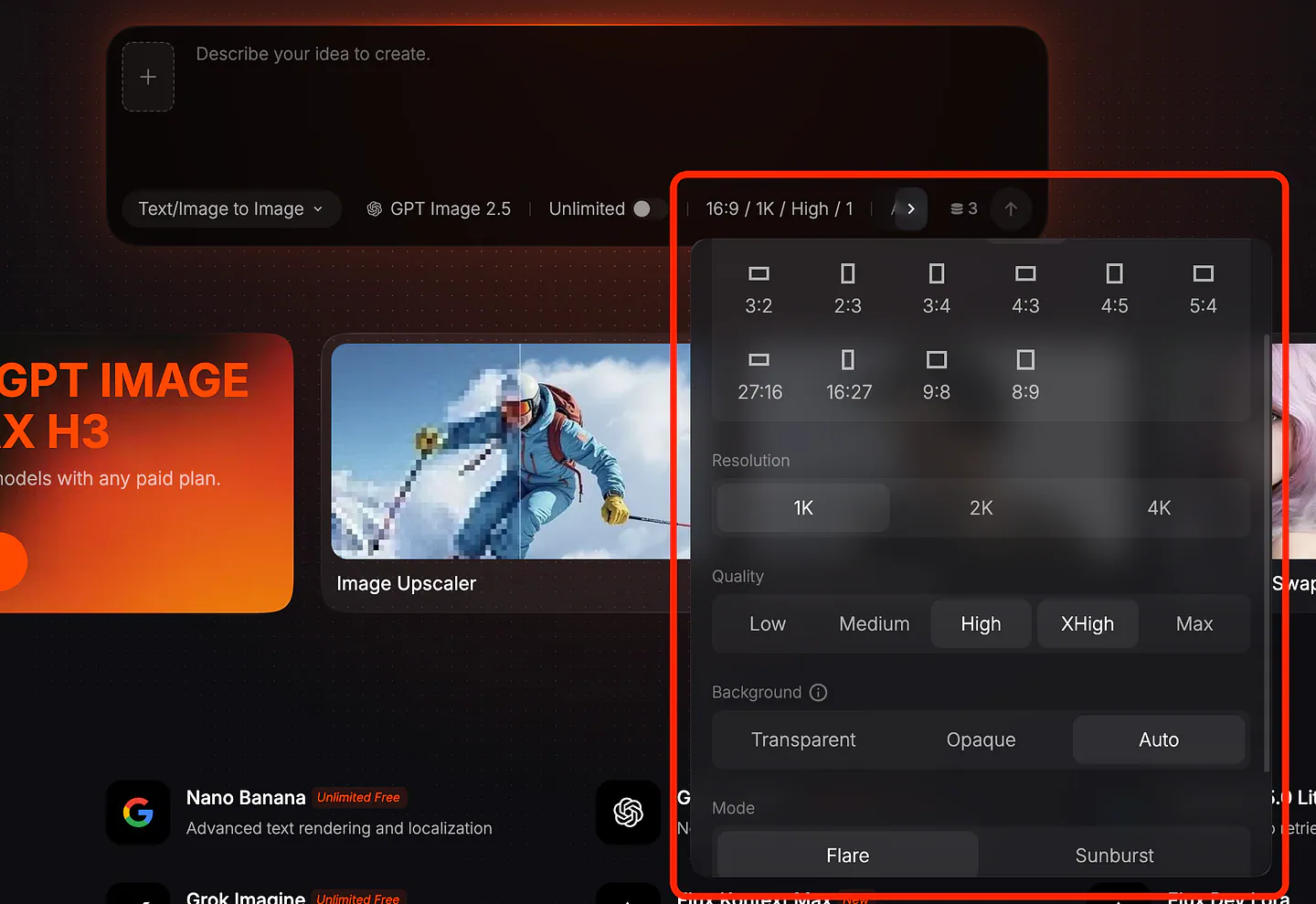
Pollo AI’s image generator editing options. Image by Jim Clyde Monge
Paste your descriptive text prompt into the input box. If your test involves subject consistency or facial likeness, click the “+” button right beside the prompt box to attach your reference image.
One quick tip based on my experience: crop your reference photo closely around the face or the primary product before uploading. This gives the model a clear signal on which features matter most, reducing background noise from the reference file.
You can adjust the background and also switch to different modes (in this case, GPT Image 2.5 supports either Flare or Sunburst mode).
Pollo AI keeps your generation history organized directly in the workspace, so you do not have to download files to external folders just to compare them. That’s it. You can also add the image reference file by clicking on the “+” button.
Now, let’s get into the demo.
GPT Image 2.5 vs GPT Image 2.0: Practical Comparison
Four prompts, one per improvement. Let’s run each in Image 2.5 and Image 2.0 with the same inputs and compare.
Test 1: Speed
Prompt: A wide-angle photograph of a busy night market in Bangkok, shot at eye level with a 35mm lens. Steam rising from a noodle stall in the foreground, string lights overhead, a crowd of about fifteen people moving through the frame at different distances, wet pavement reflecting neon signage in Thai script. Shallow depth of field on the foreground vendor, everything behind falling gradually out of focus.
Image generated with GPT Image 2.5 (Quality: High, Resolution: 1K, Duration: 27 seconds).
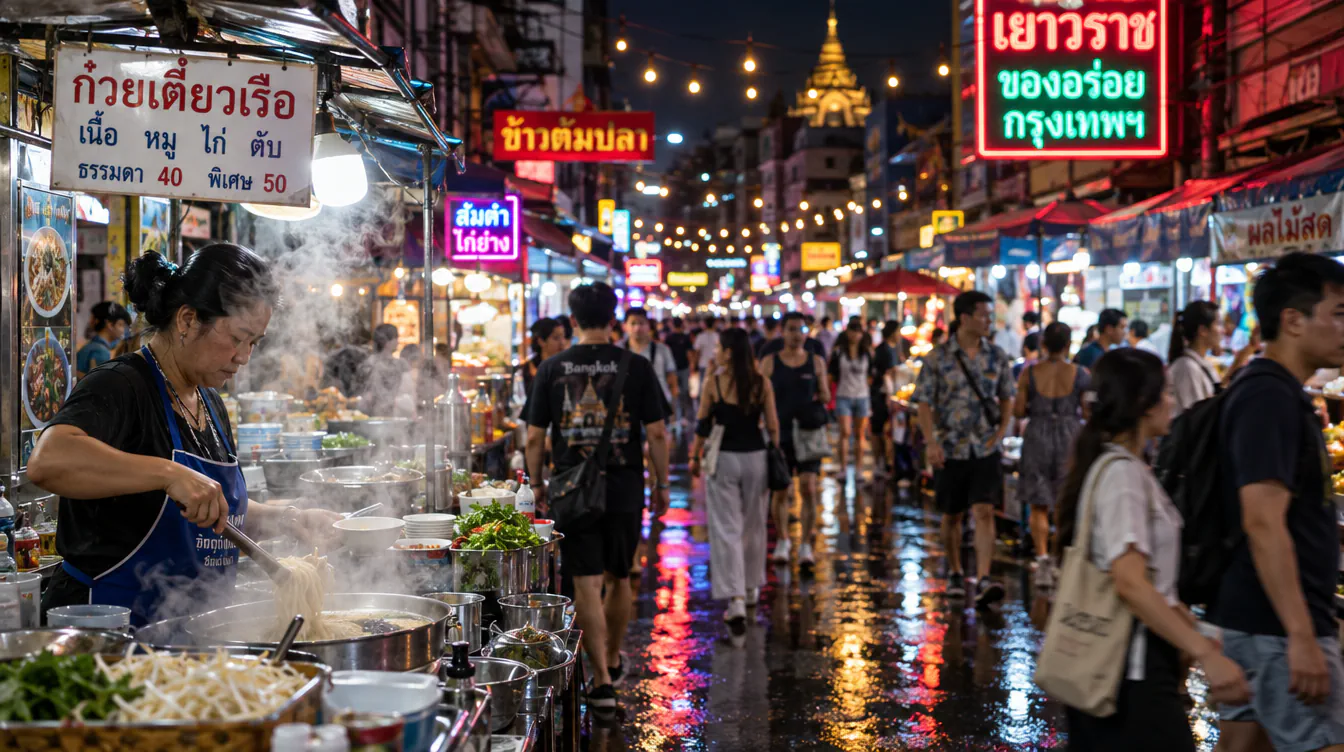
Image generated with GPT Image 2.5
Image generated with GPT Image 2.0 (Quality: High, Resolution: 1K, Duration: 58 seconds).
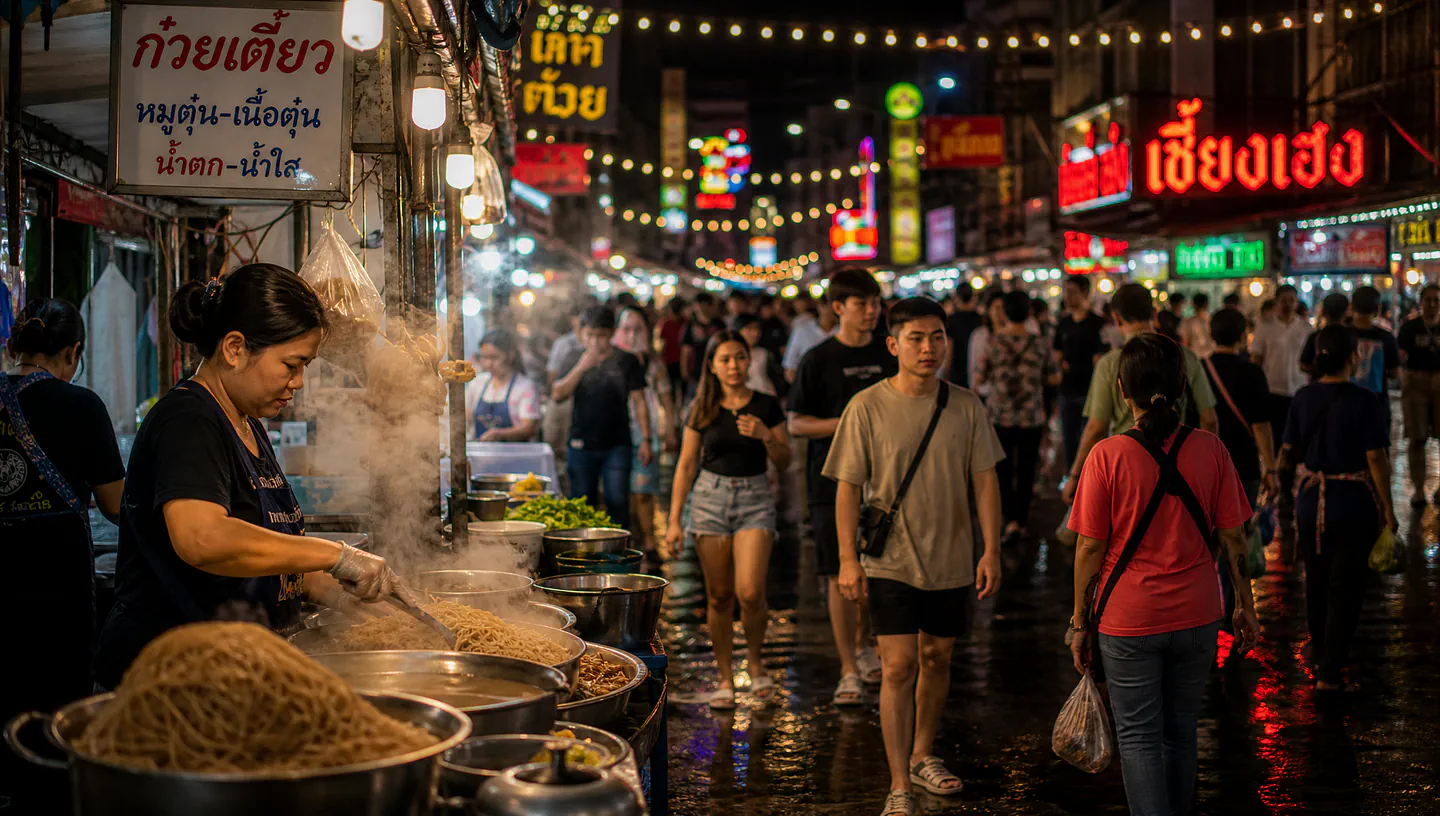
Image generated with GPT Image 2.0
This prompt is heavy on purpose: wide scene, lots of people, depth of field, reflections, and text. Latency gaps show up on complex scenes far more than on a single centered object.
As for the speed, you can clearly see from the comparison above. GPT Image 2.5 is twice as fast as GPT Image 2.0. In terms of quality, I prefer the ones generated with the 2.5 model because of the added blur on the moving subjects and the more realistic depth.
Test 2: Reference fidelity
Prompt: Using the attached photo as reference, place the same person in a 1970s film-photography portrait. Standing in a sunlit kitchen with wood cabinets and patterned wallpaper, wearing a brown corduroy jacket over a cream turtleneck. Warm color cast, visible film grain, slight halation around the window light. Keep the face, hair texture, and build exactly as they are in the reference.
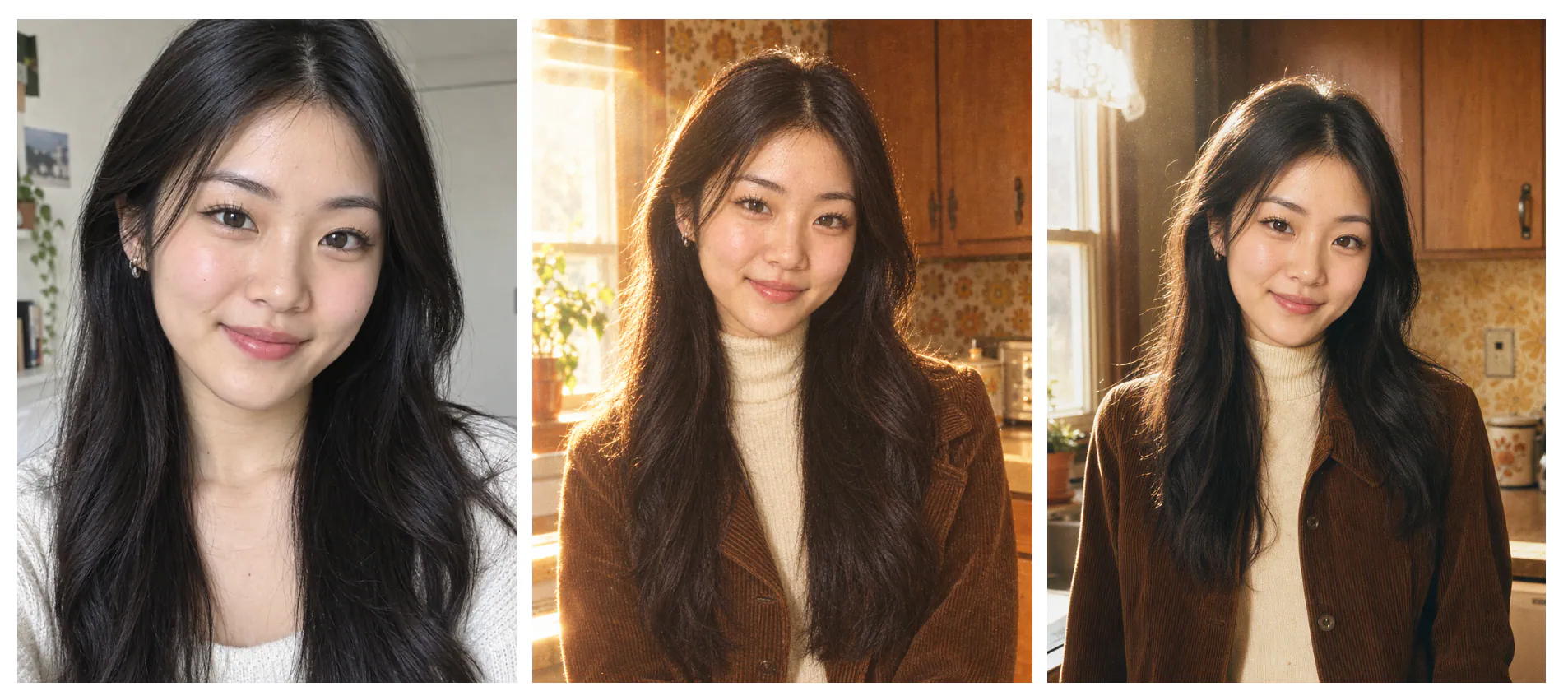
Reference image (left), GPT Image 2.5 (middle), GPT Image 2.0 (right)
Attach the same reference photo to both. The 1970s styling isn’t the point. The point is whether the person still looks like the person once the style gets applied.
Look at specifics: the shape of the nose and jaw, the spacing of the eyes, any moles or scars, the exact hair texture. Models love to smooth all of that into a generic attractive face, and heavy stylization is usually where identity goes missing.
2.0 gave me a face in the right neighborhood but noticeably slimmer, with a different jaw and much tidier hair than I actually have. 2.5 held the jaw and the hair texture, though it still smoothed out skin detail and made me look about five years younger. Better, not solved.
You can also combine multiple image inputs and maintain the likeness of each subject in the final result.
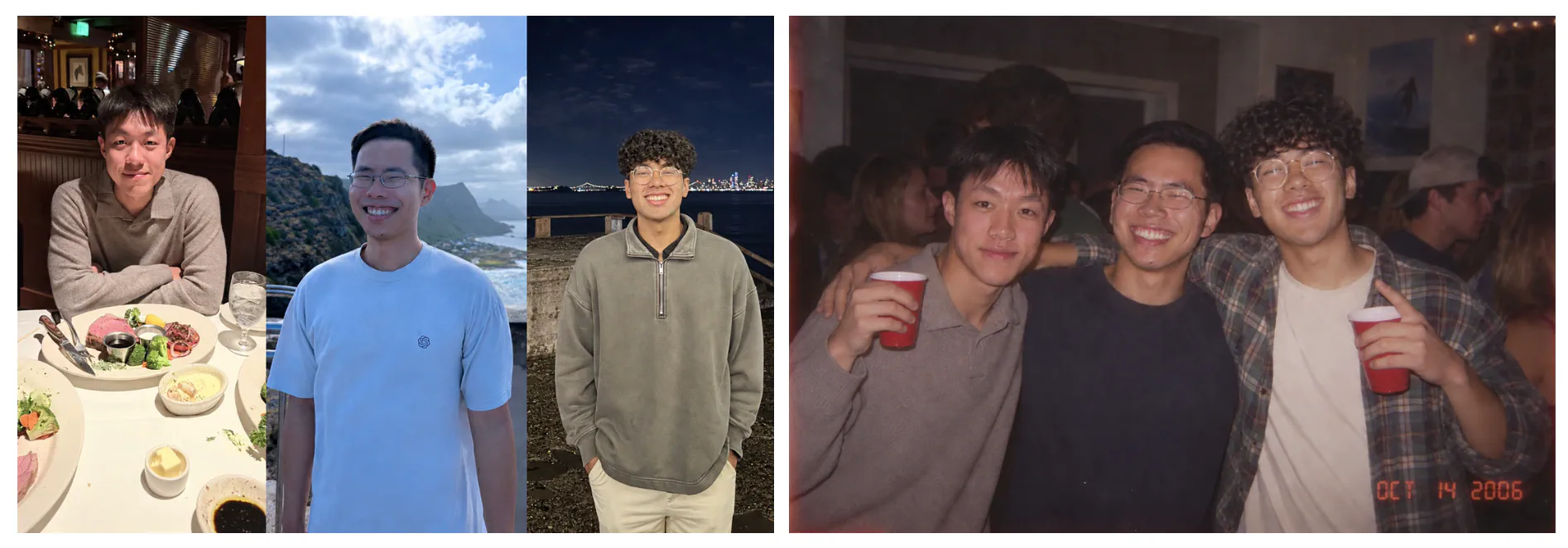
Before and after example showcasing the reference fidelity of GPT Image 2.5
Prompt: Three smiling men pose shoulder to shoulder at a crowded indoor party, with the men on either side holding red cups.
Image subjects look more recognizable, lighting and textures feel more natural, and distinctive features are more likely to carry through.
Let’s do another one.
Prompt: Generate a product photo of a matte black ceramic coffee mug on a light oak table, soft window light from the left, minimal styling, one sprig of eucalyptus beside it, shot from a low three-quarter angle.
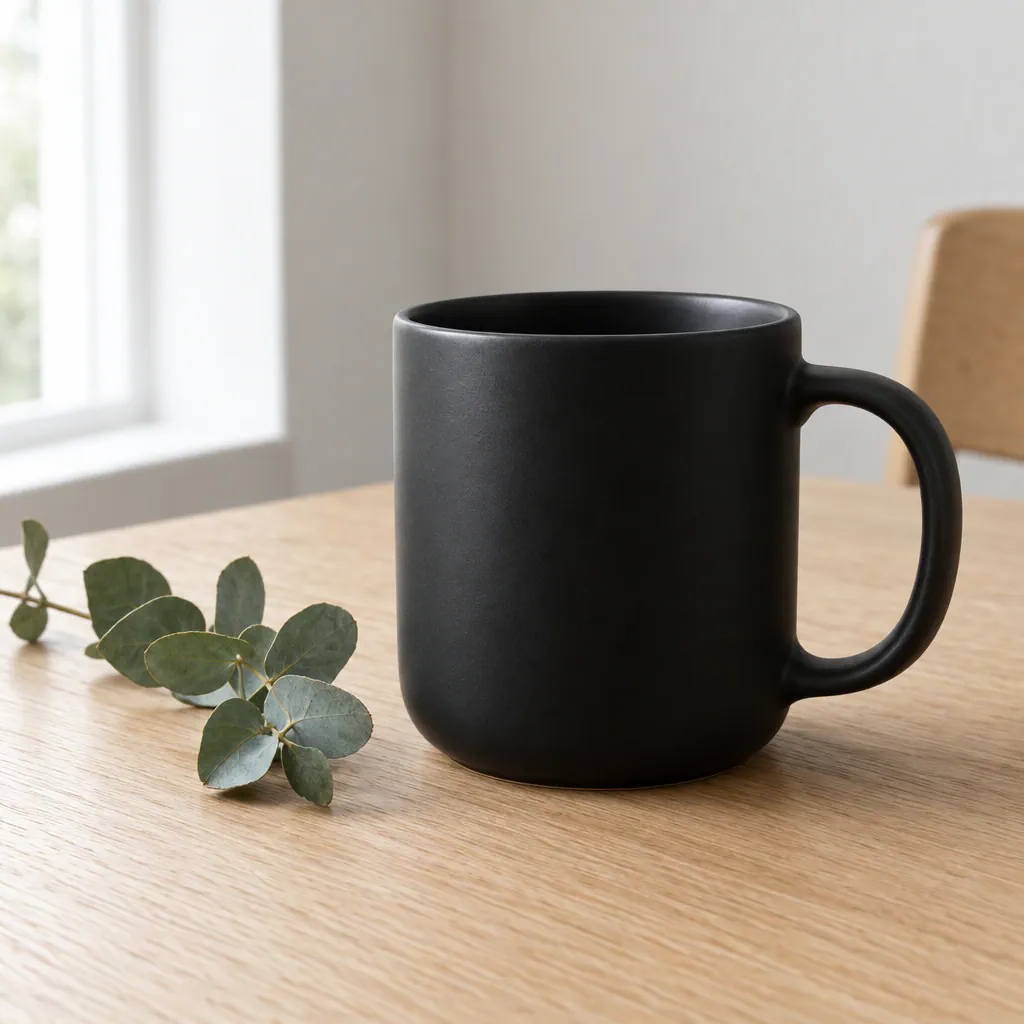
Sample AI generated image of a mug using GPT Image 2.5
Then run four edits in sequence, in the same conversation, without regenerating:
- Change the mug to deep forest green and slightly turn the mug 30 degrees to the right
- Add steam rising from the mug and slightly turn the mug 45 degrees to the right
- Move the eucalyptus to the right side of the frame and slightly turn the mug 65 degrees to the right
- Make the window light warmer, closer to golden hour, and slightly turn the mug 90 degrees to the right
Here are the changed images:
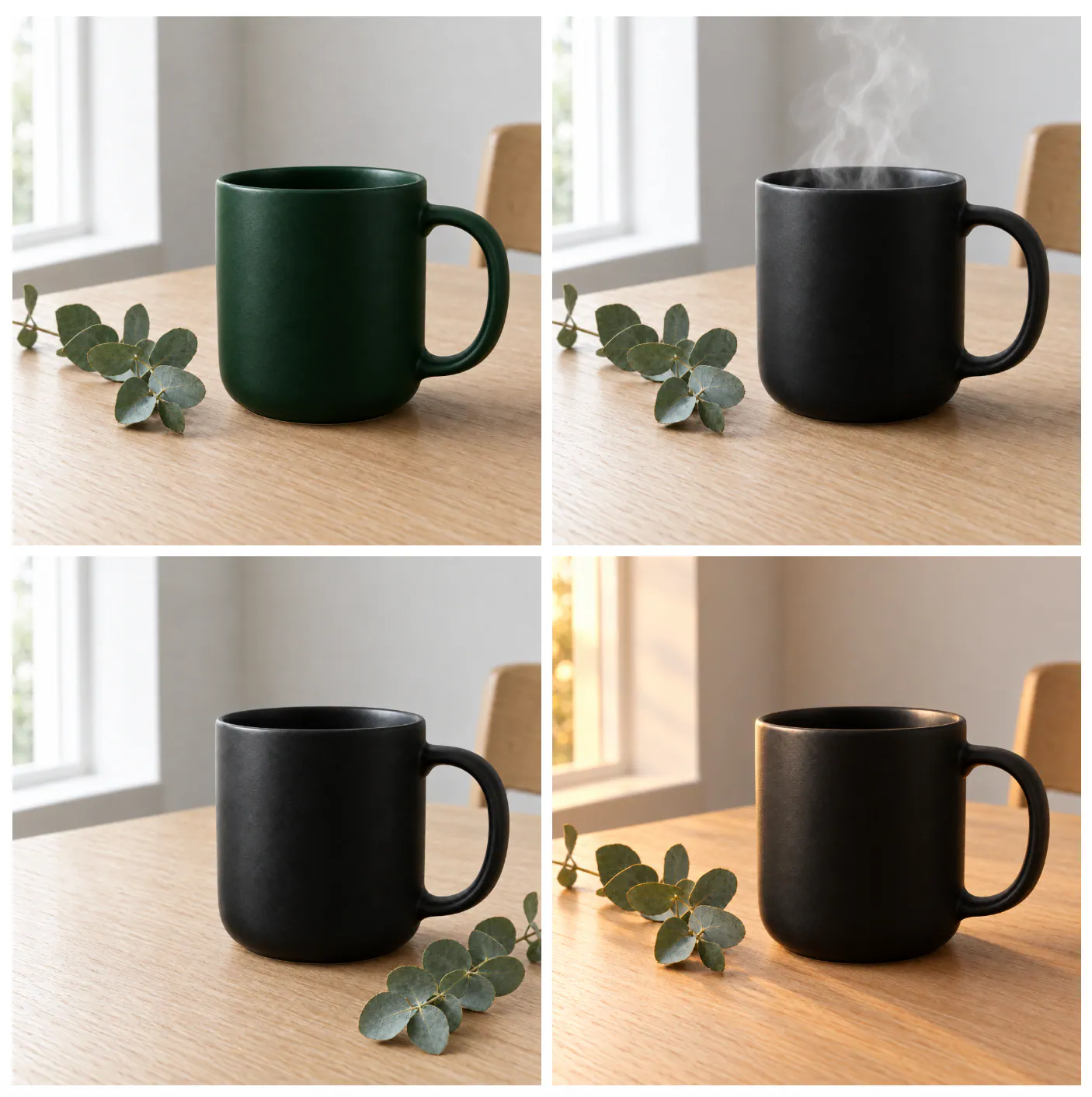
Sample results for GPT Image 2.5’s reference fidelity
Notice how consistent the mug is in every shot. This example highlights the model’s improved ability to follow precise editing instructions. I can go on and ask the model to make more advanced edits, like adding logos and even changing the subject's shape.
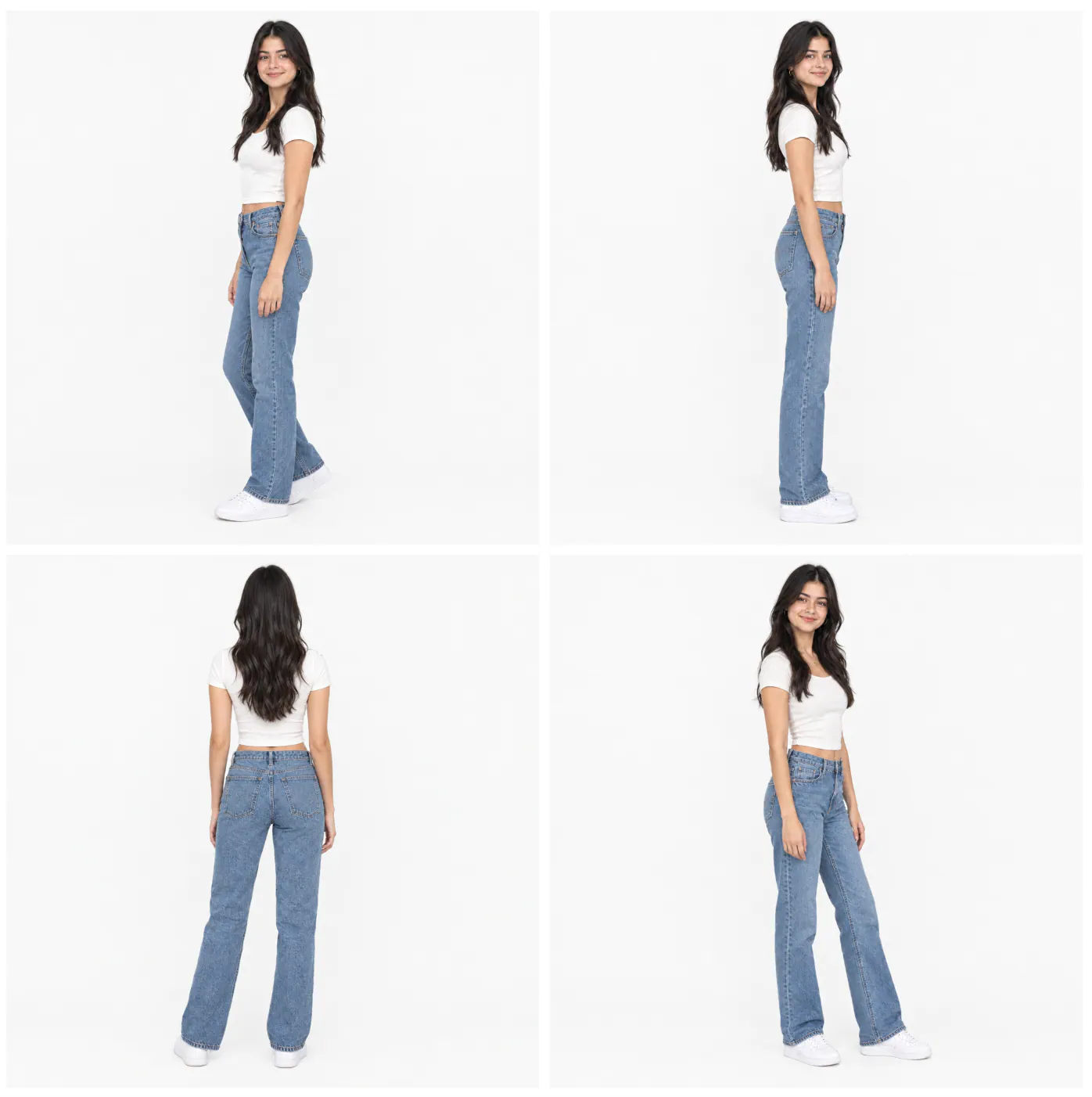
Test 3: Multi-turn consistency
Another improvement to the new image model is consistency. When you have a stack of edits to an image, a new edit builds on the work you’ve already done without degrading image quality over time.
Let me show you an example. Start with a single full-body reference.
Prompt: A full-body portrait of a young woman standing straight, facing the camera directly, arms relaxed at her sides.
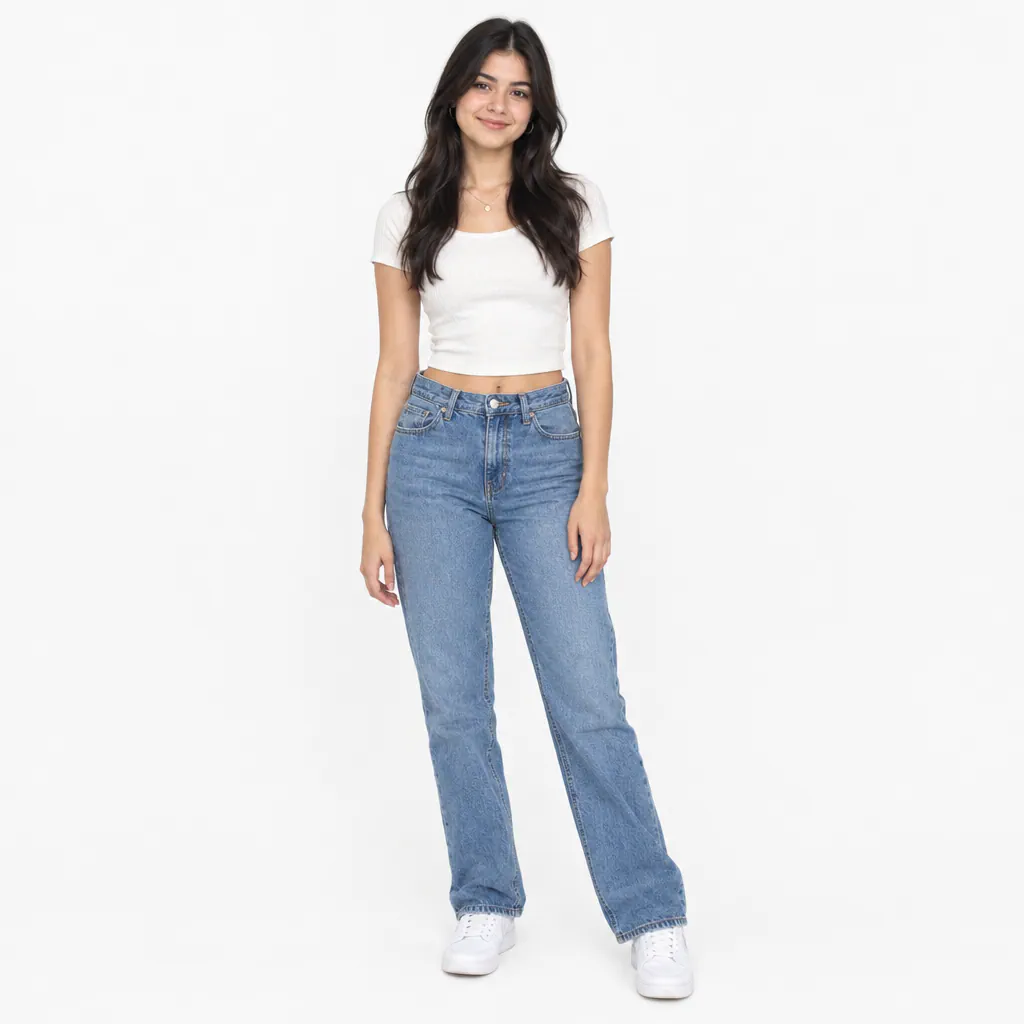
Sample reference image for multi-turn consistency
Then ask it to turn her, one step at a time, in the same conversation:
- Turn her 45 degrees to her left.
- Turn her another 45 degrees, so she’s at 90 degrees from the original.
- Turn her to 135 degrees.
- Turn her to 180 degrees, so she’s facing directly away from the camera.