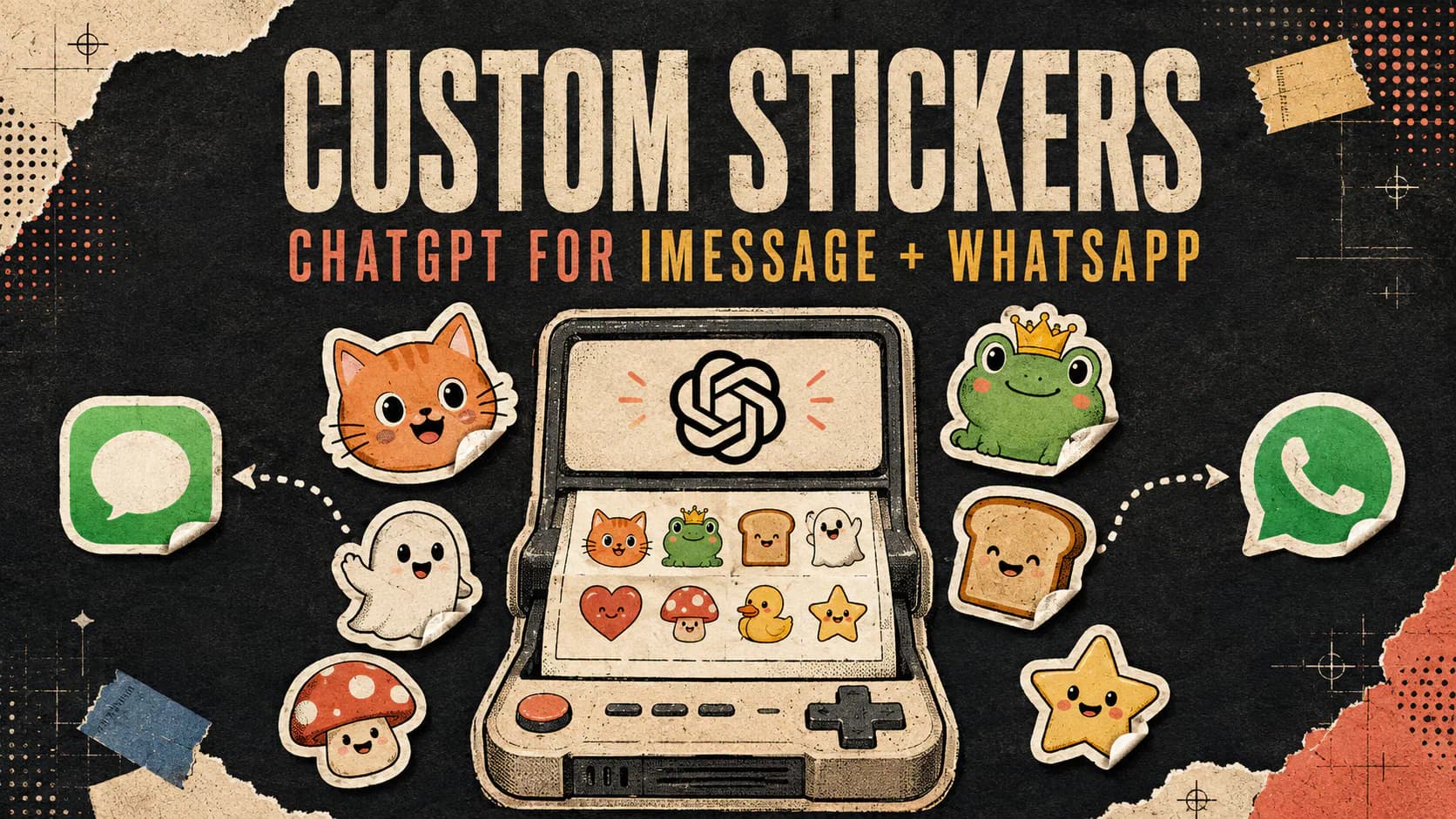
OpenAI has added a dedicated Stickers experience to ChatGPT Images, giving users a faster way to turn a prompt, uploaded photo, or recurring group-chat joke into a custom sticker pack. The feature supports transparent backgrounds and includes sharing options for iMessage and WhatsApp.
The official ChatGPT announcement, published on August 24, 2026, provides a simple starting point: open the sidebar, select Images, and choose Stickers. Launch reports describe it as a global mobile feature that does not require a paid ChatGPT subscription.
AI image generators could already make cartoon reactions and stylized portraits. The useful change here is packaging those capabilities around a specific task, including background removal, stylistic consistency, and a shorter path from creation to an actual conversation.
ChatGPT Turns a Prompt or Photo Into a Sticker Pack
ChatGPT Stickers accepts several kinds of starting material. You can describe an original character, upload a photo as a reference, or explain an inside joke that would otherwise mean little outside your group chat.
Instead of requesting one general-purpose image, the workflow creates a collection of related reactions. A pet could appear excited, sleepy, annoyed, confused, or celebrating while retaining the same visual identity across the pack. A selfie could become a series of exaggerated cartoon expressions.
The feature reportedly offers up to 18 styles, including options such as anime, 3D, and holographic designs. The exact selection allows users to decide whether the result should resemble a polished illustration, a dimensional character, or a deliberately playful messaging graphic.
At launch, ChatGPT Stickers was reported as free for mobile users worldwide. That broad availability matters because sticker packs are fundamentally social. They become more useful when anyone in a group can create one without buying a separate design app or subscribing to another service.
Transparent Backgrounds Make the Stickers Actually Useful
A generated character placed inside an opaque square may look fine in an image gallery, but it rarely feels like a native sticker. Transparent backgrounds remove the rectangular canvas so the subject can sit naturally on top of a message, photo, or chat background.
OpenAI’s broader Images in ChatGPT guide already explains how users can open an image, select an area, and ask ChatGPT to make its background transparent. The Stickers workflow brings that requirement into the creation process rather than leaving every user to perform a separate editing step.
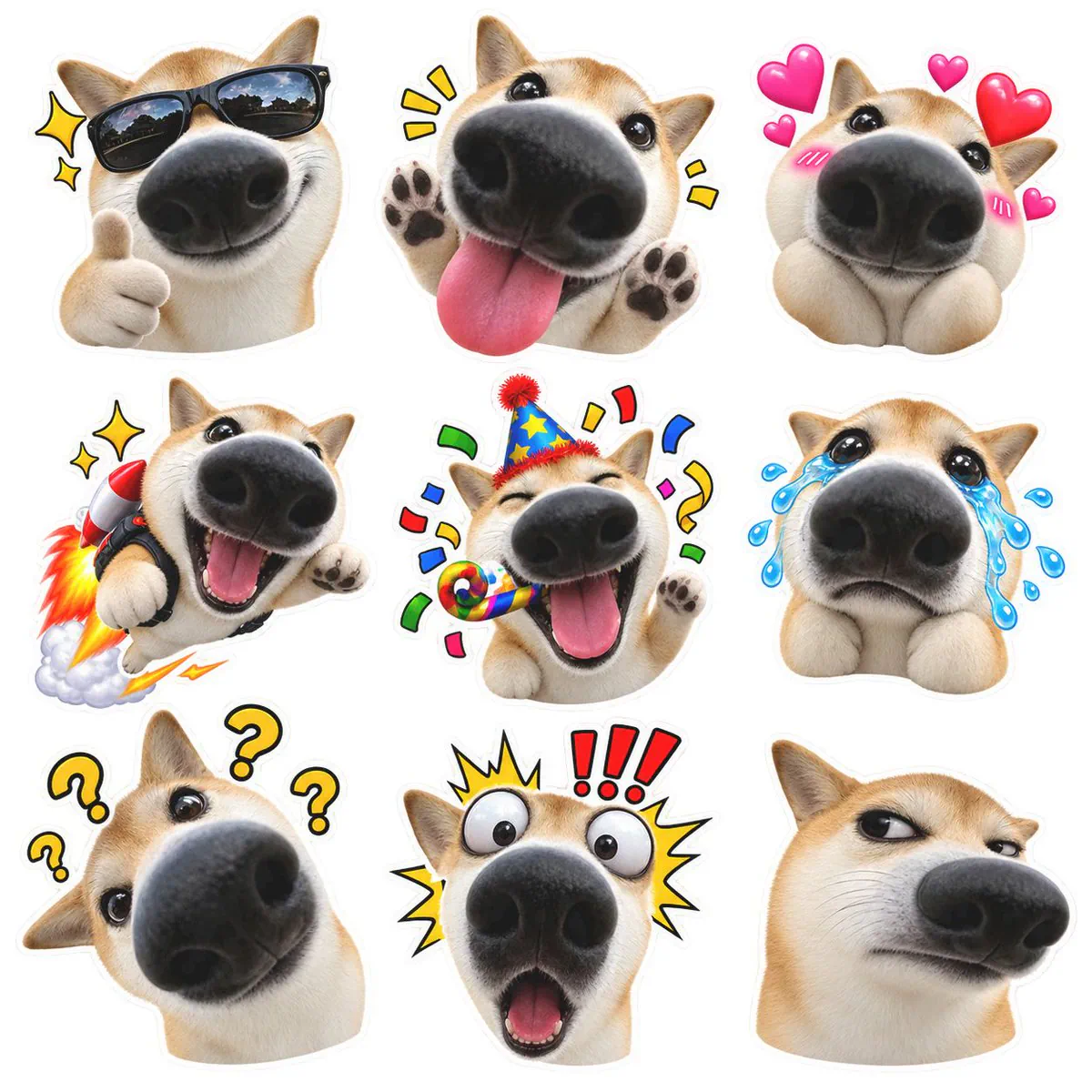
Transparency is especially important around irregular subjects such as hair, fur, glasses, food, and raised hands. Before sharing a pack, it is worth checking the edges against both light and dark backgrounds. A faint halo or leftover fragment may be difficult to notice inside ChatGPT but become obvious in a messaging app.
The same inspection applies to text. Short phrases usually work better for stickers because they remain readable at messaging size and are easier to verify for spelling errors.
How to Make AI Stickers in ChatGPT
The dedicated workflow reduces the process to a few steps:
- Open the ChatGPT mobile app. Sign in and open the main sidebar.
- Select Images, followed by Stickers. Stickers appears as a specialized option within the ChatGPT Images experience rather than as a separate application.
- Choose your starting material. Enter a written idea, upload a photo, or combine both. A reference image is useful when you want the pack to resemble a particular person, pet, object, or drawing.
- Describe the reactions you want. Instead of requesting only “stickers of my dog,” specify expressions or situations such as sleepy, hungry, celebrating, suspicious, and refusing to get out of bed.
- Choose a visual style. Available styles can change the appearance without changing the central subject. The reported selection includes several illustrative and dimensional treatments.
- Generate and inspect the pack. Check whether the subject remains recognizable, the expressions are distinct, the text is correct, and the transparent edges are clean.
- Share or save the result. ChatGPT provides options for sending stickers to iMessage or WhatsApp. Reports also describe controls for downloading, copying, or saving the generated images.
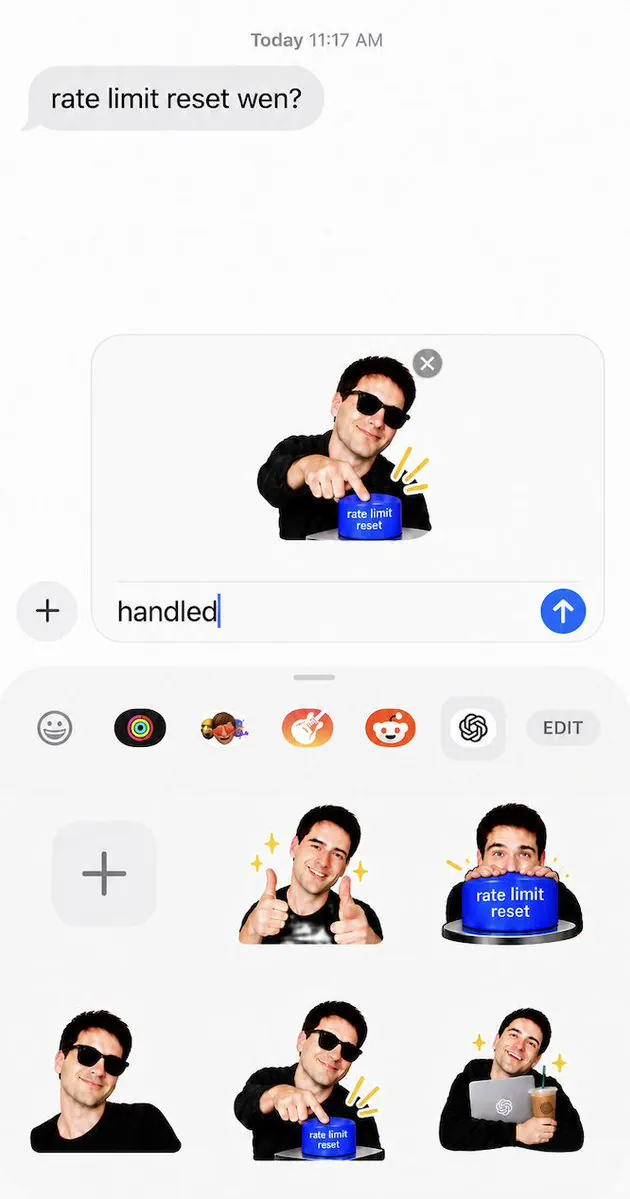
If the first attempt is not consistent enough, continue the conversation rather than starting over. ChatGPT Images supports conversational edits, while the image editor includes a Select tool for requesting a change to a specific area.
Better Prompts Produce More Coherent Packs
A strong sticker prompt defines both the subject and the relationship between the individual images. The goal is not simply to generate several appealing pictures. They should look as though they belong to one set.
A practical prompt can include four elements:
- Subject: Identify the person, animal, object, or original character.
- Reaction set: List the emotions, poses, or situations that should appear.
- Visual rules: Specify a style, color palette, border treatment, and consistent clothing or features.
- Text rules: Provide exact short phrases, or request no text at all.
For example: “Turn this photo of my orange cat into a cute 3D sticker pack. Keep the same collar and facial markings. Include sleepy, shocked, hungry, celebrating, judging, and Monday-morning reactions. Use transparent backgrounds and no text.”
That prompt gives ChatGPT several identity anchors, including the collar, markings, and style. It also asks for meaningfully different reactions rather than several minor variations of the same pose.
Inside jokes may need more context. Explain the people, objects, or phrases that make the joke recognizable, but avoid overloading every sticker with detail. Messaging graphics need a clear silhouette and an expression that remains legible at a small size.
Think Before Uploading Personal Photos
Photo-based stickers can involve faces, children, homes, workplaces, or other identifying details. Obtain permission before turning someone else’s image into a pack, particularly if the results will be shared beyond a private conversation.
Users should also review ChatGPT’s privacy settings before uploading sensitive material. According to OpenAI’s Data Controls FAQ, personal ChatGPT accounts can disable Improve the model for everyone. New conversations will then remain in the user’s history but will not be used to train ChatGPT.
Sharing introduces another consideration. Once a sticker is sent to a messaging service or another person, copies may exist outside ChatGPT. Avoid using private photographs or identifying information that you would not want recipients to save, forward, or reuse.
Convenience Will Matter More Than Perfect Artwork
The main attraction of ChatGPT Stickers is speed. The older process could require generating an image, removing its background, separating multiple designs, resizing them, and importing each result into a messaging app. The new workflow places those steps behind one purpose-built entry point.
That does not guarantee a flawless pack. Generative image systems can still change small identity details, repeat similar poses, misspell text, or produce untidy edges. Packs based on real people also face a difficult balance: enough resemblance to be recognizable, but enough stylization to feel expressive rather than uncanny.
ChatGPT Stickers therefore makes the most sense for disposable creativity, personal reactions, pets, family jokes, and fictional characters. Professional brand assets or commercial merchandise still require closer review and, in many cases, manual design work.
The dedicated Stickers option was introduced primarily through the mobile app. If it does not appear under Images, update ChatGPT to the latest version and check the sidebar again before attempting to reproduce the workflow through a normal image prompt.
Final Thoughts
Transparent backgrounds and direct messaging exports are more important than the novelty of generating another cartoon image. They turn ChatGPT Images from a general creative tool into a practical sticker-making workflow that fits an existing habit.
Its strongest use is not replacing illustrators. It is letting someone capture a fleeting joke, recognizable expression, or pet reaction while the idea is still relevant to the conversation. If ChatGPT can maintain character consistency and make the iMessage and WhatsApp handoff reliable, Stickers could become one of its more frequently used consumer image features.
Frequently Asked Questions
4 questions
1How do I make AI stickers in ChatGPT?
Open the ChatGPT mobile app, select Images in the sidebar, and then choose Stickers. Enter a description or upload a reference photo, select a visual style, and generate the pack. Review the expressions, text, and background edges before using the available controls to save or share the finished stickers.