As a software developer, I’ve watched coding agents change what a single afternoon of work can produce. Tools like Claude Code, OpenAI Codex, and Cursor can generate features, fix bugs, and ship working apps with login pages, dashboards, forms, database connections, and payment integrations.
I don’t blame them because I use these tools regularly too.
However, the biggest catch with AI-generated code is code reliability. The app you create may look good on the outside, but that does not mean the code is secure, robust, or ready for real users. A feature can pass all your tests but fail when a real user tries a slightly different workflow, because classic selector-based testing was never built for this kind of coding velocity and will not cover your edge cases.
So how do you know the app your coding agent built actually works?
Not just that it compiles, but that a real user can move through it and get the right result? Unit tests will not tell you. They check isolated functions, and when the same model writes both the feature and its tests, they tend to confirm each other rather than challenge the output. What catches behavioral failures is testing the running app the way a user would: in a browser, through the full flow, checking that the result is actually correct.
One tool I highly recommend for this is QA.tech.
In this guide, let’s explore what QA.tech does, how it works, how to run a test, and why an extra validation layer provided by AI testing tools is becoming more important now that teams are building products with AI.
What Is QA.tech?
QA.tech is an AI-powered autonomous software testing platform designed to replace a lot of the mundane manual testing and traditional QA automation. Instead of manually writing every test case with legacy tools like Playwright, Cypress, or Selenium, QA agents interact with your web or mobile app, click through flows, check expected behavior, and report issues before they reach production.
You describe what you want to test in plain English. QA.tech then opens your app, interacts with the interface, clicks buttons, fills out forms, navigates pages, and checks whether the app behaves correctly.
The simplest way to think about it is this: QA.tech gives your product an agentic QA team that can test it like a real user, with a goal in mind.
This is super useful for web apps, SaaS products, dashboards, marketplaces, booking systems, ecommerce flows, onboarding flows, and other products where the user journey matters.
It is also a good fit for AI-written code because coding agents can generate features quickly, but they do not always verify the full behavior of the app. QA.tech helps add that missing testing layer.
Key Features of QA.tech
QA.tech has several features, but these are the ones that matter most for teams building and shipping software:
- Autonomous testing agents: QA.tech agents can open web or mobile app, click through pages, fill fields, and test workflows like a real user — with goal in mind.
- Natural language test creation: You can describe what you want to test in plain English instead of manually writing every test script.
- Pull request testing: QA.tech can connect to GitHub and run tests on pull request preview deployments before code gets merged.
- Exploratory testing: The agent can explore your app and look for broken flows or unexpected behavior that you may not have included in your original test plan.
- Regression testing: Once useful tests are created, they can be reused to catch future bugs when new changes are introduced.
- Debugging context: When a test fails, QA.tech provides a summary of what went wrong so developers can reproduce and fix the issue faster.
- Multi-environment testing: The same test suite runs against your local build, staging, and production without any changes. QA.tech handles the differences, like environment URLs, auth layers, and firewall rules, so you get consistent coverage at every stage of the pipeline, not just before you ship.
- Mobile, API, email, and SMS testing: Depending on your setup and plan, QA.tech can also test beyond simple browser flows.
For me, the most important features are natural language test creation, real browser interaction, and pull request testing. I could just ask the QA agent in natural language what I want to get tested and watch it execute things for me. Those are the parts that make it useful for teams using AI coding tools because the testing process needs to move as fast as the development process.
How to Perform a Test in QA.tech
Now let’s go through the actual testing process.
For this example, I wanted to perform a test on this sample project: https://real-staynb.vercel.app/
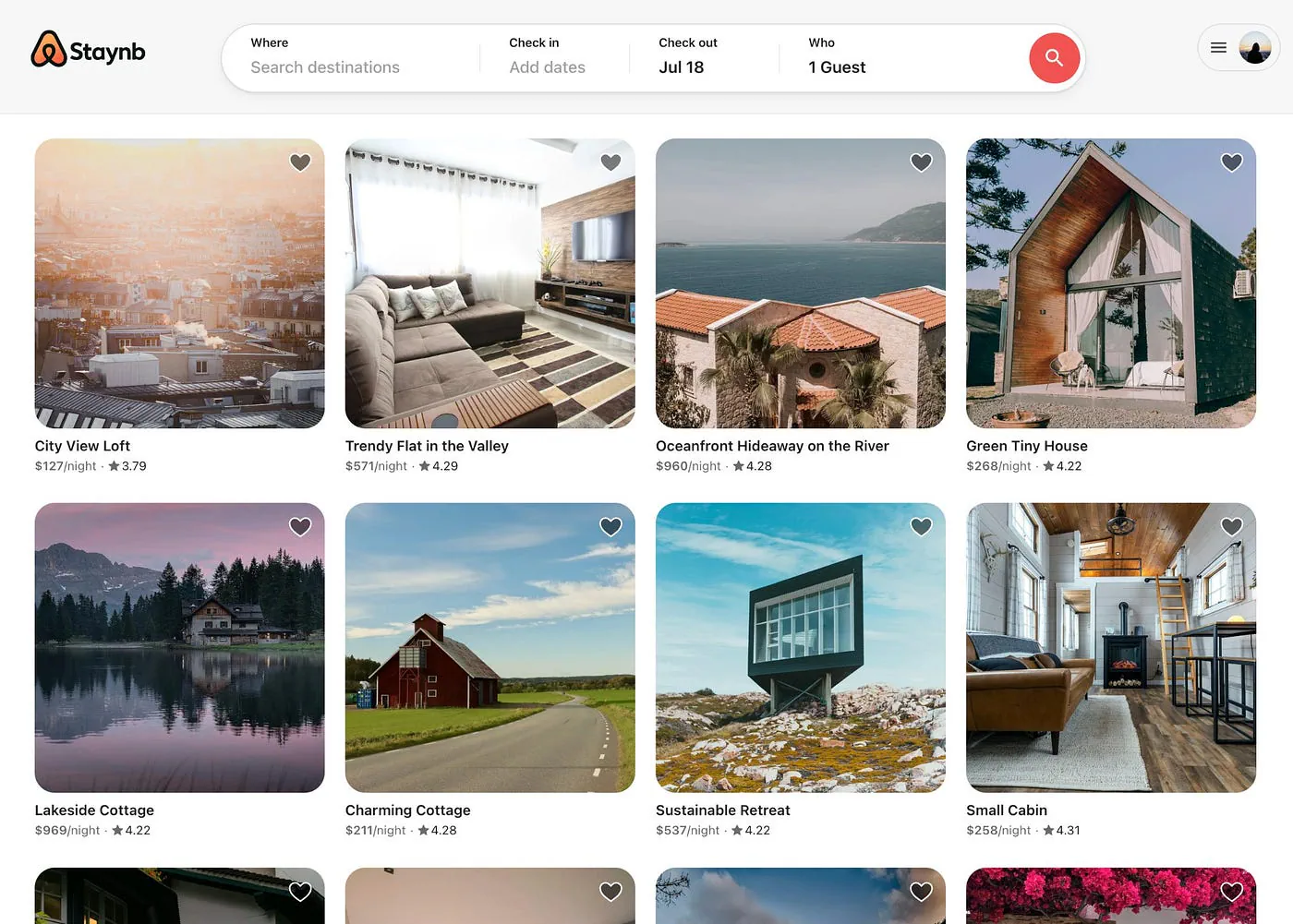
This is a property listing app, which makes it a good example because it includes the kind of product behavior that often breaks in real apps. It has search, property cards, destination filters, and listing results.
Those features may look simple, but they depend on the frontend and data logic working together properly. If the search input updates but the results do not match, the app may still look fine at first glance while giving users the wrong output.
Step 1: Set Up Your Project
When running your first tests with QA.tech, the setup starts with a new project pointed at the app you want to test.
QA.tech will ask you to provide the URL of the app. For a real project, this should usually be a staging environment or preview deployment, not your live production site.
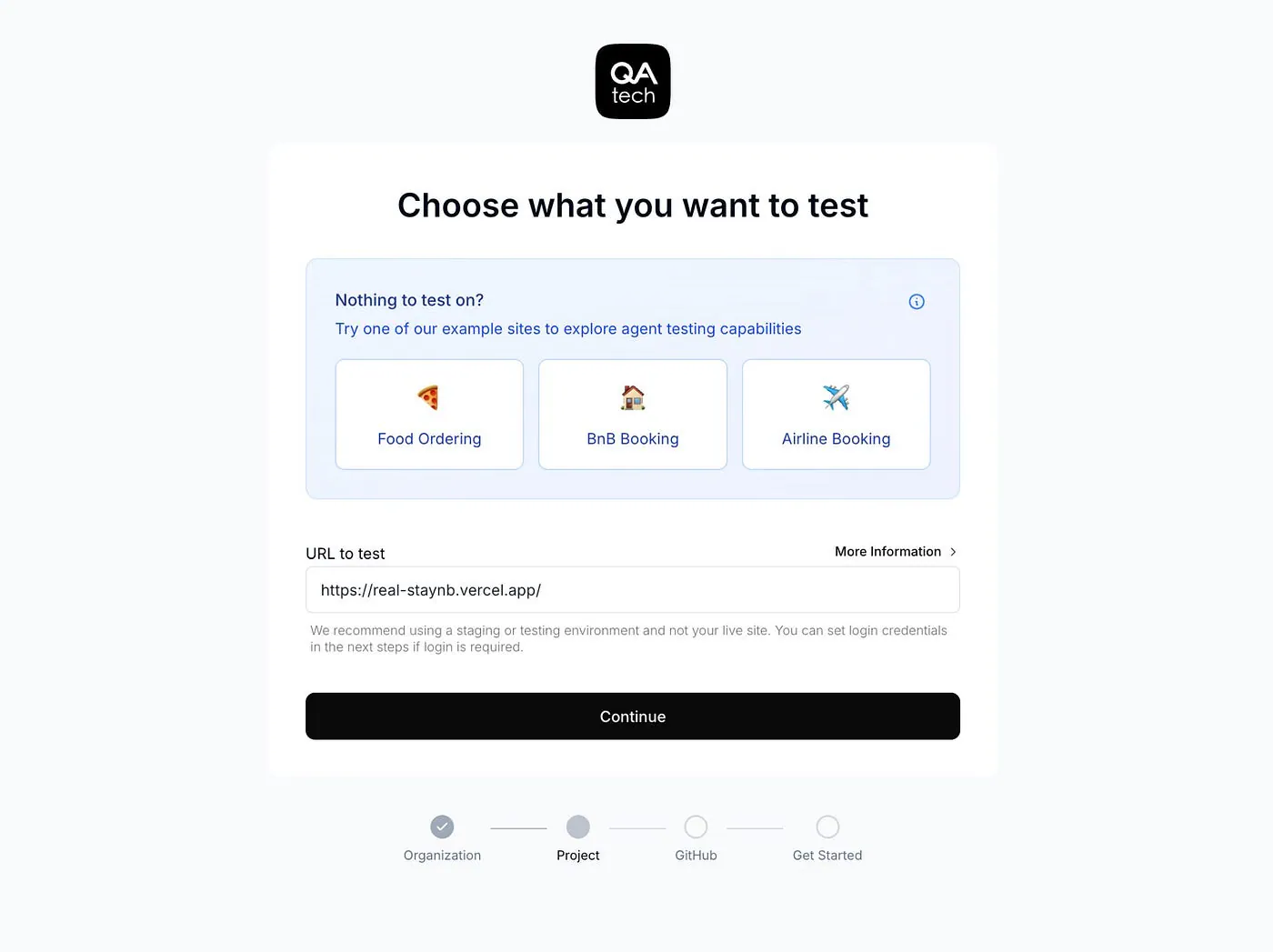
This part is important because the testing agent will interact with your app. It may click buttons, submit forms, create test data, log in, or move through different workflows. You probably do not want that happening on production unless your setup is specifically designed for it.
Once the URL is added, QA.tech can use it as the target environment for the test. If you are working with a client project, SaaS product, or internal dashboard, this would usually be your staging link or a preview link generated from a pull request.
Step 2: Make Sure QA.tech Can Access Your Staging Environment
If your staging environment is public, this step is simple. QA.tech can open the URL and start testing.
If your staging environment is protected, the most common approach is giving QA.tech access through the right credentials.
For environments behind basic HTTP authentication, do not add the username and password directly into the URL. Instead, create a Username + Password config inside QA.tech and enable the “Use for Basic Auth” option. Once that is configured, QA.tech agents can handle the browser authentication challenge automatically when they open the environment.
Credentials do more than unlock the front door. Adding credentials for different parts of your system lets QA.tech run cross-device and cross-surface tests, like booking on desktop and then verifying the confirmation on mobile.
If your environment sits behind a firewall, QA.tech also provides IP addresses you can allow in your ingress rules, though most teams will not need this. To learn more about how to configure your ingress to allow QA.tech testing traffic, check the documentation below.
Ip Access ControlFor teams with private staging environments, I recommend setting this up properly early. It saves a lot of time once you start running tests regularly.
Step 3: Connect Your GitHub Account
Next, if you have the source code in your GitHub account, connect it to QA.tech.
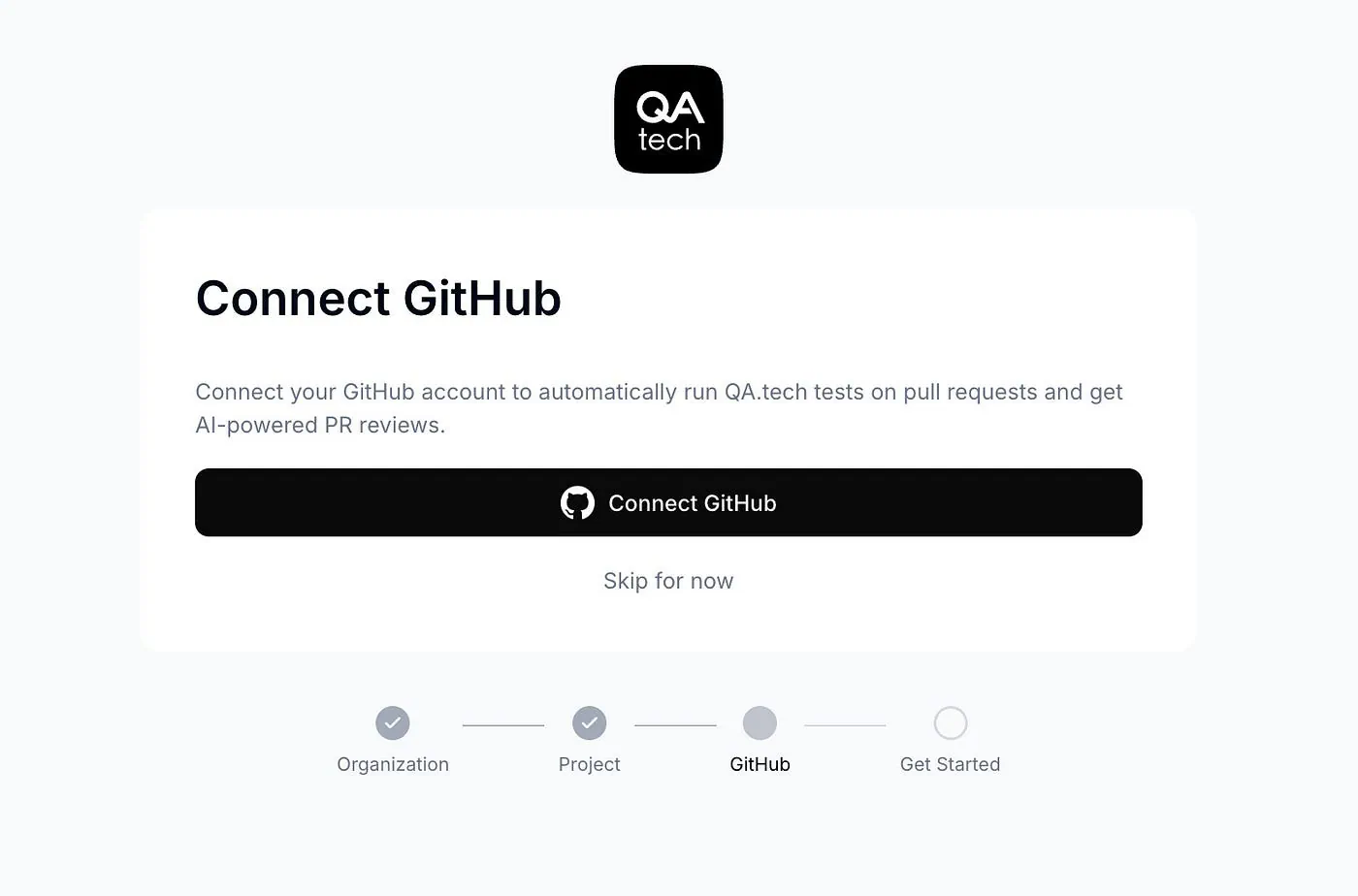
This is a good practice because it allows QA.tech to work with your pull request workflow. Instead of manually running tests after every change, you can run tests when a PR is created or updated.
This is where QA.tech becomes more useful for AI-assisted development.
When you ask Claude Code, Codex, or another coding agent to implement a feature, it can generate a lot of code in one go. Sometimes it updates multiple files across the frontend, backend, database logic, and test files.
A human reviewer can read the diff, but it is still easy to miss product-level bugs. The code may look fine, but the app’s behavior may be wrong.
By connecting GitHub, QA.tech can help test the running preview deployment before the code gets merged. That gives you a better chance of catching broken flows before they reach staging or production.
Step 4: Tell the Agent What You Want to Do
After setting up the project, QA.tech displays a prompt field asking what you want to do next.
For this example, I used this prompt:
Prompt: I’d like help setting up tests for my project
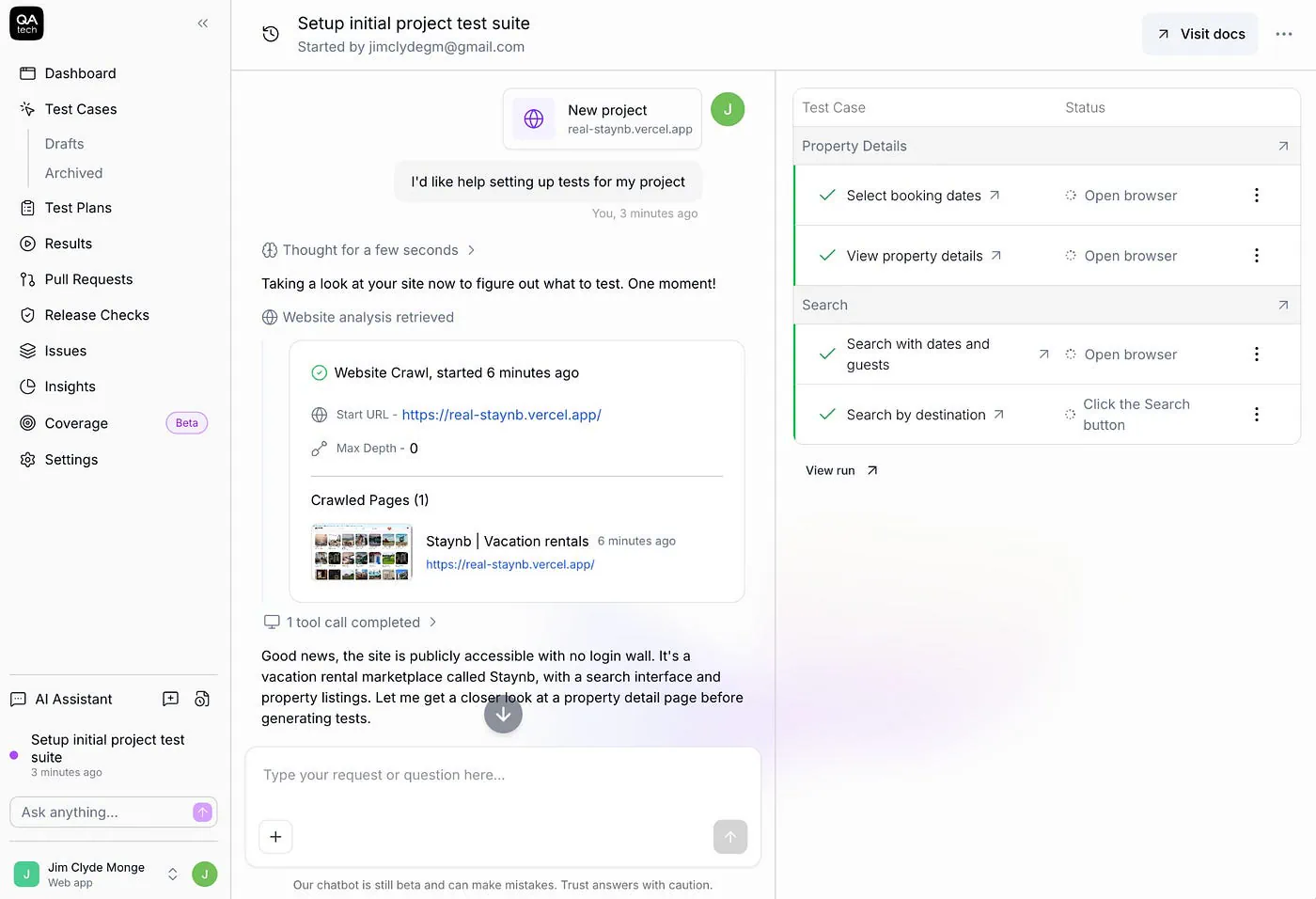
This is a simple prompt, but it is enough to get started. QA.tech then redirects you to a chat interface where the agent begins setting up and running test cases.
You can also be more specific if you already know the flow you want to test. For example, for this property listing app, I could ask:
Prompt: Test the search flow. Search for Paris, France, then check whether the property listings only show results that match the selected destination.
That kind of prompt is useful because it tells the agent what outcome you care about. Instead of only checking whether the search box accepts text, it checks whether the results are actually correct.
This is one of the parts I like about QA.tech. You do not need to start with a test file, selectors, assertions, or scripts. You can start with the expected behavior of the product.
That makes the testing process easier to understand, especially for teams where not everyone writes automated tests.
Step 5: Let the Agent Run the Tests
After you send the prompt, QA.tech starts running the test.
The agent opens the app in a browser and performs real interactions. It clicks buttons, uses fields, navigates through the interface, and checks whether the app behaves the way it should.
This is the main difference between QA.tech and simple code-level checks. It tests the application from the user’s perspective.
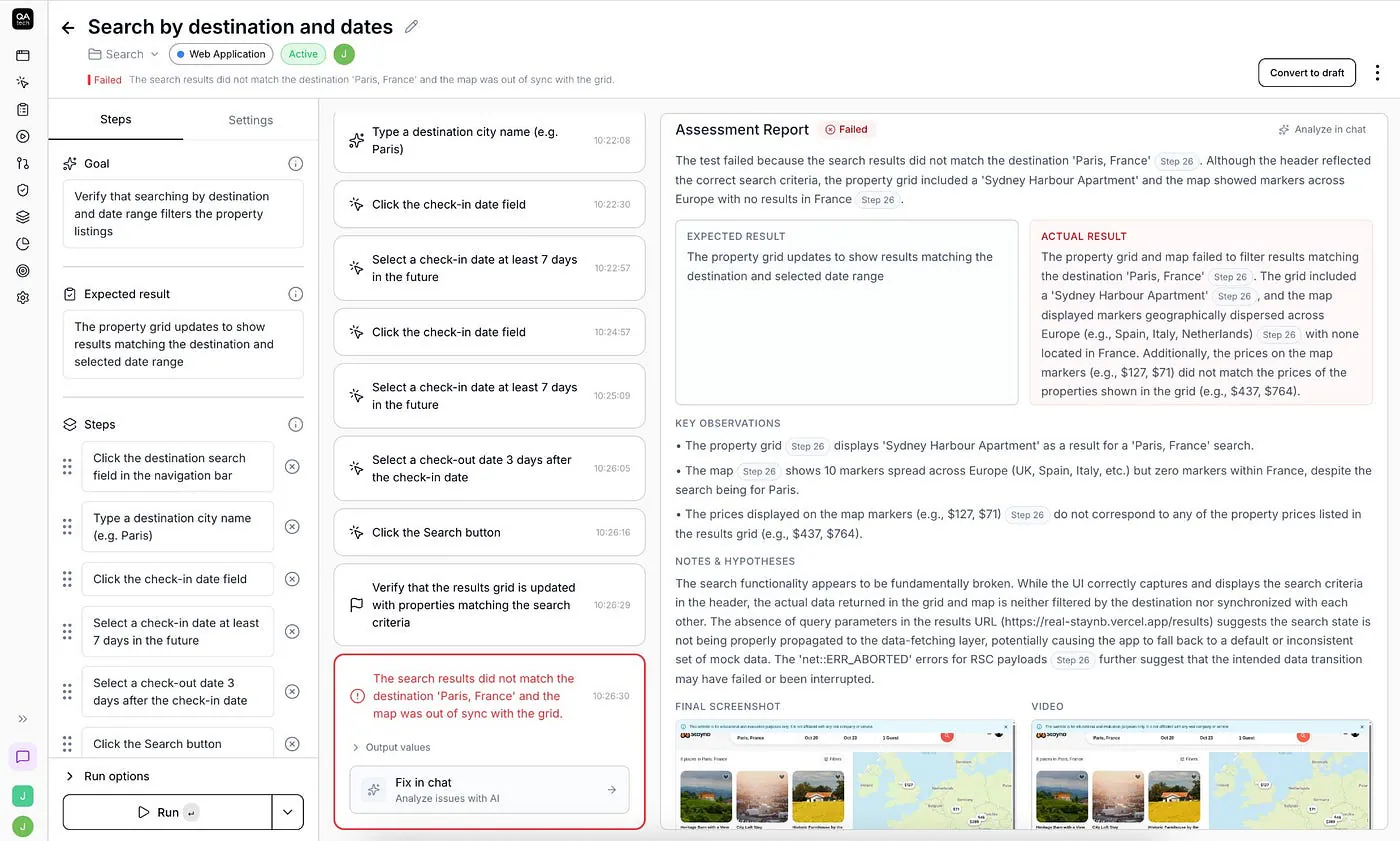
In my case, the agent tested the Real Staynb app and created a set of test cases. After a few minutes, the summary appeared on the right side of the screen.
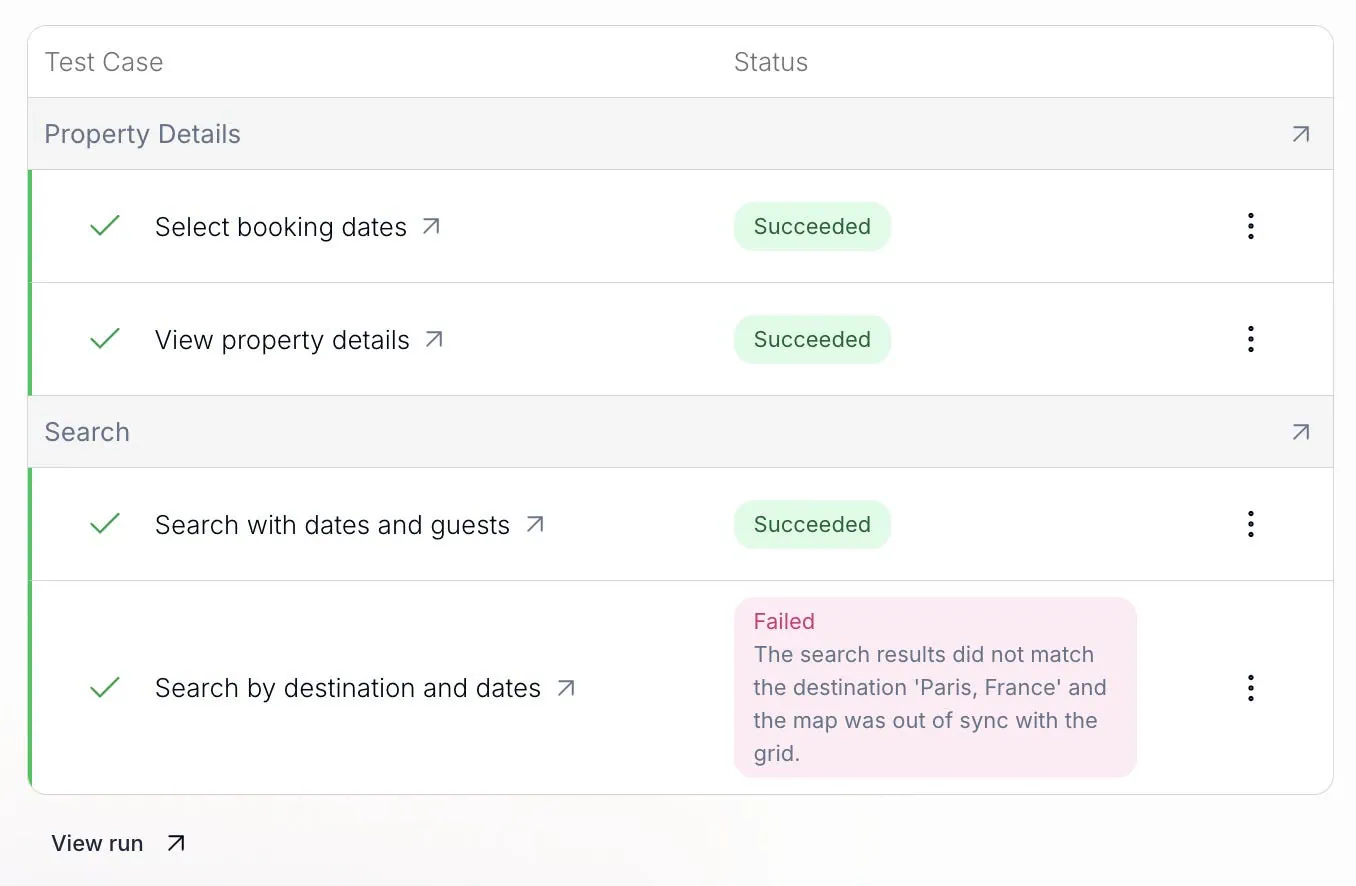
The result showed that three tests passed and one failed.
That is already useful. Instead of manually clicking around the app and guessing what might be broken, QA.tech gave me a clear testing result with a specific failed item to inspect.
Step 6: Review the Test Summary
Once the test finishes, QA.tech shows the results in the interface.
Passed tests confirm which flows worked as expected. Failed tests show where the app did not behave correctly.